
How can we help?
-
Getting Started
- Registration in the System
- Setting Up and Adding a New Project in Teletype App
- Removing the Teletype App Link
- Teletype App Affiliate Program
- What is the Teletype App?
- Terms in the Teletype App
- How to switch Teletype to English
- Switching the Panel to English
- Glossary Teletype App
- Registration in Teletype App via eLama
- Показать все статьи ( 2 ) Свернуть статьи
-
Adding Channels
- Connecting to Facebook
- Telegram bot
- Viber Bot
- VK Group
- Online Chat for Website
- Instagram Direct/Comments
- Button with Messengers
- Telegram by Phone Number
- Avito Personal Account
- VKontakte Personal Account
- Email Setup
- WhatsApp Business
- Connecting WhatsApp Without Authorization in the Panel via Link
- Connecting Telegram by Phone Number Without Authorization in the Panel via Link
- Connecting Max
- Connecting Max Bot
- SMS
- Показать все статьи ( 10 ) Свернуть статьи
-
Working with Dialogs
- Closing the Dialogue and the Answered Button
- Customer Information
- Working with Channel and Dialogue Filters
- Quick Reply Templates
- Message Read Status in WhatsApp and Viber
- Closing a Conversation in AmoCRM — Ending a Dialogue in the Teletype App
- Working with the Telegram Notifier
- Button ✉️ Take the next conversation
- Reassigning the Dialogue
- Hotkeys
- Sending Voice Messages on WhatsApp
- Categories for Dialogues in the Teletype App Panel
- Group Chats in WhatsApp
- Group Chats on Telegram by Number
- Tags
- Push Notifications
- Distribution of Requests
- Mass Actions
- Request Notifications
- Evaluation of Dialogues in Telegram and WhatsApp
- Personal Data
- Показать все статьи ( 13 ) Свернуть статьи
-
CRM Systems
-
Operators
-
Profile Editing
-
Additional Options
-
Online Chat Installation
- WordPress — Chat Code Installation
- Joomla — Chat Code Installation
- Bitrix — Chat Code Installation
- Opencart — Chat Code Installation
- WIX — Chat Code Installation
- MODx — Chat Code Installation
- Tilda — Installing Chat Code
- UMI.CMS — Chat Code Installation
- NetCat — Chat Code Installation
- PrestaShop — Chat Code Installation
- ImageCMS — Chat Code Installation
- PlatformaLP — Chat Code Installation
- LPmotor — Chat Code Installation
- A5.ru — Chat Code Installation
- Blogger — Chat Code Installation
- Canape CMS — Chat Code Installation
- CartEnergy — Chat Code Installation
- DIAFAN.CMS – Chat Code Installation
- DigiSt — Chat Code Installation
- Drupal — Chat Code Installation
- Flexbe — Chat Code Installation
- fo.ru — chat code installation
- Gophotoweb — Chat Code Installation
- io.ua — chat code installation
- IPBoard (Invision Power Board) — Chat Code Installation
- lact.ru — Chat Code Installation
- Magento — Chat Code Installation
- Показать все статьи ( 19 ) Свернуть статьи
-
Analytics
-
API
-
Billing
-
Telephony
-
Teletype Sender
-
Bot Builder
WIX — Chat Code Installation
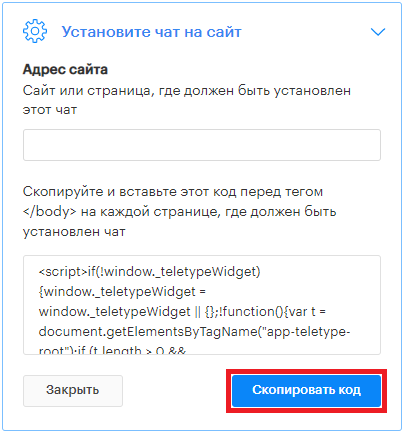
1. Copy the widget code from the Online Chat settings.
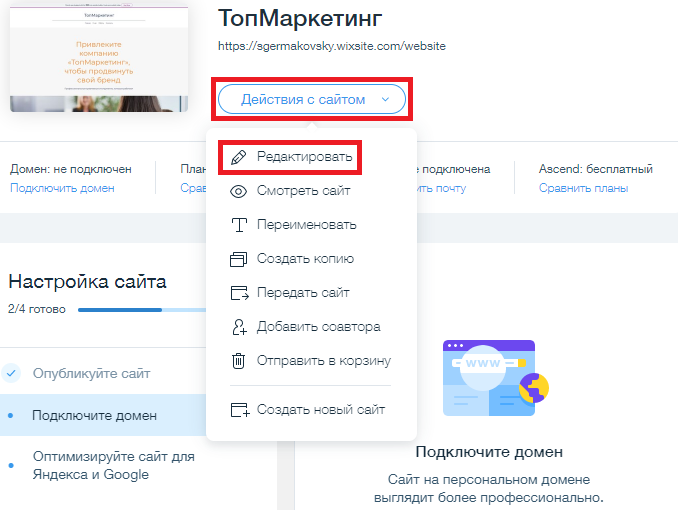
2. Log in to your wix.com account. Click the “Manage” button.

3. In the site settings, click the “Edit” button.
4. In the site editor, click the “Add” button (plus icon). Expand the list by clicking “More”. Select the HTML code icon. Drag the HTML code block onto the page.

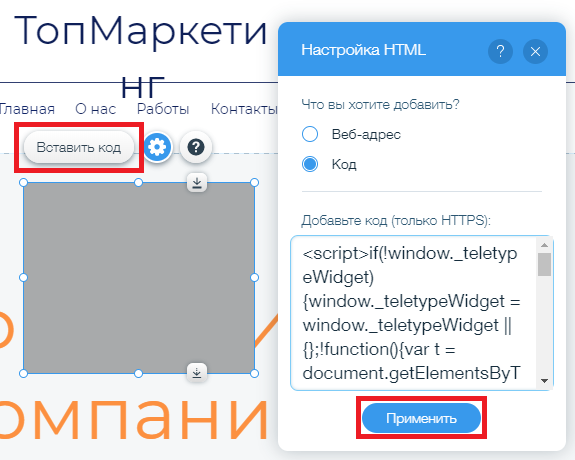
5. In the “What do you want to add?” list, select “Code”. Click “Enter Code”. The code copied in step 1 should appear. If it doesn’t appear automatically, paste it manually. Click “Apply”.
6. Set the block size to 350×600. You can do this either by dragging the corner handles of the rectangle or by adjusting the size in the right panel.

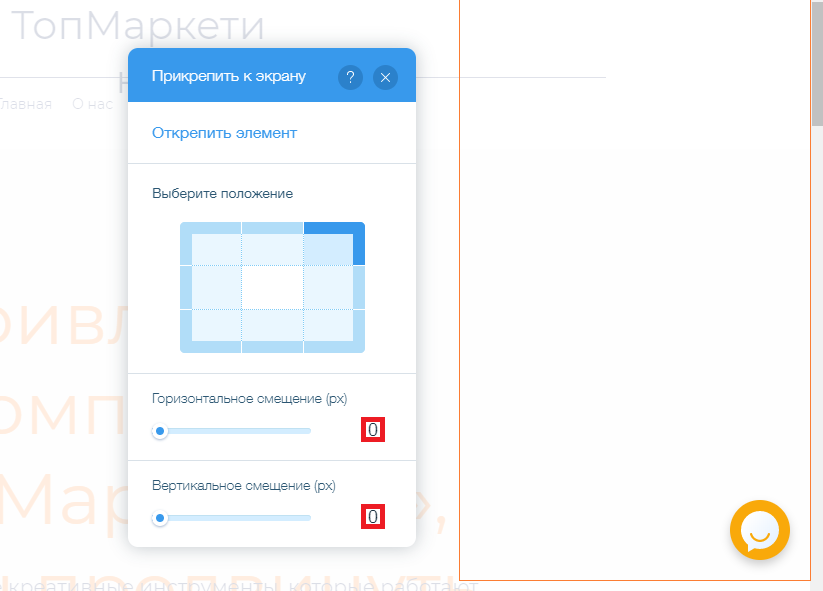
7. Right-click on the code block. Check the box “Show on all pages” to display the Online Chat on every page of your site. Select “Pin to screen” to attach the chat to the bottom of the screen.

8. Choose the desired position for the chat button. Set both vertical and horizontal offsets to “0”.
9. Publish your site. The Online Chat will appear on your website.