How can we help?
Connecting Telegram by Phone Number Without Authorization in the Panel via Link
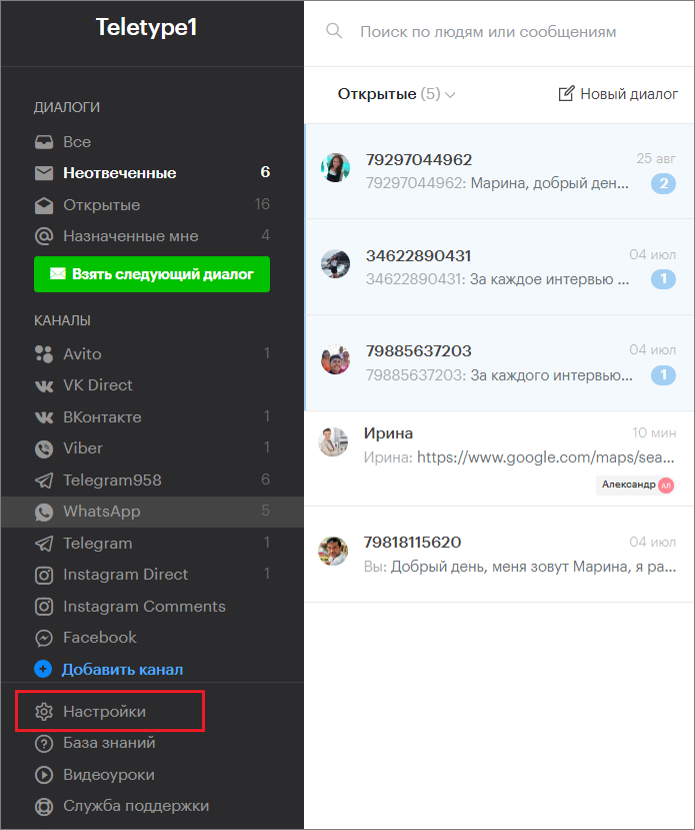
- Go to the “Add Channel” section in the left menu of the Teletype panel or in the project settings.
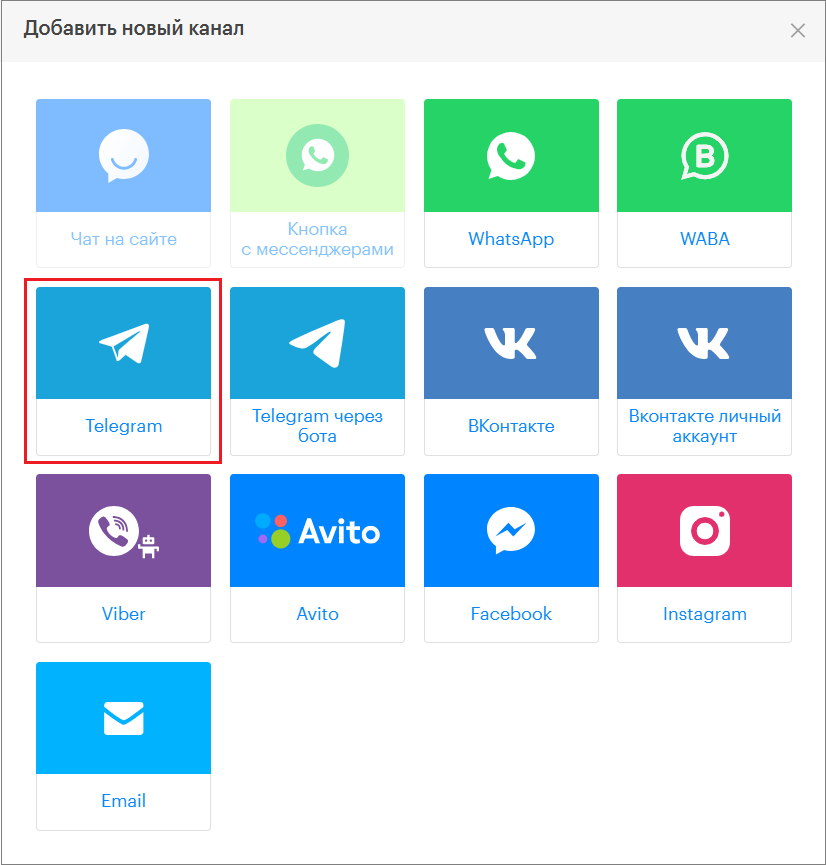
2. In the window that appears, select the “Telegram” block.
3. Click “Add Telegram to the plan.”
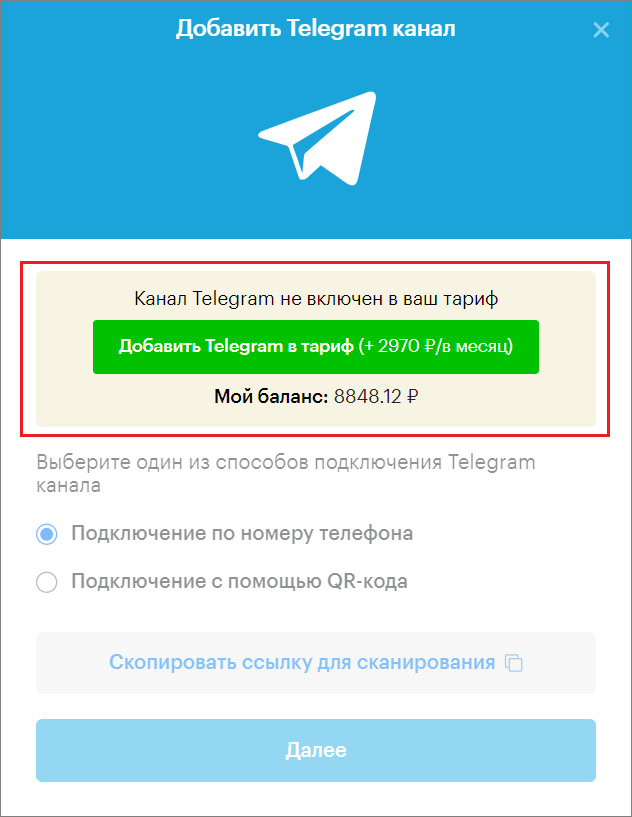
A window will open to connect Telegram via phone number.
4. Copy the link for scanning.
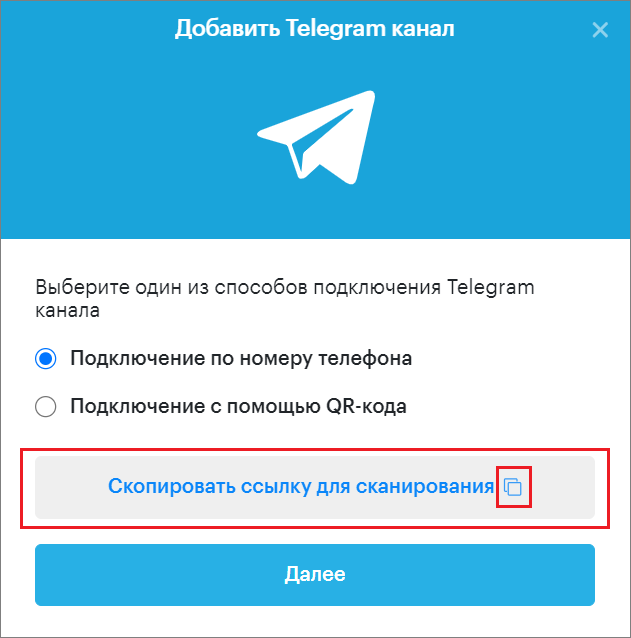
5. Send the copied link via any messenger to the user who will connect Telegram.
The copied connection link is valid for 3 hours, after which it expires and a new one must be generated.
6. Paste the copied link and open it in a browser.
A window will open to connect Telegram via phone number.
7. Choose the method to connect Telegram by phone number.
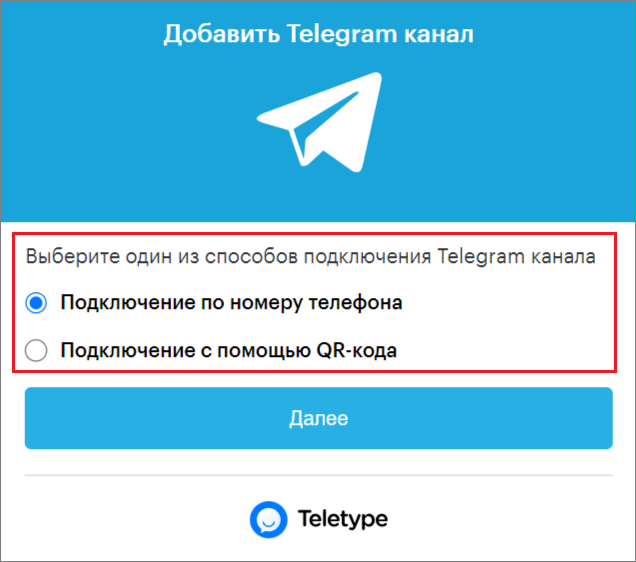
Connecting via Phone Number
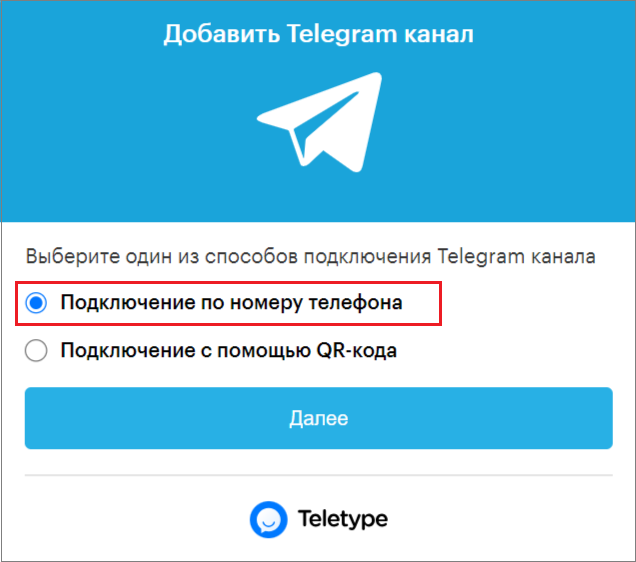
1. Select “Connect via phone number.”
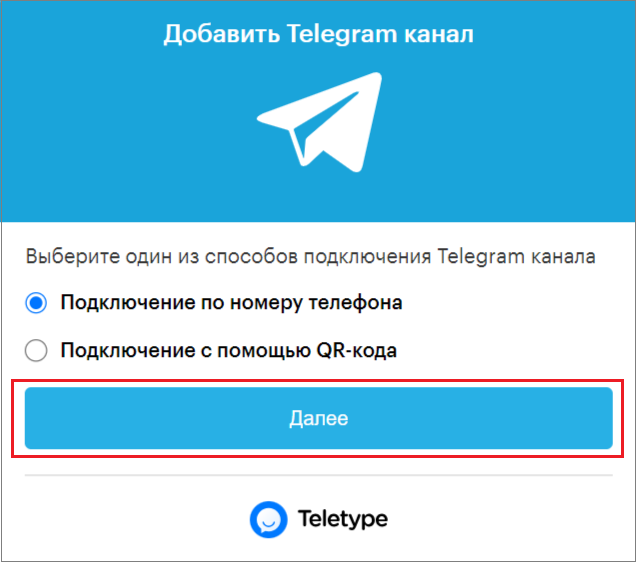
2. Click “Next.”
3. Enter the phone number you want to connect.
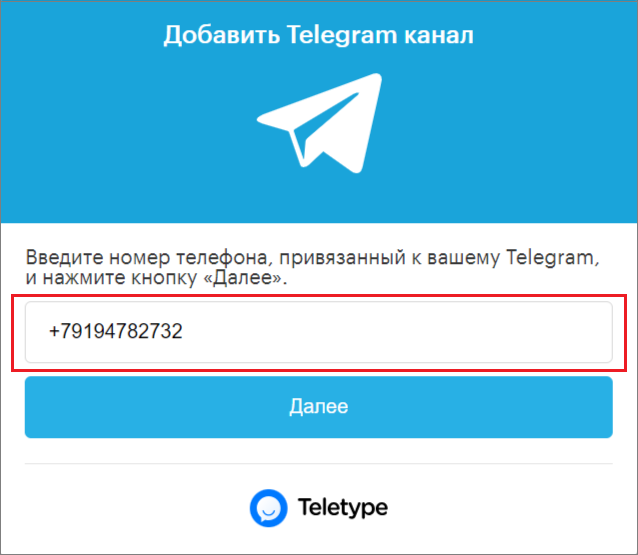
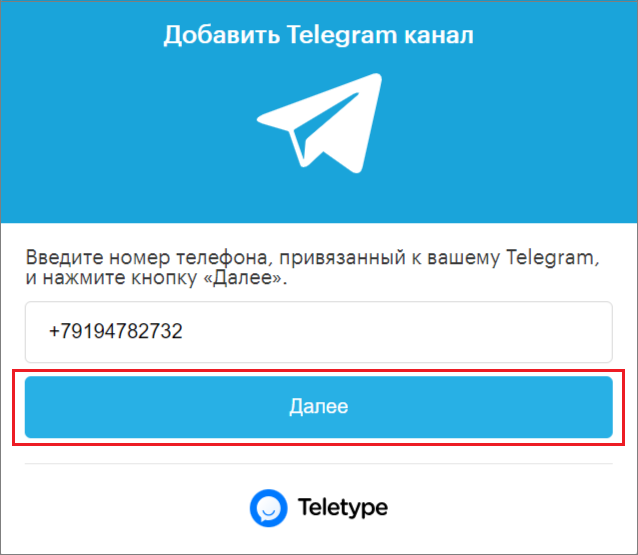
4. Click “Next.”
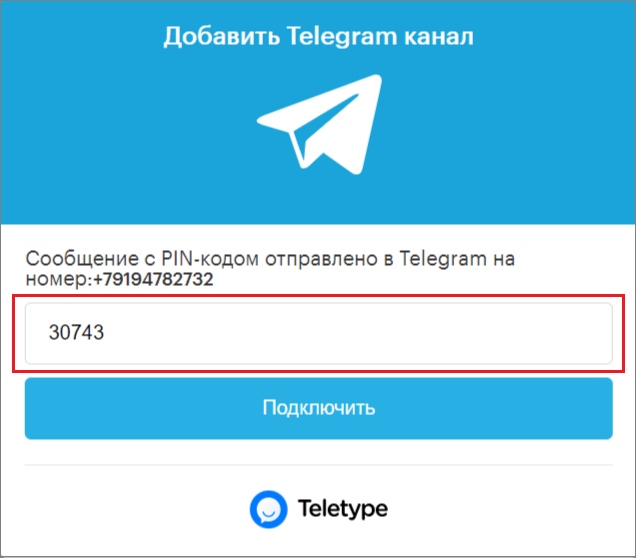
5. Wait for the PIN code sent to your Telegram and enter it in the field.
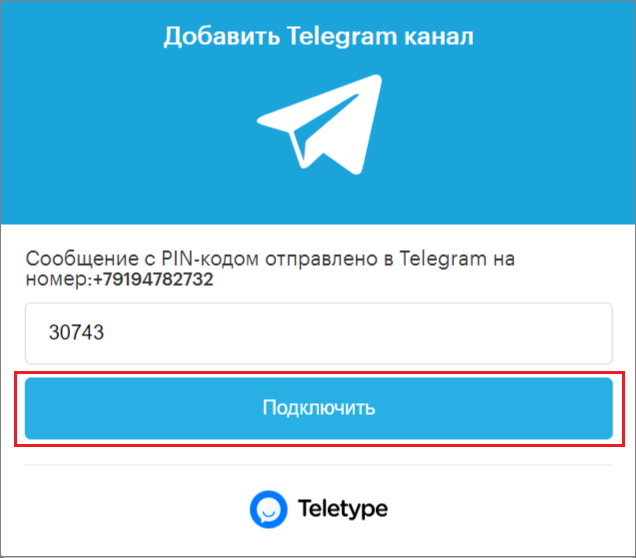
6. Click “Connect.”
7. The channel is connected.
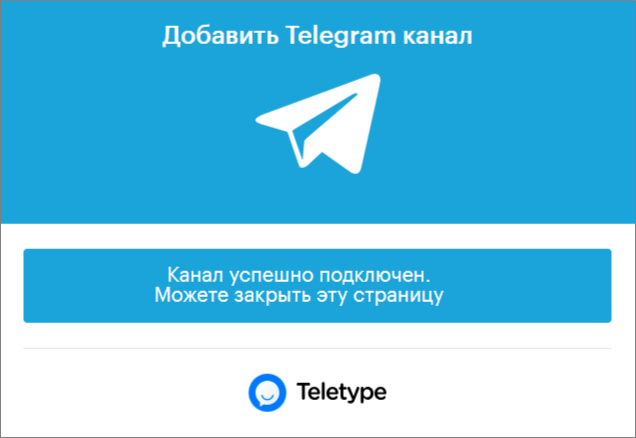
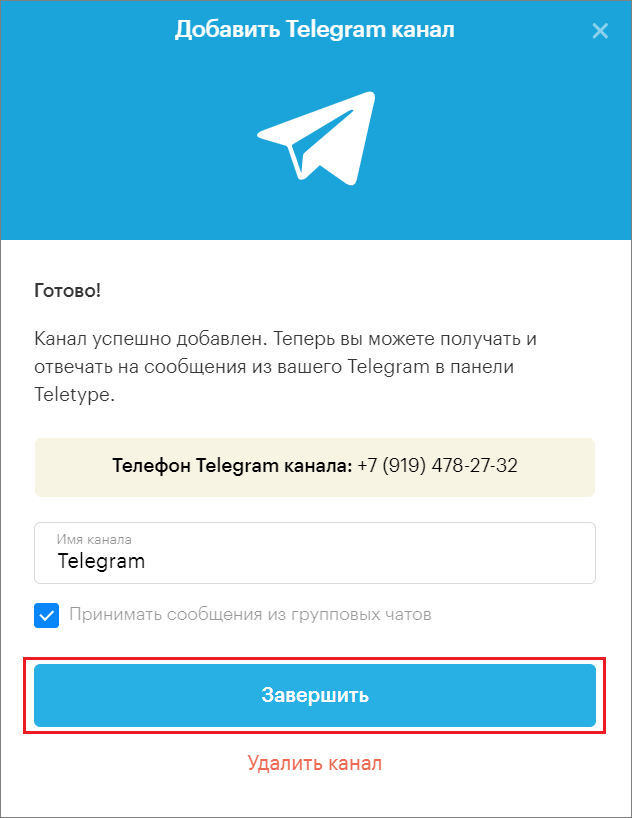
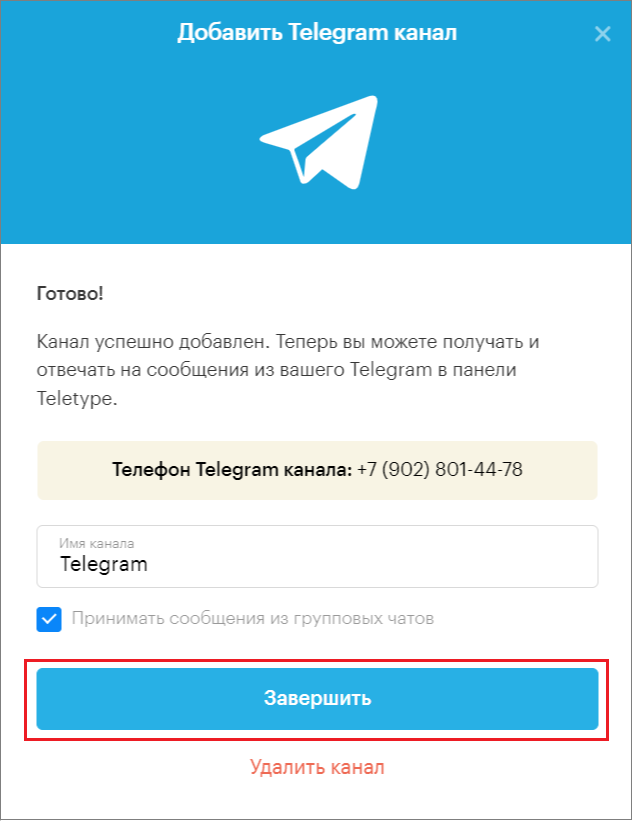
8. In the Teletype App panel, click “Complete connection.”
Connecting via QR Code
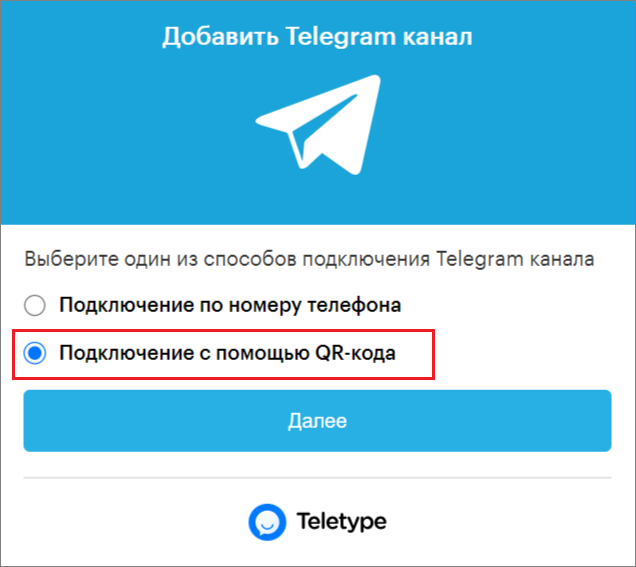
- Select “Connect via QR code.”
2. Click “Next.”
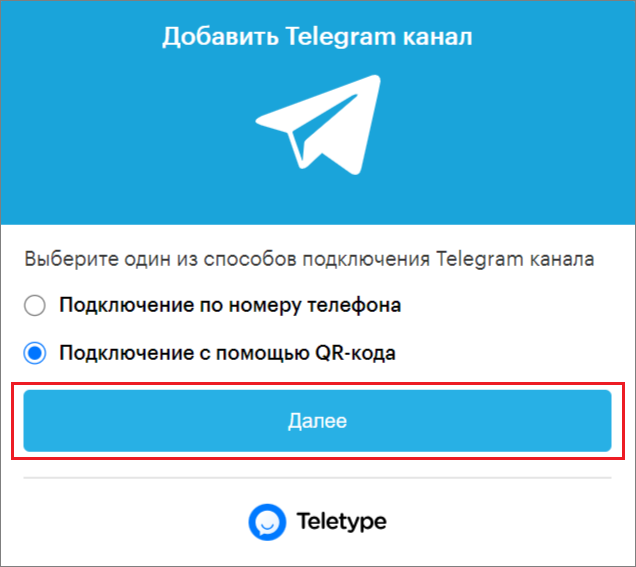
A window with a QR code to connect the Telegram channel will open.
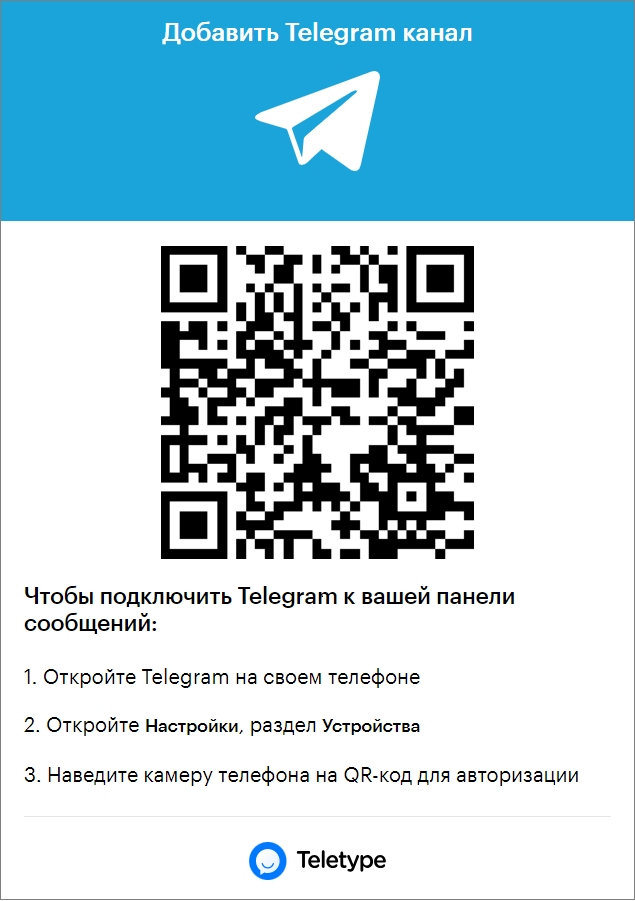
3. Open the Telegram app on your phone.
4. Tap the three horizontal lines in the top left corner of the screen.

5. Open “Settings.”
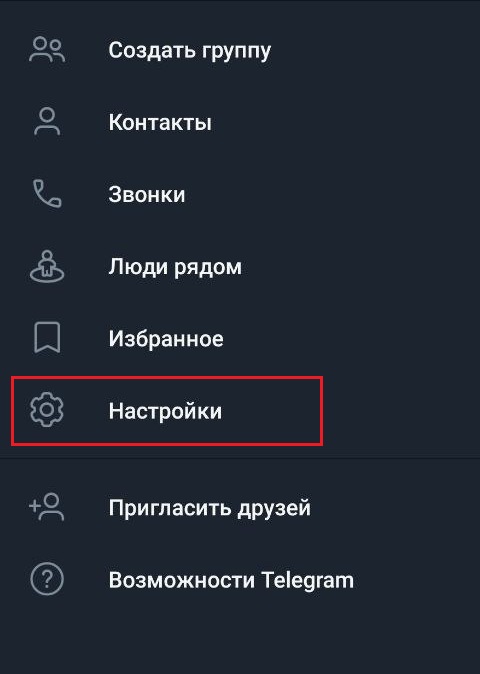
6. In settings, open “Devices.”

7. Click “Connect device.”
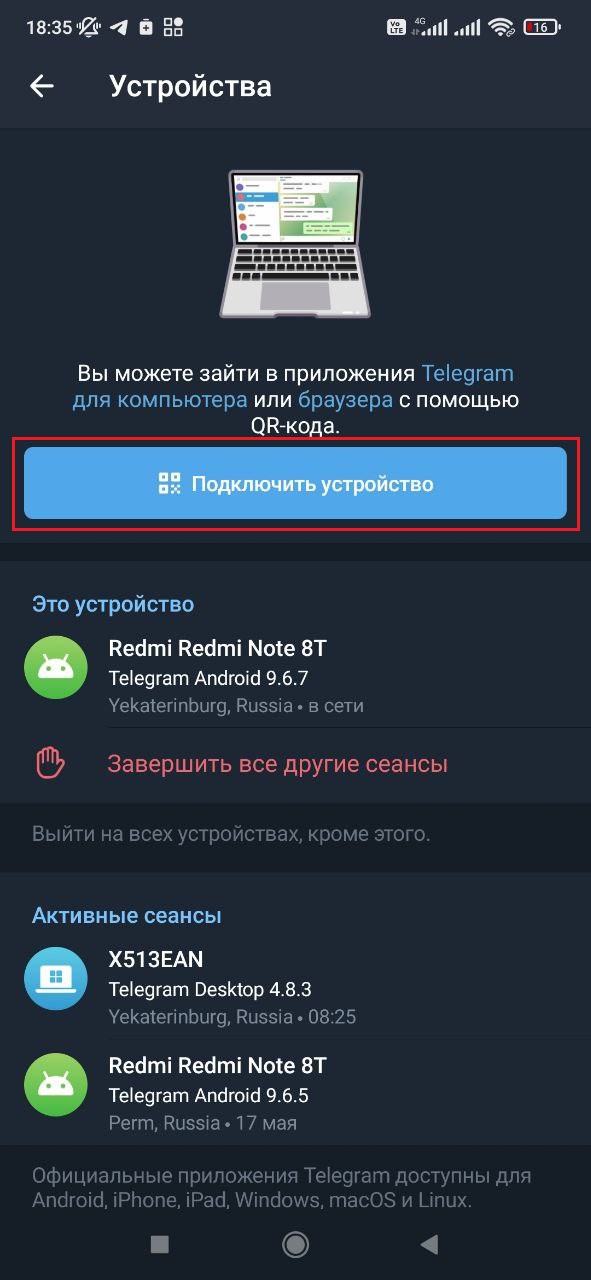
8. Point the Telegram app’s camera on your phone at the QR code and wait for the successful scan notification.
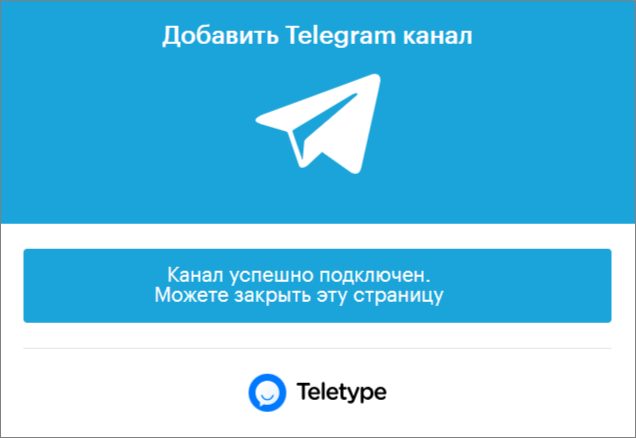
9. In the Teletype App panel, click “Complete connection.”