
How can we help?
Guide to Creating Newsletters for Restoplace
Step 1. Exporting the Guest Database List
1. Open Restoplace and go to Statistics → Guest Database.
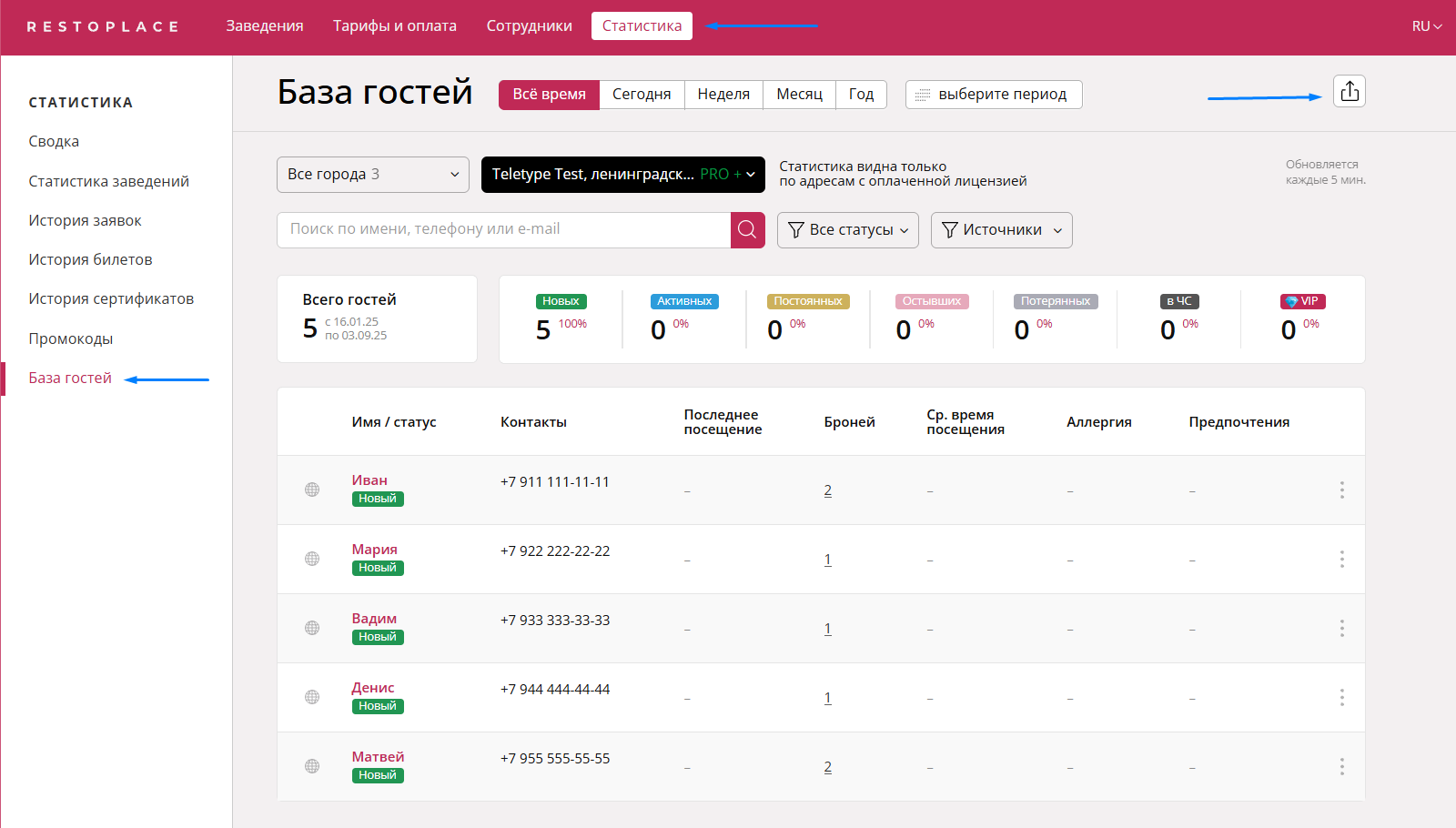
2. After selecting the desired venues, click the export button and choose the CSV format.
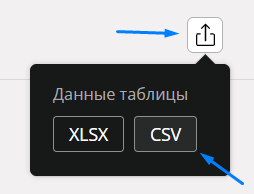
Now you have a ready-made spreadsheet with contacts from the selected venue.
Step 2. Preparing Contacts
for Import into Teletype Sender
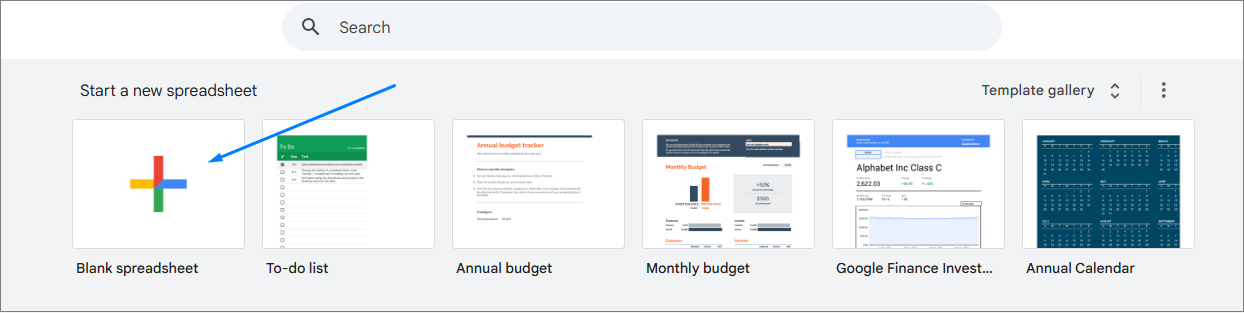
1. To edit the contact list, you can use the free tool Google Docs. Open Google Sheets and create a new document.
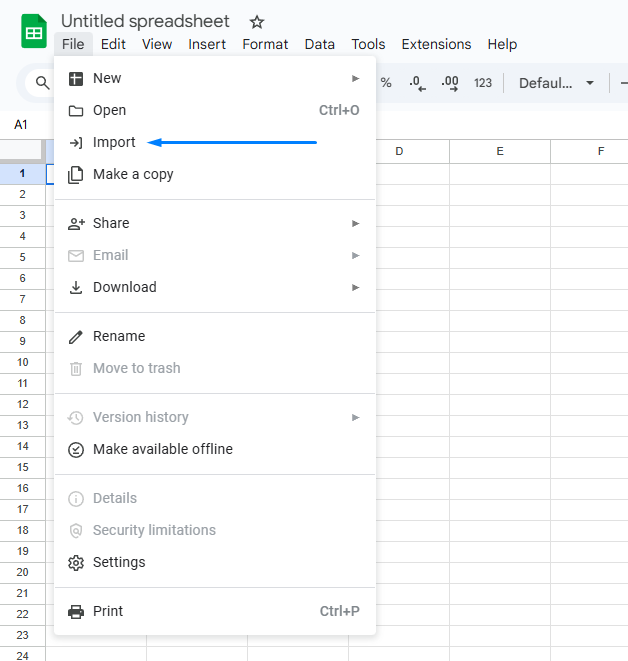
2. Go to File → Import → Upload → Select file and upload the CSV file you exported in Step 1.
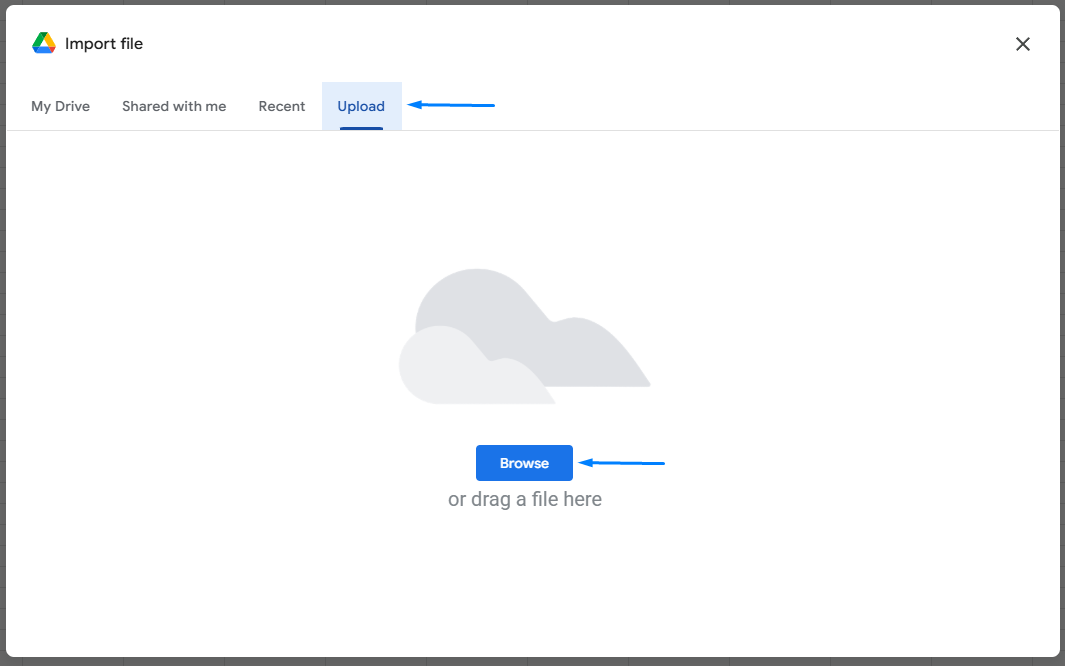
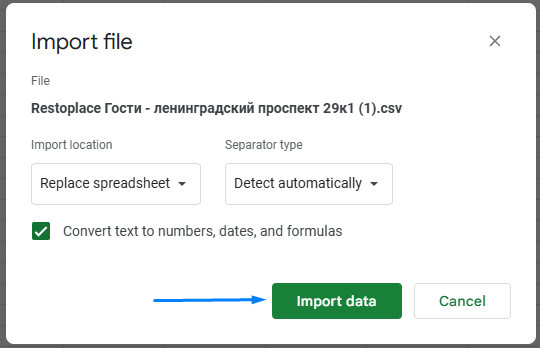
3. After importing, you need to add a row with column headers:
Select the first row.
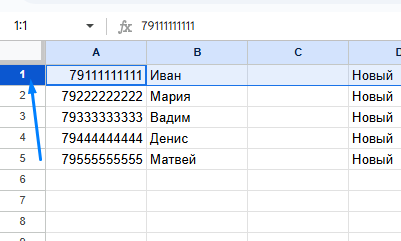
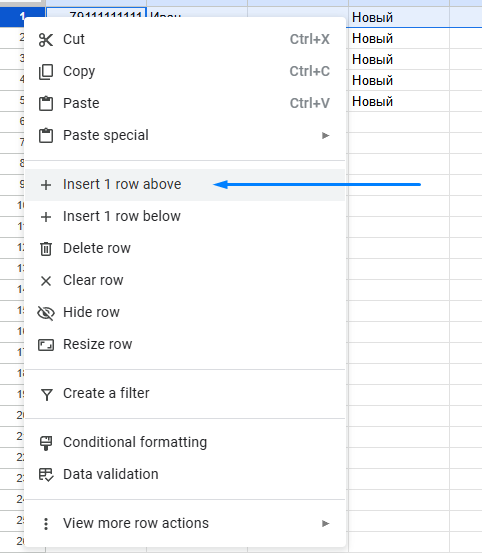
Right-click on the number of the first row.
In the menu that appears, select Insert 1 above.
In the first cell of the phone number column, enter “phone”
In the first cell of the guest name column, enter “name”.
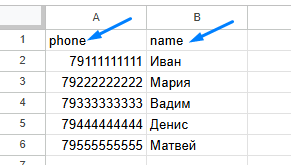
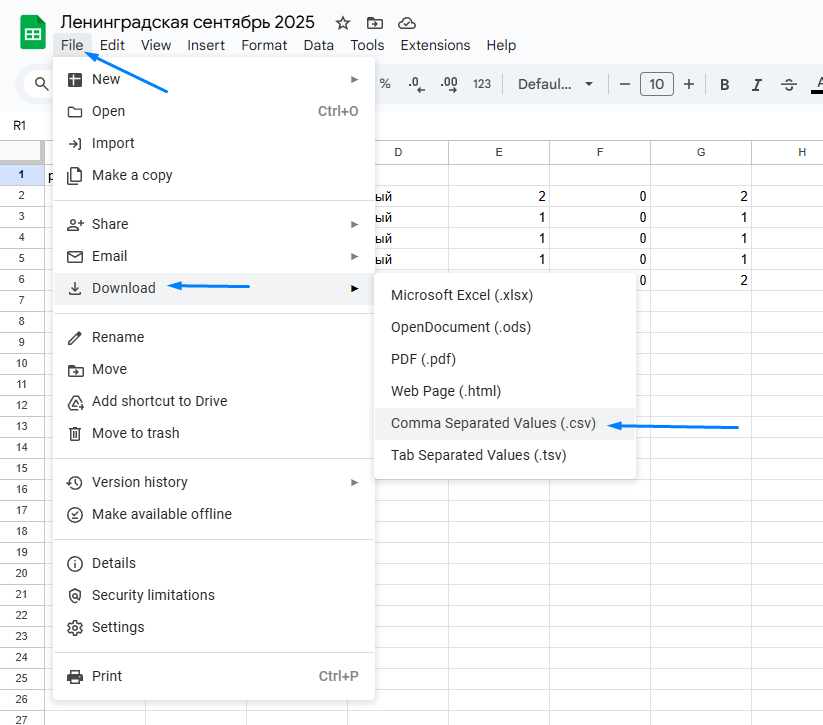
4. To save the file, go to
File → Download → Comma Separated values (.CSV).
5. We recommend giving the file a clear name immediately after saving, for example — “address date”.
Do not use dots in the filename!
Step 3. Importing Contacts into Teletype Sender
1. Open Teletype Sender.
2. Go to Contacts → Add Contacts and select the CSV file prepared in the previous step.
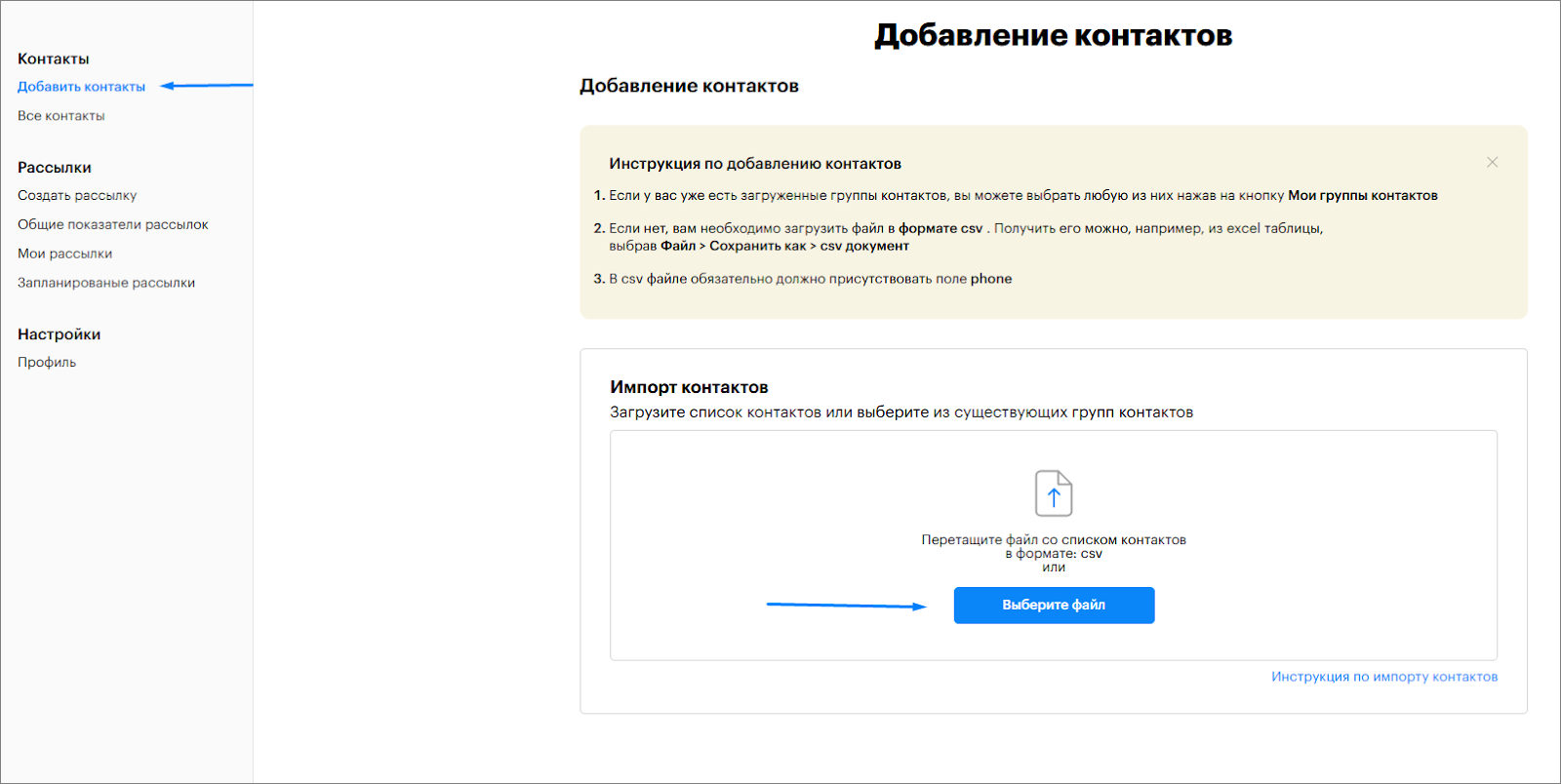
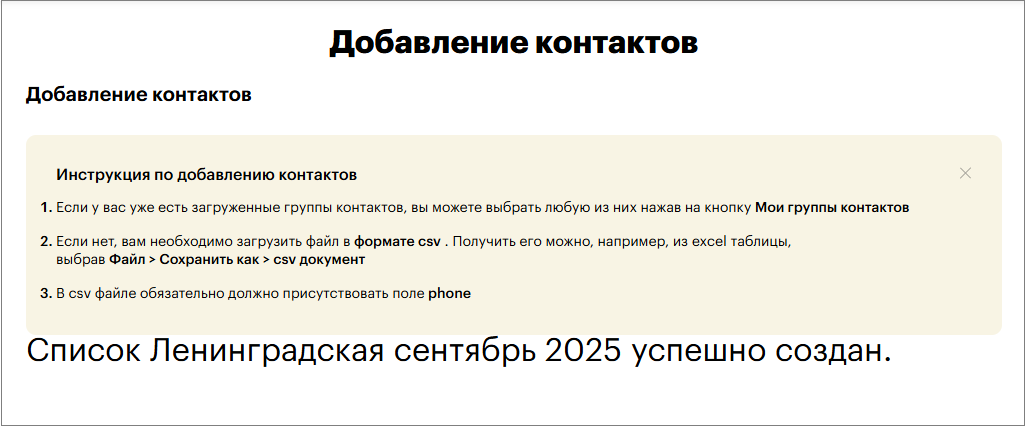
3. After uploading the file, a notification “List created” will appear — this means the contacts are ready for sending.
4. All previously created lists can be viewed in Contacts → All Contacts.
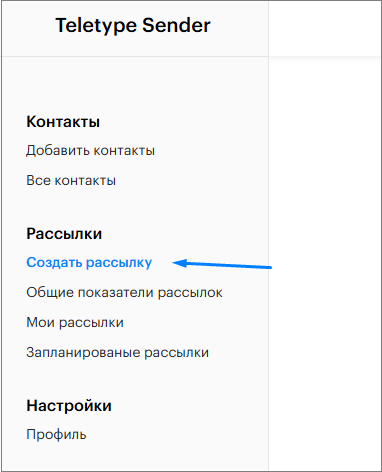
5. Go to Mailings → Create Mailing.
6. Enter the mailing name.

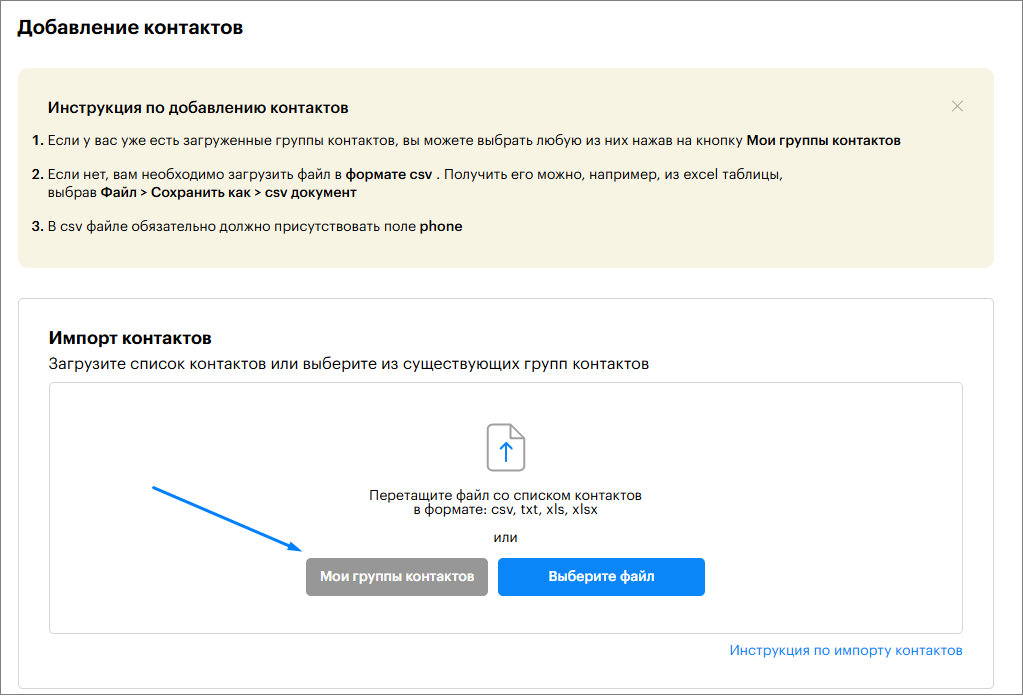
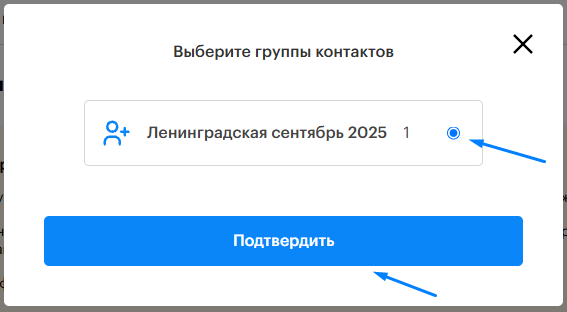
7. In the Import Contacts block, click My Contact Groups, select the desired group, and click Confirm.
Step 4. Mailing Text and Sending Settings
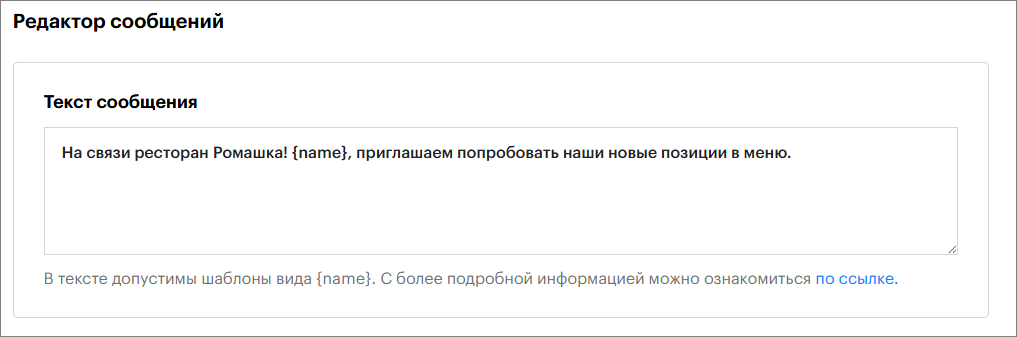
1. In the editing window, write the message text
(you can use the variable {name}, which will automatically be replaced with the name recorded in the client database file).
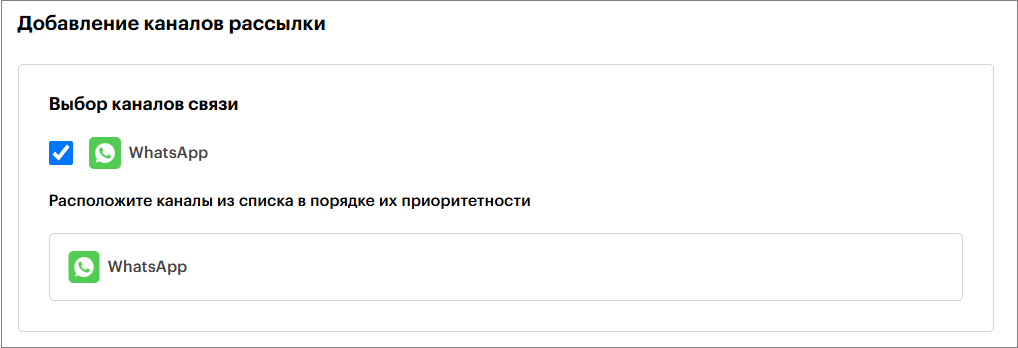
2. Select the communication channels for the mailing.
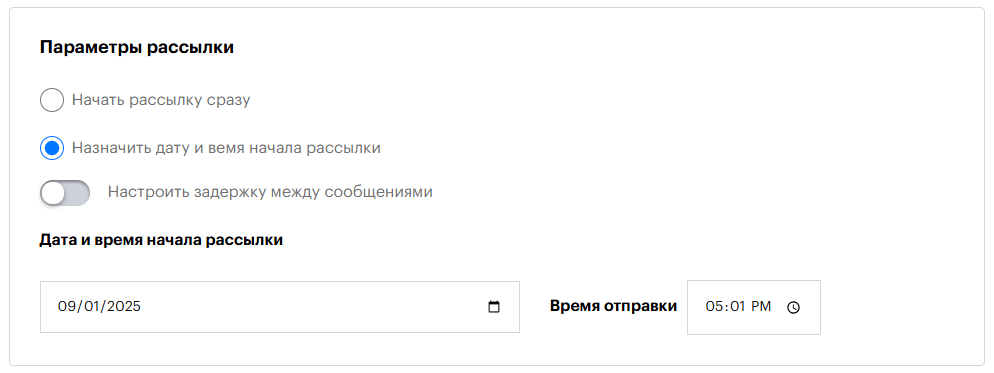
3. Set the date and time to start the mailing.
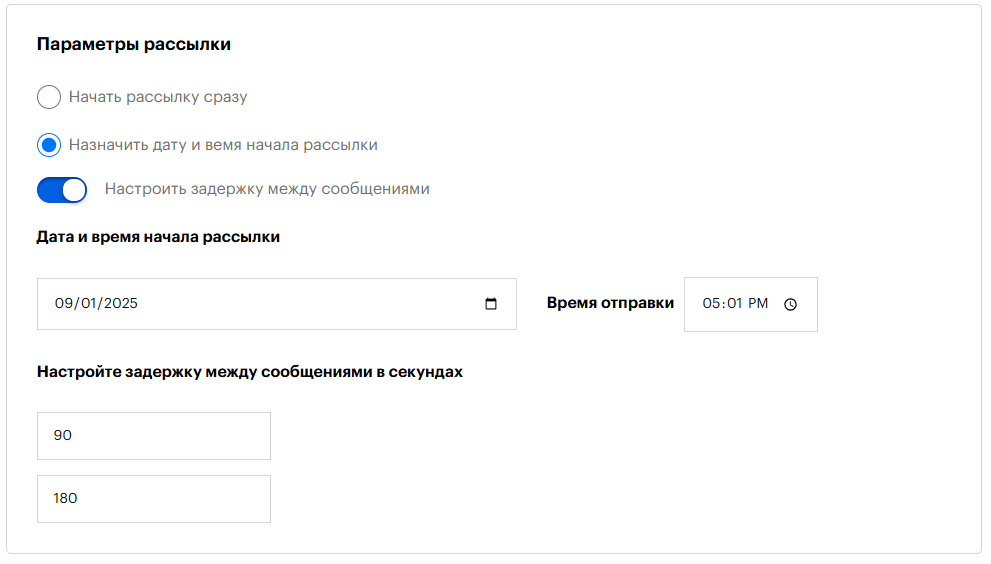
4. Be sure to enable the delay between messages —
minimum 45 seconds, maximum 90 seconds.
(If the segment is large, it’s better to set higher values.
minimum 90 seconds, maximum 180 seconds.)
5. Click Save.

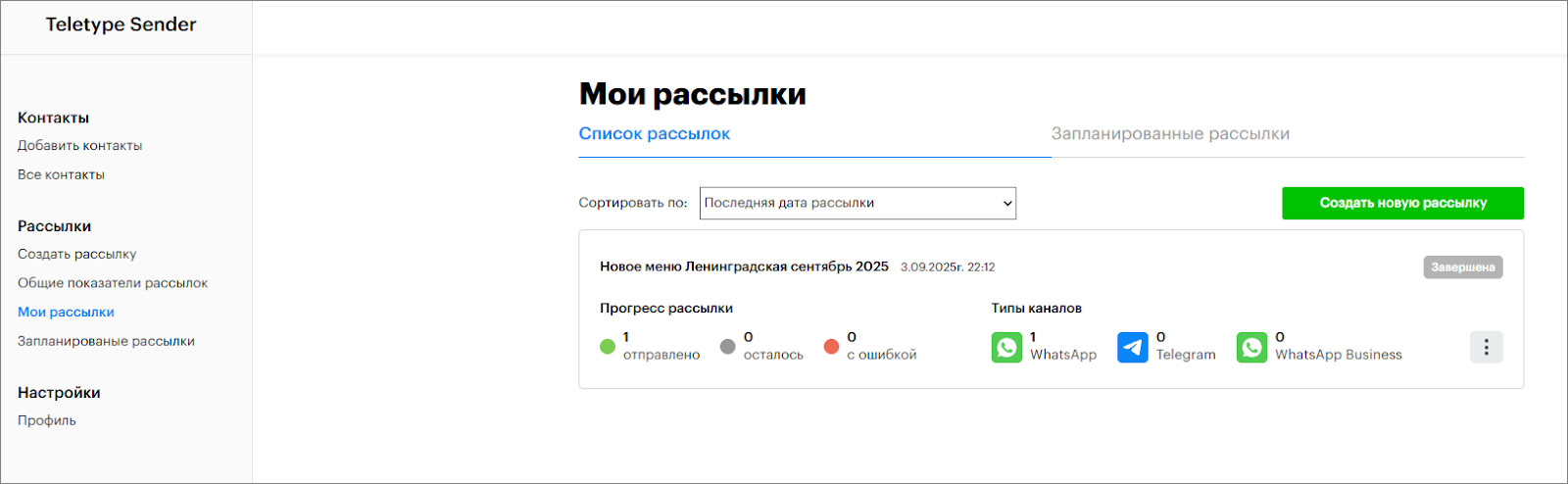
6. You can track the mailing progress in the My Mailings section.
Mailing Recommendations
- We recommend sending the first mailing as a test, leaving 1-2 contacts in the spreadsheet. This allows you to see how the message looks to the client and ensure everything is set up correctly.
- Take breaks between messages of 90–180 seconds to prevent WhatsApp from blocking the number. If the segment is large, increase the pause — the longer the delay, the lower the risk of spam blocking.
- It is recommended to send no more than 60 messages per day. If the segment is large (for example — 500 clients), it’s better to split it into several mailings of 50 clients per day.
- If you are just starting to use Teletype.app and/or Teletype Sender and have questions — you can always contact Teletype.app support. A technical specialist will help you set up and master the tool for launching mailings.