
How can we help?
Connecting YClients
- Registration in Teletype
- Creating a WhatsApp channel
- Connecting WhatsApp
- Creating and connecting Telegram by phone number
- Connecting and configuring YClients in the Teletype panel
- How to set up notification sending
Registration in Teletype
To get started, you need to register in Teletype. You need to:
- Go to the website https://teletype.app
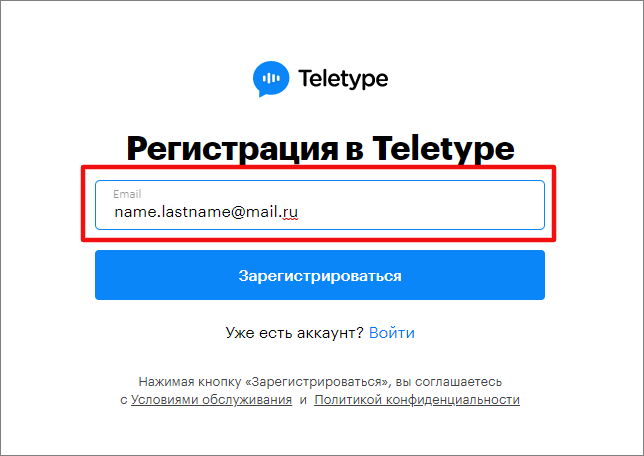
2. Click the “Register” button on the main page of the site and enter the email address to which your account will be linked in the window that opens.
3. Click “Register,” set a password, re-enter the password for confirmation, and specify the project name.
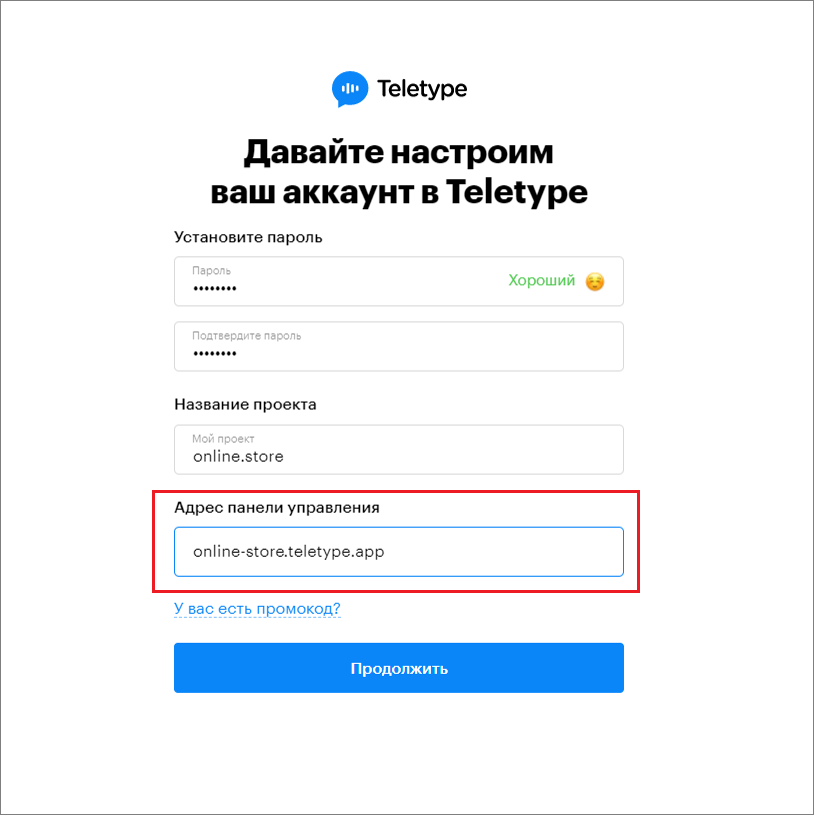
4. Change the control panel address if necessary. The control panel address is generated automatically using the formula: projectname.teletype.app.
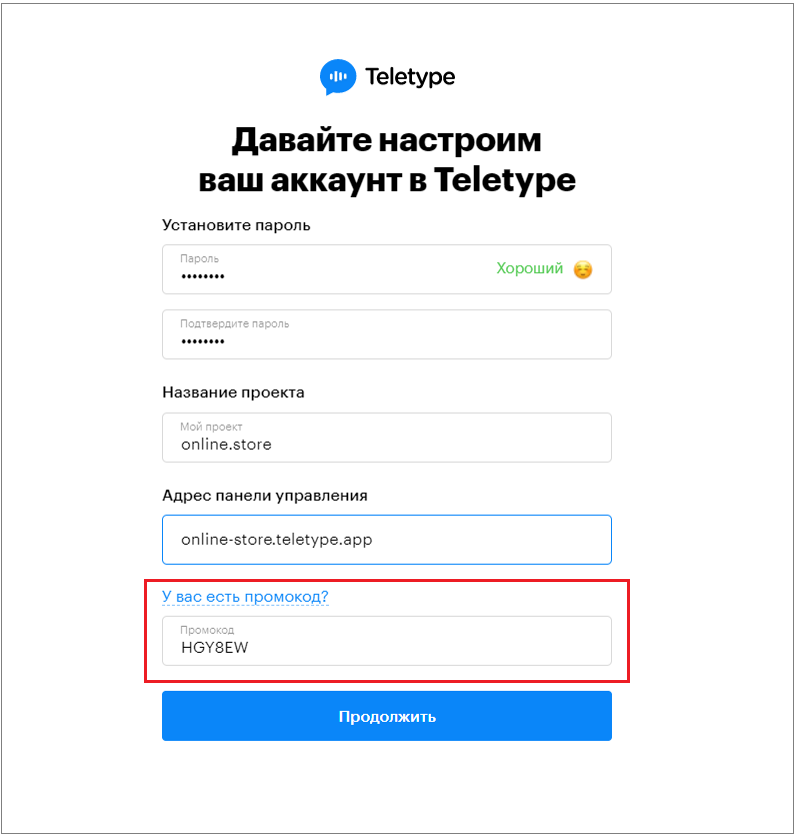
5. If you have a promo code, click on “Do you have a promo code?” and enter the promo code in the corresponding field.
6. Click “Log in” and on the page that opens, fill in the account owner’s name, phone number, and company website (if available).
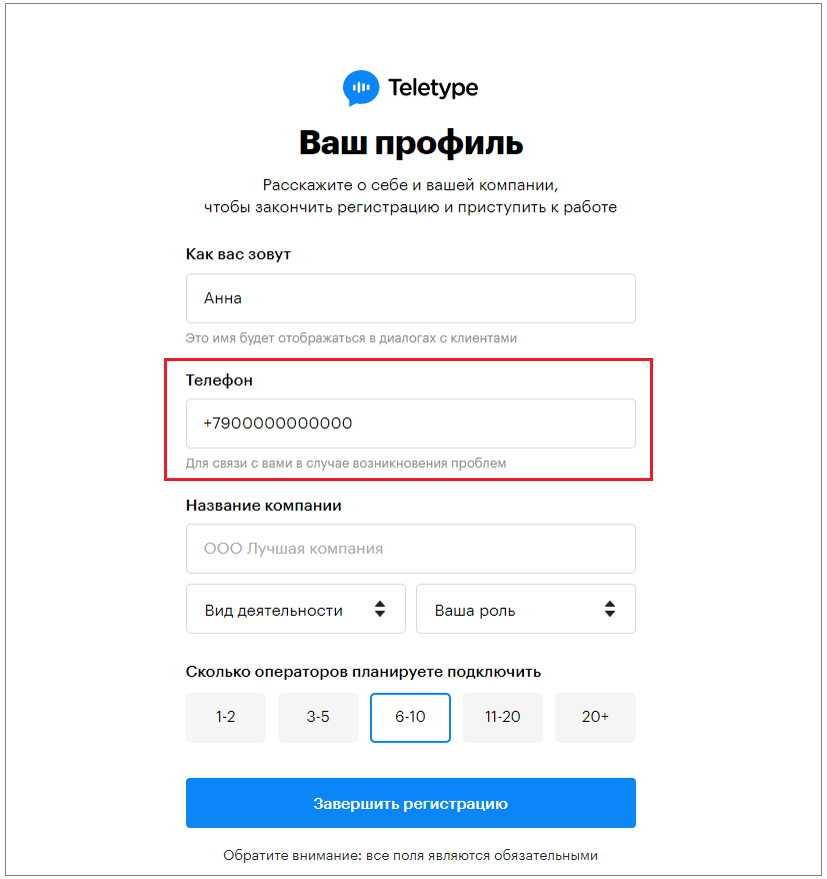
7. Click “Complete registration.”
Creating a WhatsApp channel
Next, you need to create a WhatsApp channel.
Before integrating WhatsApp with Teletype, you must close all other WhatsApp Web sessions.
To do this:
1. Open the WhatsApp app on your phone.
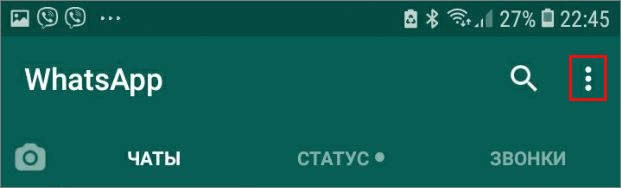
2. Tap the three vertical dots in the top right corner.
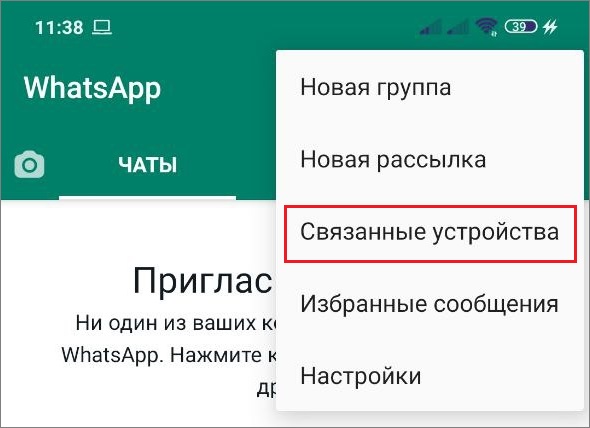
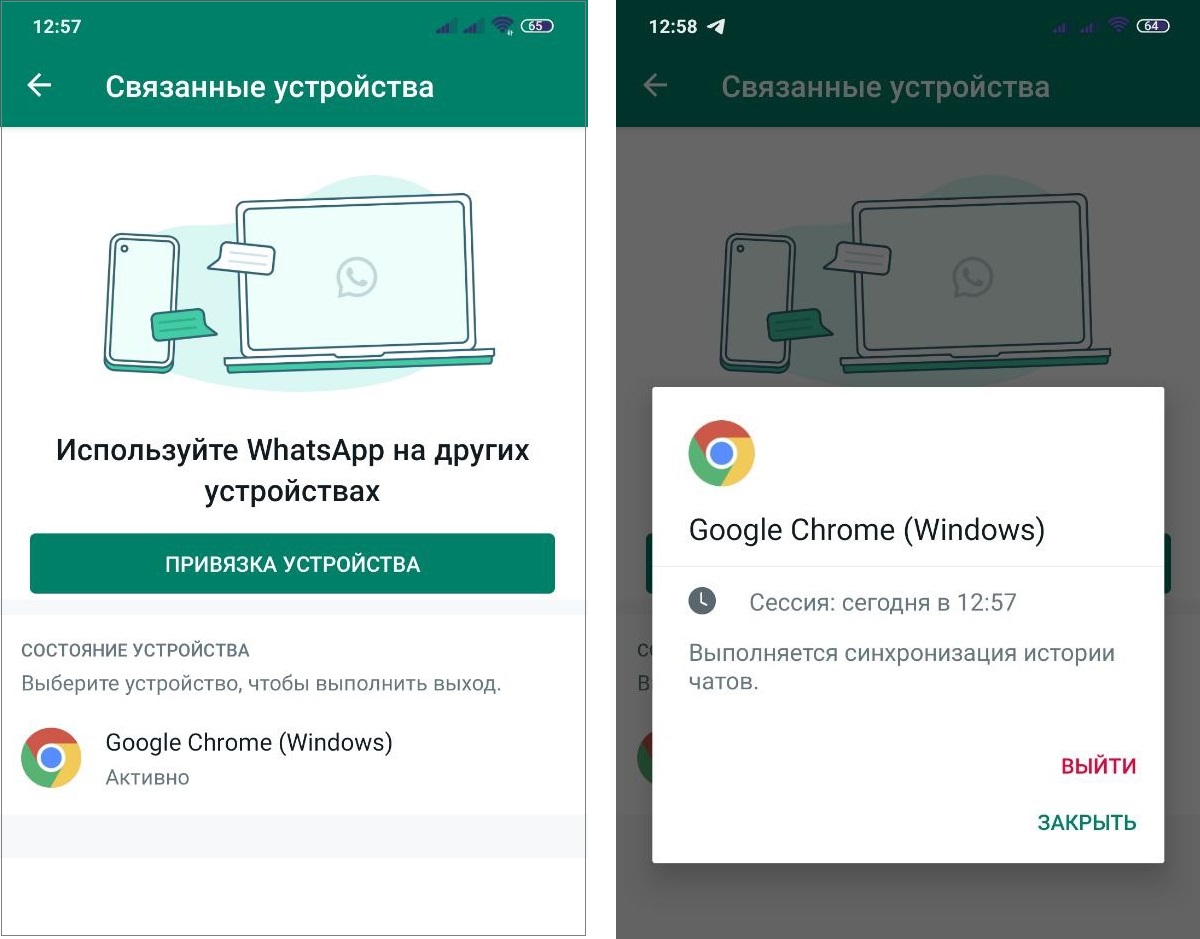
3. Tap “Linked devices” – select the device and tap “Log out.”
You can connect an unlimited number of WhatsApp accounts to your Teletype project.
Connecting a WhatsApp channel
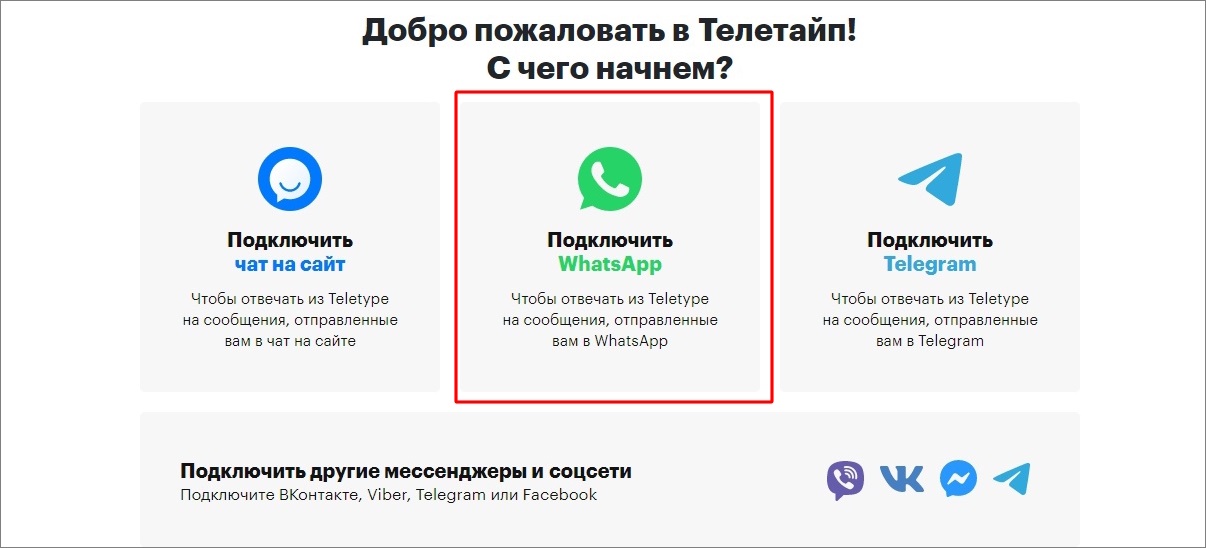
In the Teletype panel, you will see a welcome window. You need to select “Connect WhatsApp.”
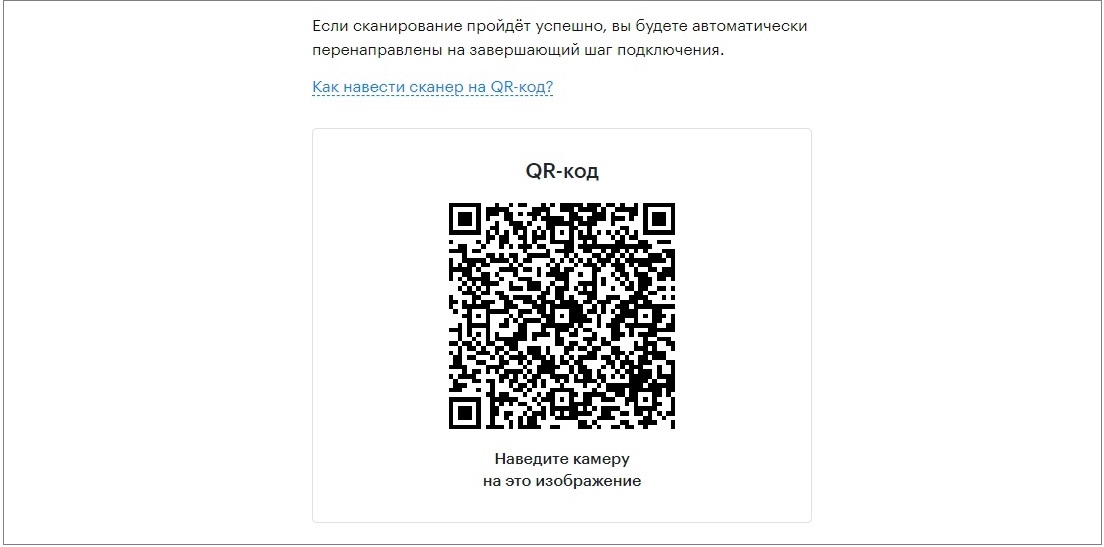
1. Click “Continue,” scroll down, and you will see a window with a QR code.
2. Then on your phone, tap “Link a device.”
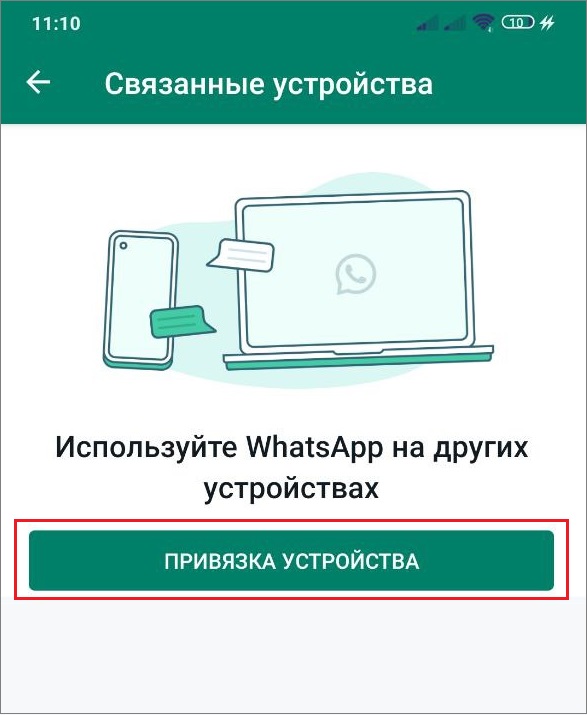
3. The camera will open with a window to scan the QR code. Point your camera at the code displayed in the window on your computer.
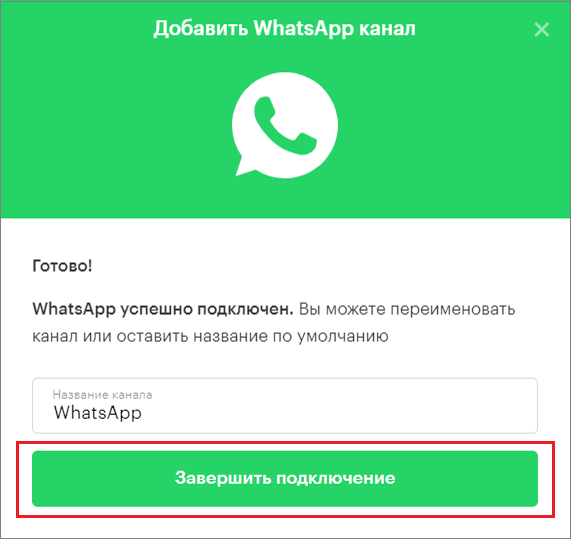
4. If necessary, change the channel name and click “Complete connection.”
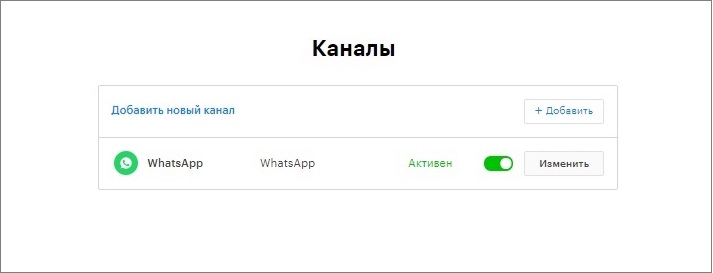
5. If everything is done correctly, the “channels” section will show that your WhatsApp channel is connected.
Creating and connecting a Telegram channel by phone number
To create a Telegram channel by phone number, you need to:
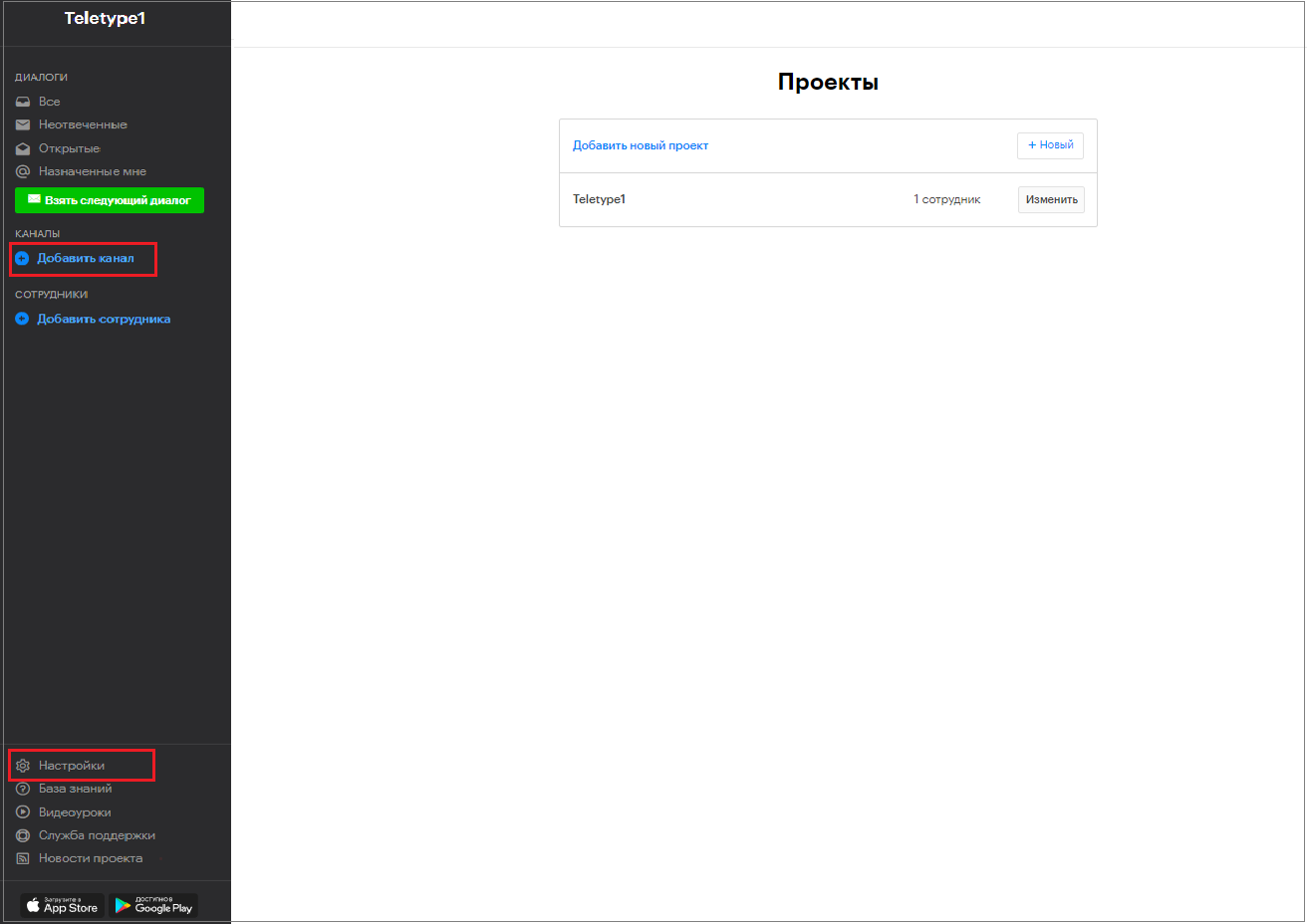
- Go to the “Add channel” section in the left menu of the Teletype panel or in the project settings.
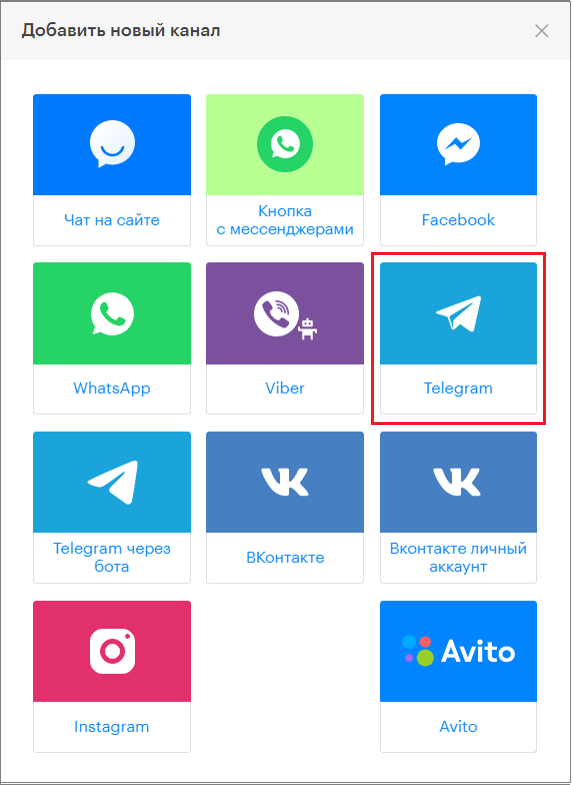
2. In the window that appears, select the “Telegram” block.
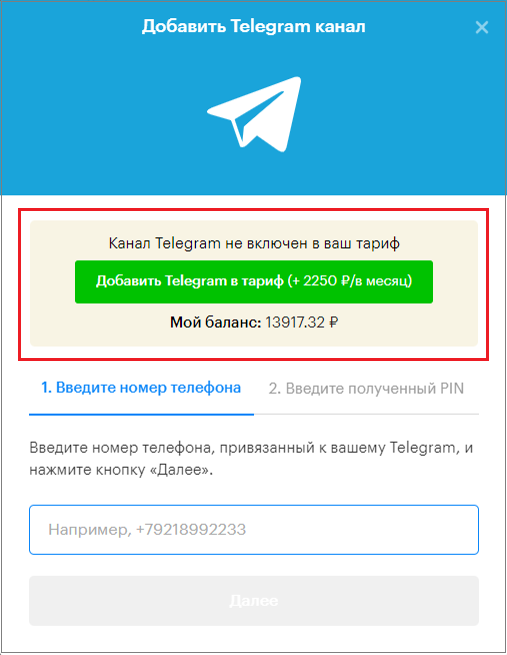
3. Click “Add Telegram to the plan.”
4. Enter the phone number.
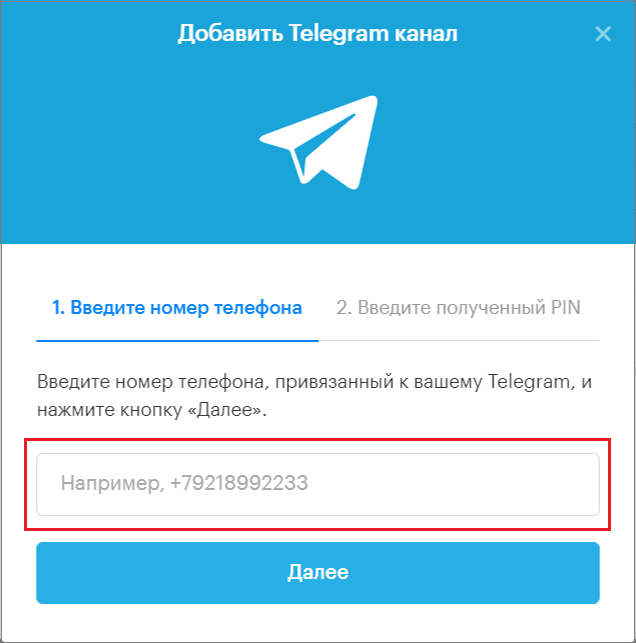
5. Click the “Next” button.
6. Wait for the PIN code sent to your Telegram and enter it in the field.
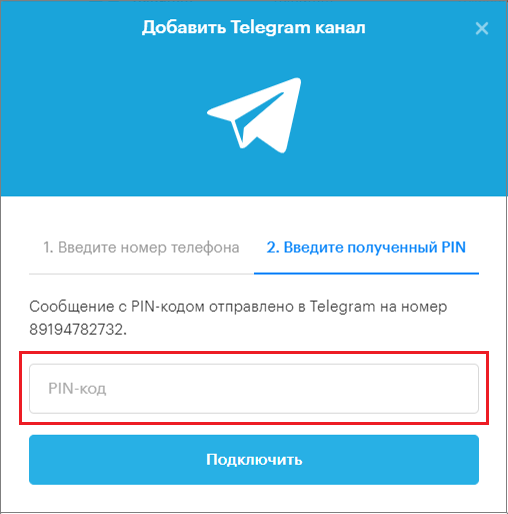
7. Click the “Connect” button.
Connecting and configuring YClients in the Teletype panel
Before connecting Teletype to YClients, make sure that the WhatsApp or Telegram channel through which notifications will be sent to clients is connected to the Teletype panel and active. Then:
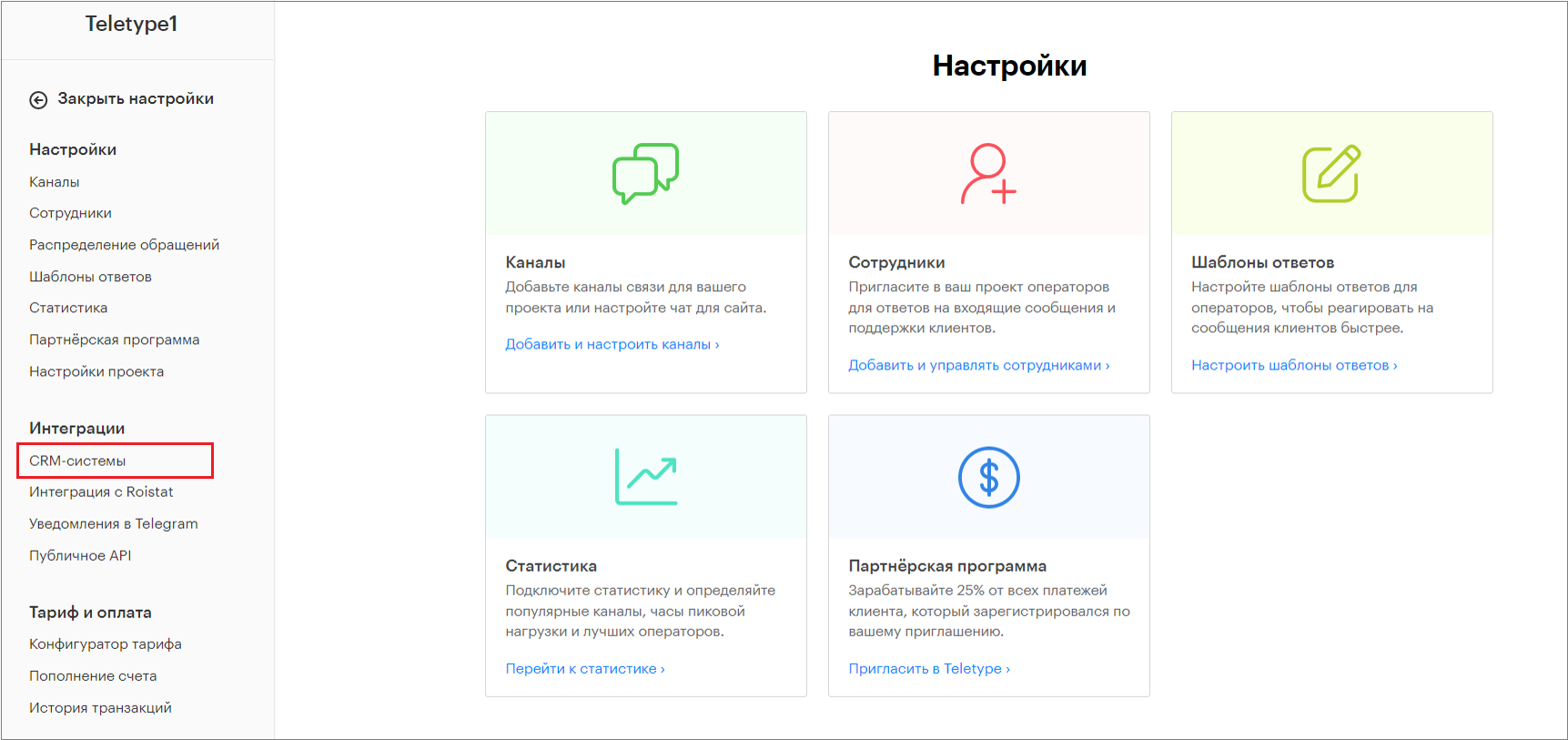
- Go to the Teletype panel settings and select the CRM systems section.
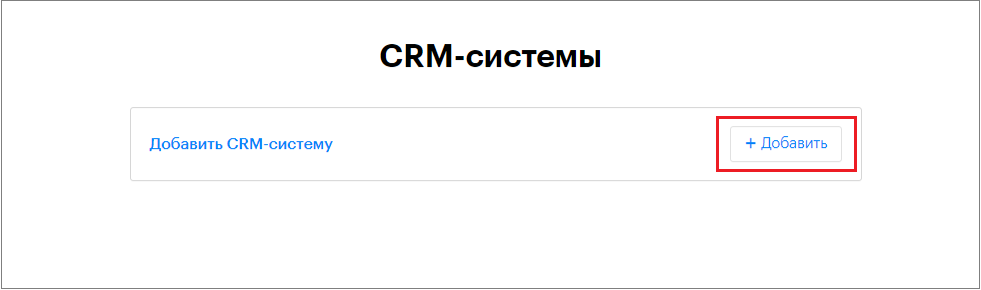
2. Click “Add.”
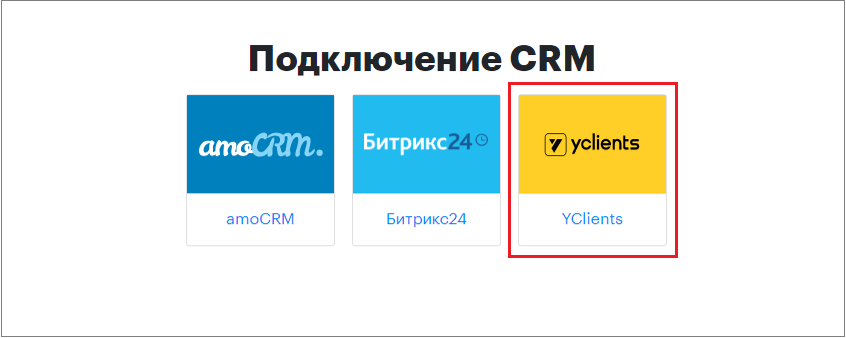
3. Select “YClients.”
4. Select the WhatsApp or Telegram channel through which notifications will be sent to clients, and click “Connect.”
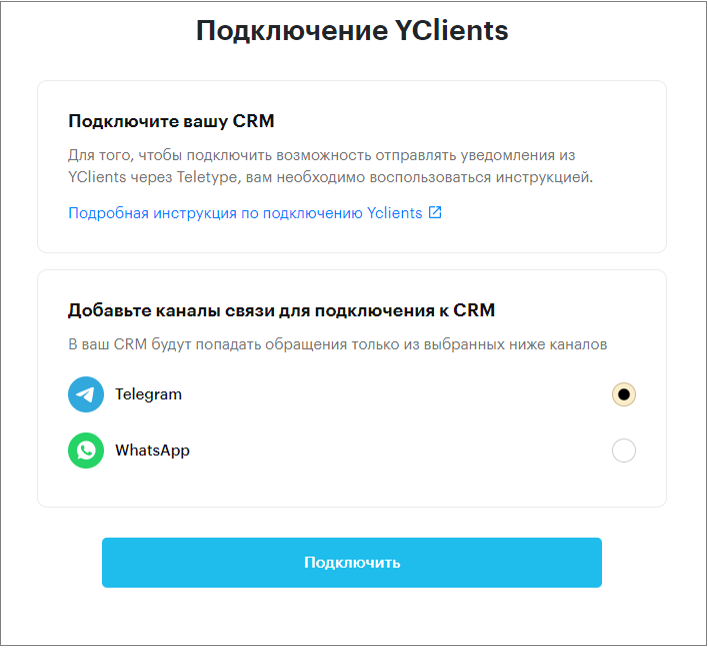
How to set up sending YClients notifications via Teletype
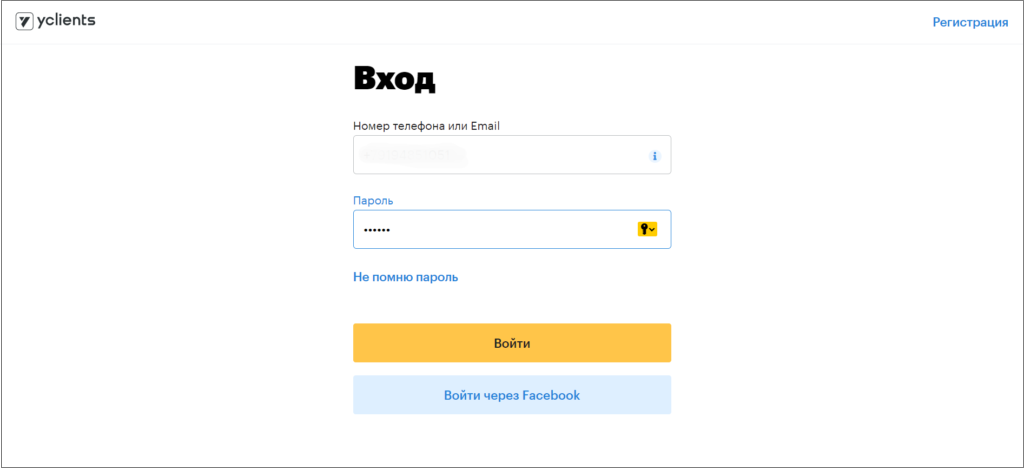
- Log in to YClients.
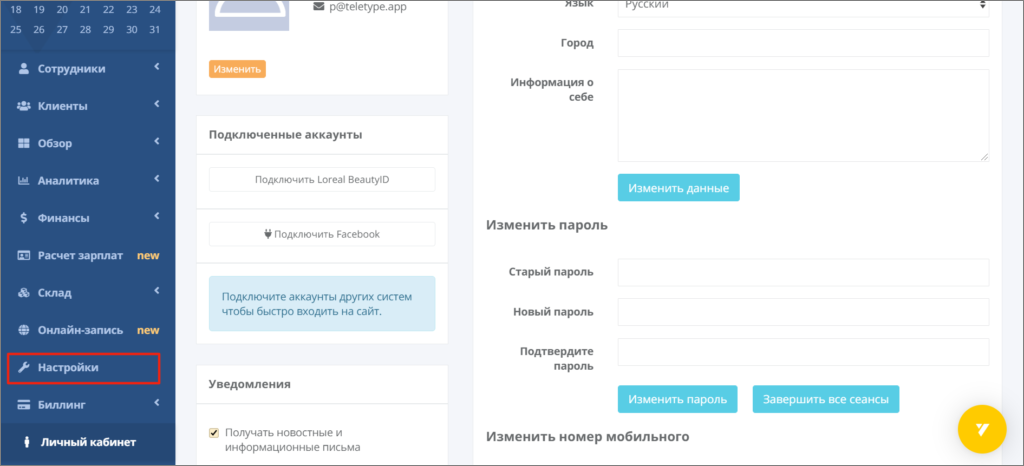
2. In the left menu, select Settings.
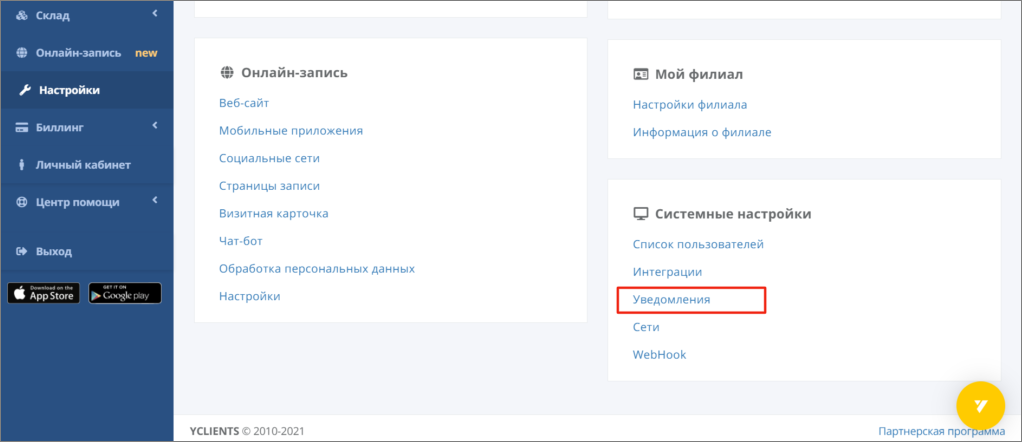
3. Then in the ‘System settings’ block, select Notifications.
4. For notifications, select the SMS notification type.
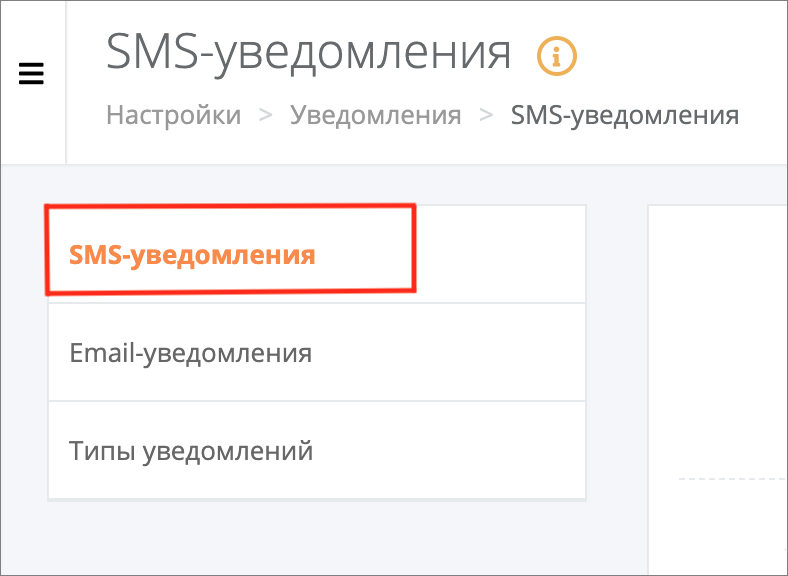
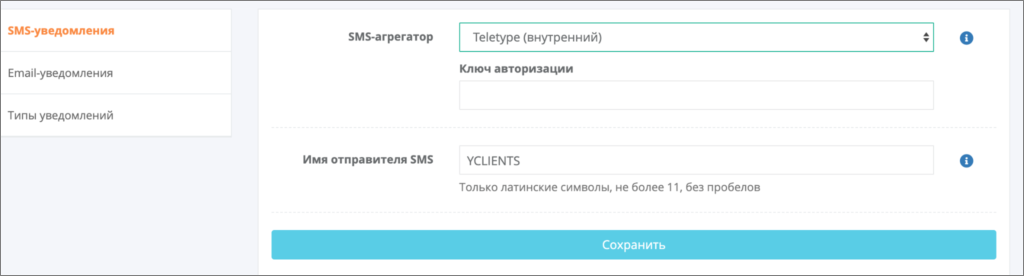
5. Then in the form, specify:
- SMS aggregator: Teletype (internal)
- Sender name from which notifications will be sent
- Authorization key
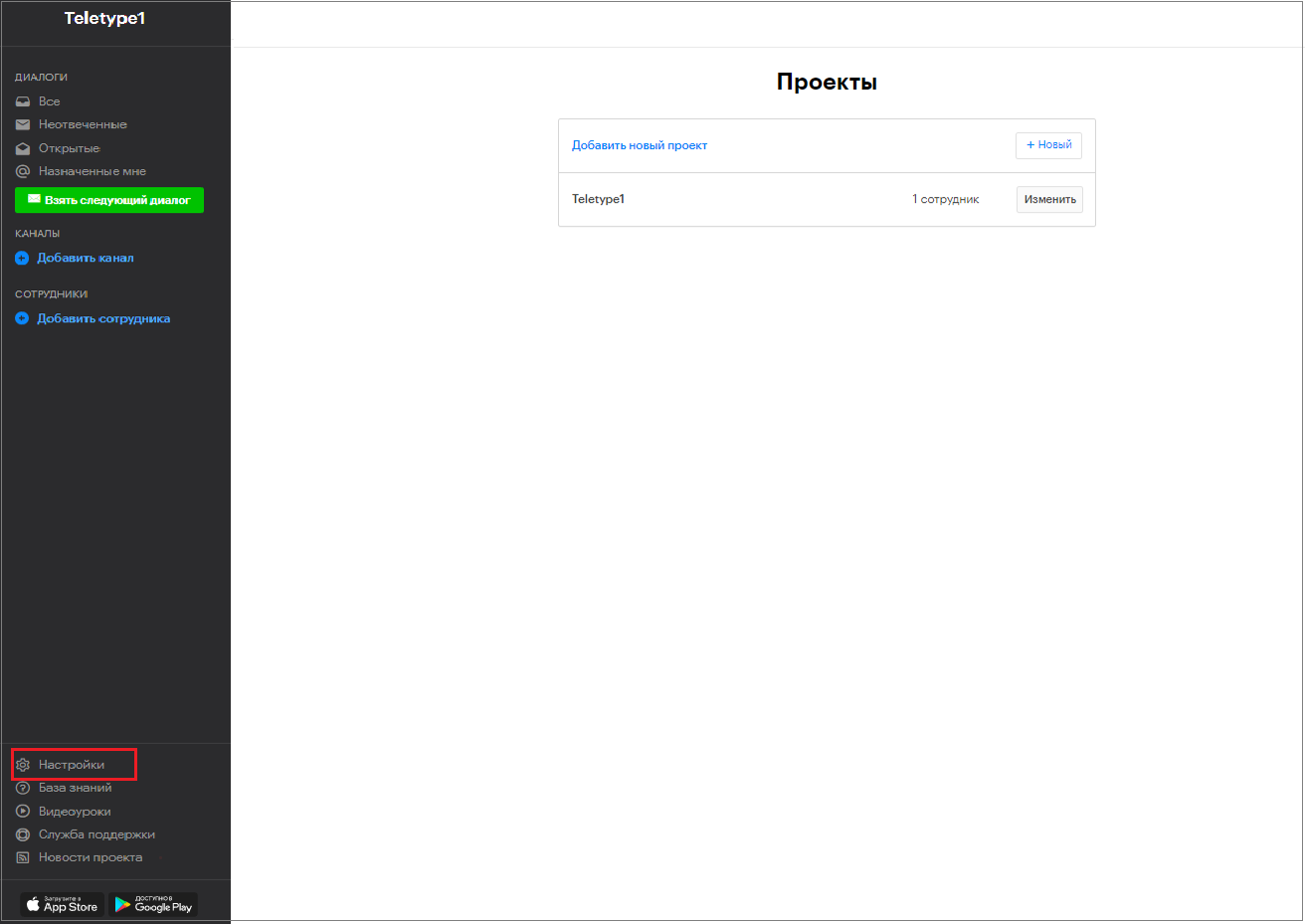
5. To get the authorization key, go to the settings of the Teletype panel.
6. Click on the “Public API” item.
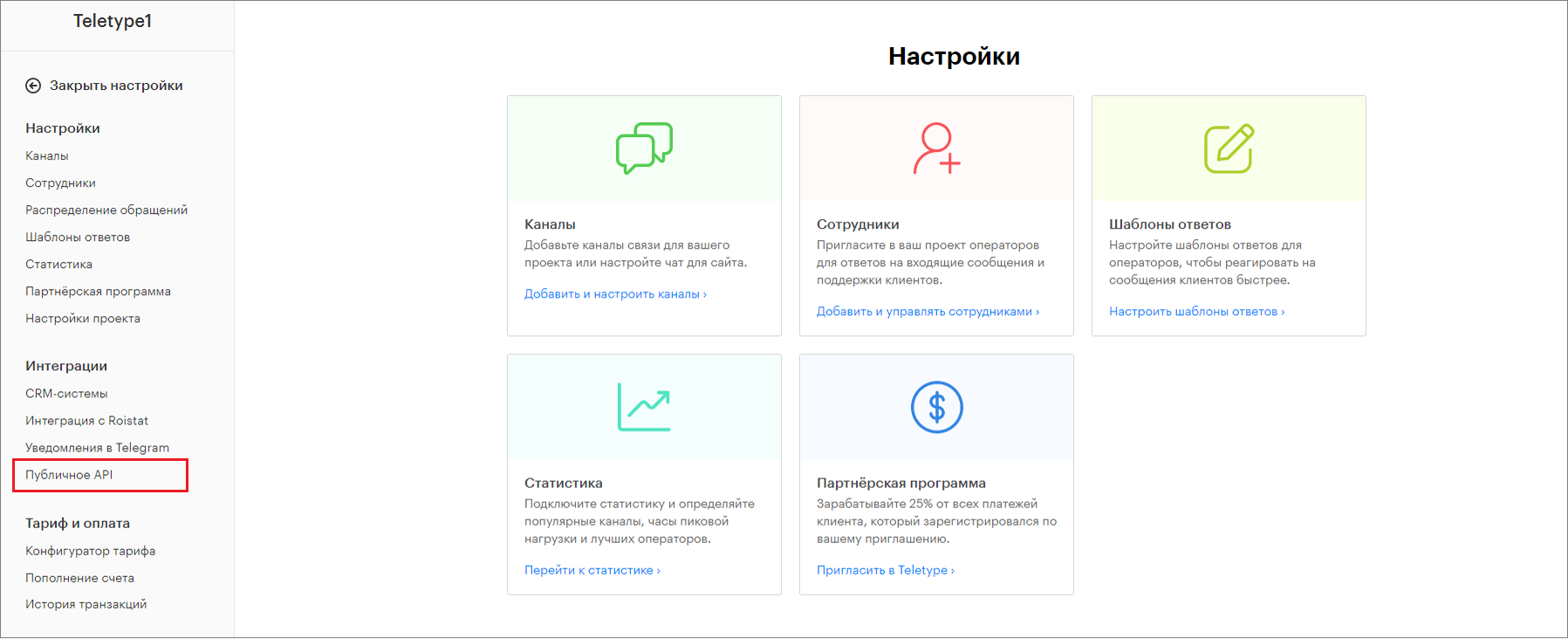
7. If the option is not included in your plan, click the Add service button to add it, then copy your token from the field.
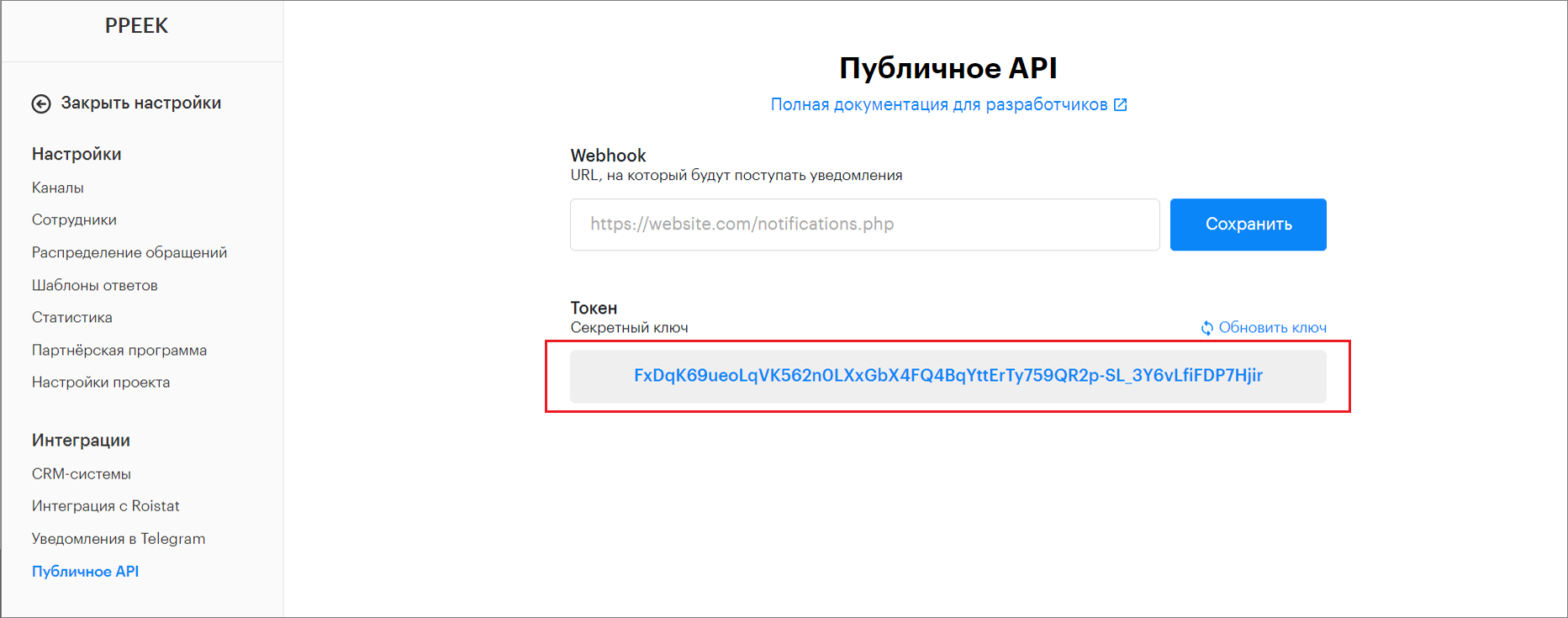
8. Return to the YClients settings, paste the copied authorization key into the field, and click save.
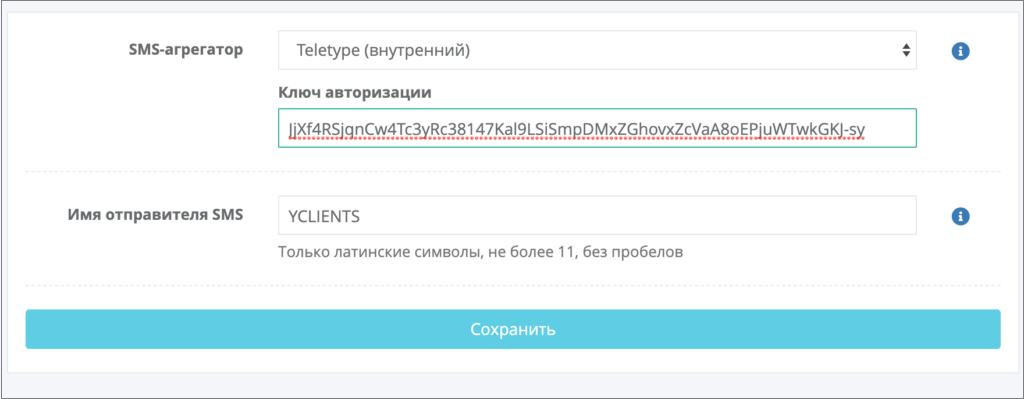
After setting up the connection, all SMS notifications configured in YClients will be sent to clients via WhatsApp/Telegram using Teletype.