How can we help?
Email Setup
Connecting an Email Channel
Connecting an Email channel to the Teletype App panel allows you to manage your clients’ emails.
You can also initiate emails through the Email channel directly from the Teletype App panel.
To connect an email, you need to:
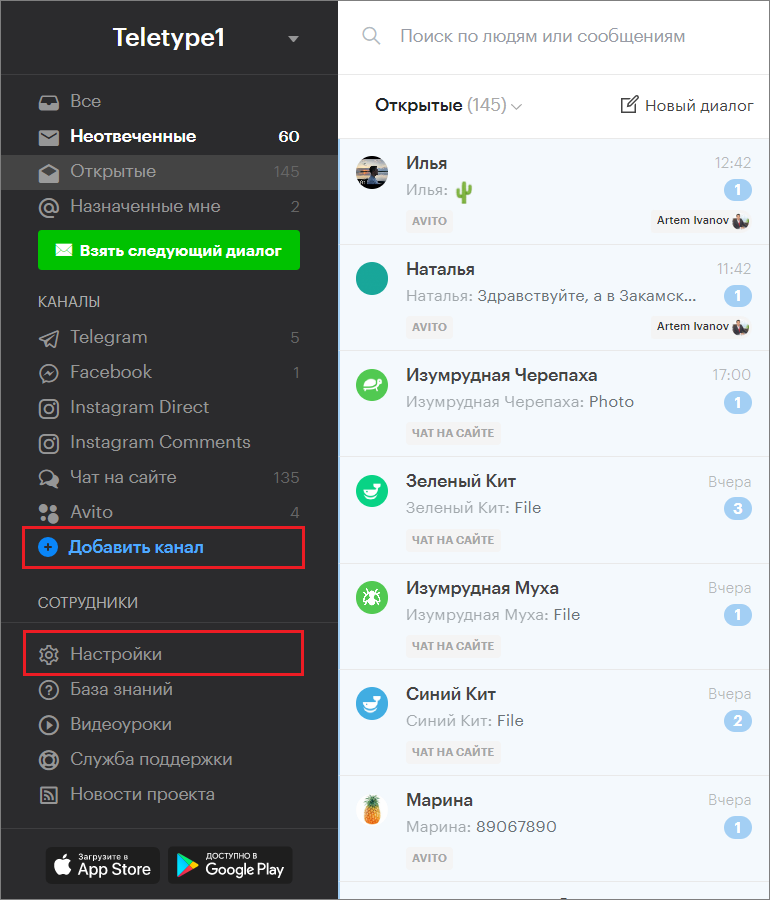
- Go to the “Add Channel” section in the left menu of the Teletype panel or in the project settings.
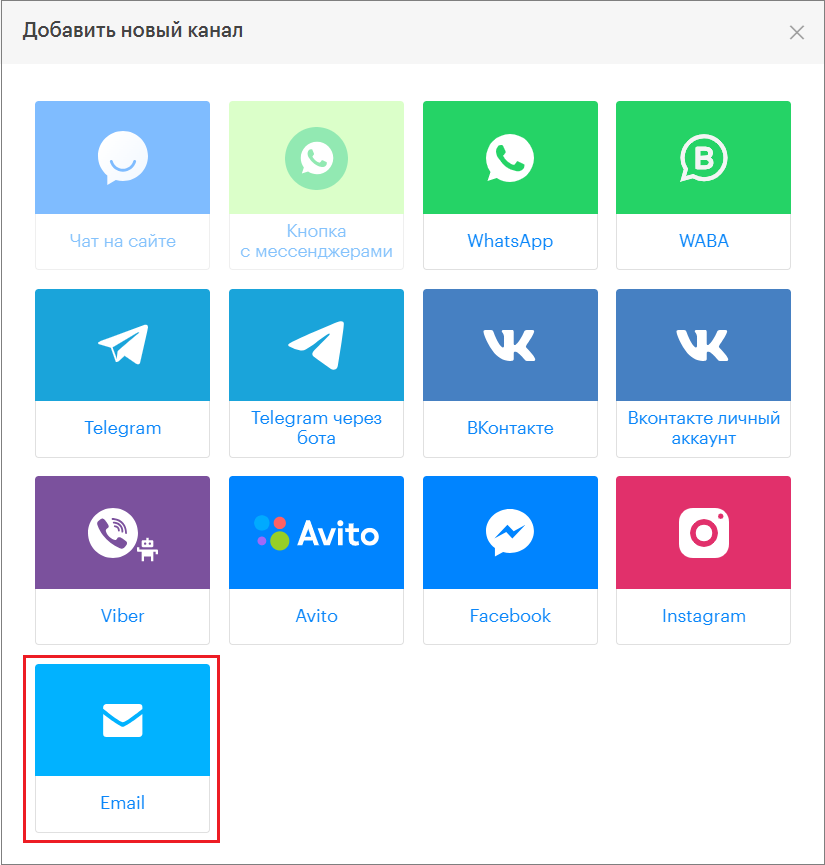
2. In the window that appears, select the “Email” block.
3. Click “Add Email to the plan”.
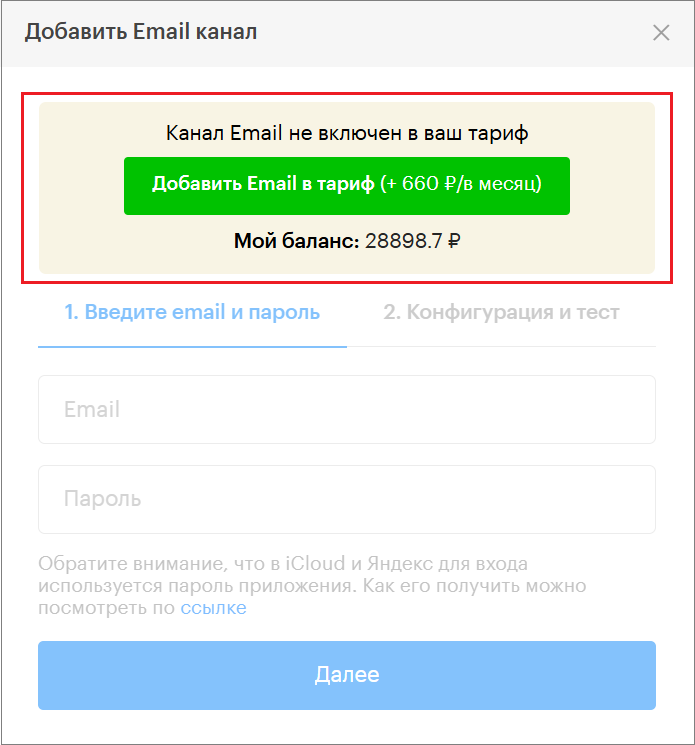
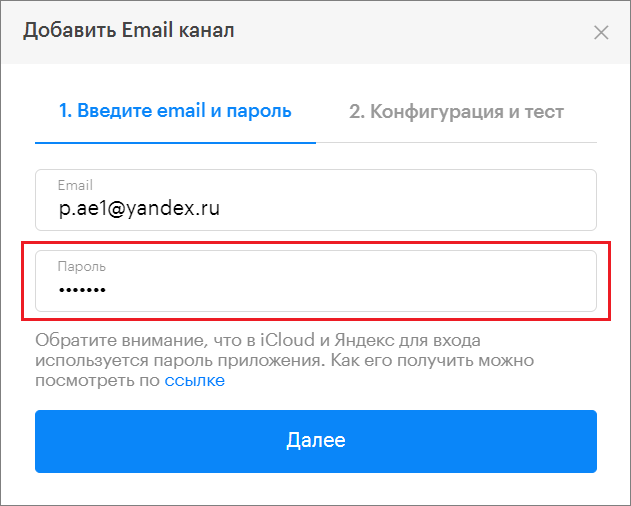
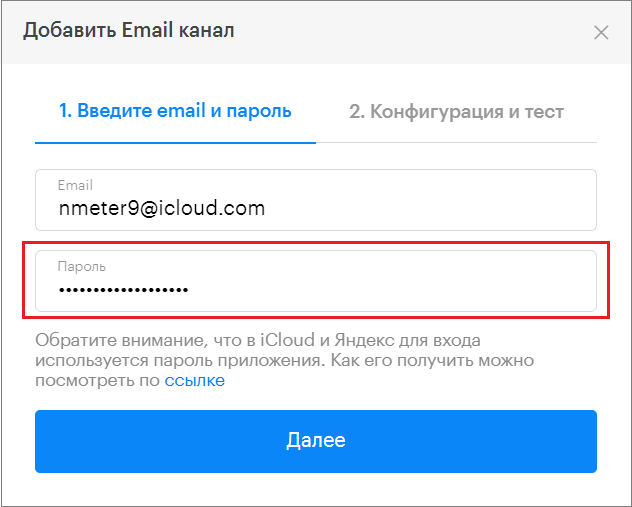
4. In the window that opens, enter the email address you want to connect to the panel.
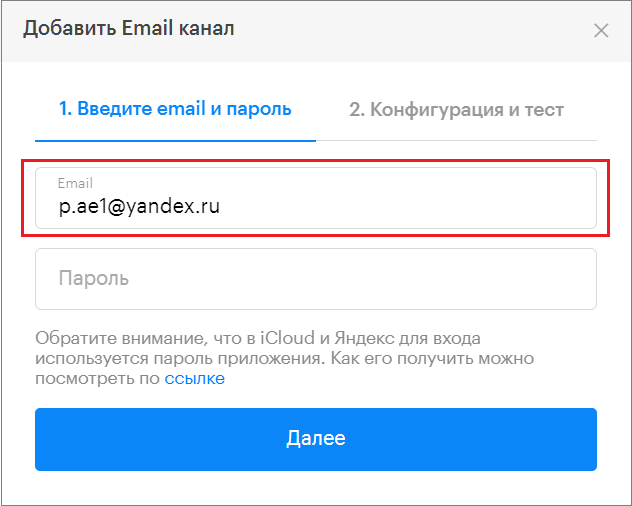
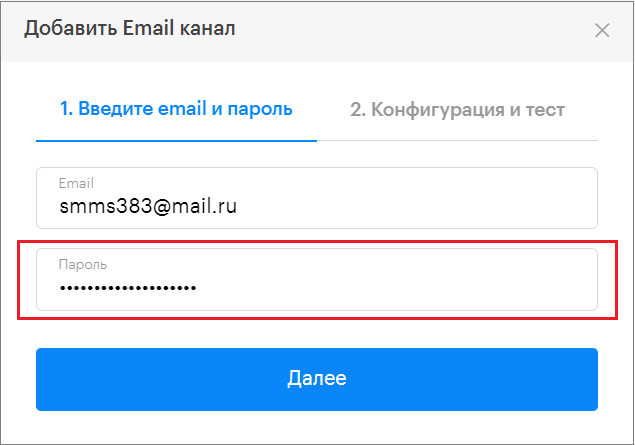
5. Then enter the app password created in your email settings.
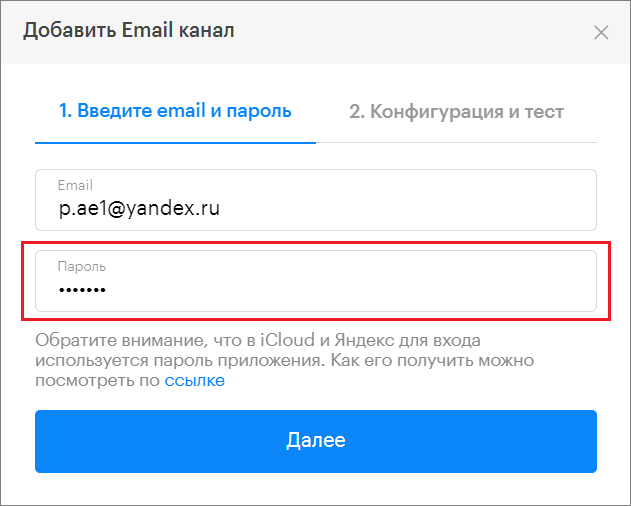
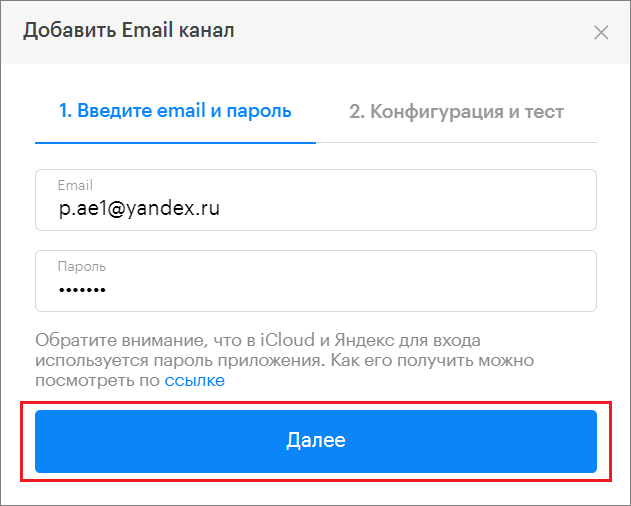
6. Click “Next”.
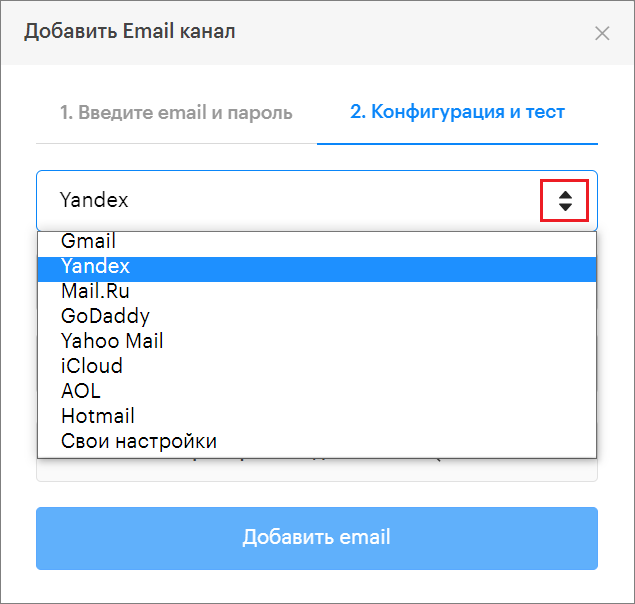
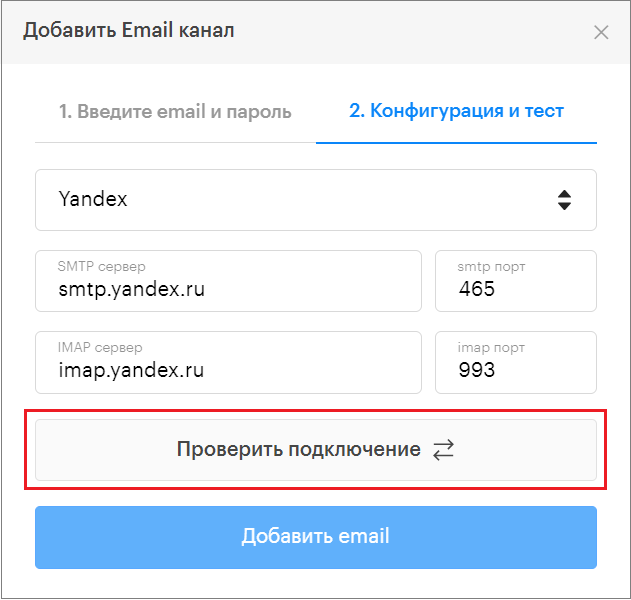
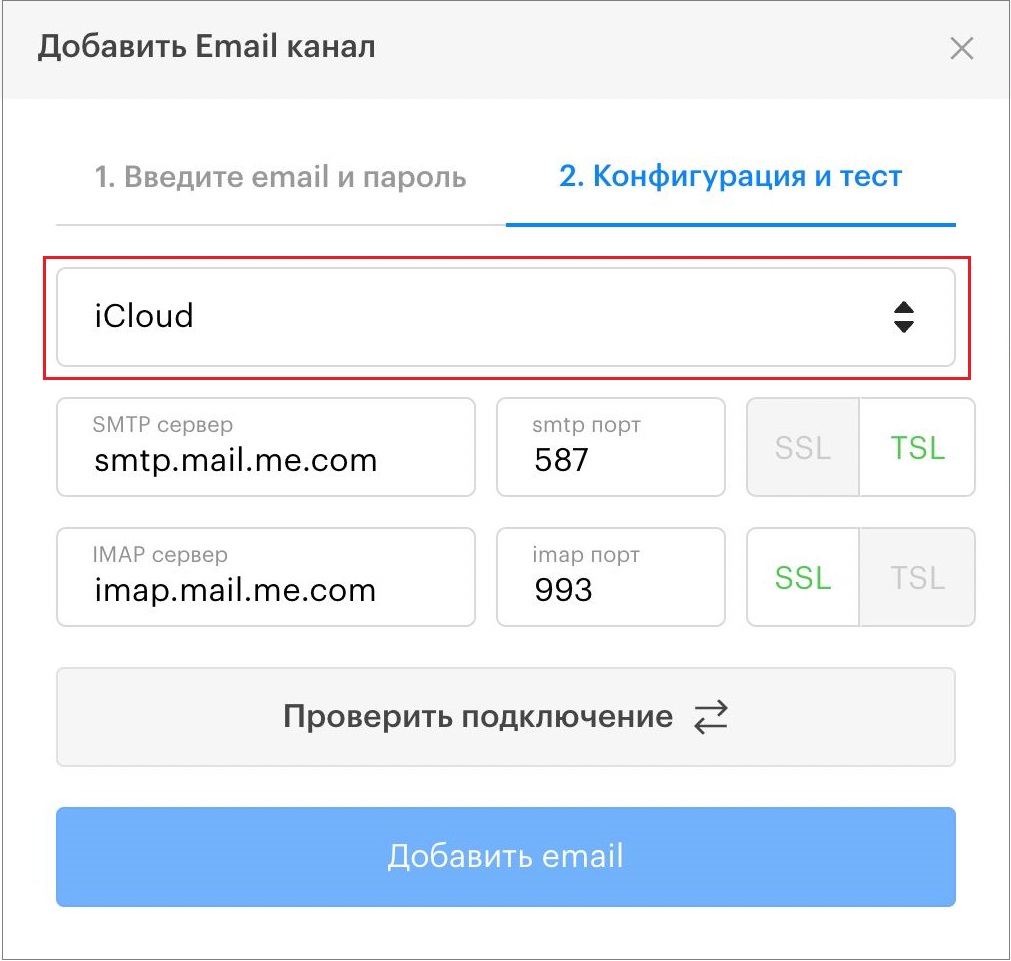
7. From the dropdown list, select your email provider.
If your email provider is not listed, select “Custom settings” and ask your administrator for the SMTP and IMAP server addresses and ports.
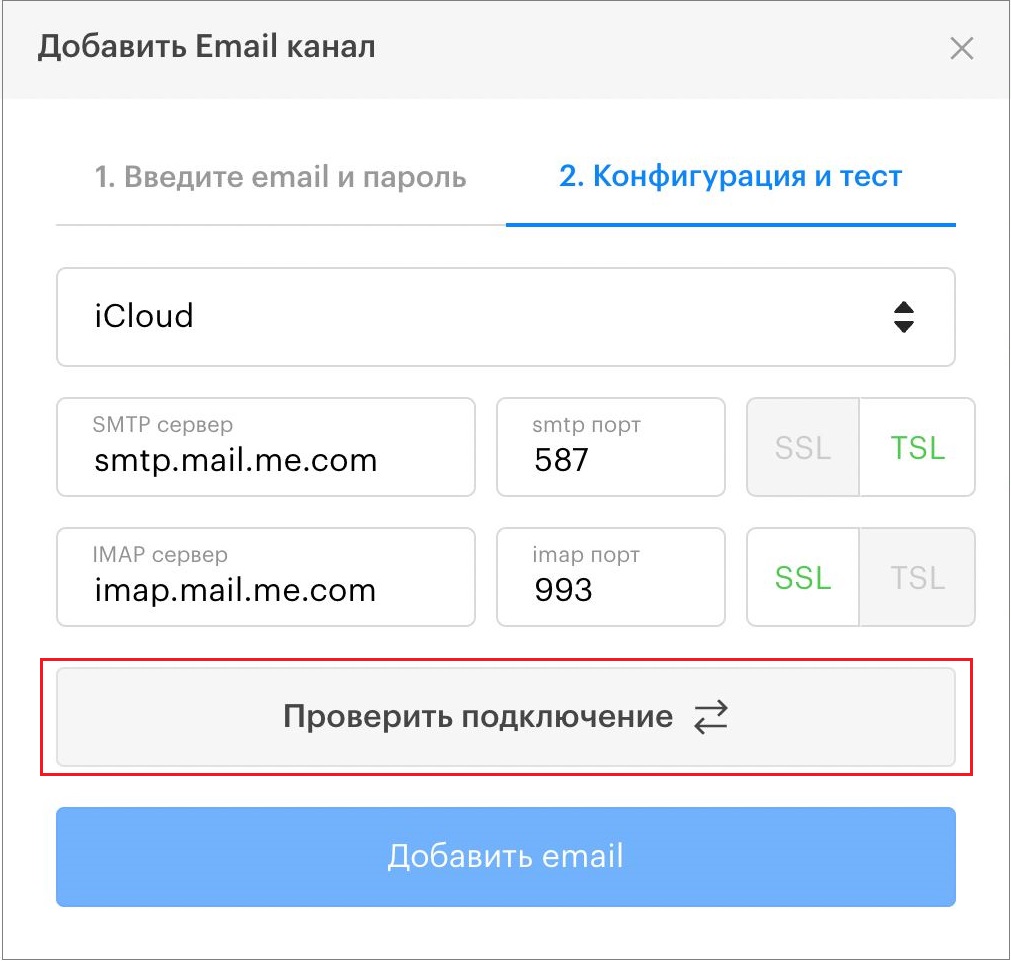
8. In the window that opens, click “Check connection”.
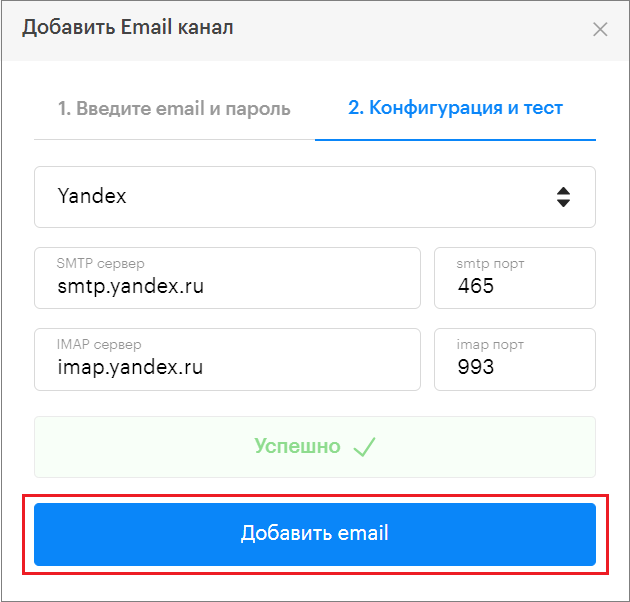
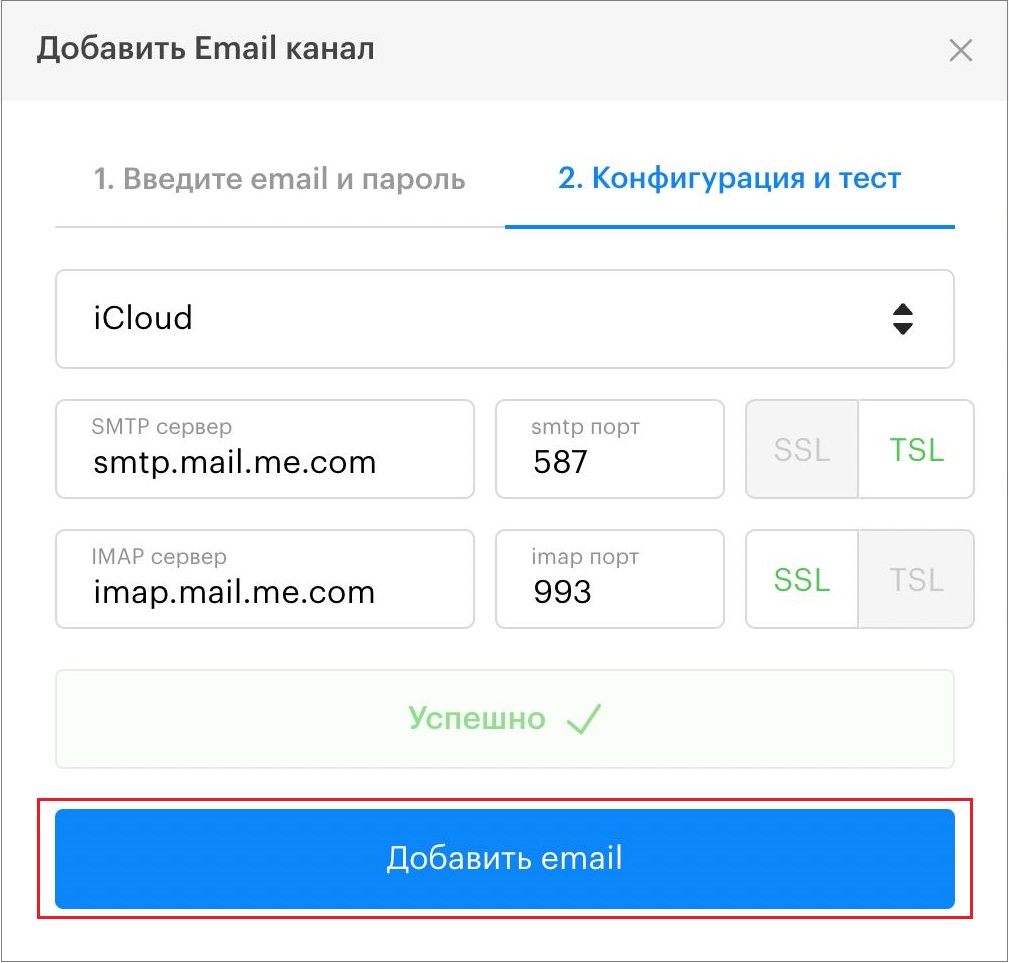
8. After a successful check, click “Add email”.
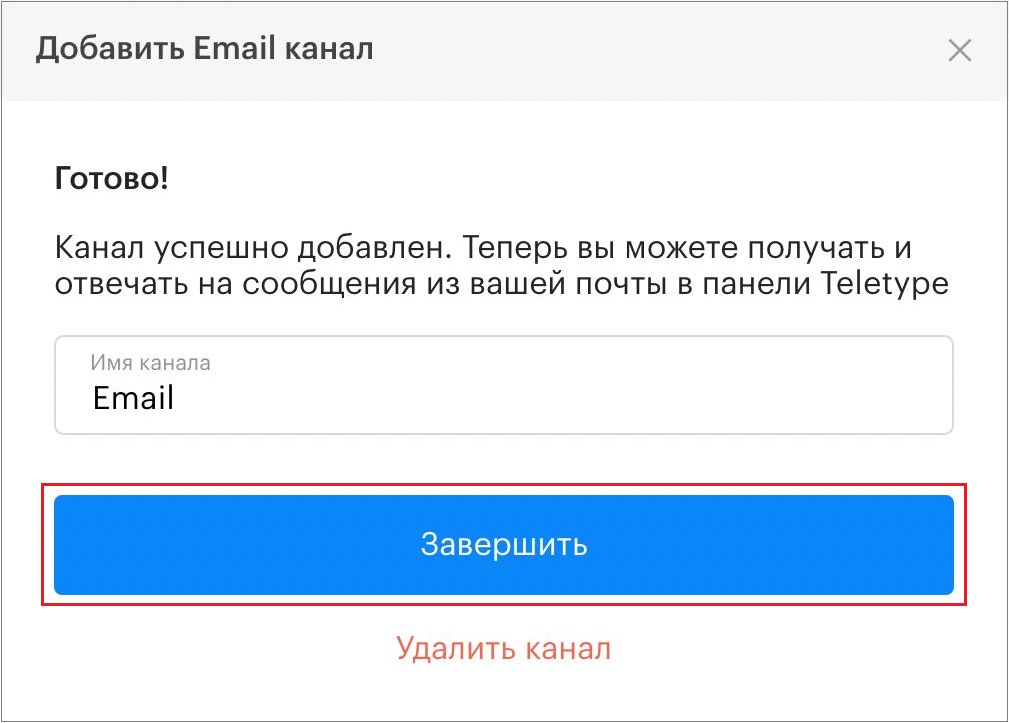
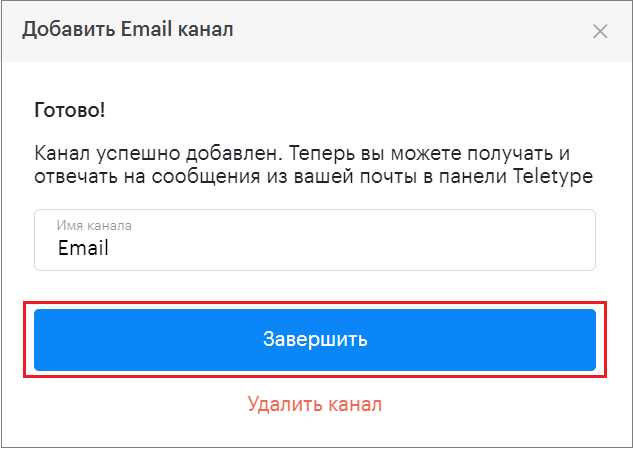
9. Edit the channel name if necessary and click “Finish”.
Setting up IMAP/SMTP and Creating an App Password
Connecting Gmail
- Open Gmail and go to Settings.
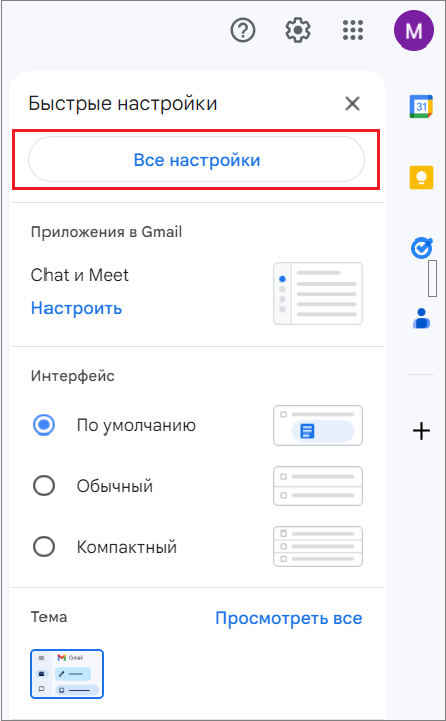
2. Go to the “Forwarding and POP/IMAP” section.
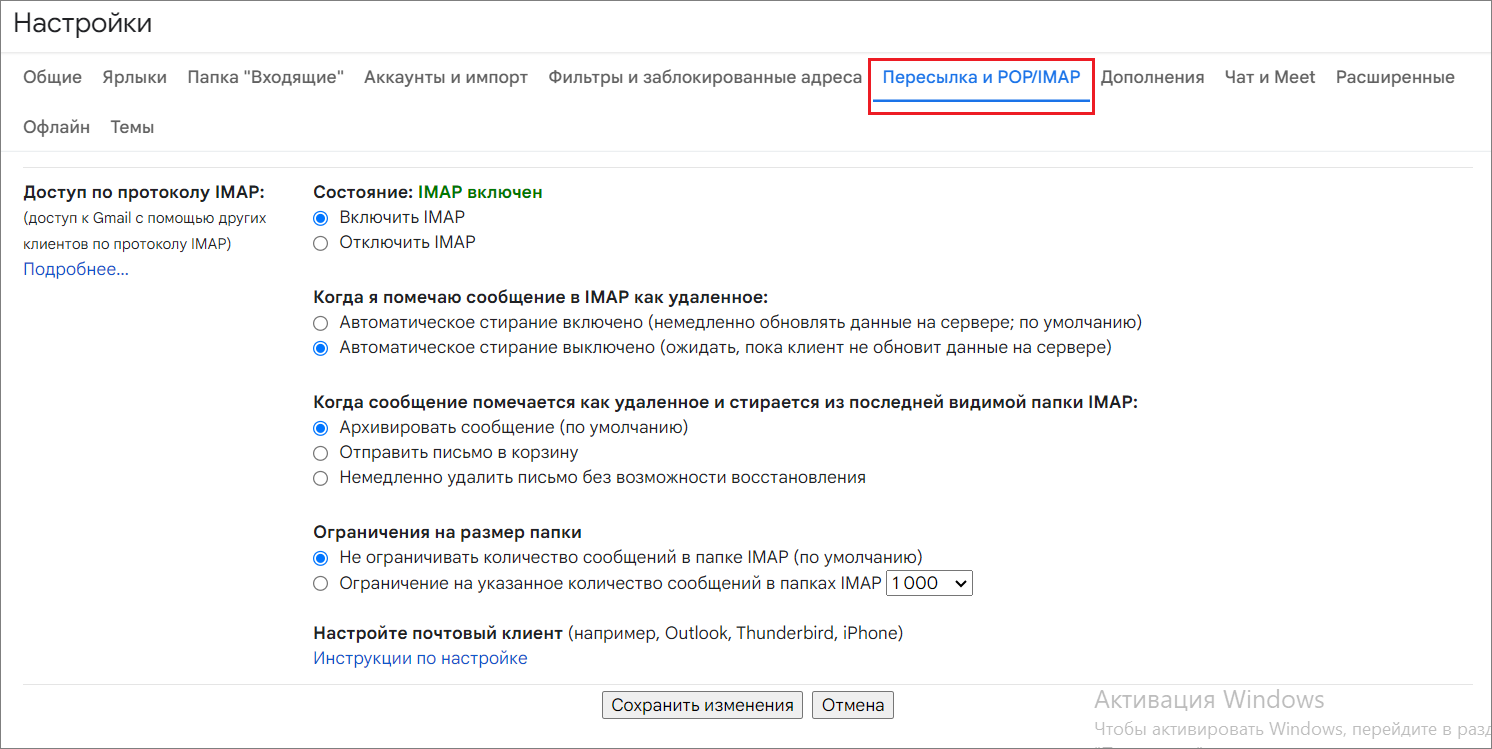
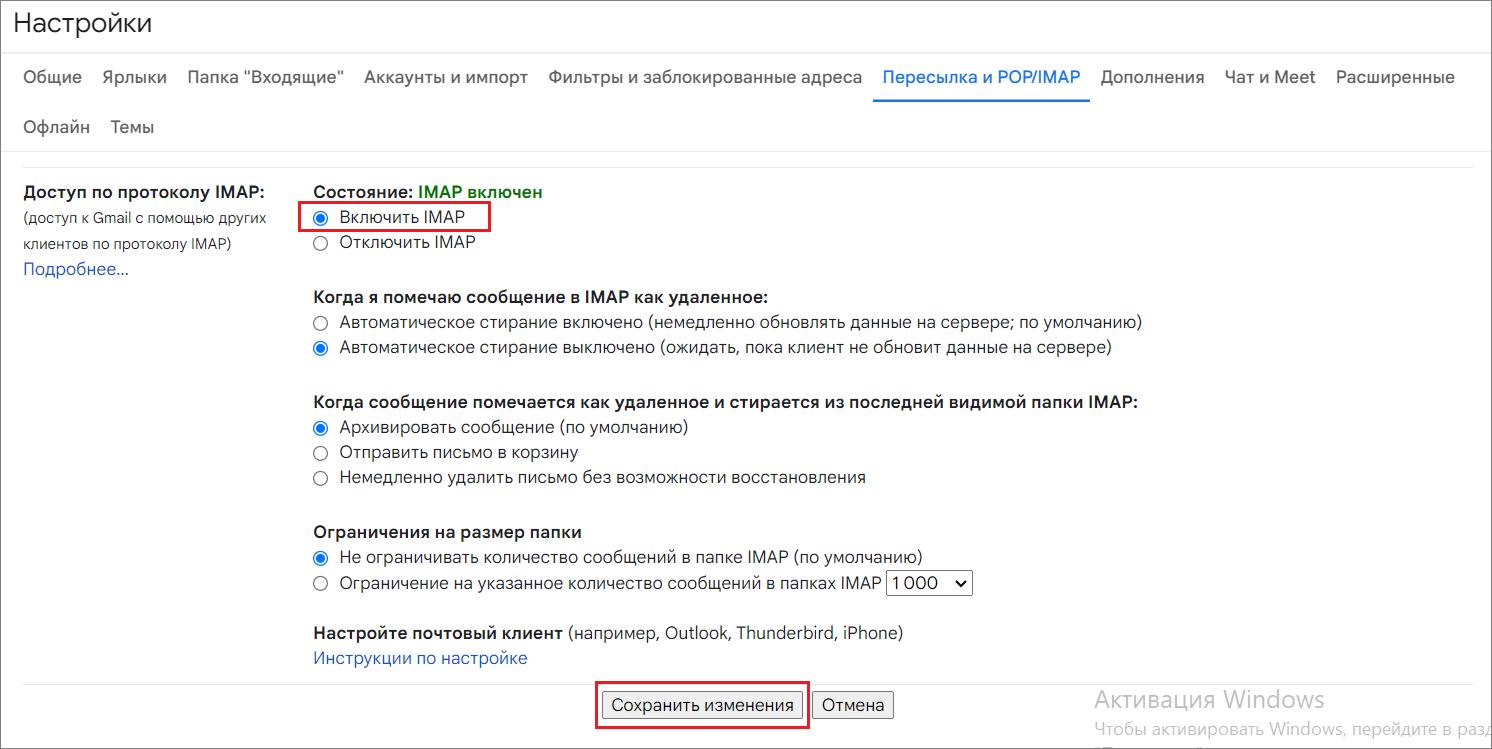
3. Enable IMAP and save the changes.
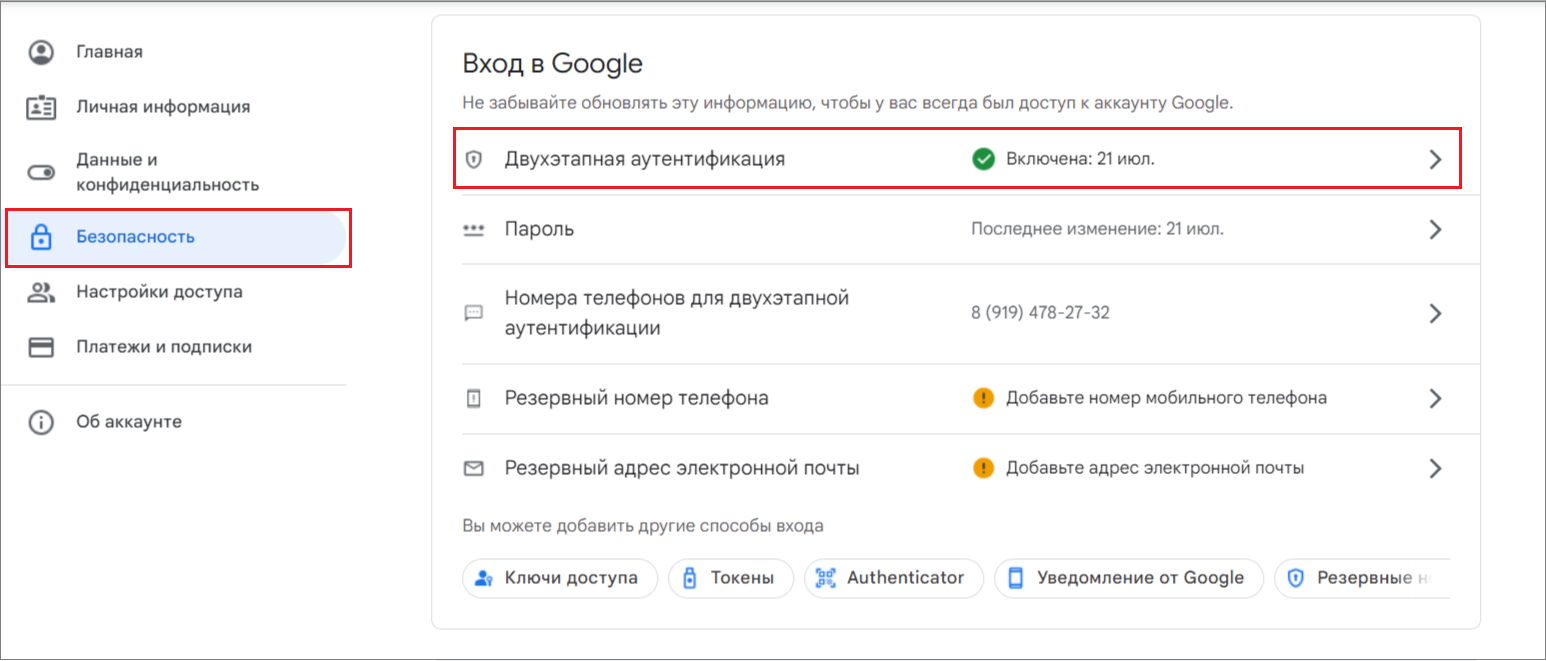
4. Then go to your Google Account.
5. Go to the “Security” section.
6. Open “2-Step Verification”.
To create an app password in Google, 2-Step Verification must be enabled on your account.
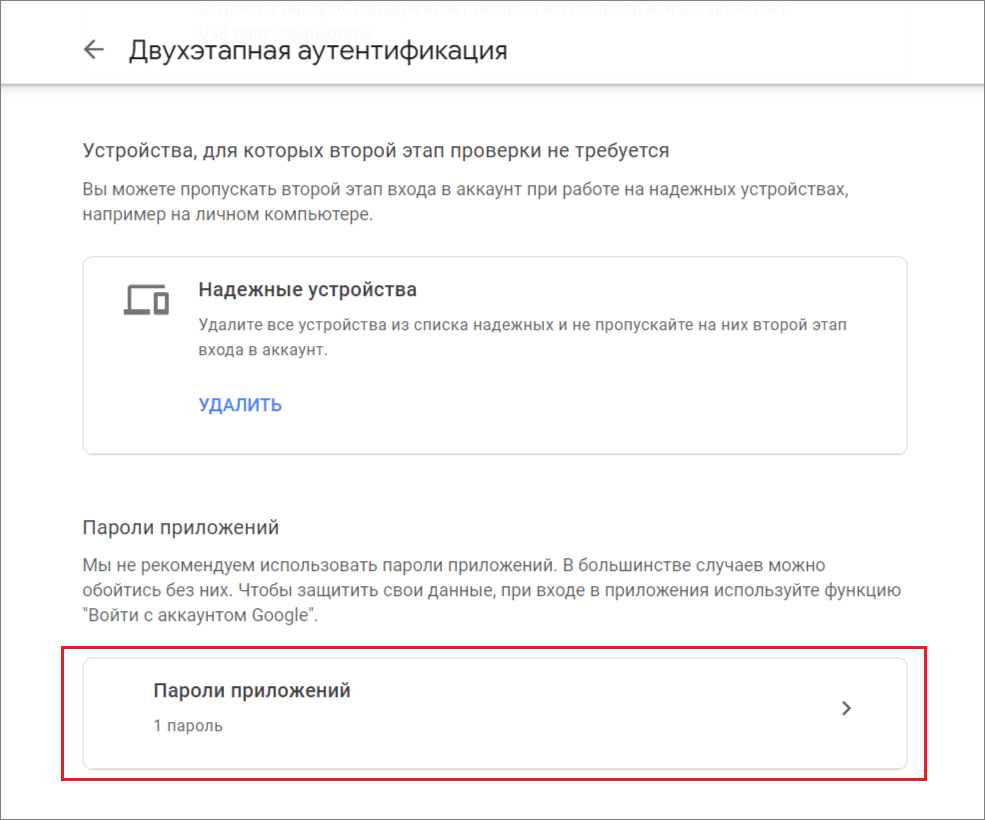
7. In the “2-Step Verification” section, open “App Passwords”.
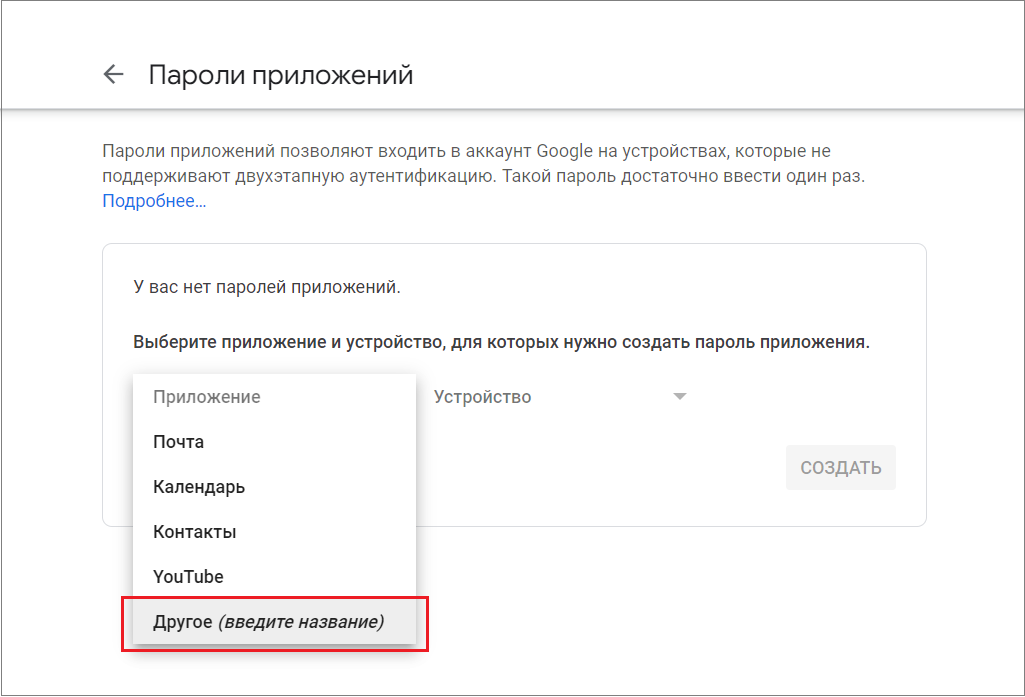
8. On the page that opens, select “Other” from the dropdown.
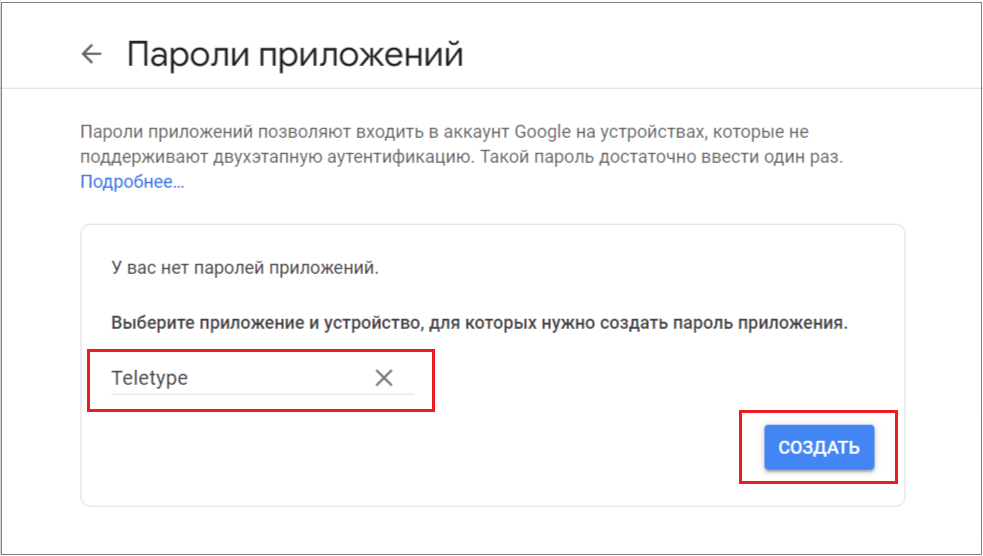
9. Enter the name of the app for which you want to create a password and click “Create”.
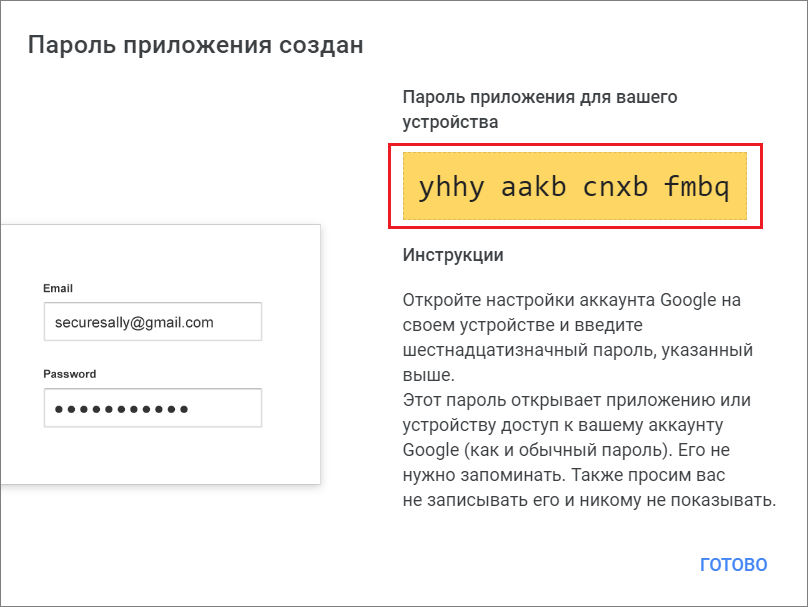
10. Copy the password displayed in the window.
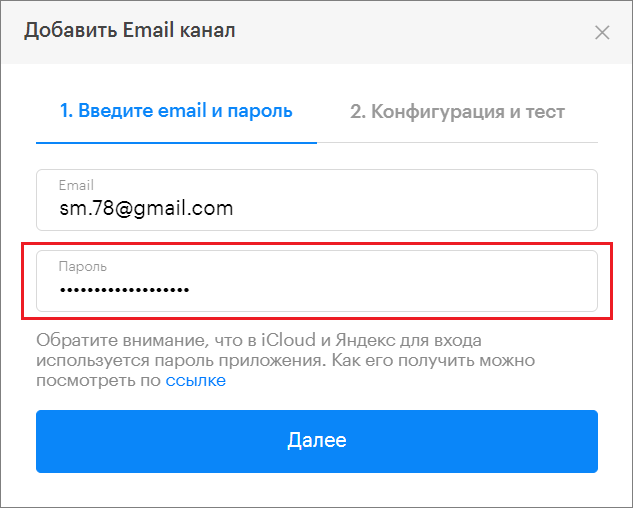
11. Paste the copied password when connecting the Email channel in the Teletype App panel.
Connecting Yandex Mail
- Log in to Yandex Mail.
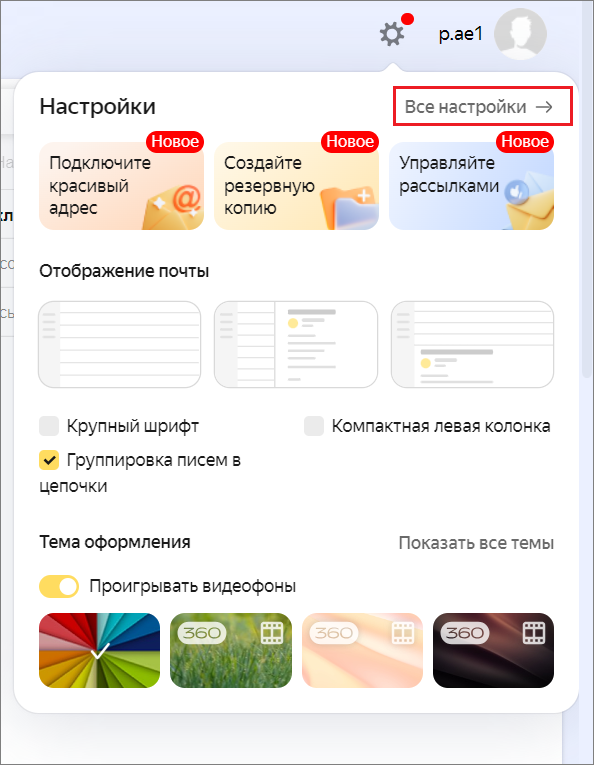
- Open “All settings”.
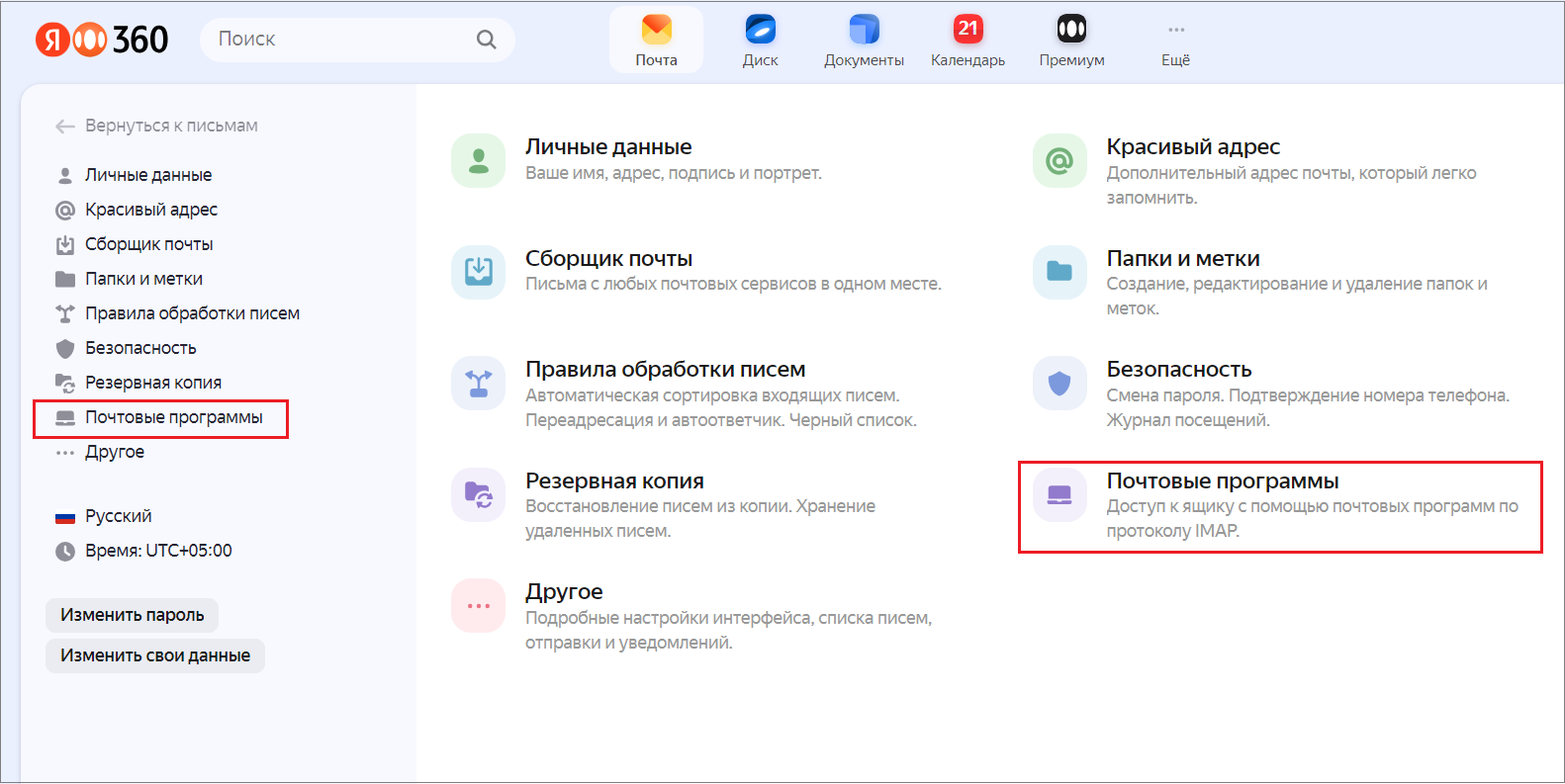
3. Go to “Mail programs”.
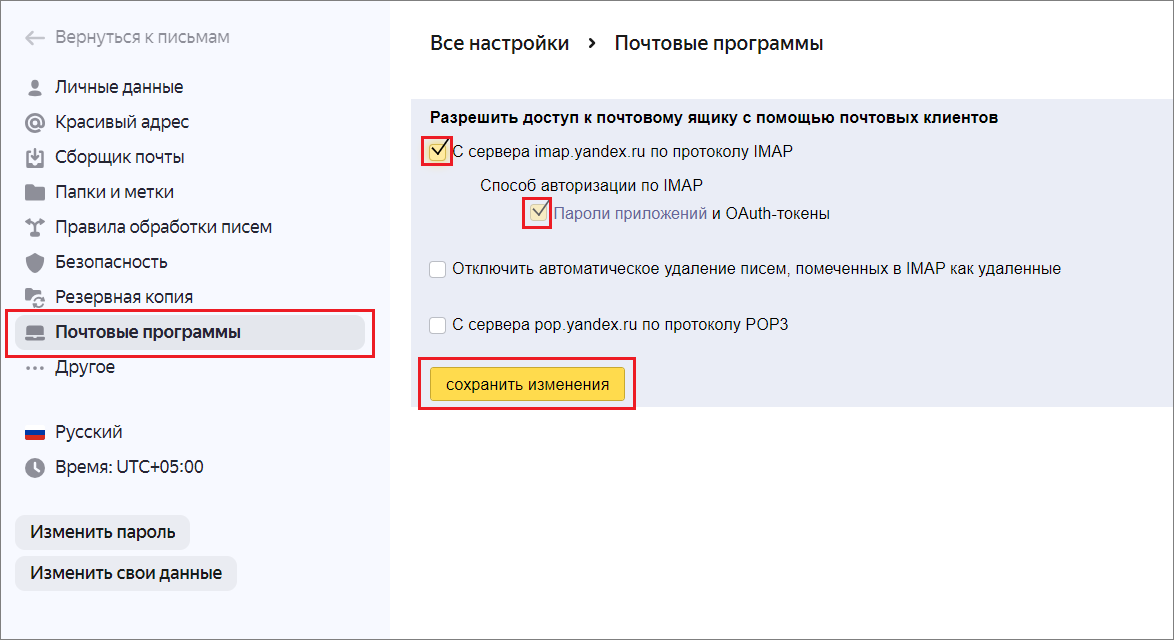
4. Check the boxes for “From server imap.yandex.ru via IMAP protocol” and “App passwords and OAuth tokens” and save the settings.
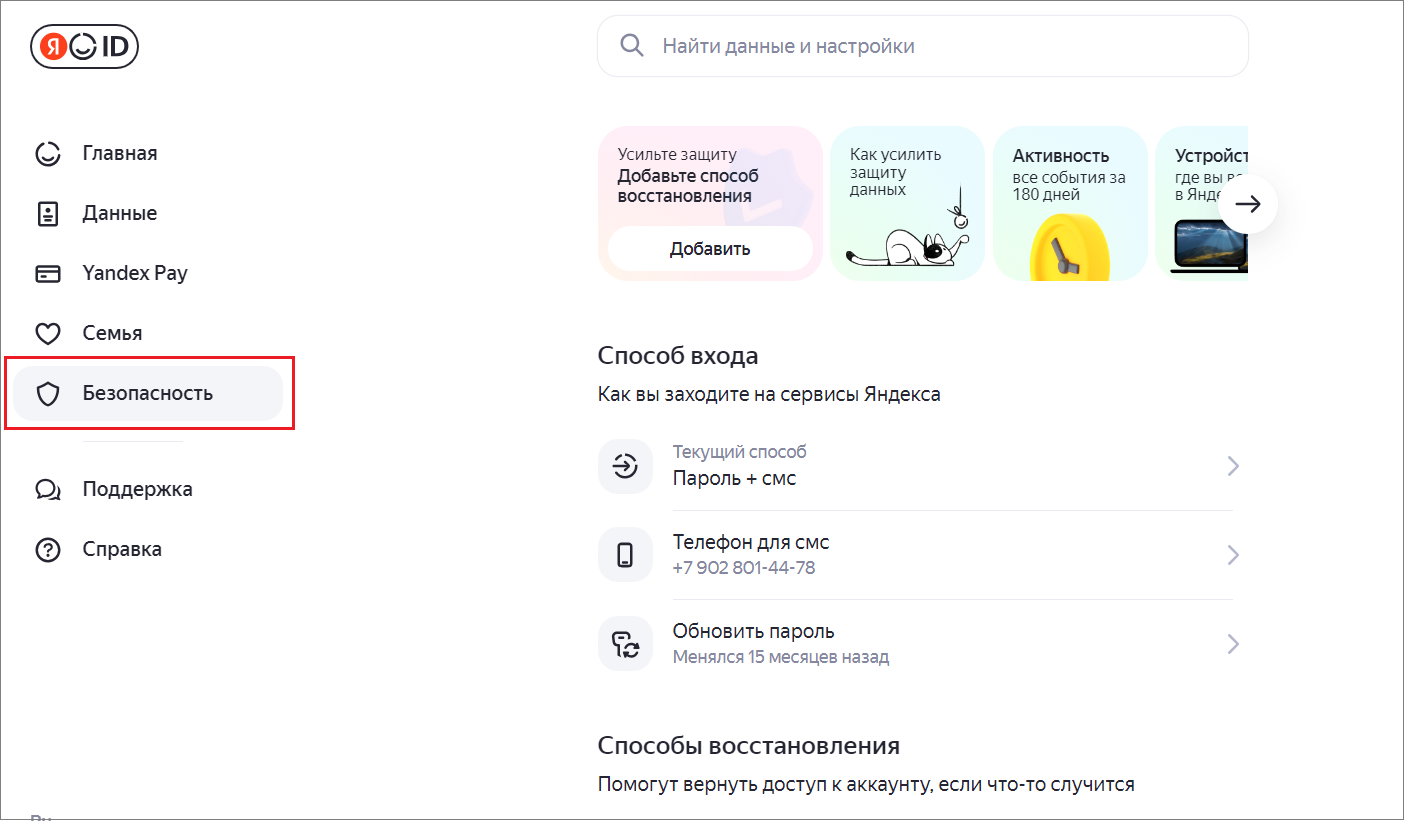
5. Open the Account Management page.
6. Go to the “Security” section.
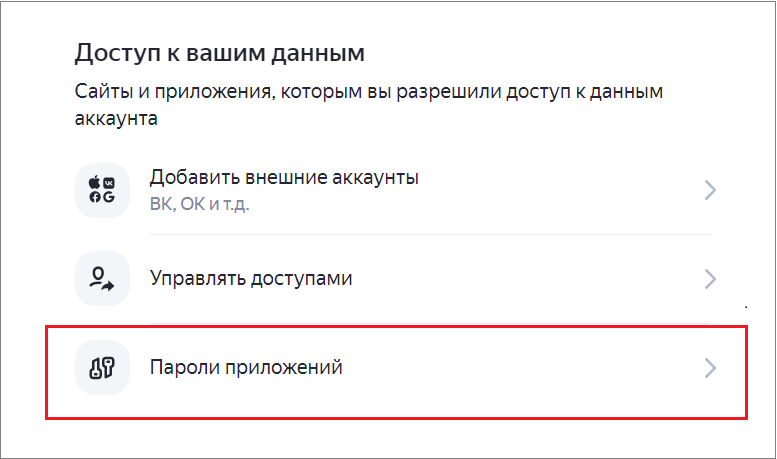
7. Open “App passwords”.
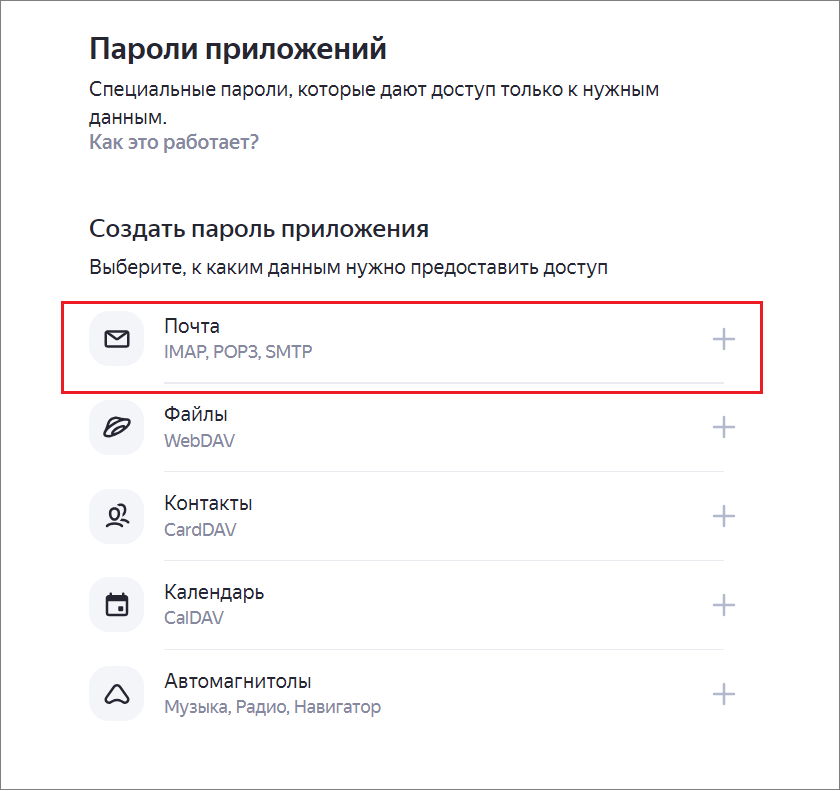
8. Click “Mail”.
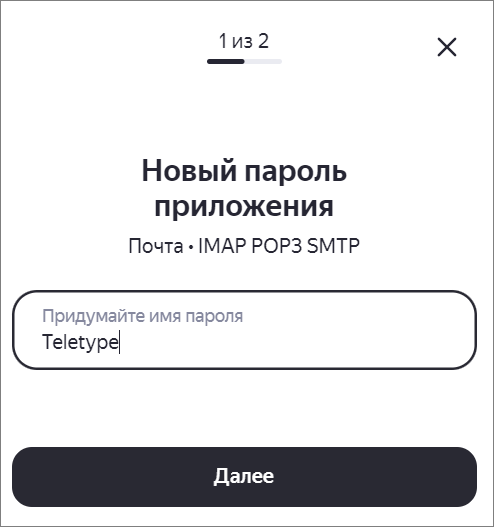
9. Enter a name for the password and click “Next”.
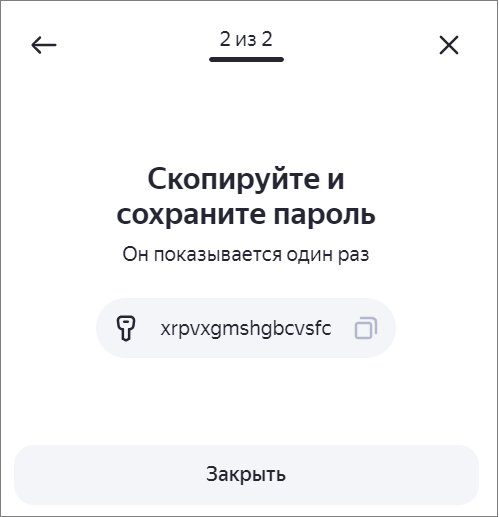
10. Copy the password displayed in the window.
11. Paste the copied password when connecting the Email channel in the Teletype App panel.
Connecting Mail.ru
- Log in to Mail.ru.
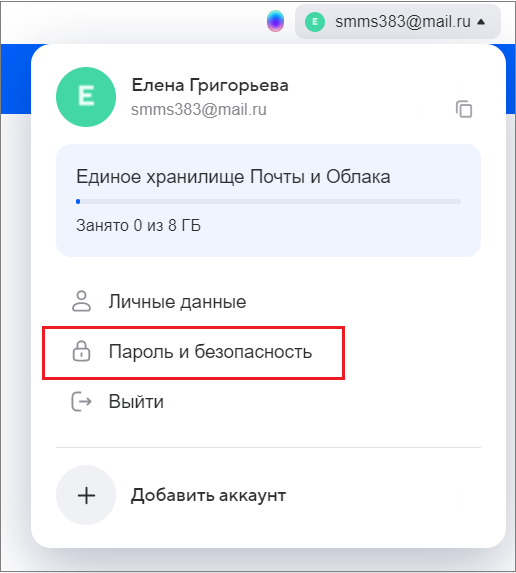
- Go to “Password and Security”.
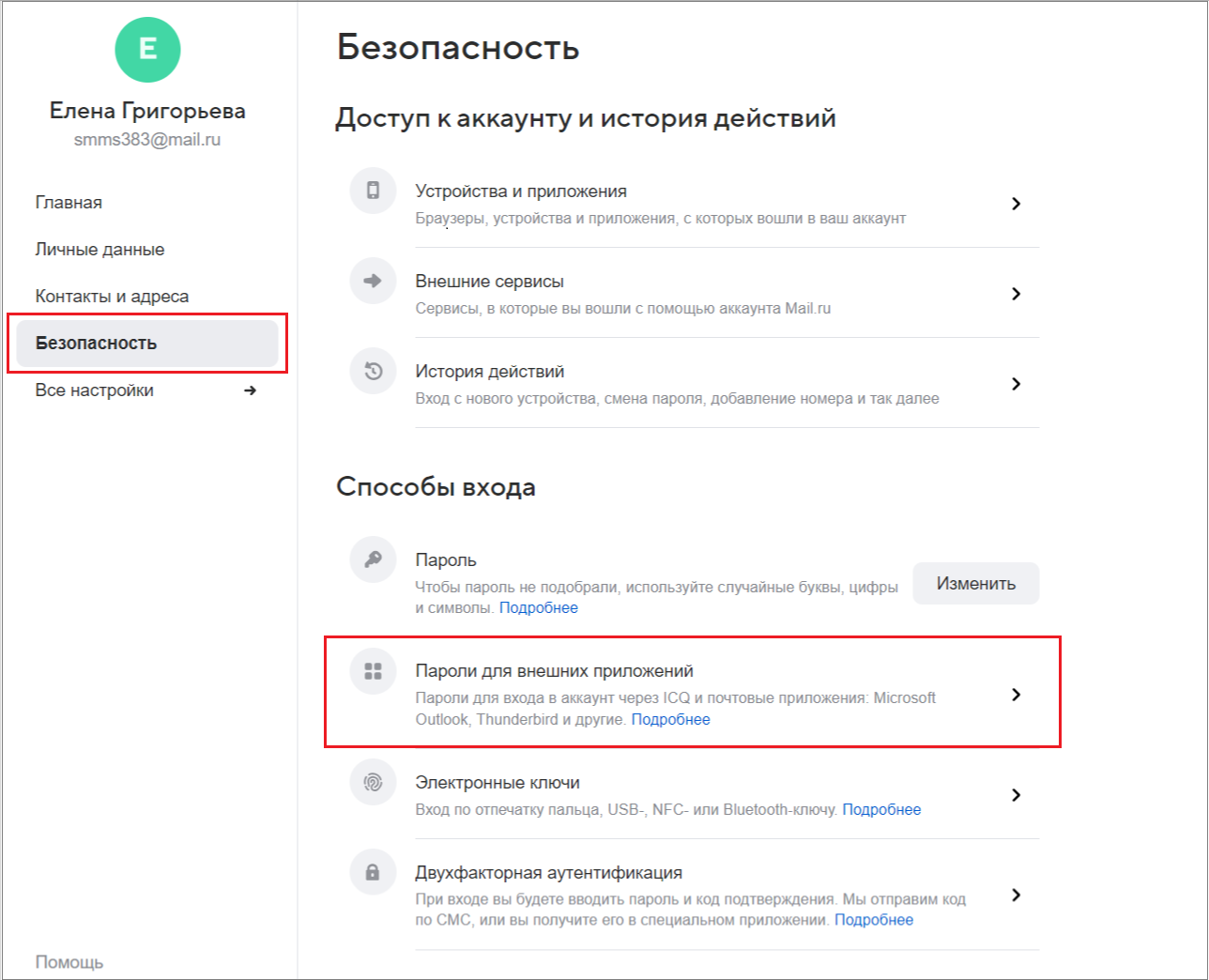
3. Open “Passwords for external applications”.
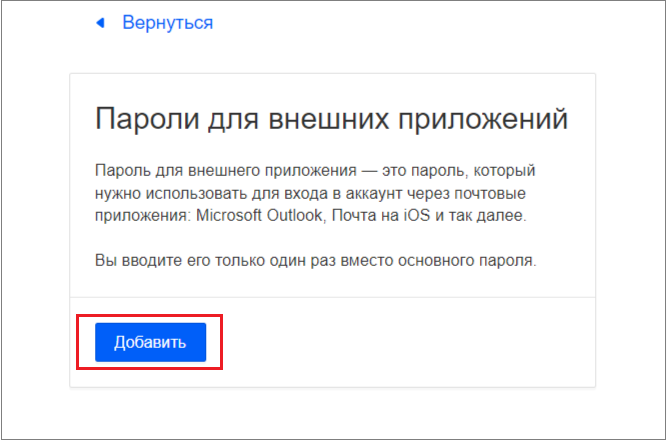
4. Click “Add”.
5. Enter a name for the password and click continue.
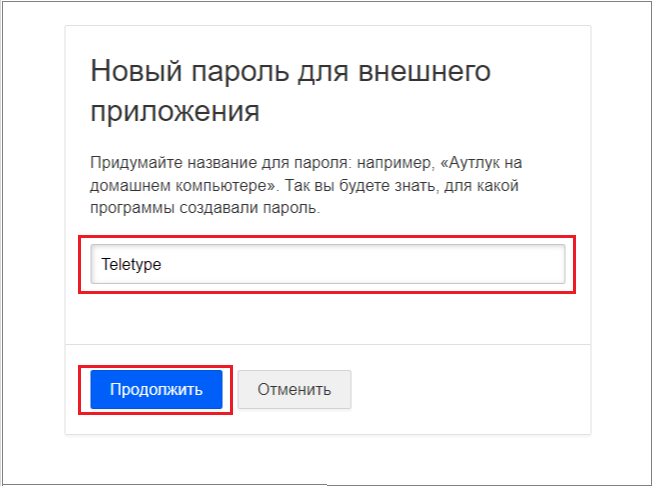
6. Enter your mail.ru password and click continue.
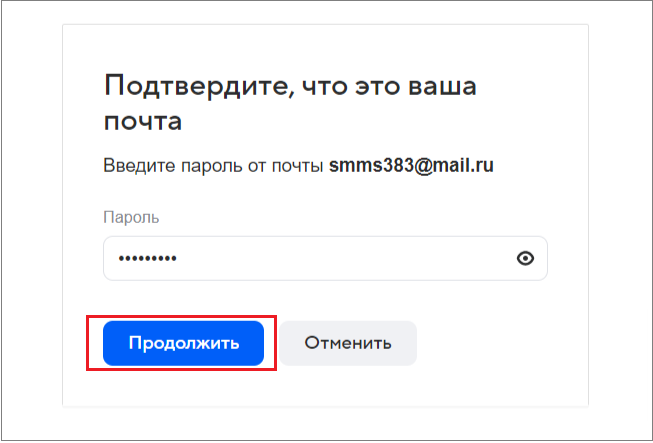
7. Copy the password displayed in the window.
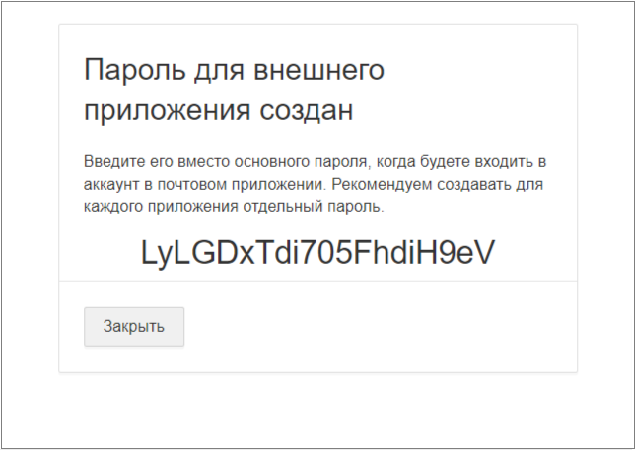
8. Paste the copied password into the connection window in the Teletype App panel.
Connecting iCloud Mail
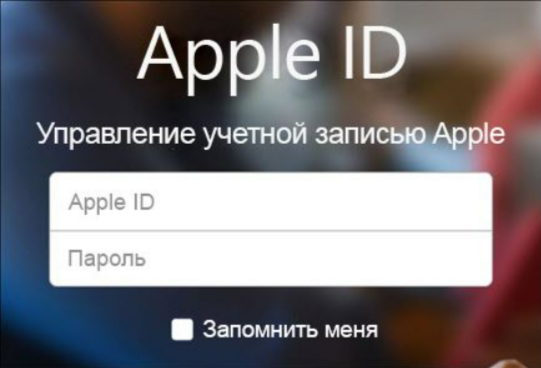
1. Log in to the Apple ID website in your browser.
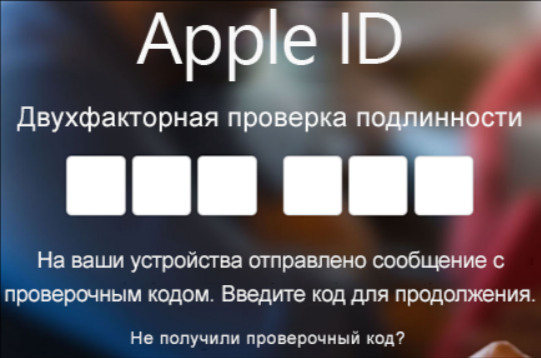
2. If two-factor authentication is already enabled, you will receive a code on one of your devices. Enter this code to continue. Otherwise, enable two-factor authentication.
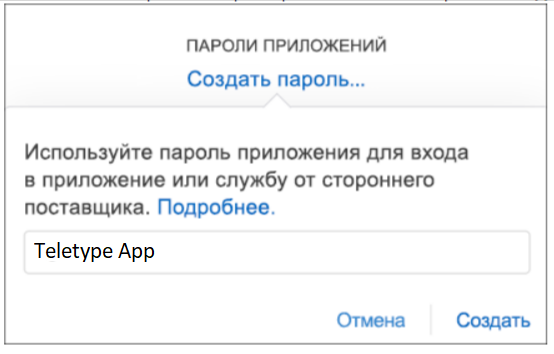
3. In the “Security” section, under “APP PASSWORDS”, select “Generate Password…”
4. Enter a name for the password, for example, Teletype App, and click “Generate”.
5. Apple will display your app password.
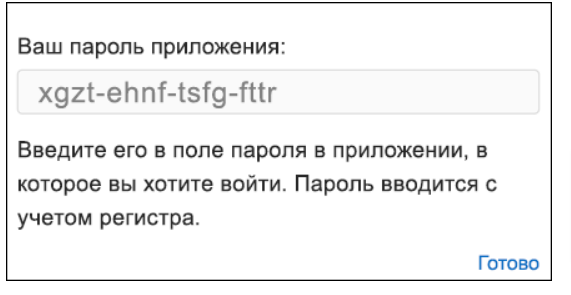
6. Copy this password (without spaces) and enter it when connecting in Teletype App.
7. From the dropdown list, select your email provider iCloud.
8. Click “Check connection”.
9. After a successful connection check, click “Add email”.
10. If necessary, edit the channel name and click “Finish”. The channel has been successfully added.