How can we help?
WhatsApp Business
Connecting WhatsApp Business
Connecting the WhatsApp Business channel to the Teletype App panel is done through the company Edna.
1. Go to the “Add Channel” section in the left menu of the Teletype panel or to the channels section in the project settings.
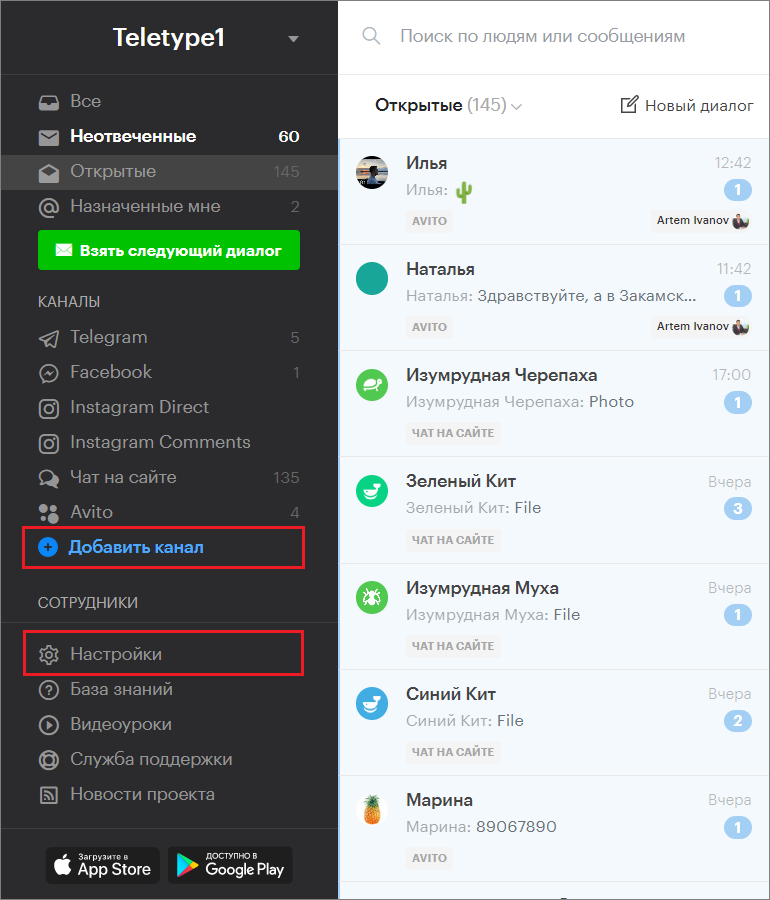
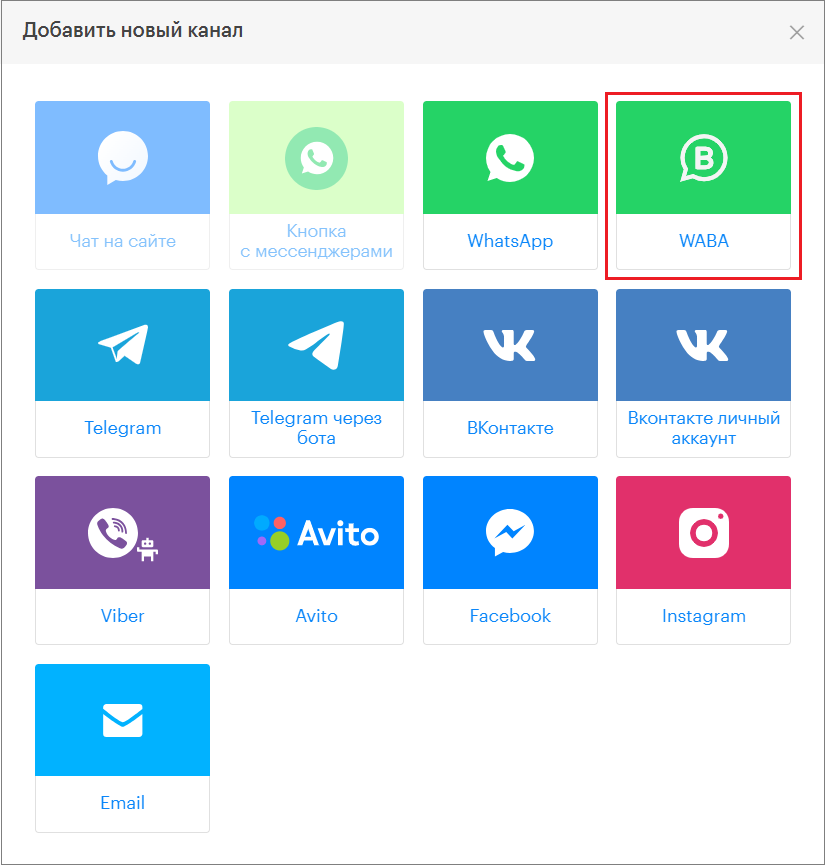
2. In the window that appears, select the “WABA” block.
3. Click “Add WABA to the plan”.

4. Copy the token from your Edna personal account.
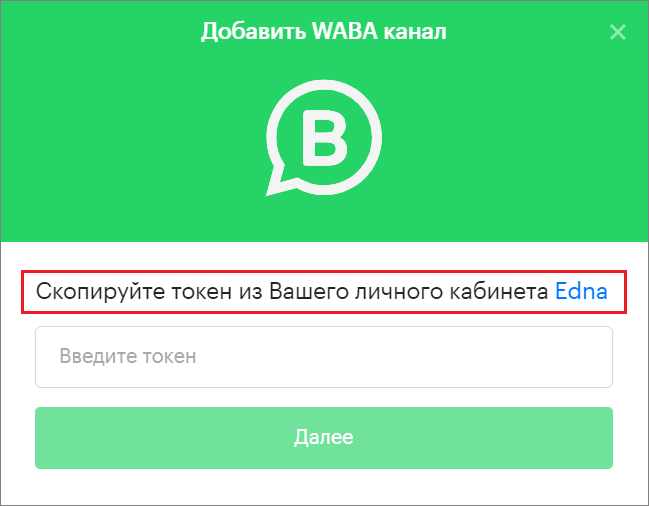
5. Paste the copied token into the connection window.
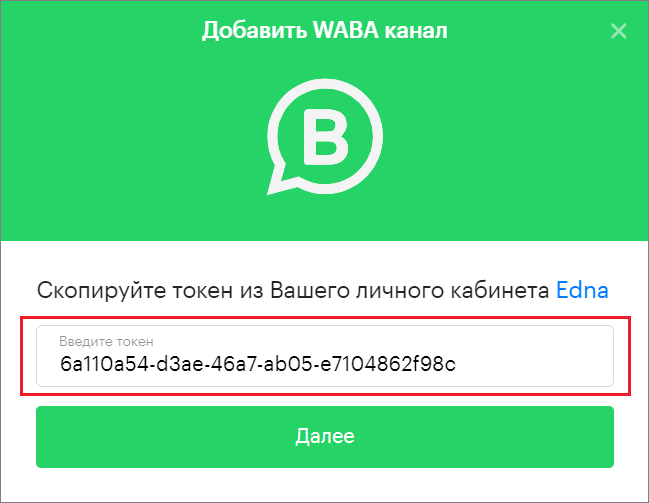
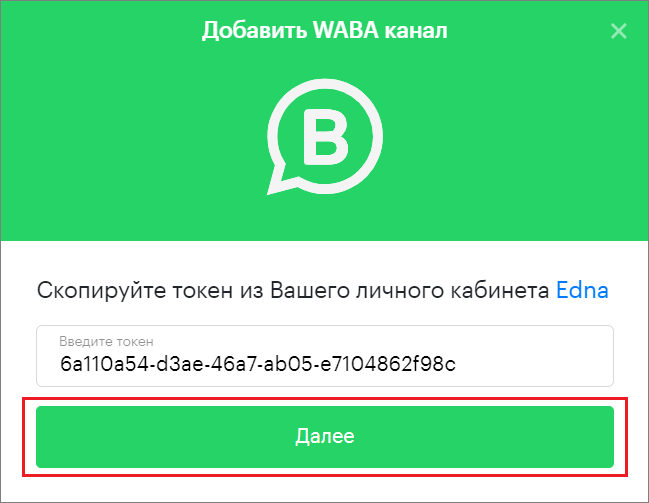
6. Click “Next”.
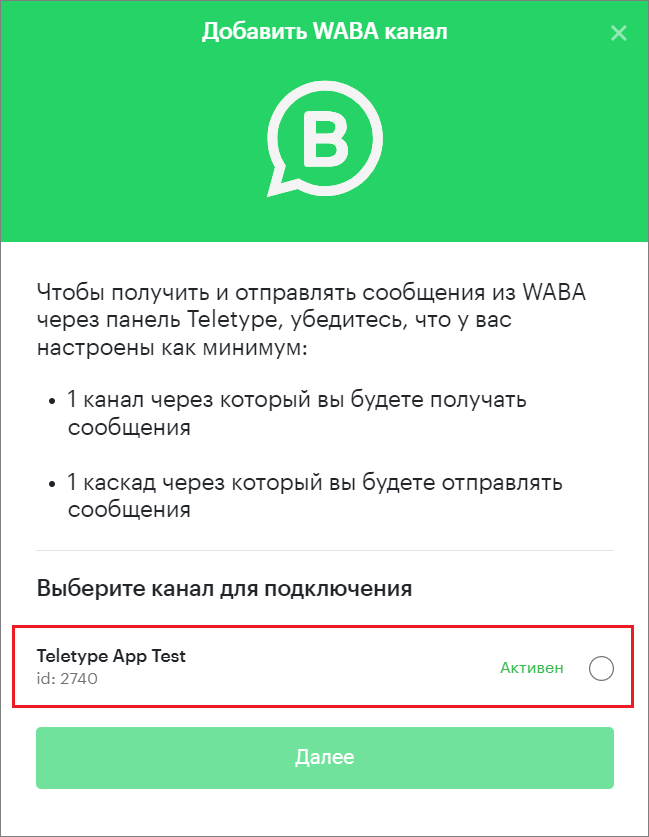
7. In the window that opens, select the channel to connect.
8. Select the cascade for connection.
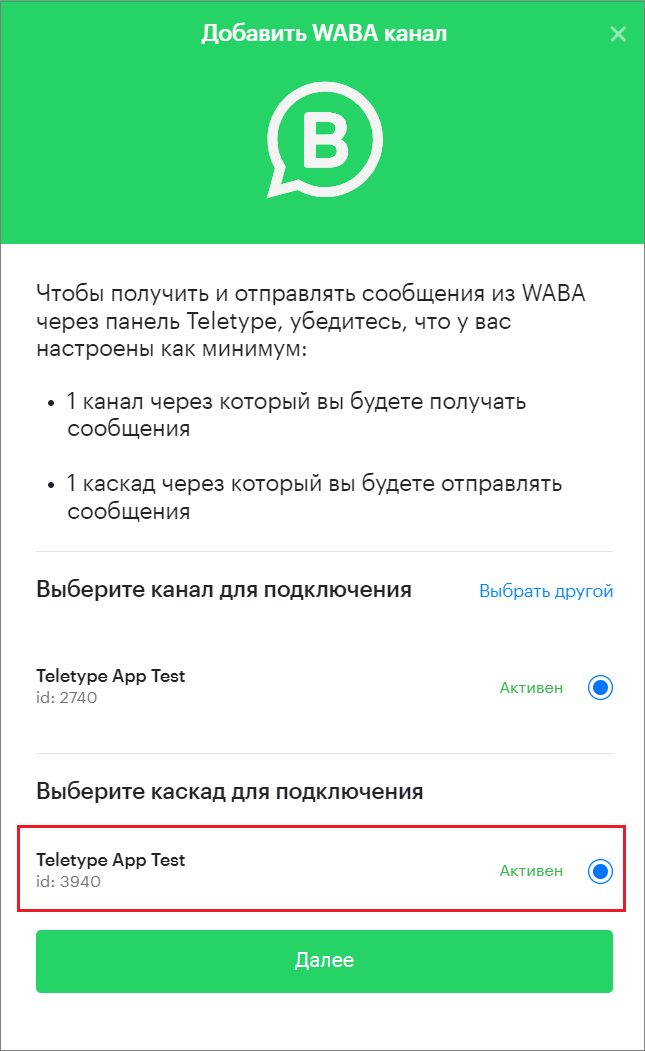
9. Click “Next”.
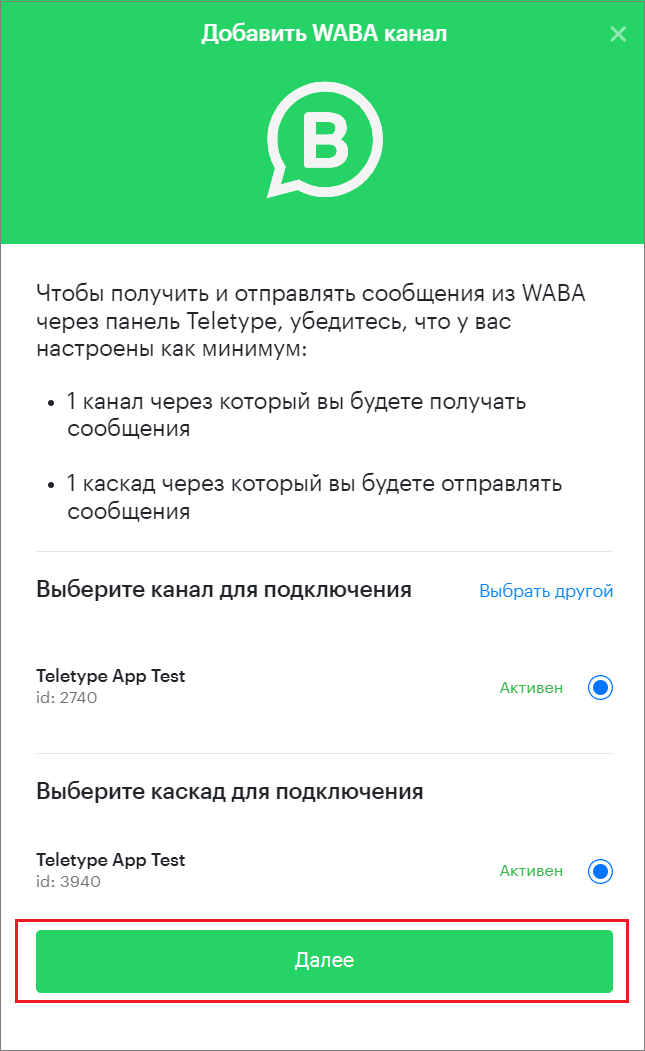
10. In the Teletype App panel, rename the channel if necessary and click “Finish”.
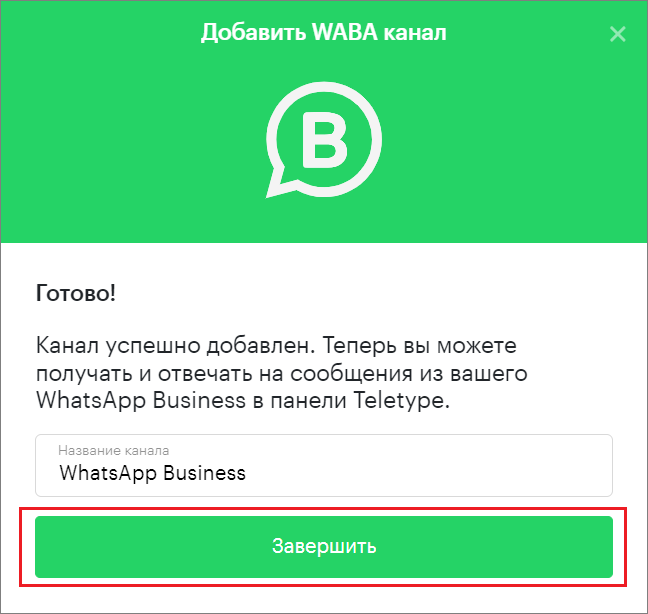
11. The channel has been successfully connected.
Uploading WABA Message Templates
1. Go to the project settings.
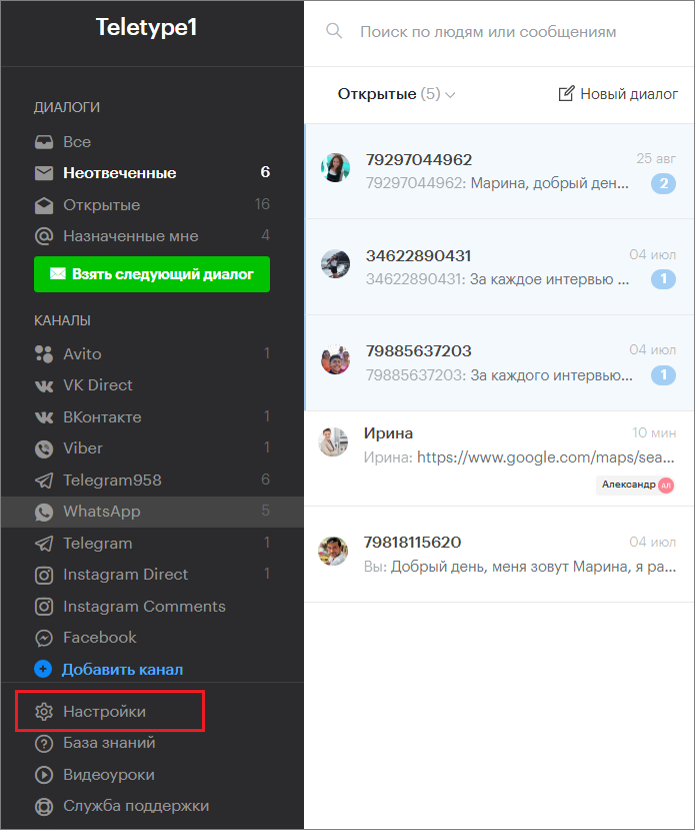
2. In the settings, open “WABA Message Templates”.
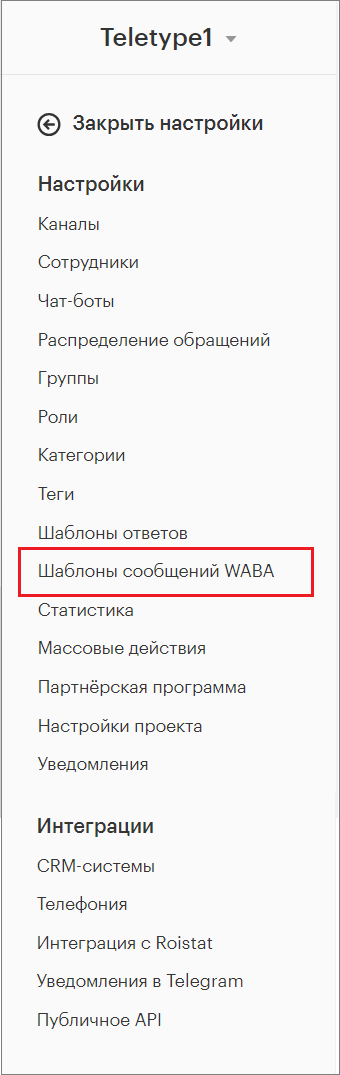
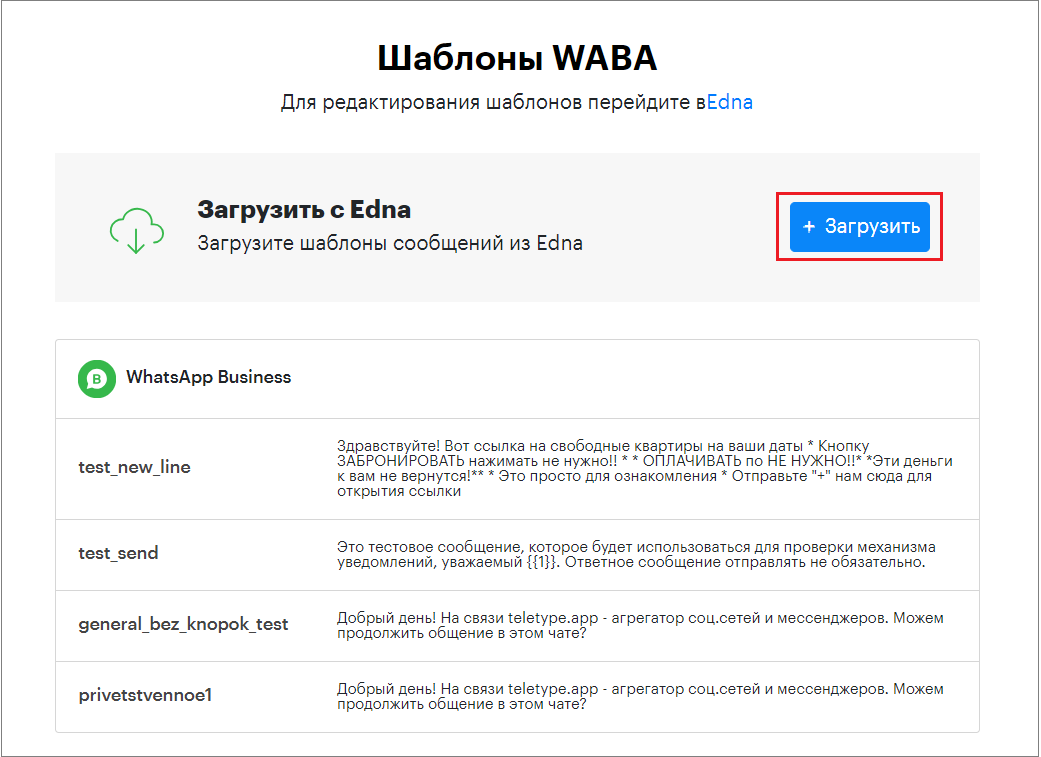
3. Click “Upload”.
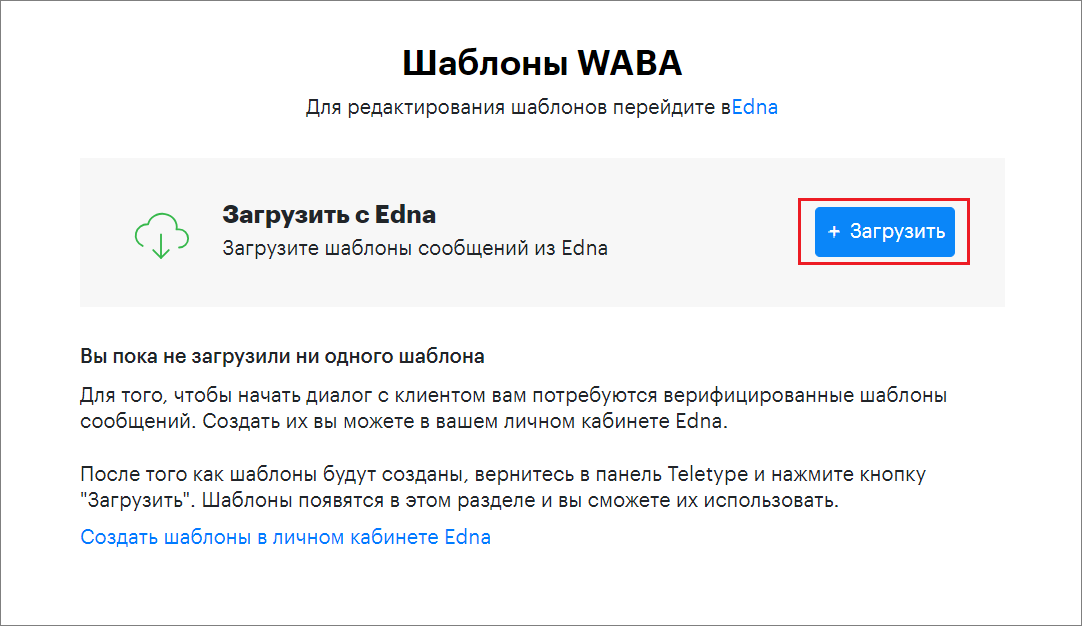
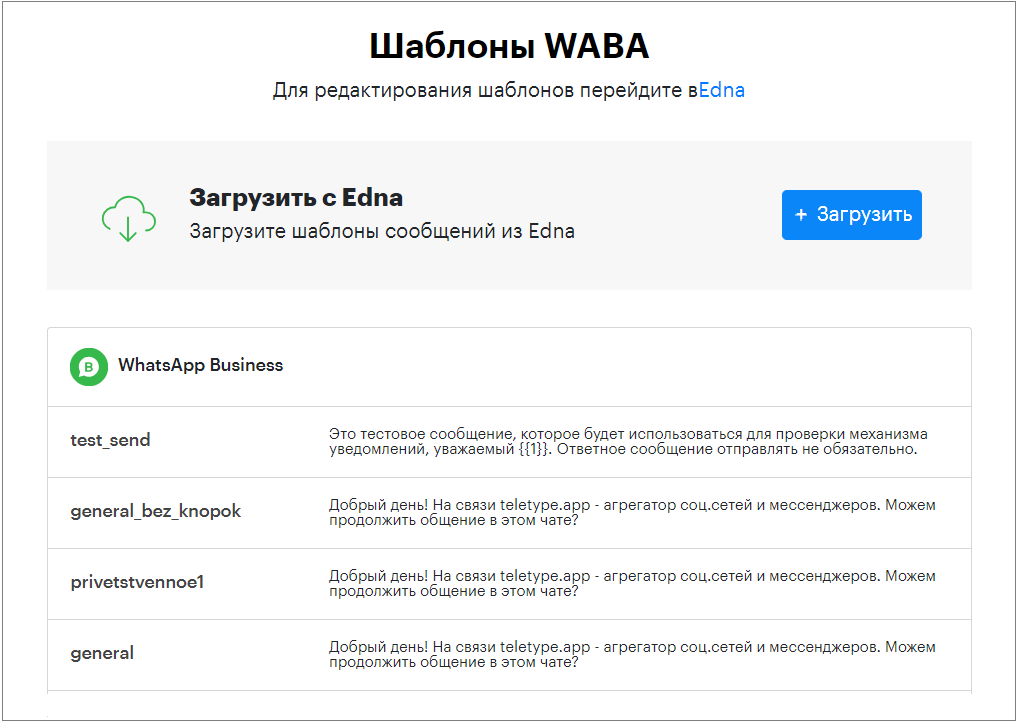
4. After that, WABA templates from Edna will automatically appear here.
How to Initiate a Conversation via WhatsApp Business
Before initiating a conversation with a client from the Teletype App panel, you need to upload WABA message templates from Edna.
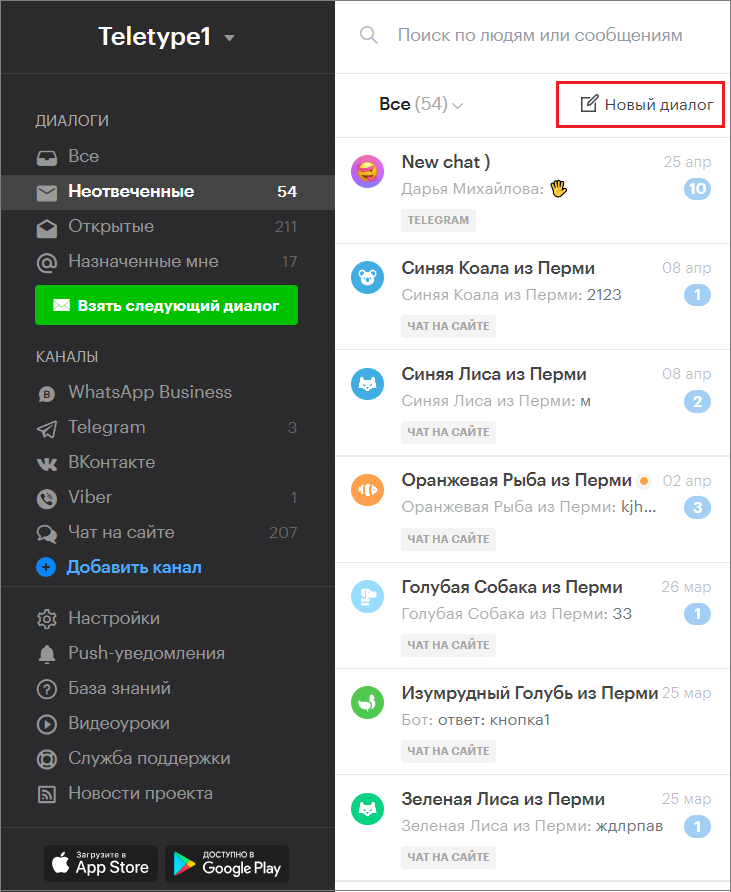
1. In the Teletype App panel, click “New Dialog”.
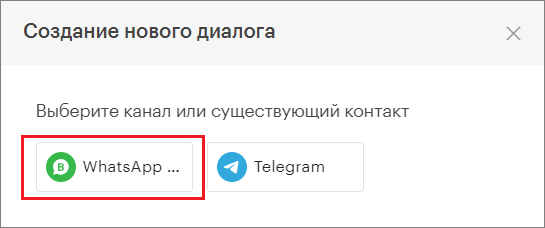
2. In the window that opens, select the WhatsApp Business channel.
3. Enter the contact’s phone number and click “Create”.
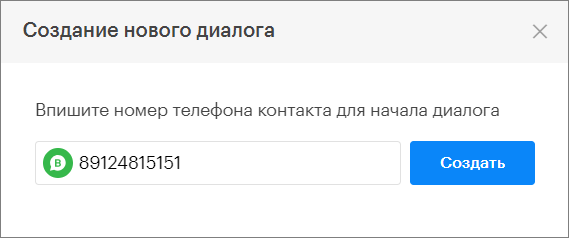
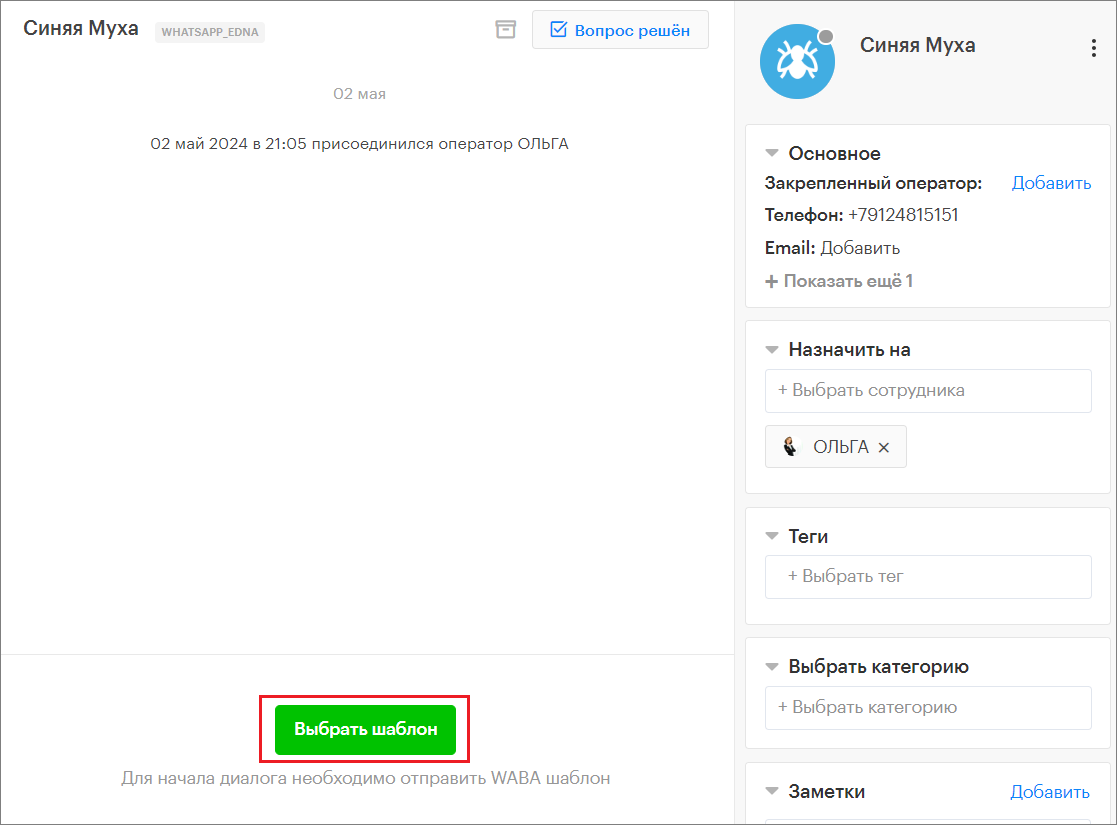
The dialog will open in the Teletype App panel.
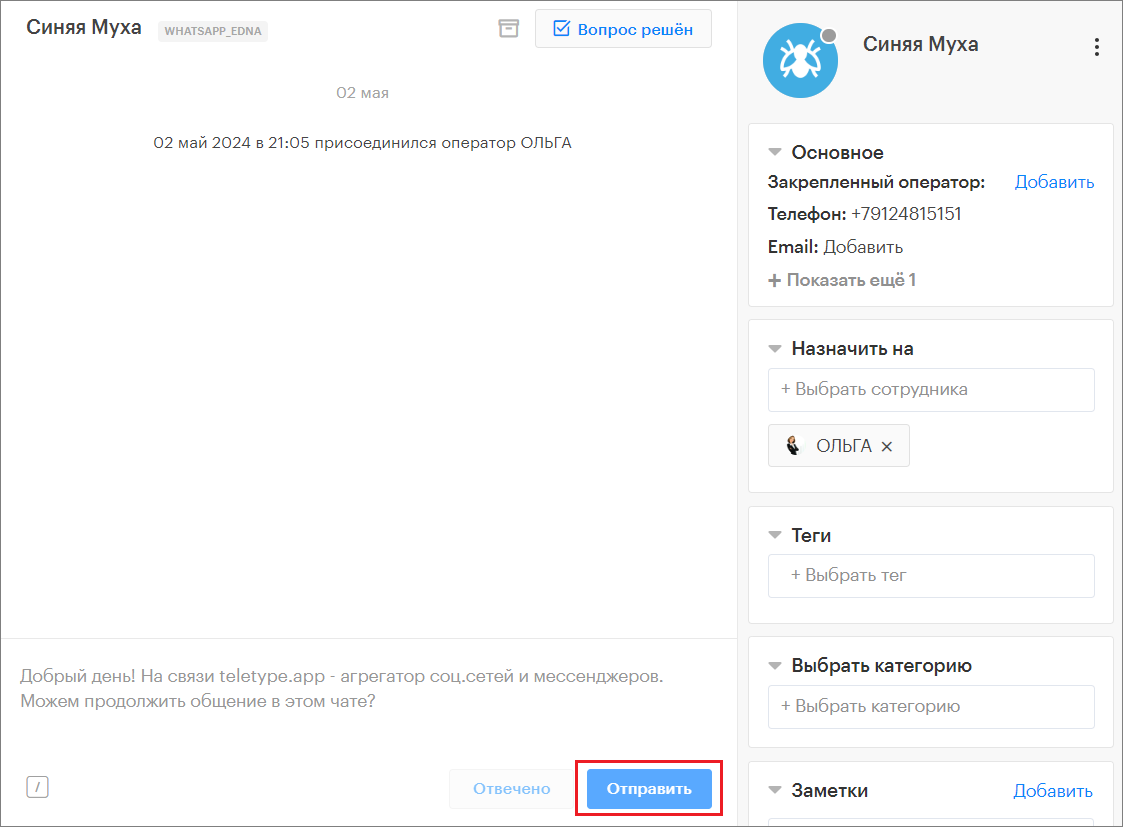
4. Click “Select Template”.
A list of WABA message templates uploaded from Edna will open.
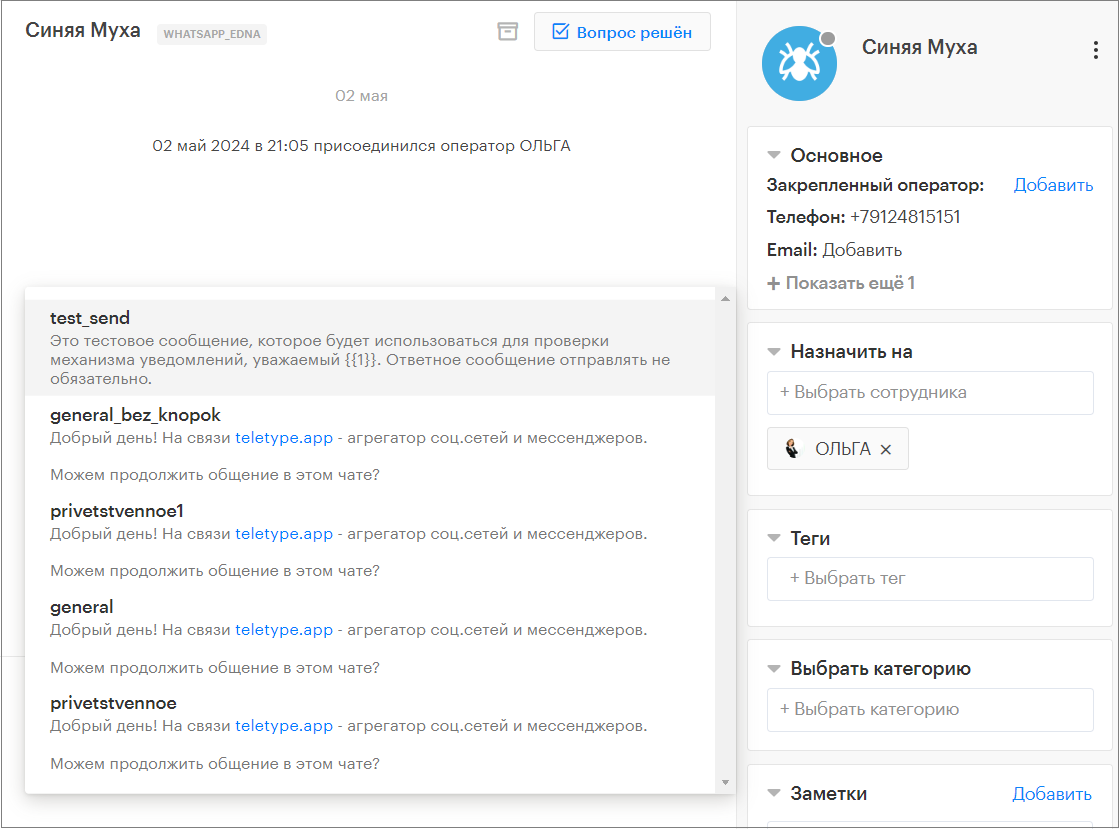
5. Select the desired template from the list.
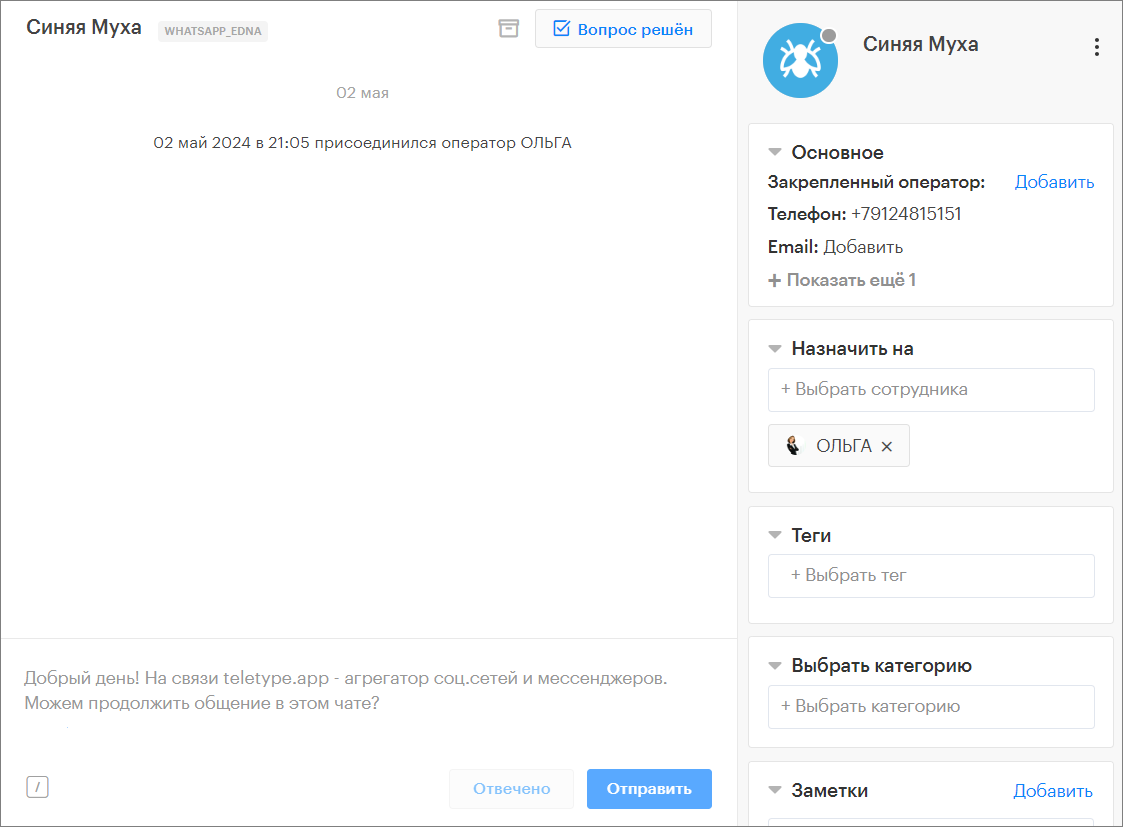
6. Click “Send”.
Synchronizing WABA Templates with Edna
If you have updated response templates in Edna, you need to re-upload them in the Teletype App project settings under “WABA Message Templates”.
In this case, WABA templates will be synchronized with Edna.