
How can we help?
Instagram Direct/Comments
Connect Instagram
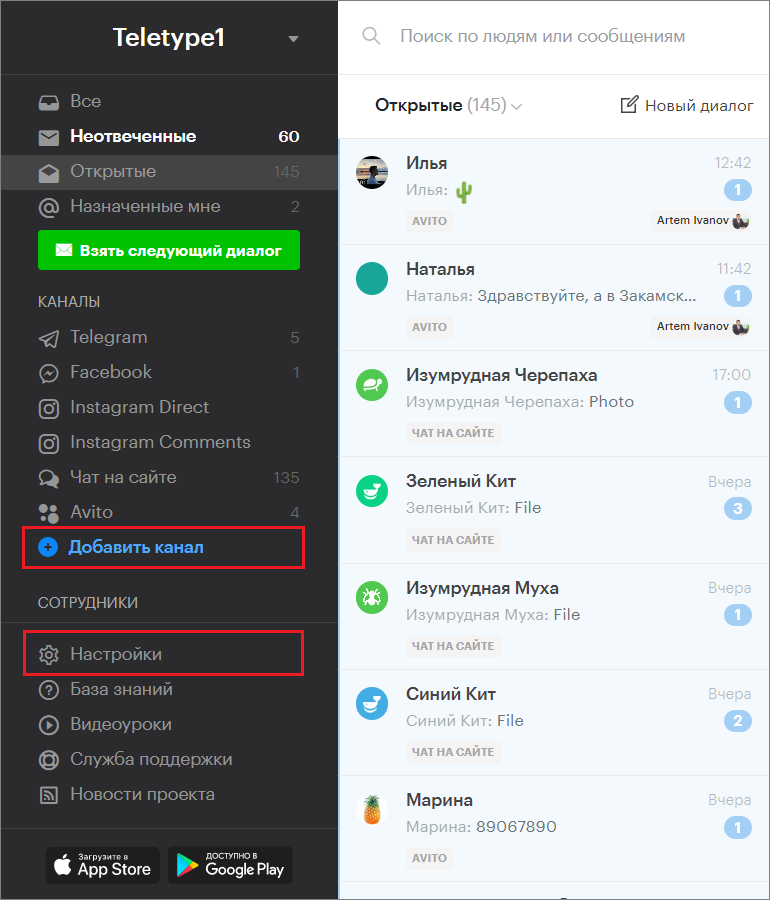
- To connect an Instagram channel, go to the Teletype project settings by clicking the Settings button in the bottom left corner.
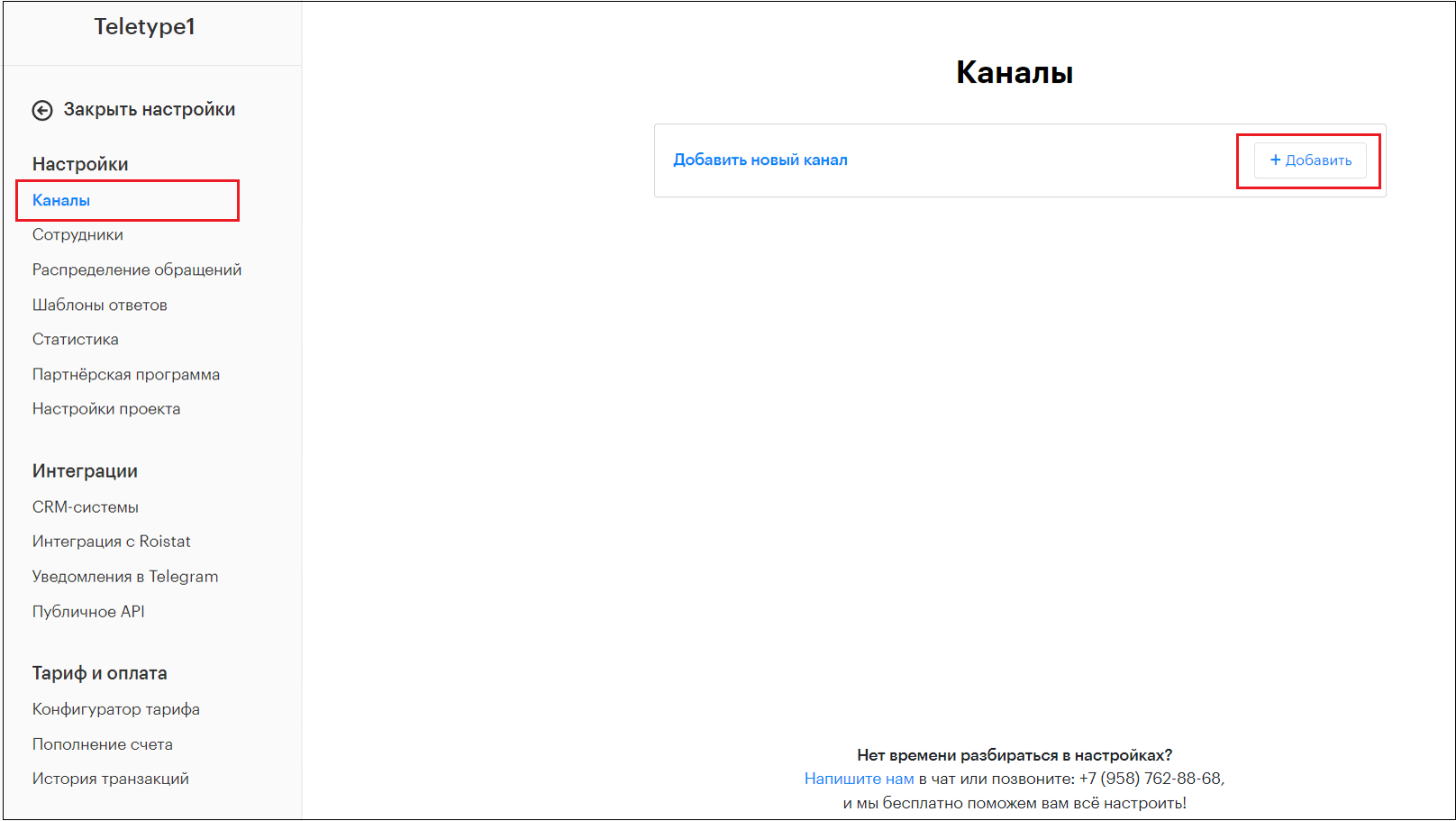
2. Then select the Channels section and click “Add”.
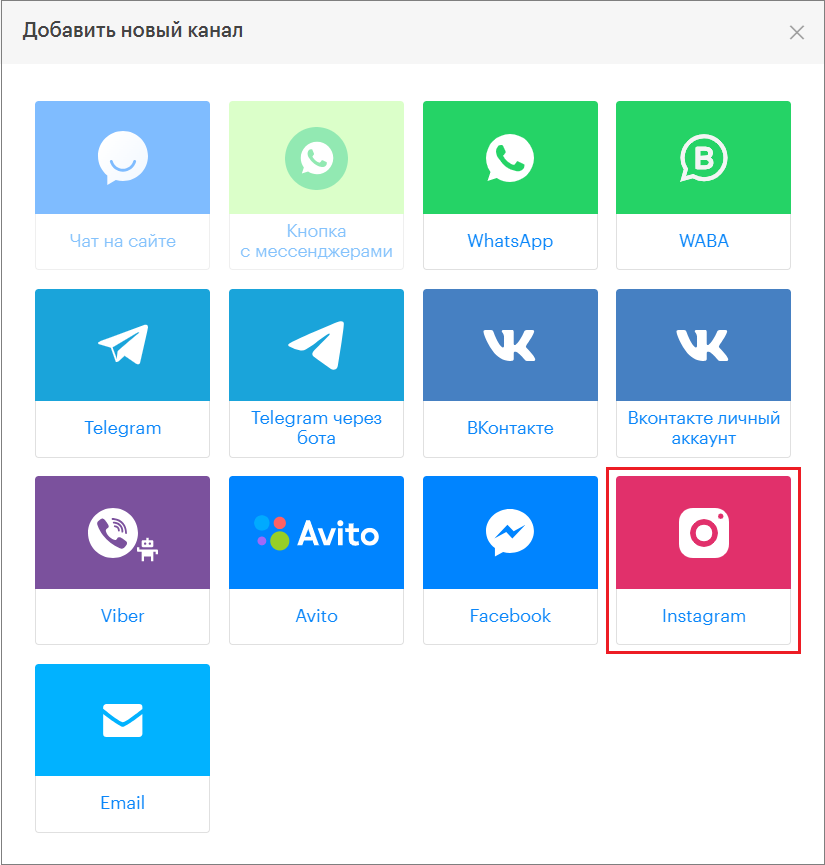
3. In the window that appears, select Instagram and click on it.
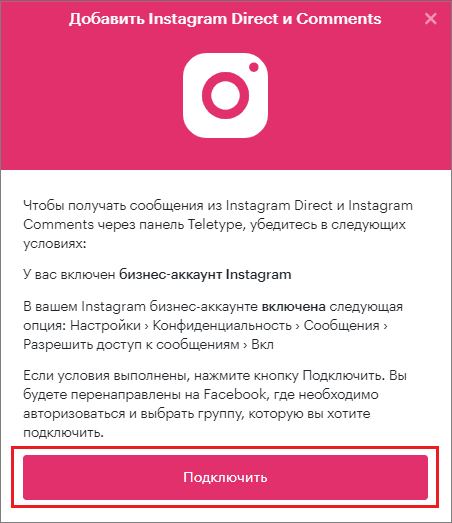
4. A window for connecting the Instagram channel will open. Review the connection requirements. If your account meets all the conditions, click the Connect button.
5. After that, you will be redirected to the Facebook website to grant access to your Instagram business account.
If you are not logged into Facebook, you will be prompted to sign in. Fill in the Email and Password fields and click the Login button. If you are already logged in, proceed to the next step.
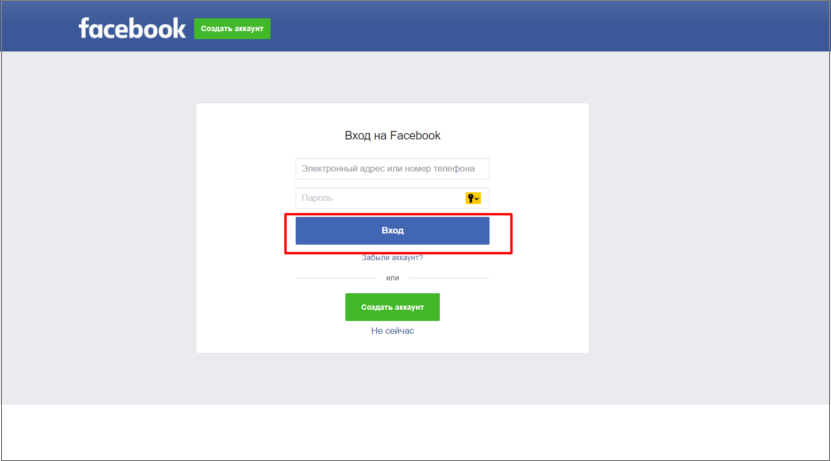
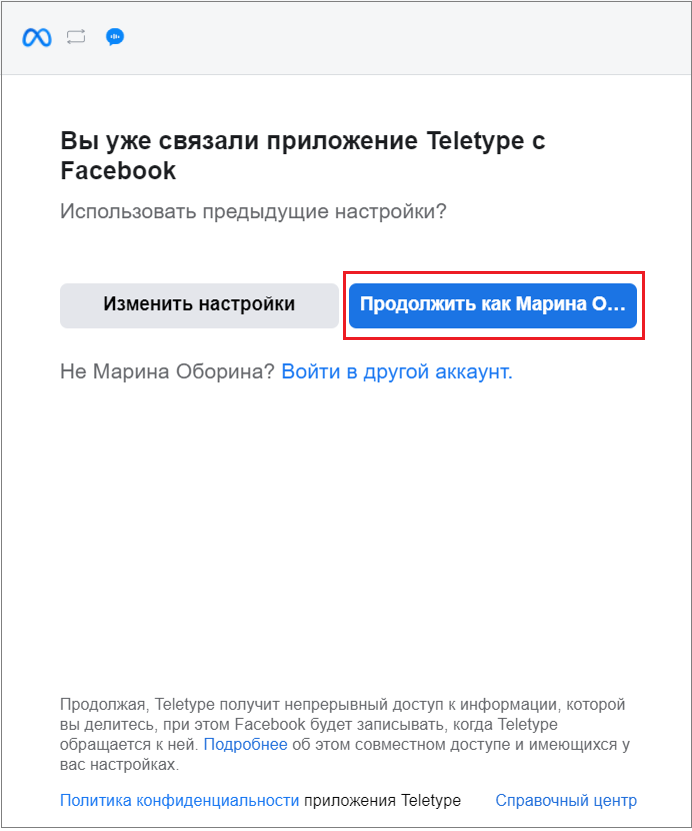
6. After logging into Facebook, a window to grant account access will appear. Click the Continue button.
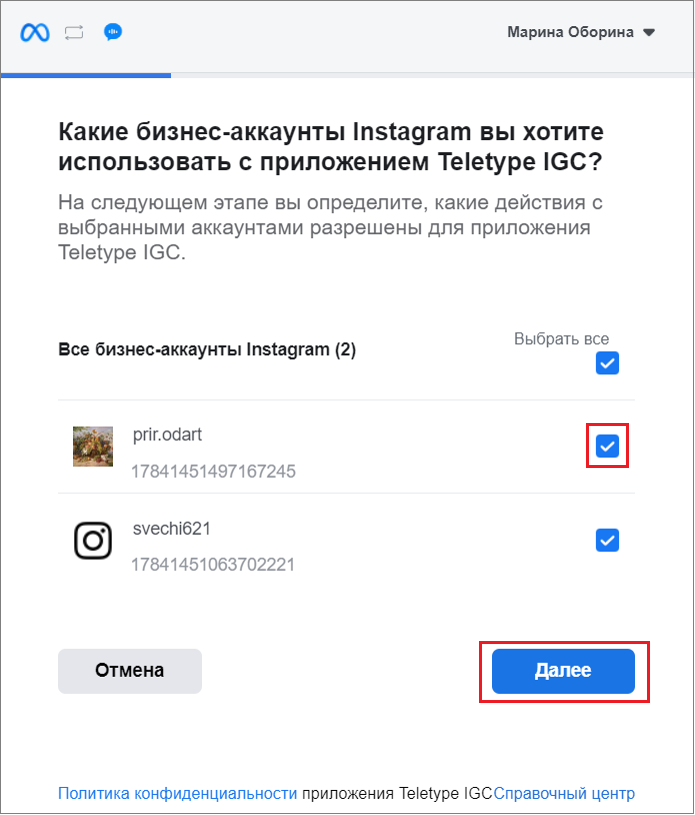
7. Then select the Instagram business account you want to connect to Teletype by checking the box next to it and clicking Next.
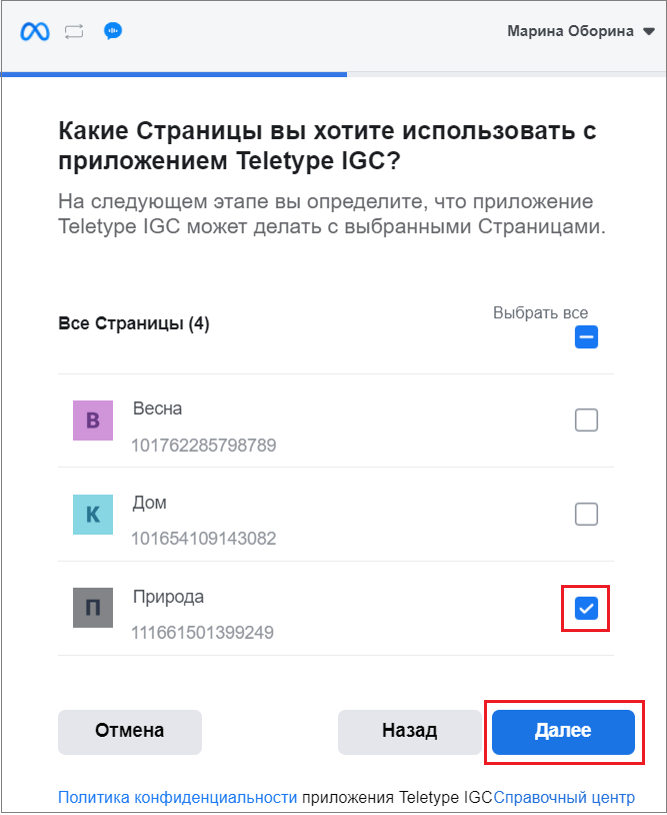
8. Next, select the Facebook page linked to this account, check the box next to it, and click Next.
9. Then, for each permission item, select Yes and click Done.
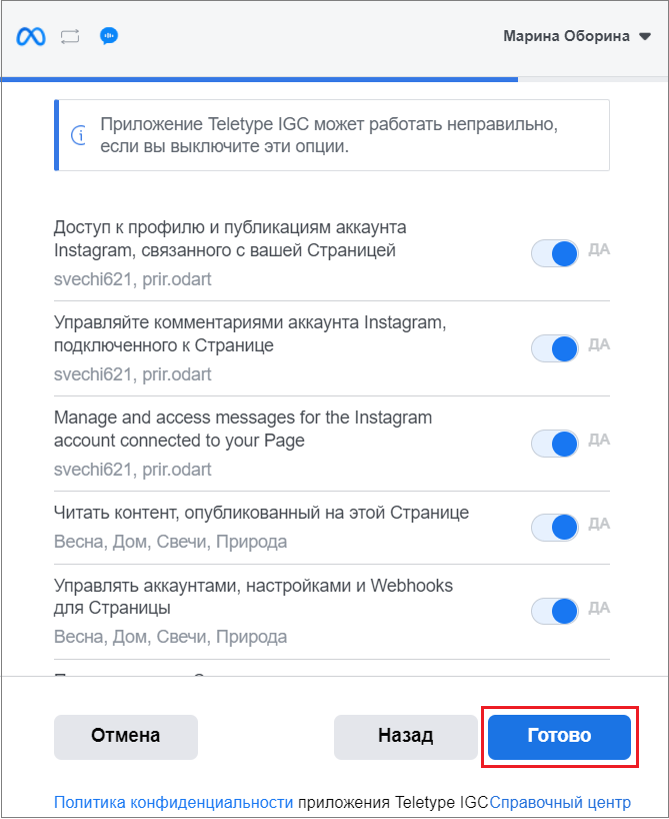
10. A notification will appear confirming that you have linked your Teletype and Instagram accounts. Click OK.
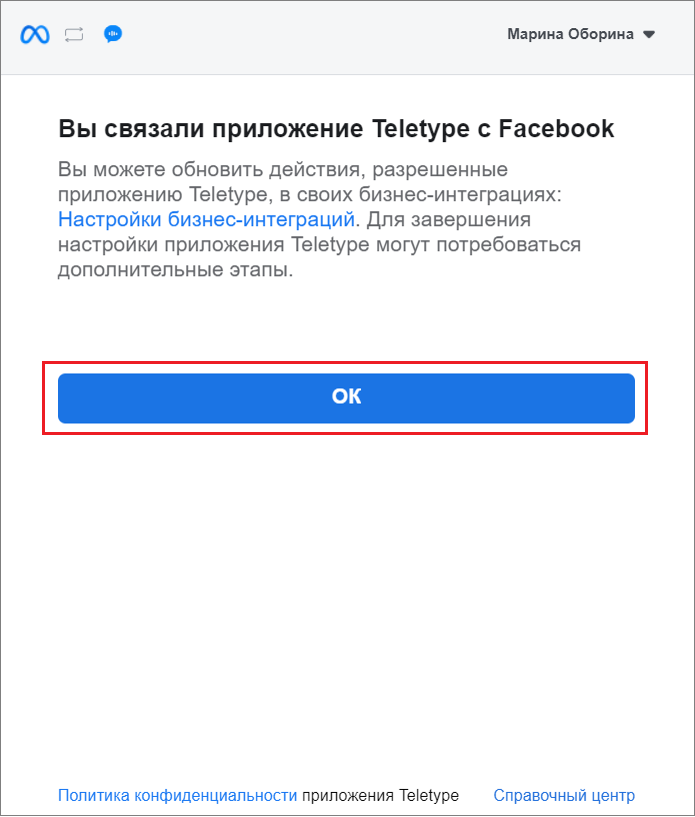
11. Then, in the Teletype channel connection window, click Connect (if you granted access to multiple pages, first select the one you want to connect and click the flag next to it).
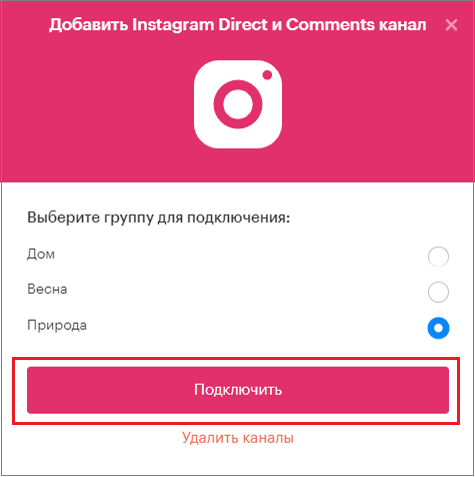
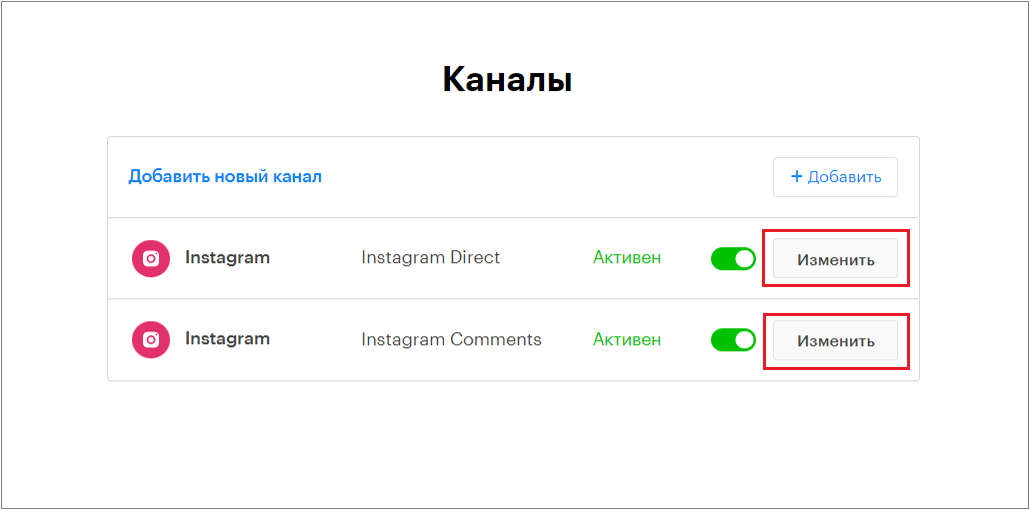
After this, two channels will be added to the list of connected channels: Instagram Direct and Instagram Comments.
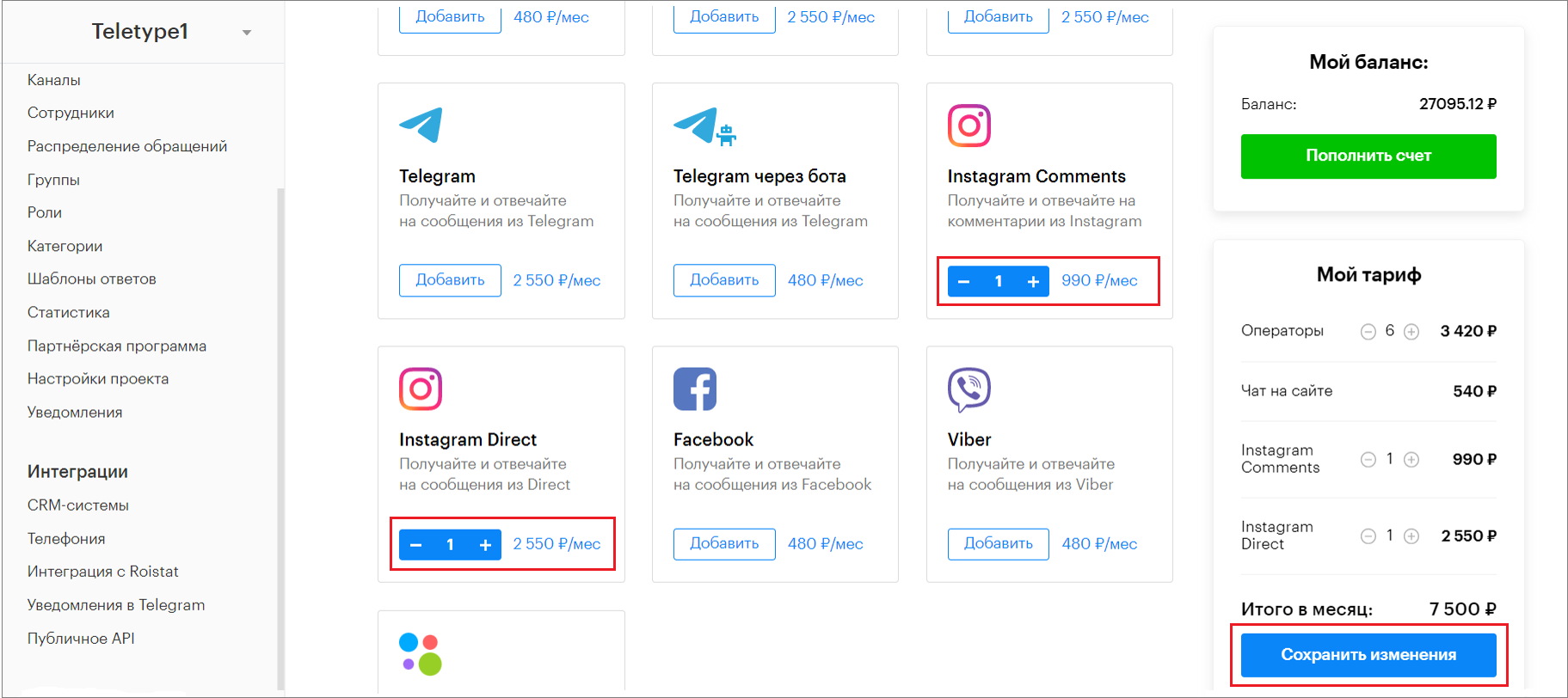
12. Go to the Tariff Configurator in the panel settings and add Instagram Direct/Comments to your plan.
Edit Instagram Channel Name
You can change the channel name and enable only one of them if needed. To do this:
1. Click the Edit button next to any of the channels.
2. In the window that opens, you can change the channel names by clicking on the channel name and entering the desired text. You can also toggle the switch next to the channel to disable it.
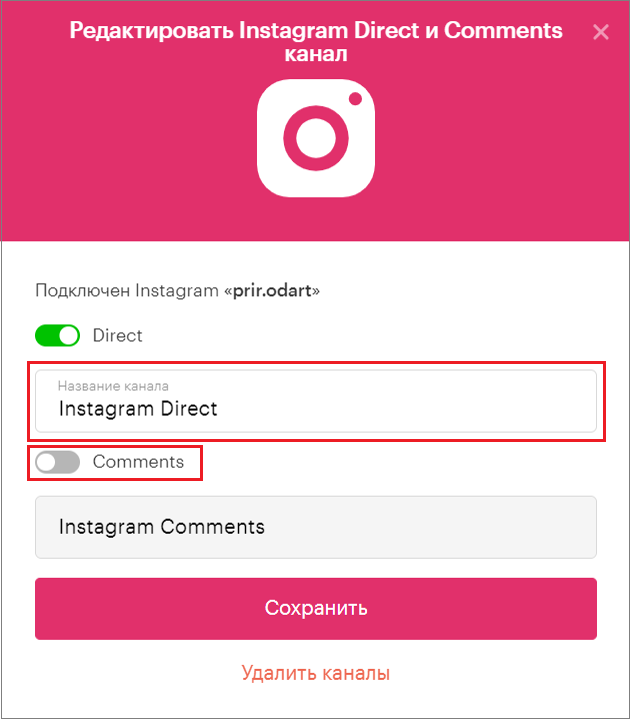
15. After clicking Save, the changes will take effect.
If You Are Not Receiving Messages from Clients
- After connecting the channel, be sure to check if message access has been granted. To do this:
- Open the Instagram app on your phone
- Tap Profile or your profile picture in the bottom right corner to go to your profile
- Tap Menu in the top right corner
- In the How Others Can Interact With You section, tap Messages and Story Replies
- Tap Message Requests
- Select Who Can Add You to Groups
- Choose:
— Everyone on Instagram. Group chat requests from Instagram users you’ve previously interacted with will appear in your chat list. Other chats will be added to the “Message Requests” folder.
— Only people you follow on Instagram. Only people you follow or have messaged can add you to groups.
2. People you have blocked will not be able to send you message requests or add you to groups.
Creating an Instagram Business Account