How can we help?
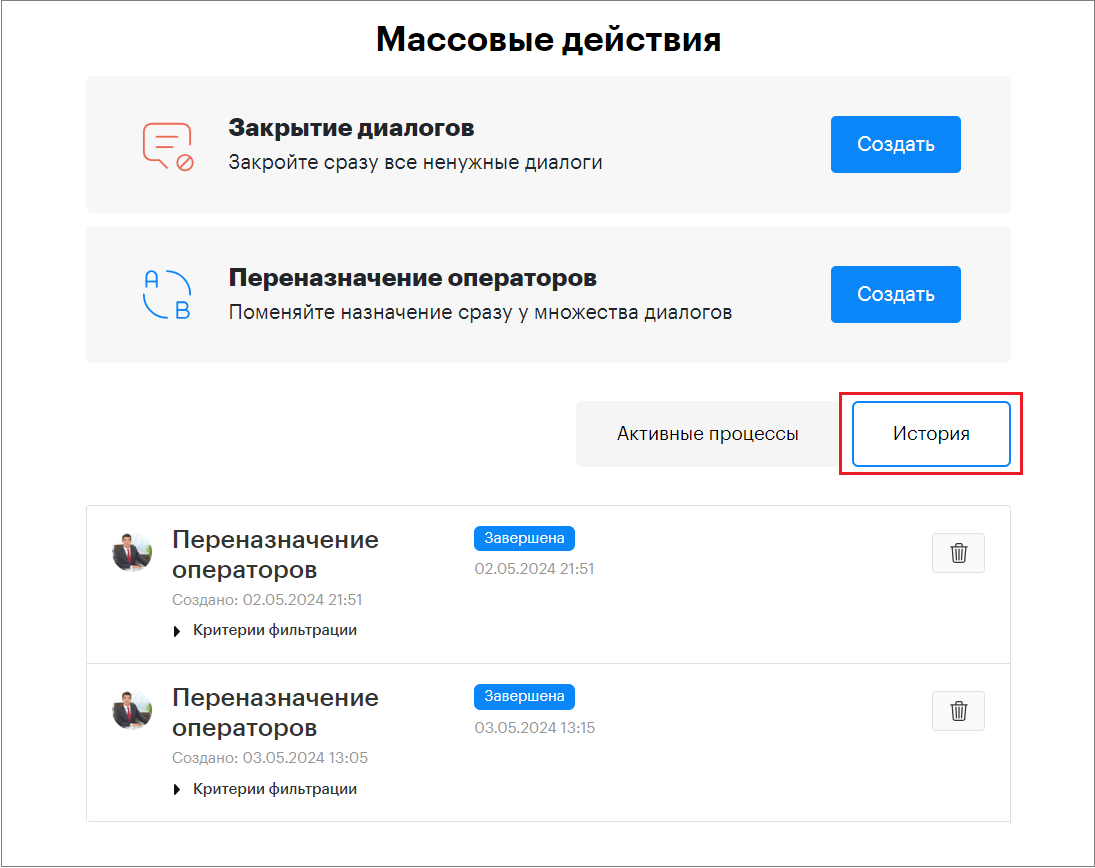
Mass Actions
In the Teletype App panel, you can perform bulk actions.
Bulk Actions: Closing Dialogs
You can close dialogs in bulk by selecting them based on specific parameters.
Parameters for selecting dialogs:
- «When the dialog was created» — the dialog creation date
- «In which channel to close dialogs» — select the communication channel
- «Responsible operator» — the operator assigned to the dialogs
Closing dialogs is available to the project owner, deputy owner, and project owner’s assistant.

How to Create a «Bulk Action: Closing Dialogs»
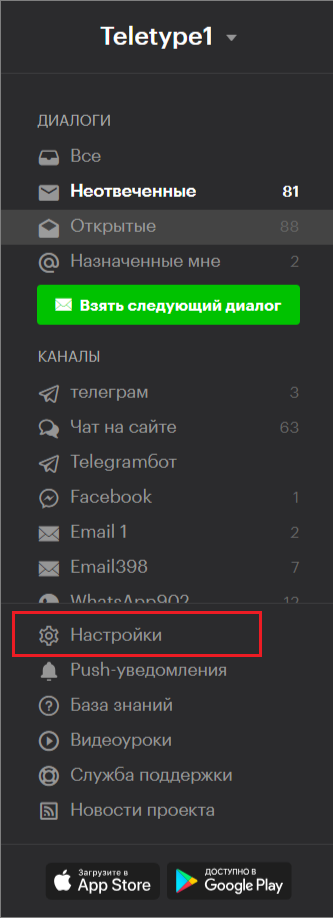
- Go to the project settings.
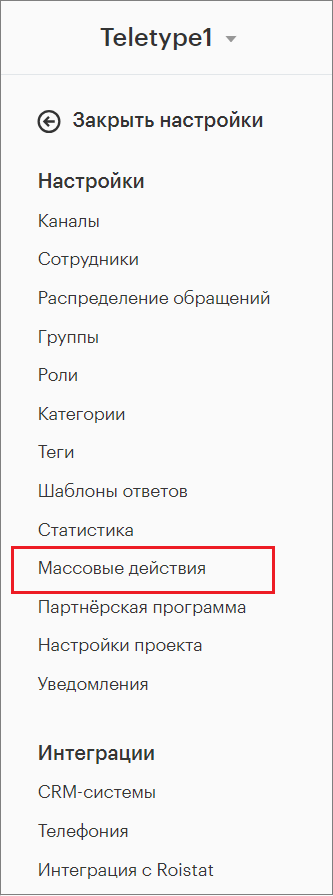
2. Open the «Bulk Actions» section in the settings.
3. Click «Create».
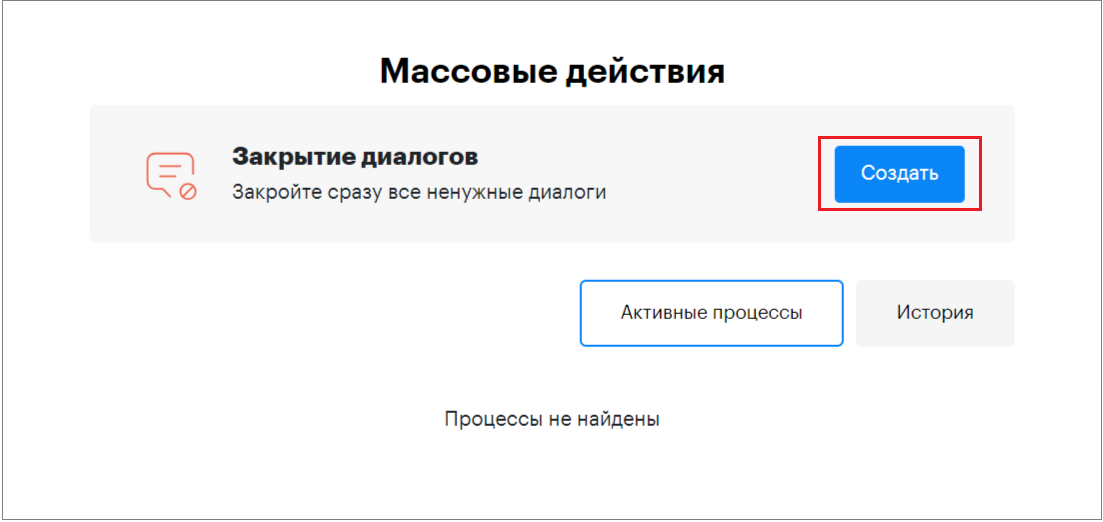
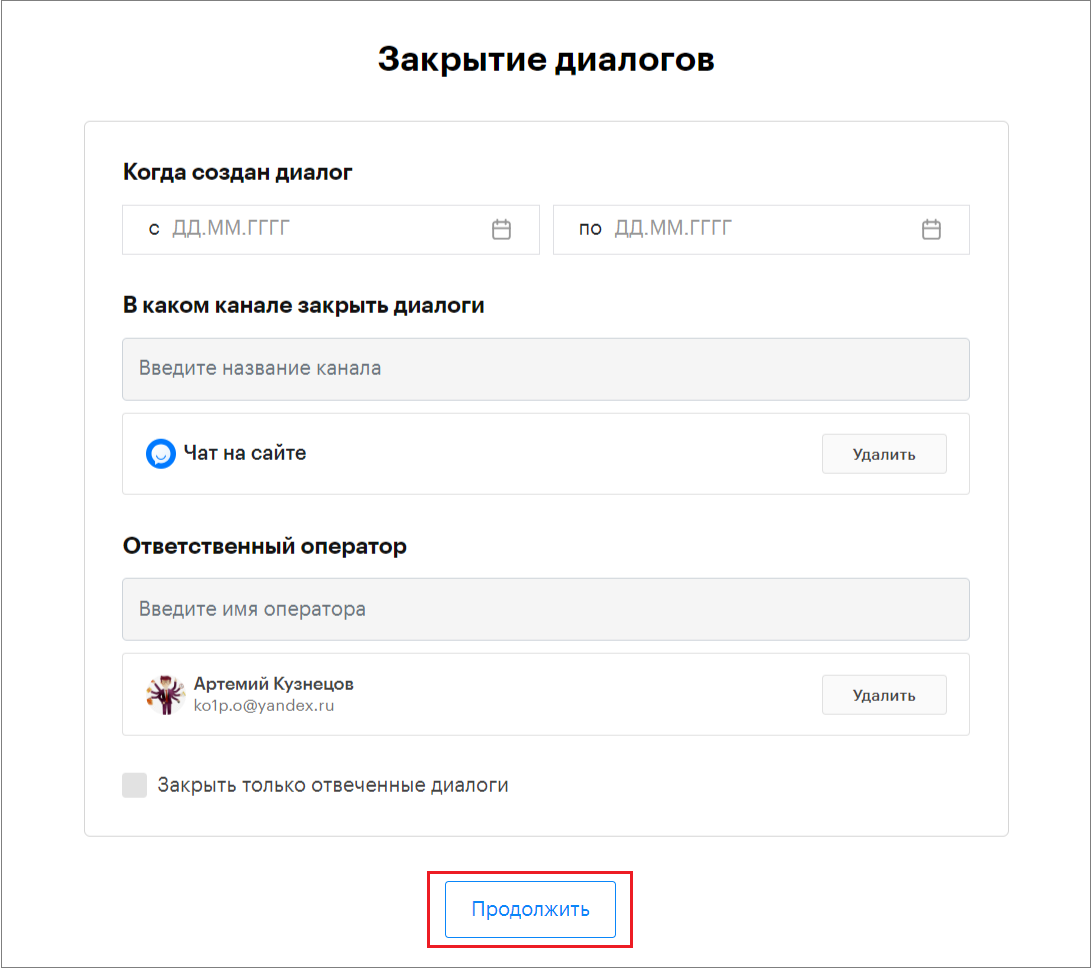
4. Select the parameters for closing dialogs.
4.1. «When the dialog was created» — select by dialog creation date.
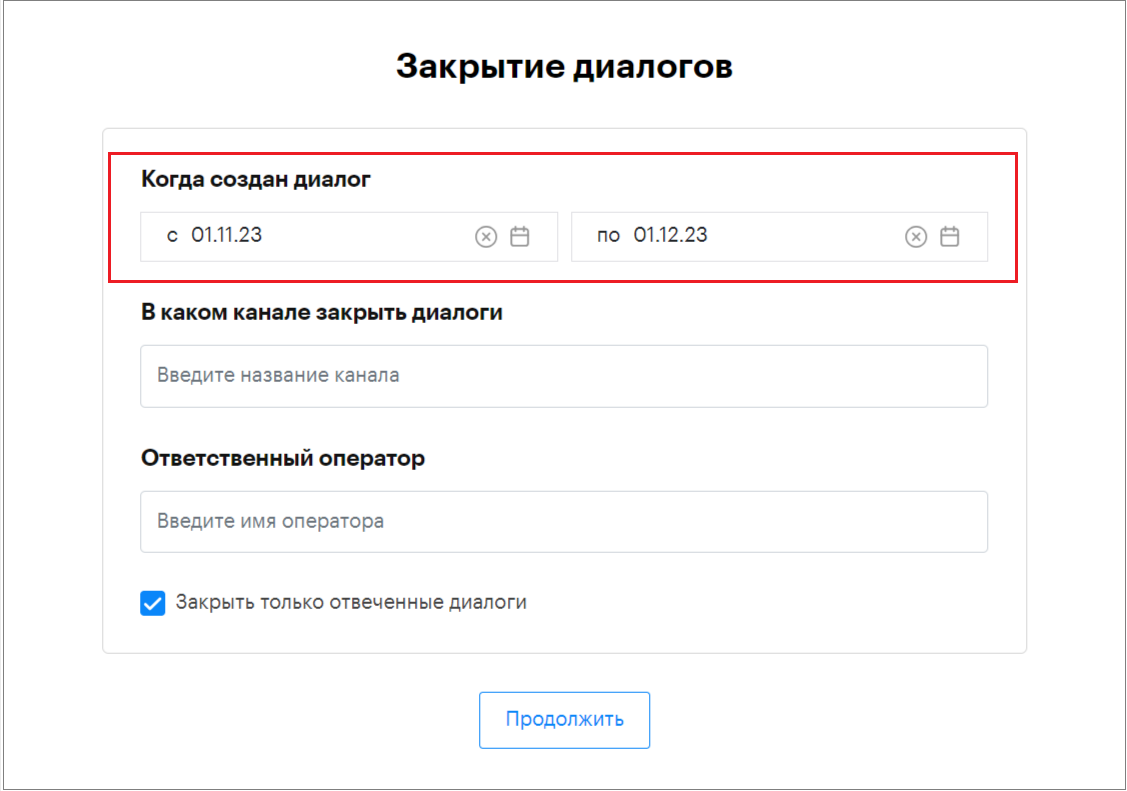
4.2 «In which channel to close dialogs» — select the communication channel where dialogs should be closed.
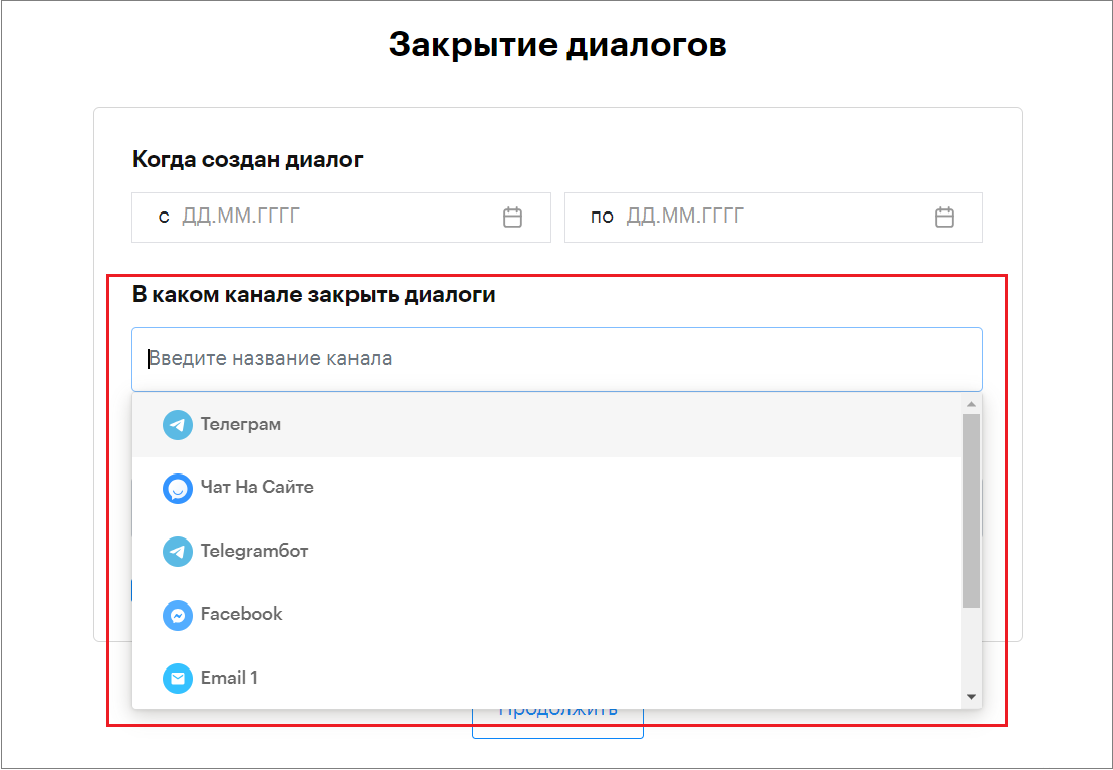
4.3 «Responsible operator» — select the operator assigned to the dialogs.
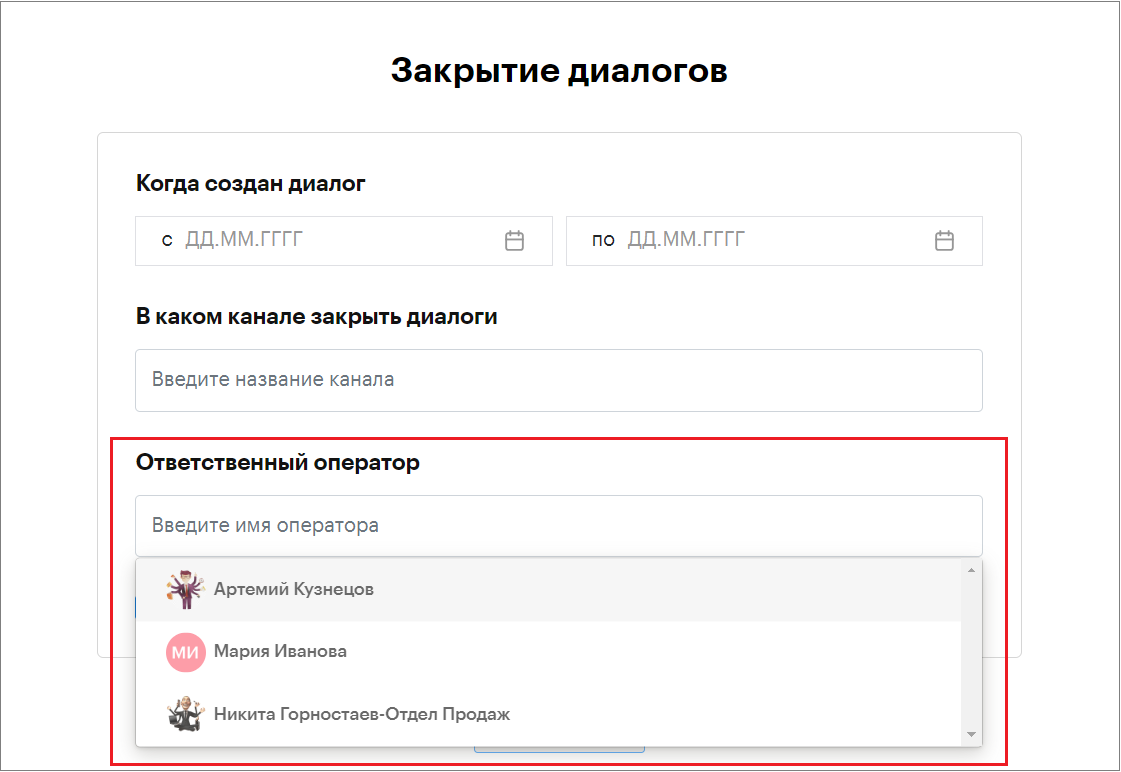
5. Click «Continue».
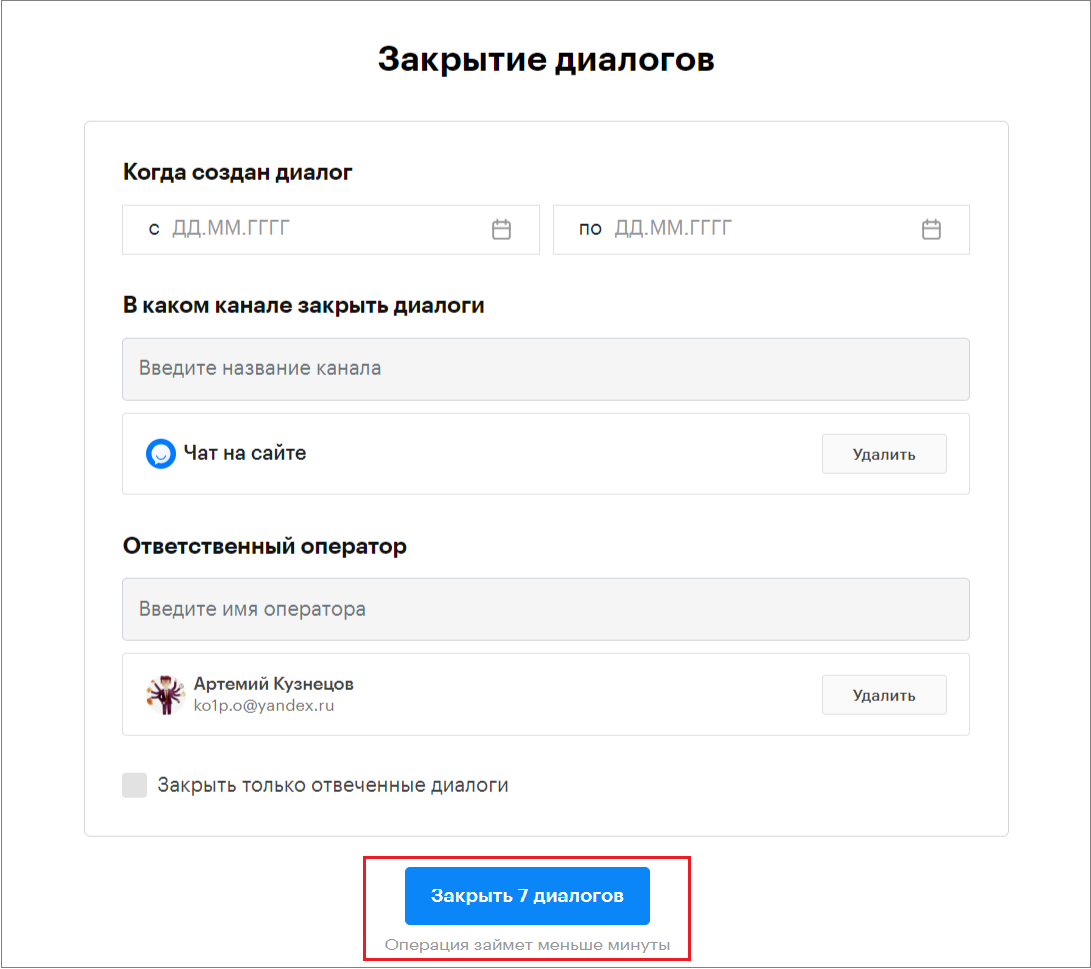
6. The number of dialogs to be closed will be displayed.
Click the «Close … dialogs» button.
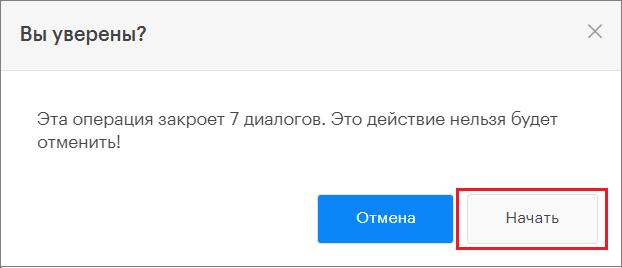
7. Click «Start».
8. The «Closing dialogs» process will run.
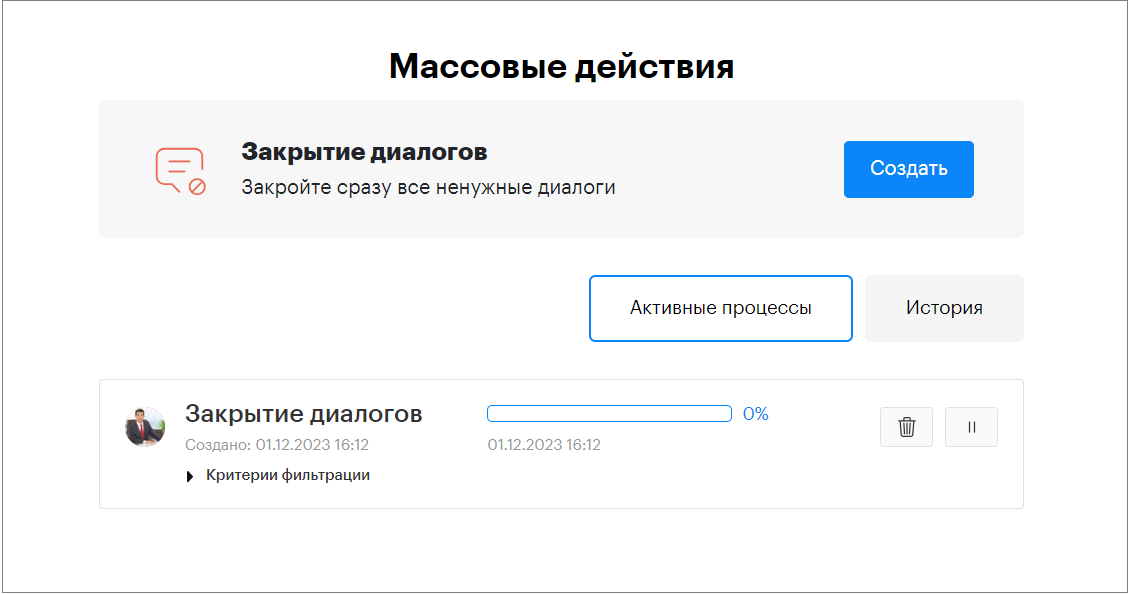
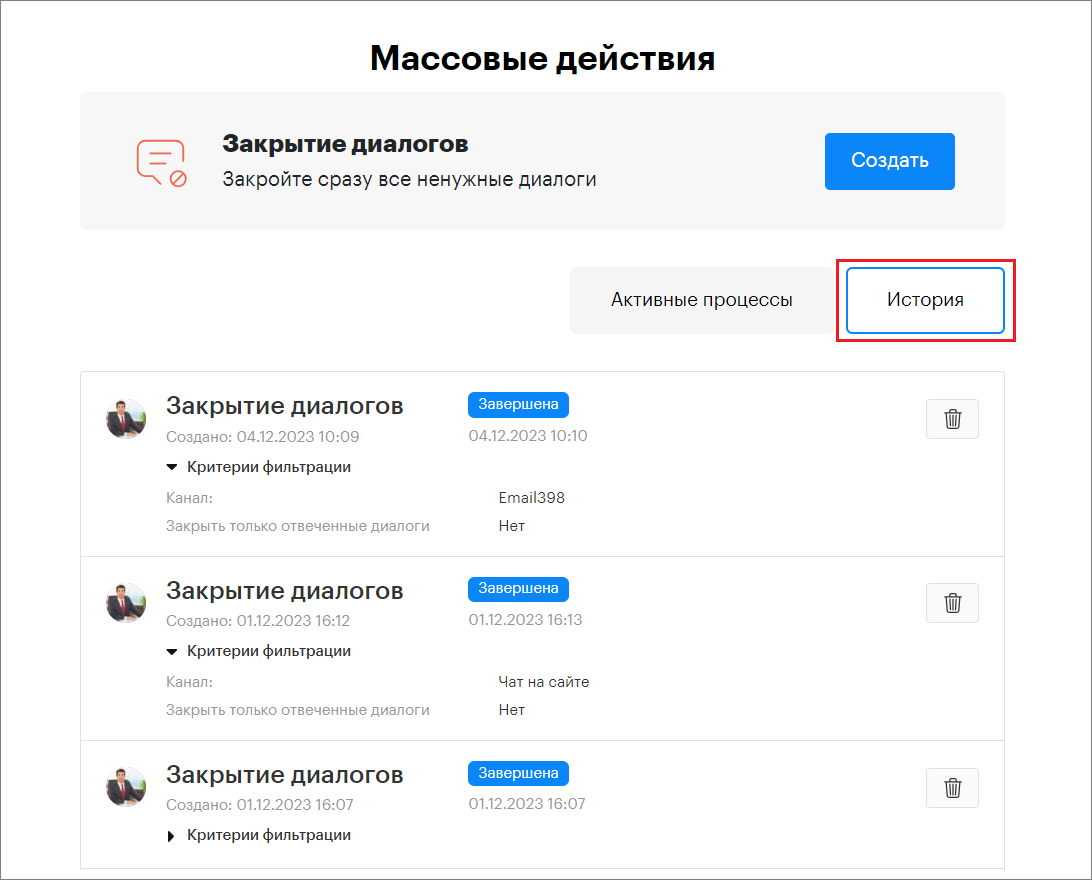
9. Information about completed processes is saved in the «History» section.
Bulk Action: Reassigning Operators
In the panel, you can reassign dialogs in bulk by selecting them based on parameters.
Parameters for selecting dialogs:
- «When the dialog was created» — the dialog creation date
- «In which channel to reassign dialogs» — select the communication channel
- «Current responsible operator» — the operator from whom the assignment should be removed
- «Assign to operator» — the operator to whom the dialogs should be reassigned
If you need to remove dialog assignments from the current responsible operator, leave the «Assign to operator» field empty.
Reassigning dialogs is available to the project owner, deputy owner, and project owner’s assistant.
How to Create a «Bulk Action: Reassigning Operators»
1. Go to the project settings.
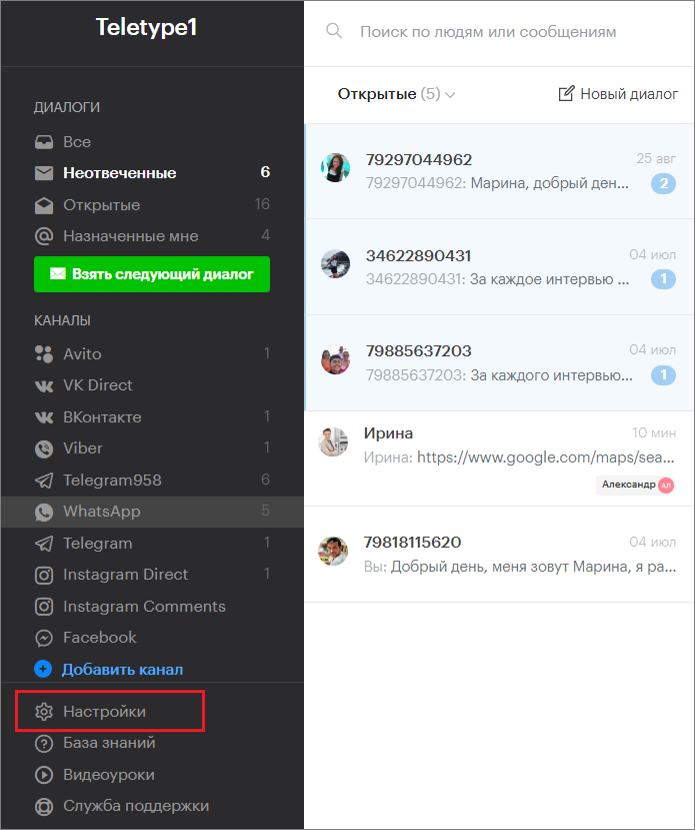
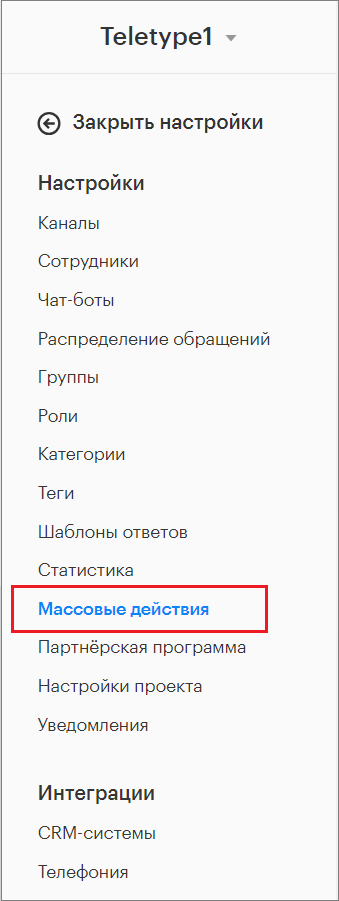
2. Open the «Bulk Actions» section in the settings.
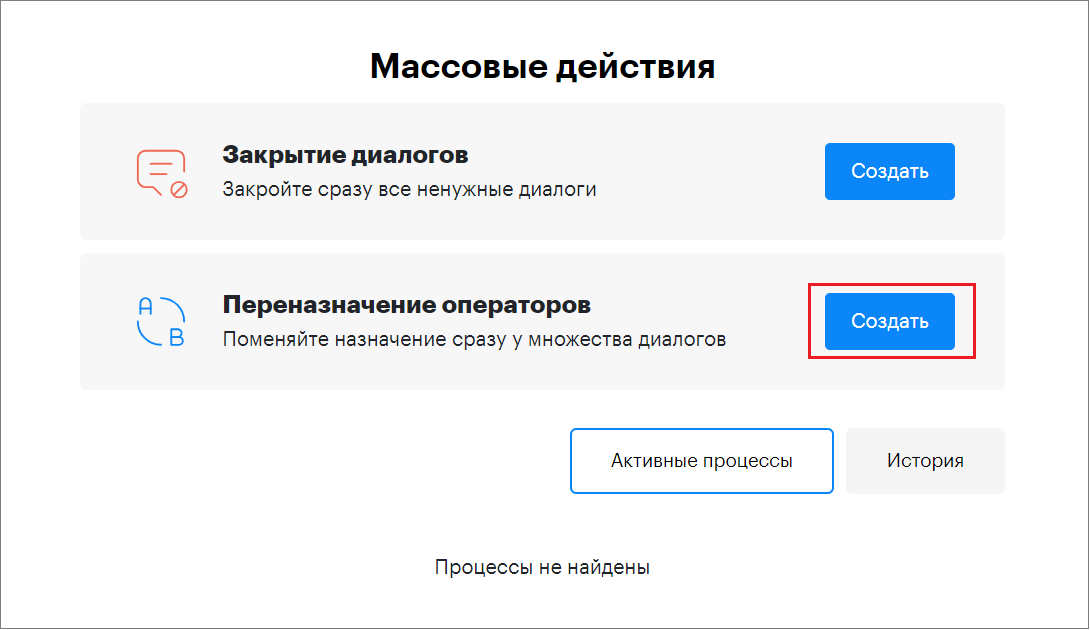
3. Click «Create».
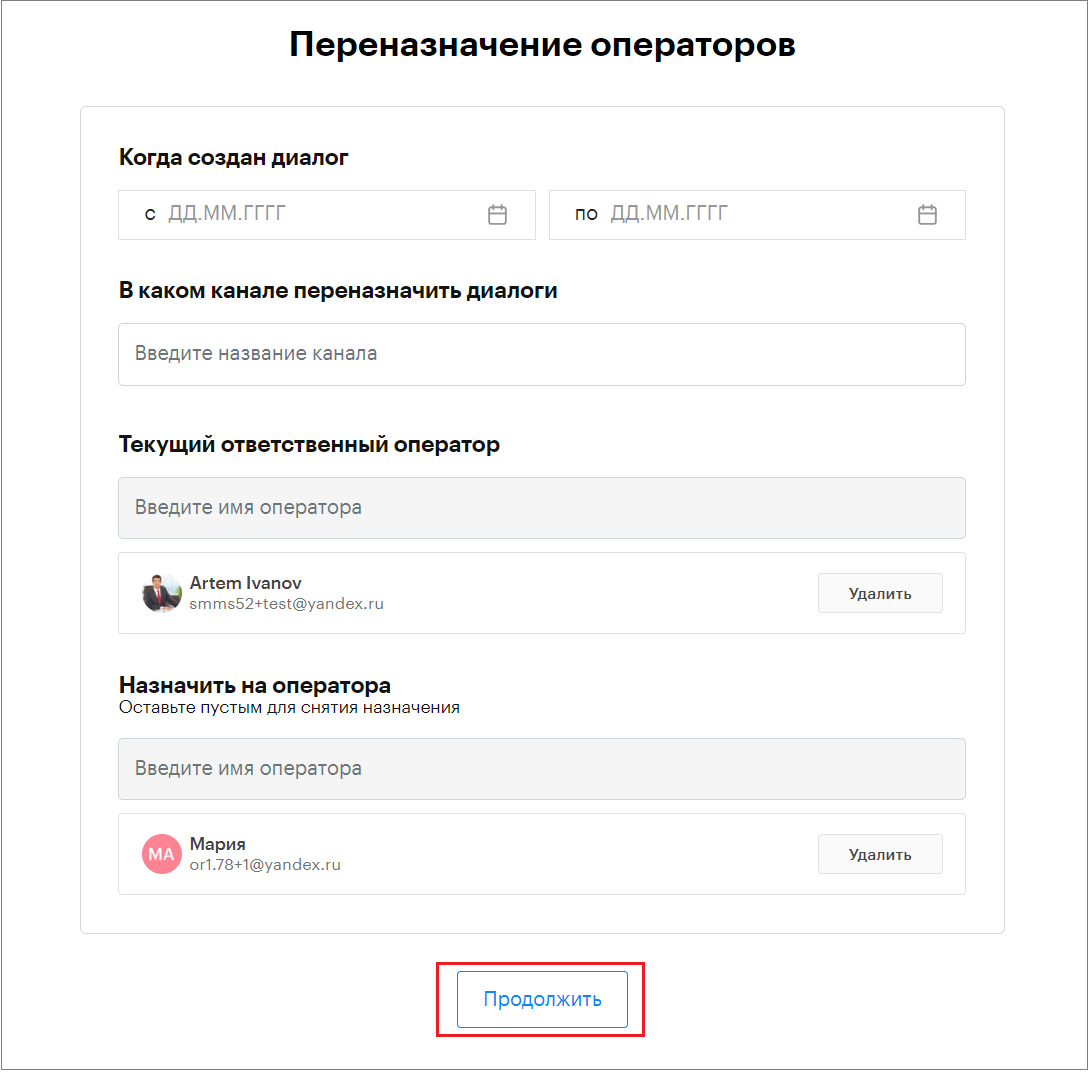
4. Select the parameters for reassigning operators.
4.1. «When the dialog was created» — select by dialog creation date
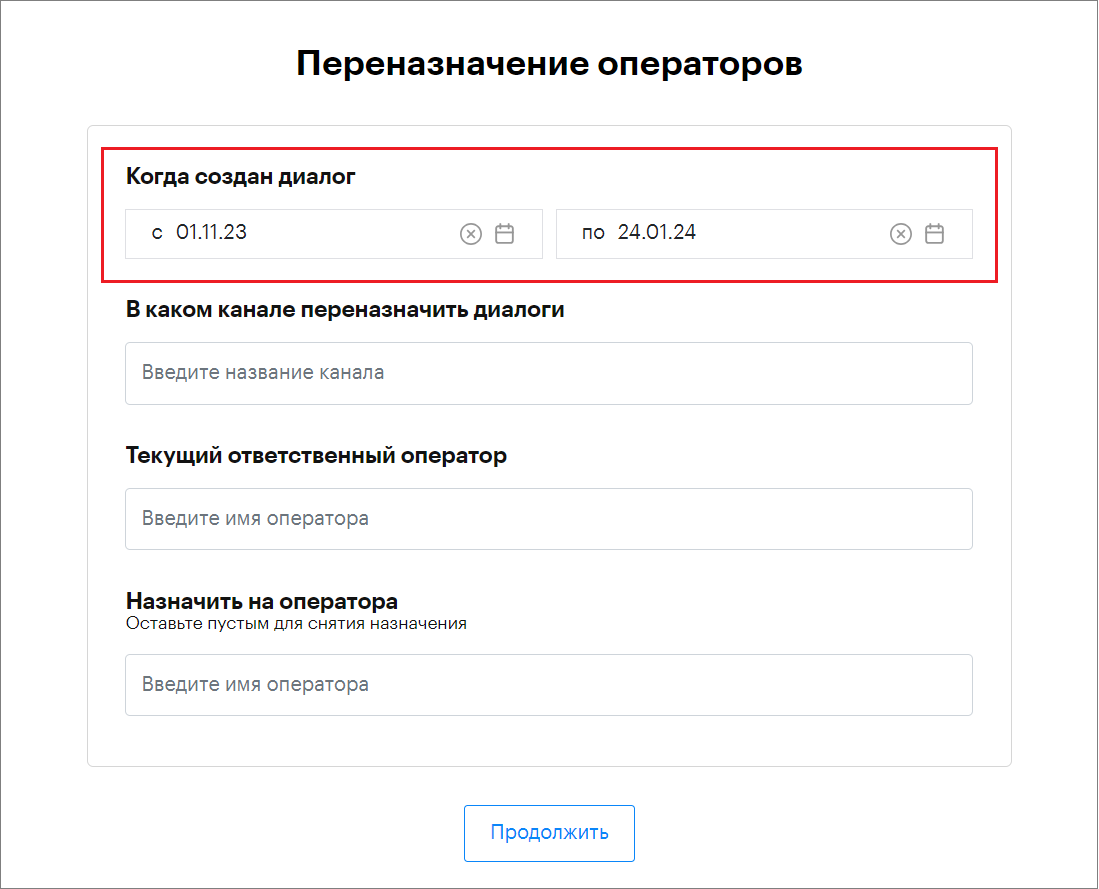
4.2. «In which channel to reassign dialogs» — select the communication channel
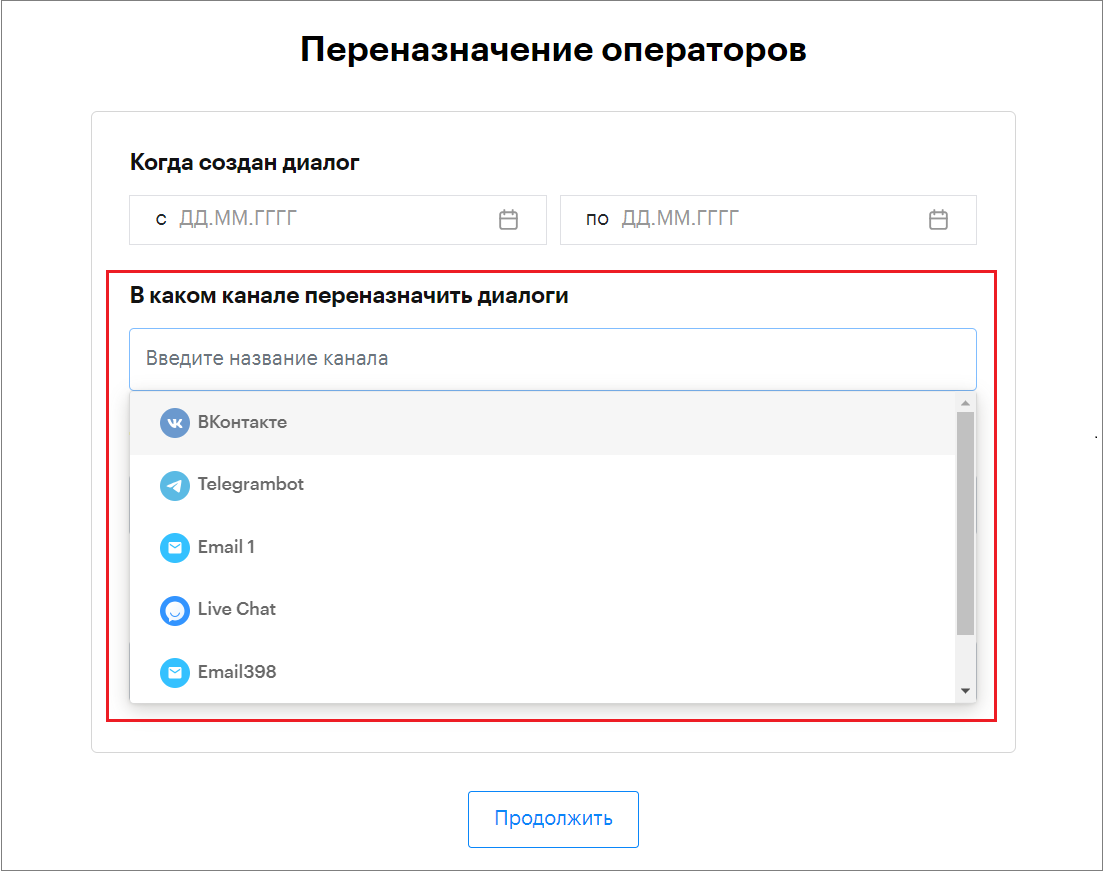
4.3. «Current responsible operator» — the operator from whom the assignment should be removed
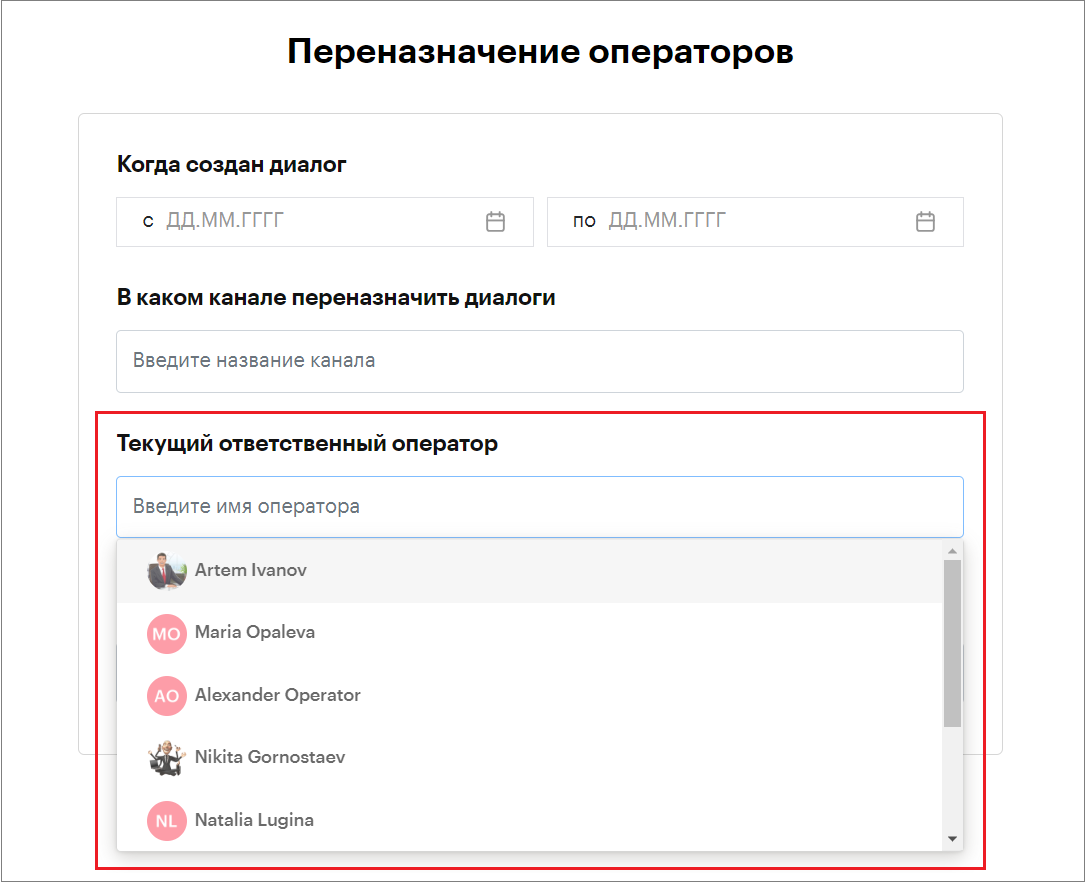
4.4. «Assign to operator» — the operator to whom the dialogs should be reassigned
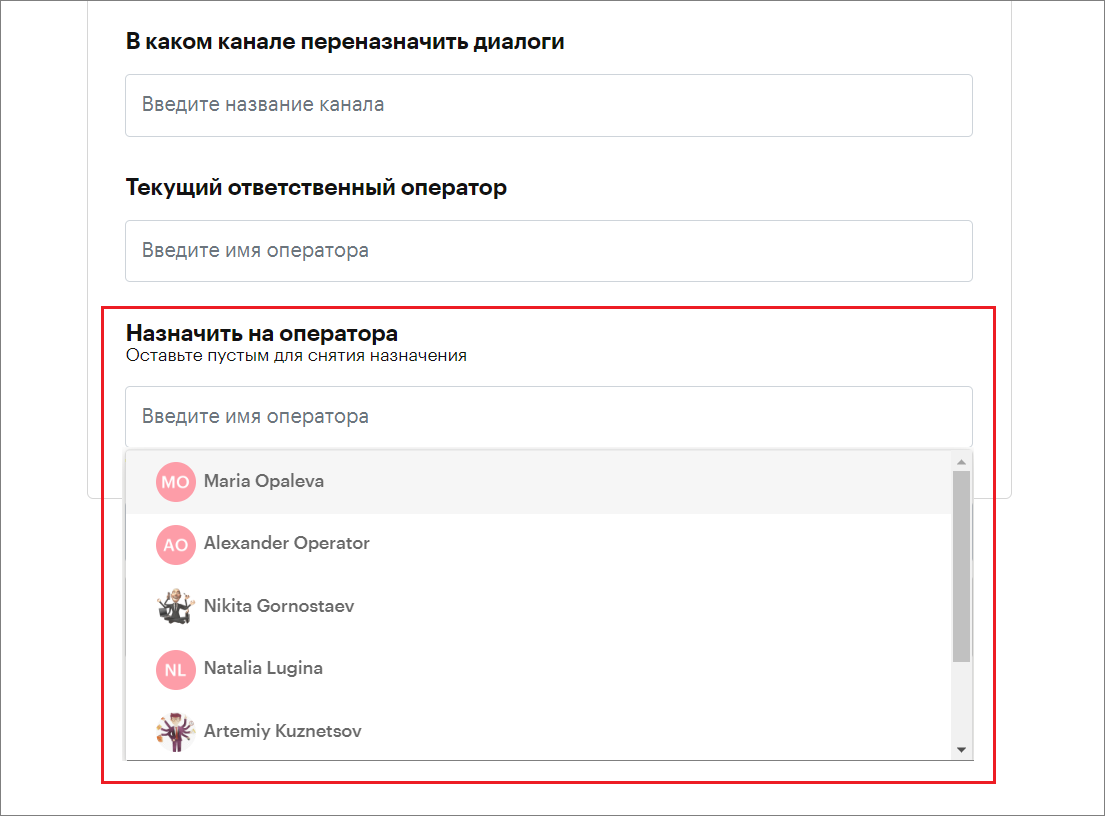
5. Then click «Continue».
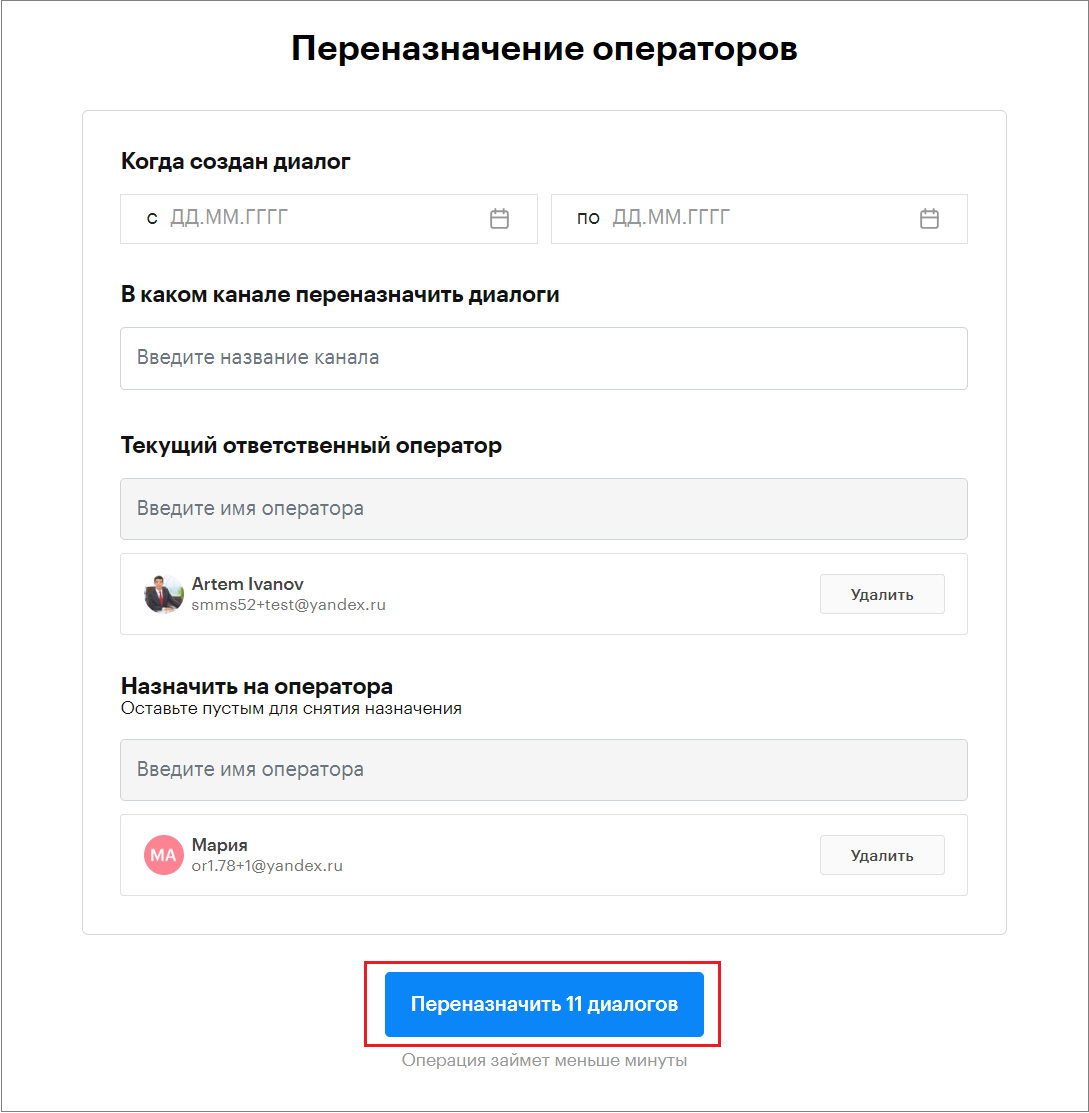
6. The number of dialogs to be reassigned will be displayed.
Click the «Reassign … dialogs» button.
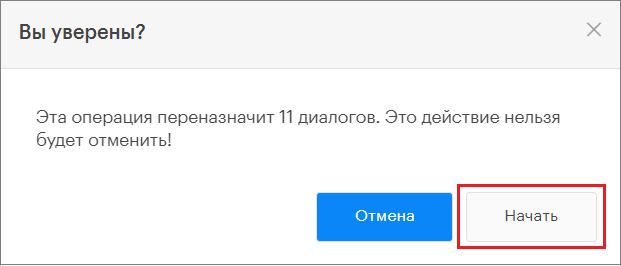
7. Click «Start».
8. The «Reassigning operators» process will run.
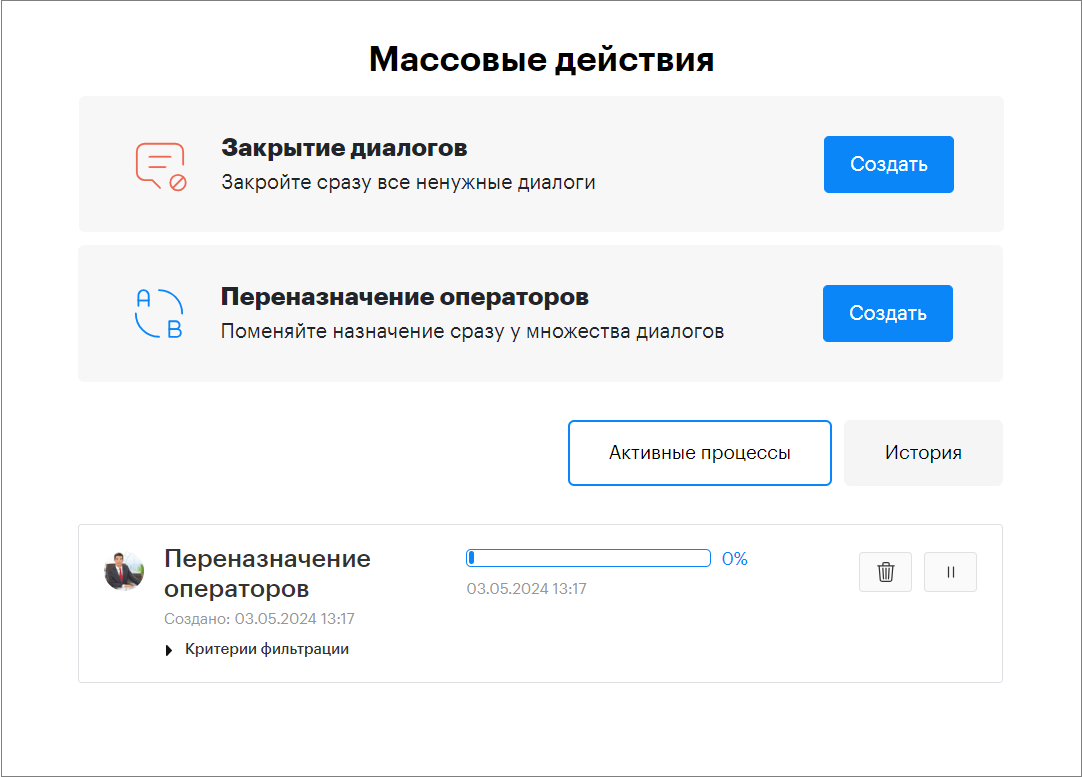
9. Information about completed processes is saved in the «History» section.