
How can we help?
Before Connecting WhatsApp
Before connecting the WhatsApp channel, you need to close all other sessions in the app. To do this:
— open the app
— tap the three vertical dots
— Linked Devices
— select the device
— tap «Log Out»
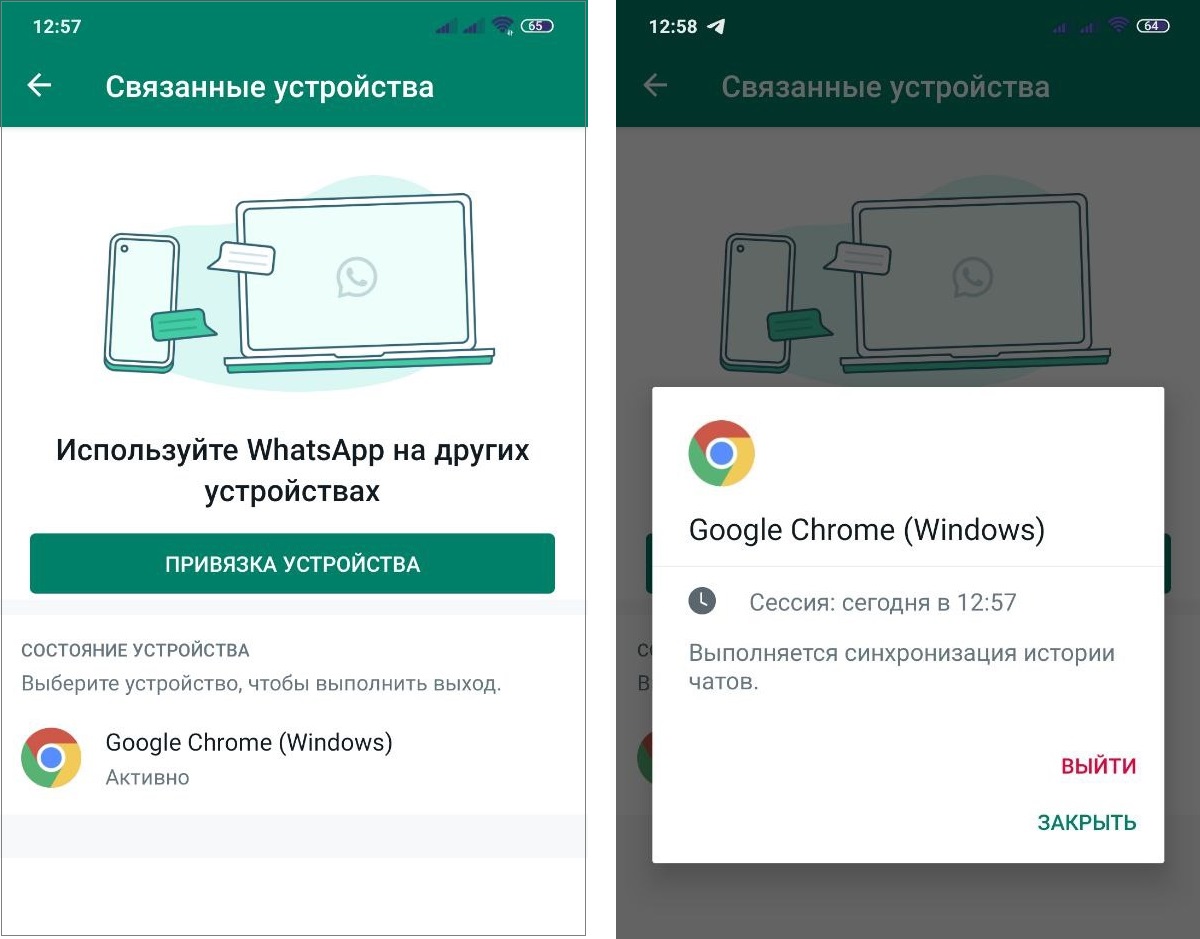
You can connect an unlimited number of WhatsApp accounts to a project in Teletype.
Connecting WhatsApp
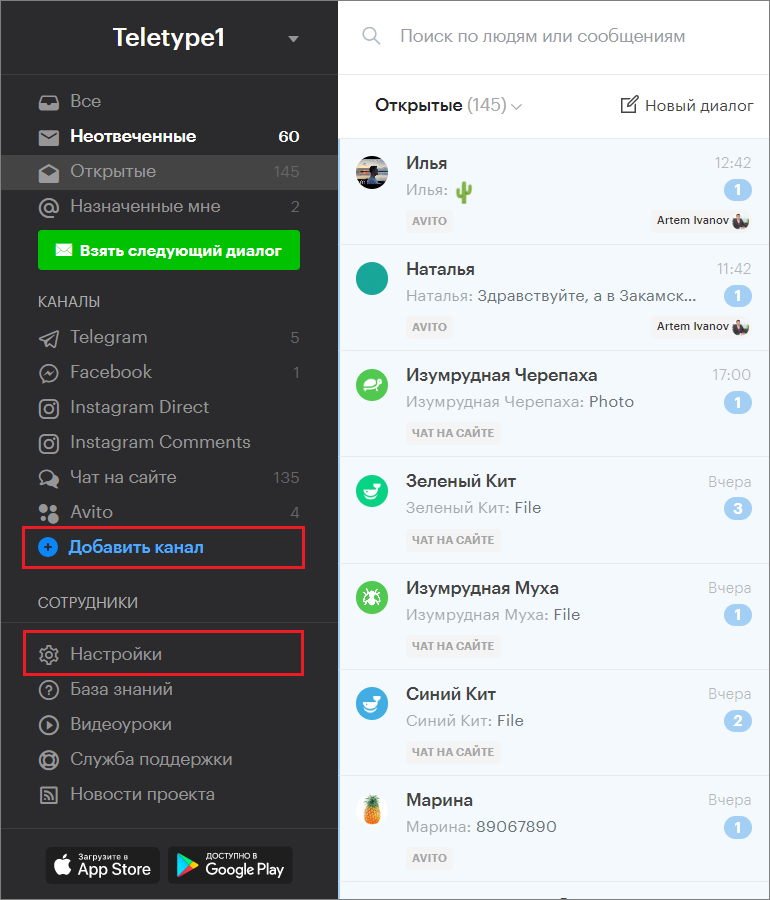
- Go to the “Add Channel” section in the left menu of the Teletype panel or in the project settings.
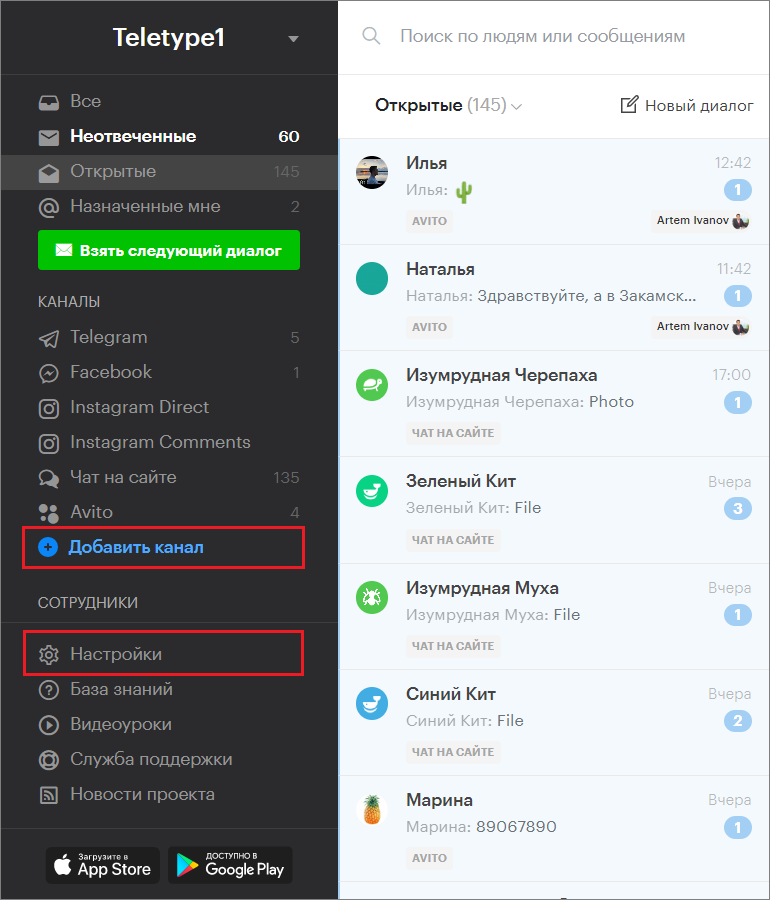
2. In the window that appears, select the “WhatsApp” block.
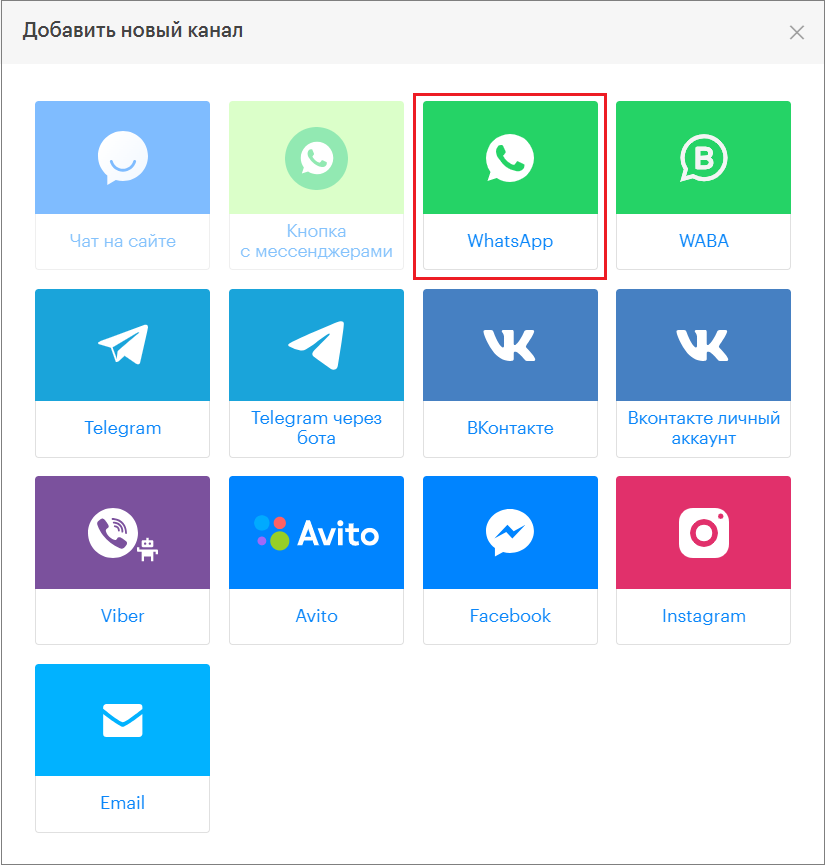
3. Click «Add WhatsApp to Plan».
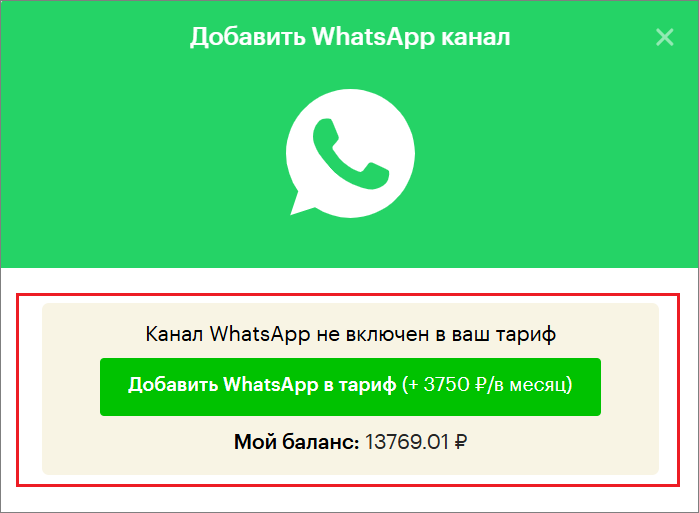
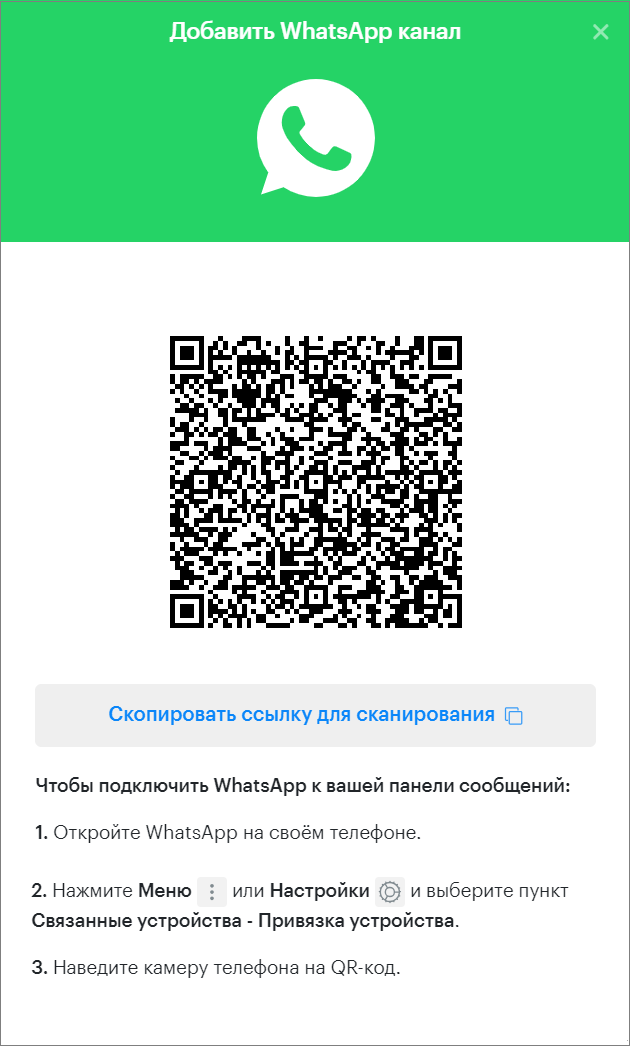
The WhatsApp channel connection window will open.
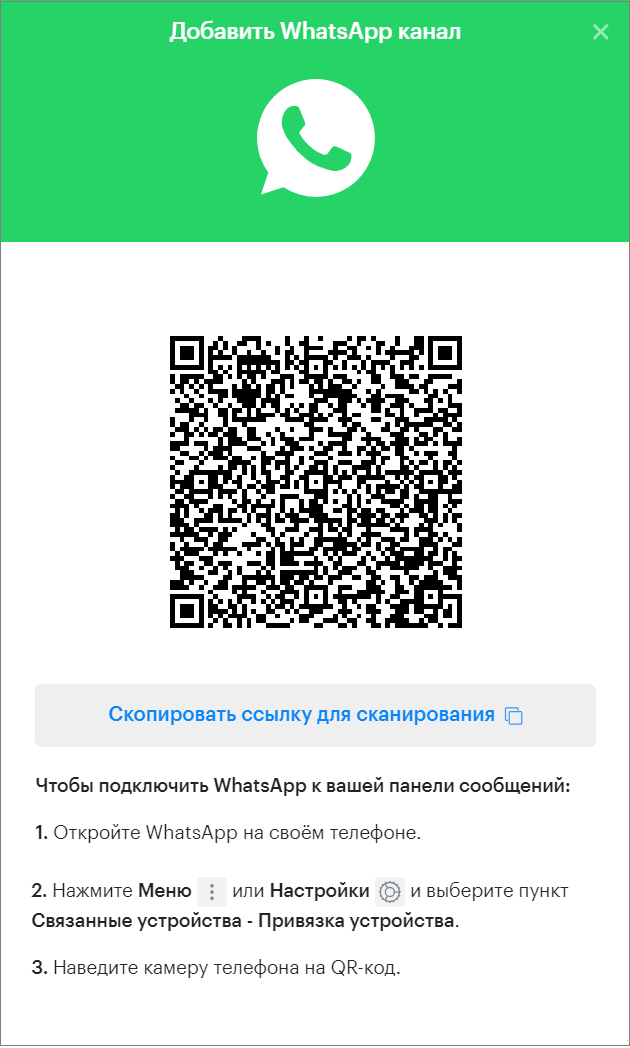
4. Open the WhatsApp app on your phone.
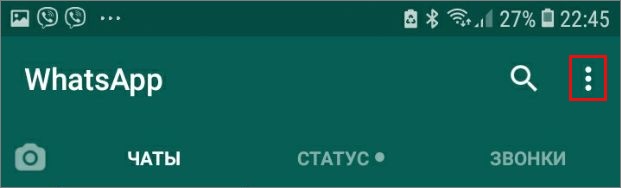
5. Tap the three vertical dots in the top right corner of the screen.
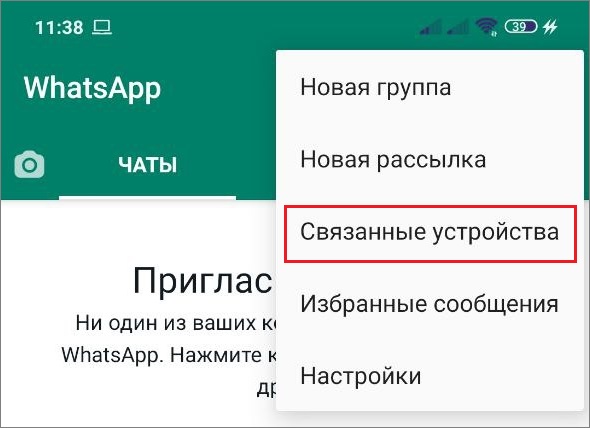
6. Select “Linked Devices”.
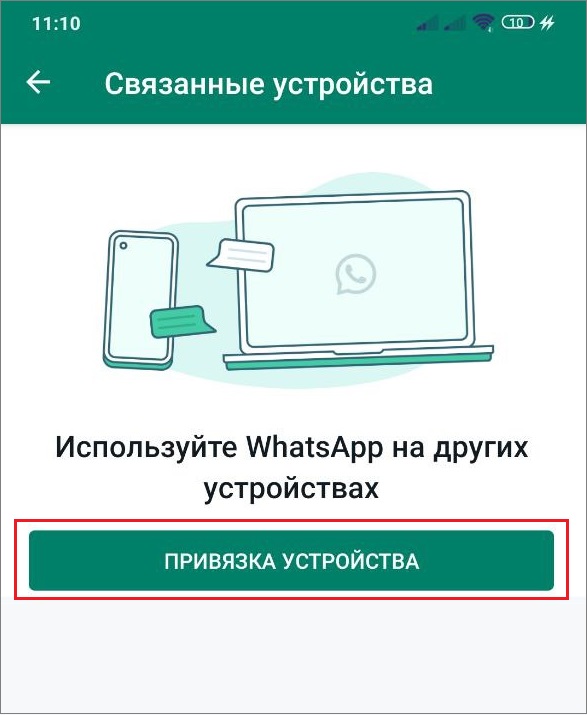
7. Tap «Link a Device».
8. Point the WhatsApp camera on your phone at the QR code and wait for the successful scan notification.
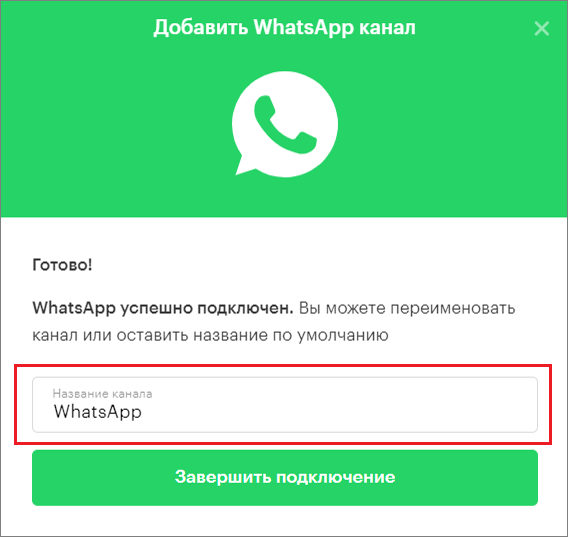
9. Change the channel name if necessary.
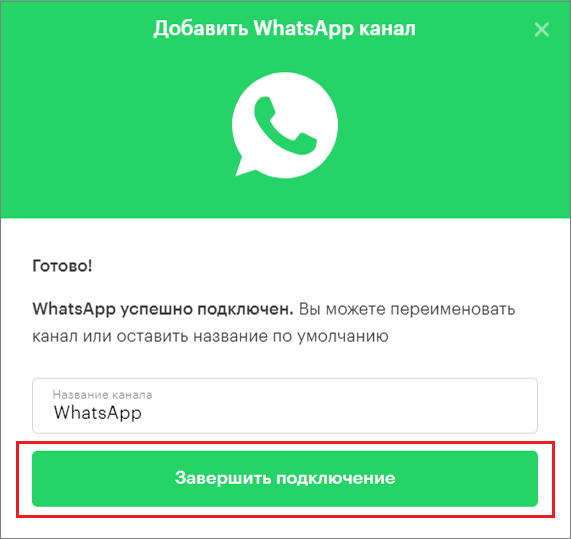
10. Click “Finish Connection”.
Connecting WhatsApp Without Authorization in the Panel
1. Go to the “Add Channel” section in the left menu of the Teletype panel or in the project settings.
2. In the window that appears, select the “WhatsApp” block.
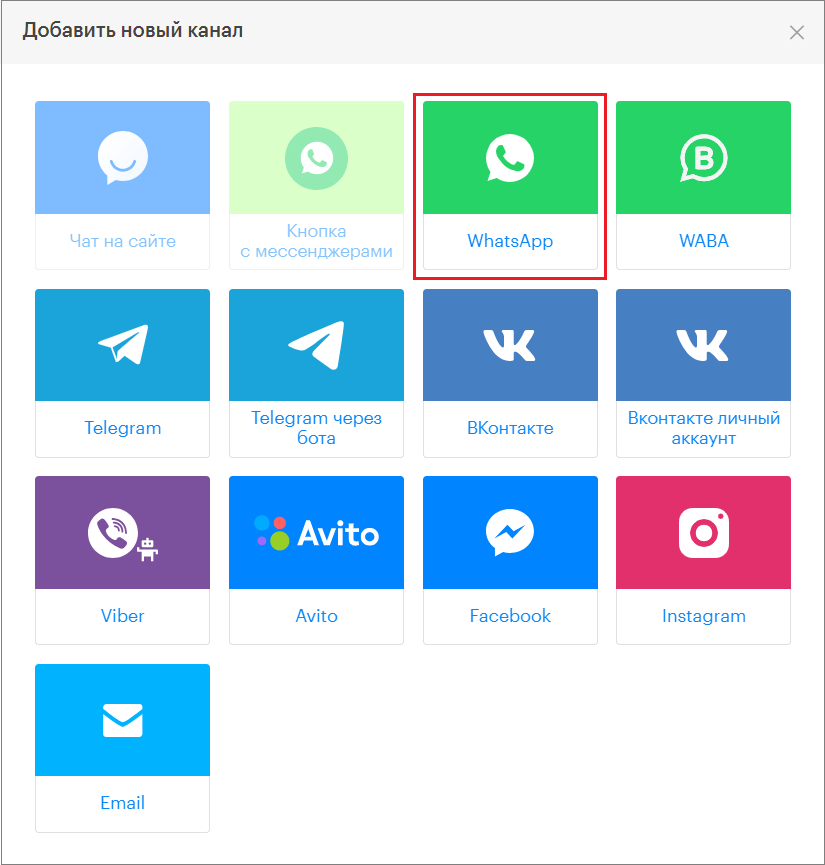
3. Click «Add WhatsApp to Plan».
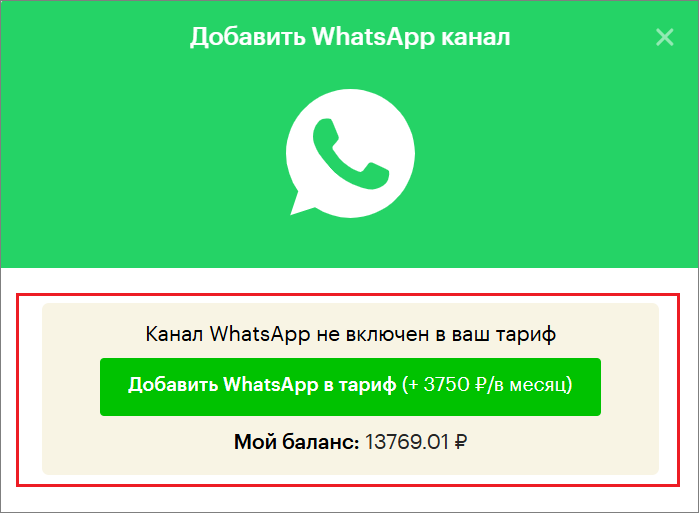
The WhatsApp channel connection window will open.
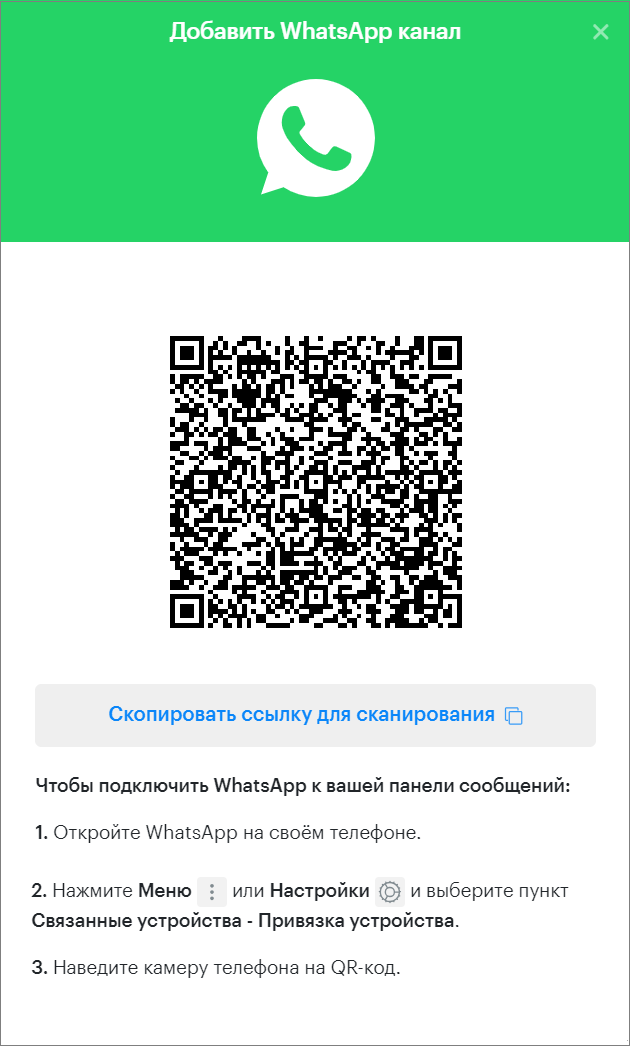
4. Copy the link for scanning.
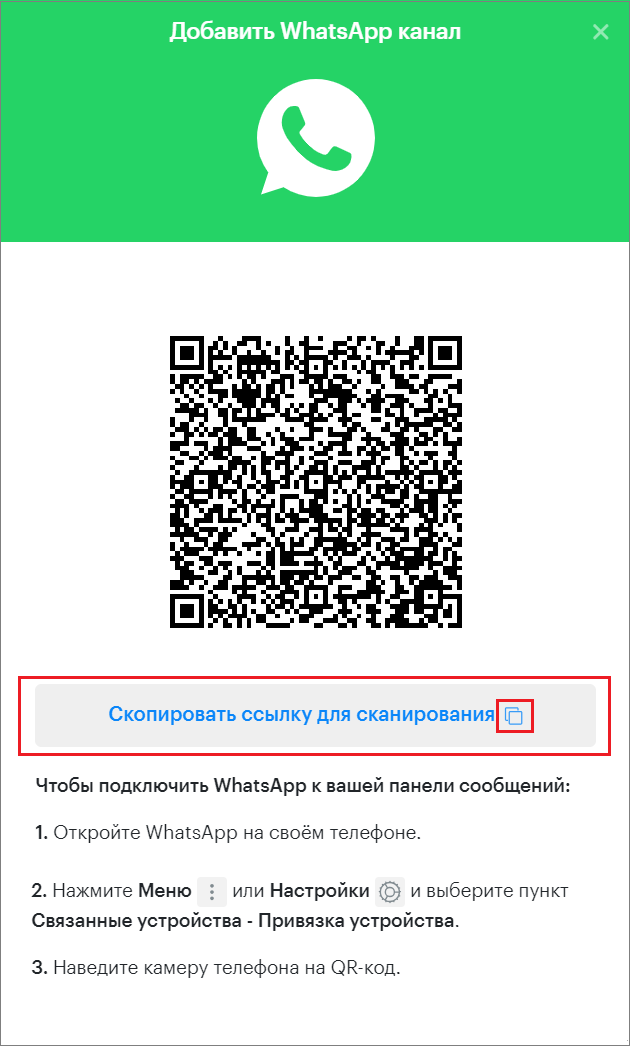

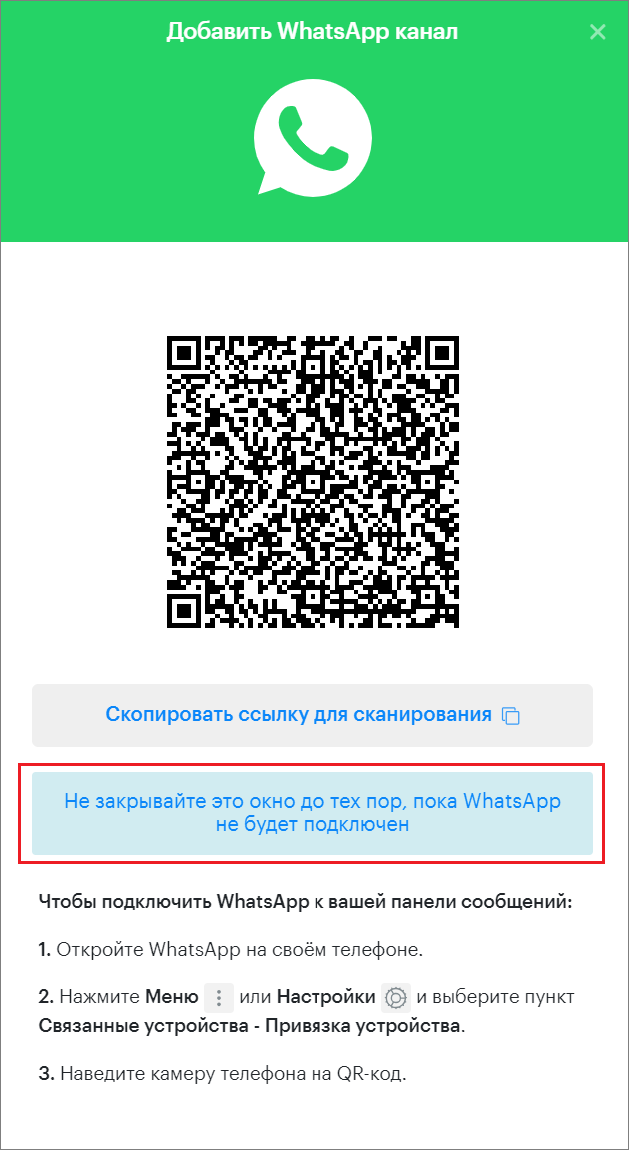
5. Send the copied link via any messenger to the user who will scan it.
6. Paste the copied link and open it in a browser.
The WhatsApp channel connection window will open.
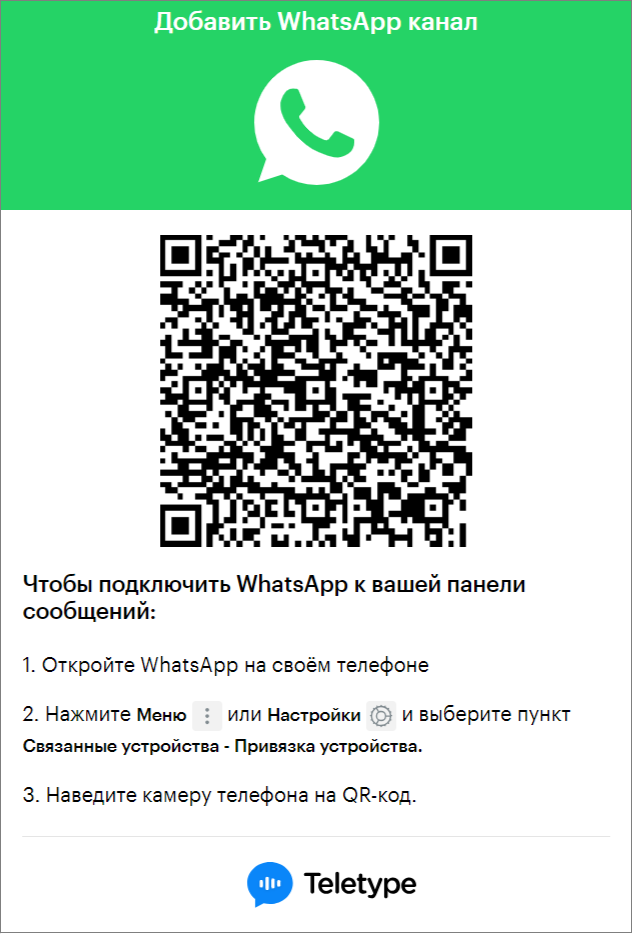
7. Open the WhatsApp app on your phone.
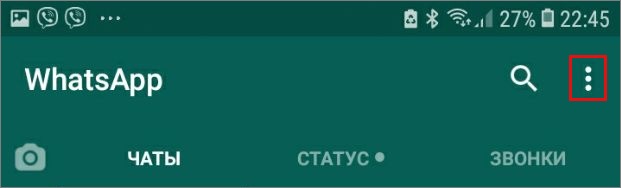
8. Tap the three vertical dots in the top right corner of the screen.
9. Select “Linked Devices”.
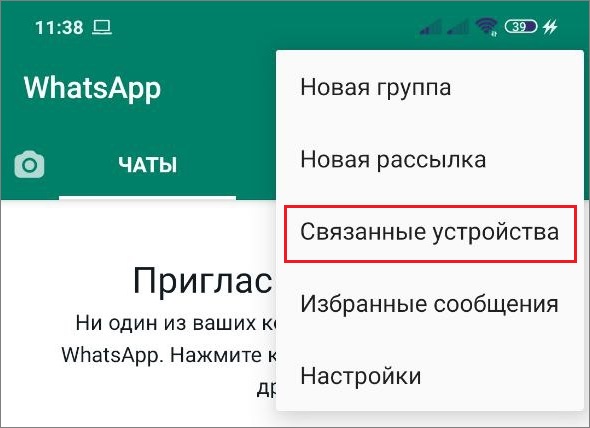
10. Tap «Link a Device».
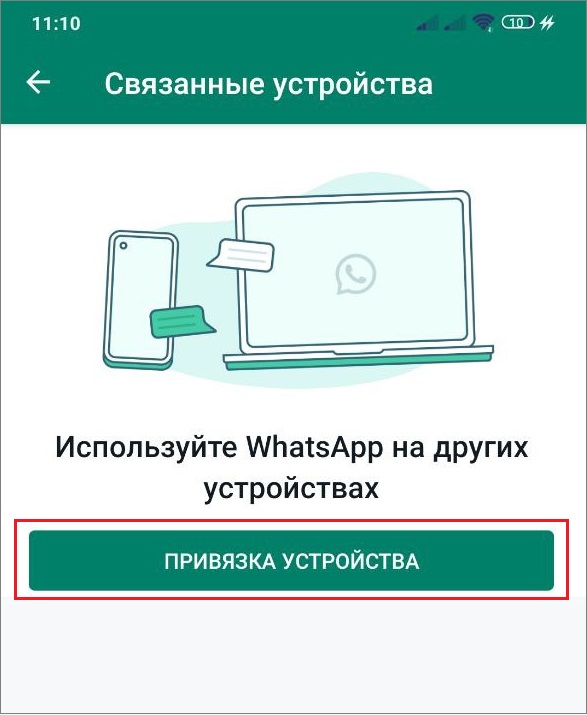
11. Point the WhatsApp camera on your phone at the QR code and wait for the successful scan notification.
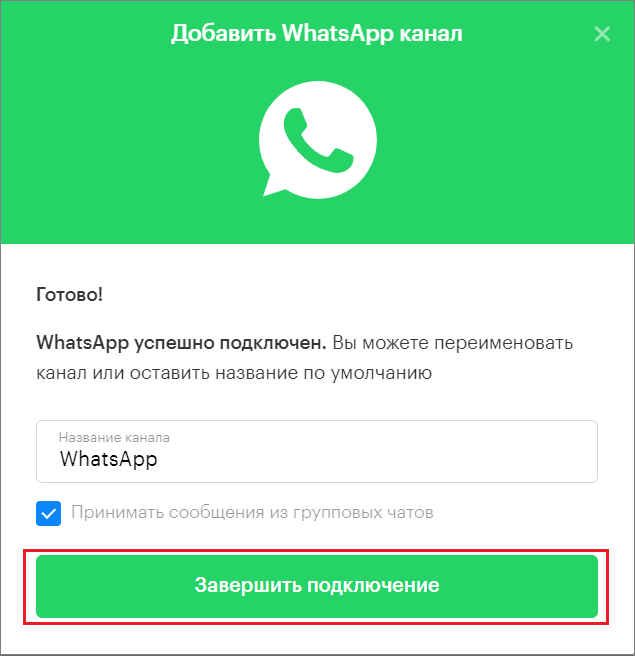
12. In the Teletype App panel, change the channel name if necessary and click «Finish Connection».
Loading Chat History
After creating a new channel, the panel loads the last 10 dialogs (excluding group chats). For each loaded dialog, the last 20 messages from the conversation are loaded (excluding service messages).
“Phone Hosting” Service
Our service provides phone hosting for WhatsApp (Phone Hosting for WhatsApp). A fully charged and operational phone ensures uninterrupted messenger operation.