How can we help?
Avito Personal Account
Before Connecting
Before creating a channel, you need to log in to your Avito personal account, which will be connected to the Teletype App panel.
Connecting an Avito channel to Teletype App is available in two ways:
— One-click connection
— Connection via keys
One-Click Avito Connection
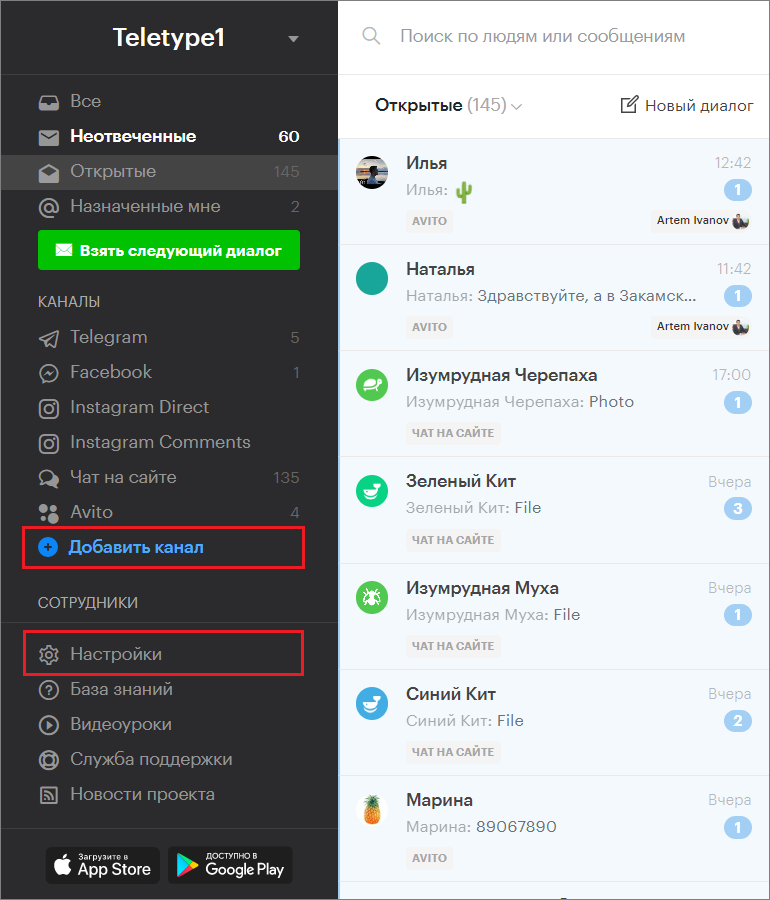
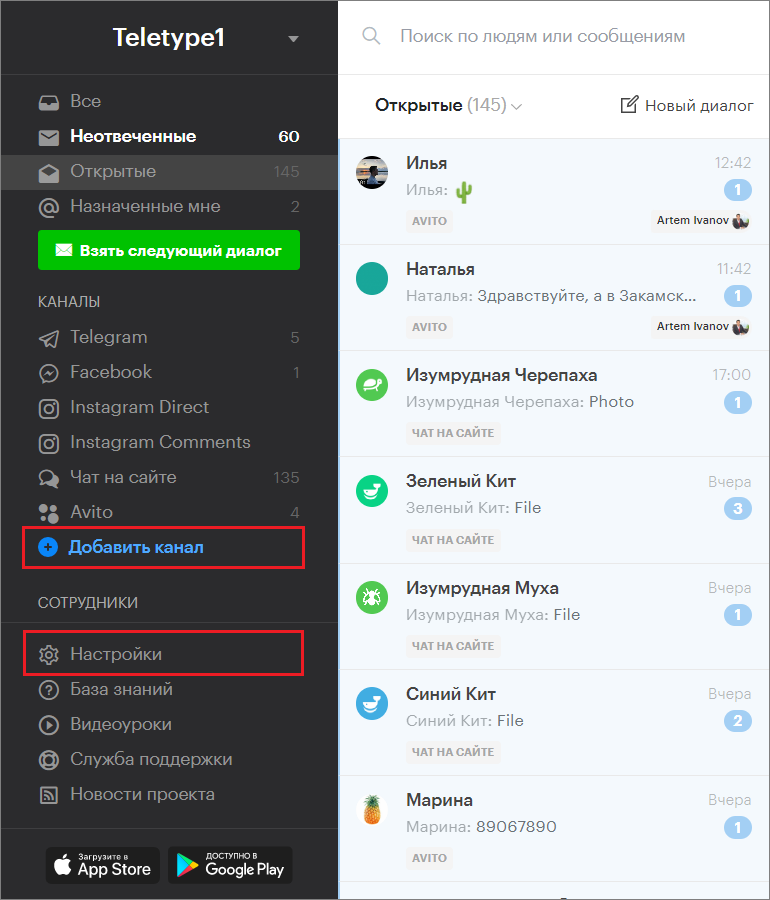
- Go to the “Add Channel” section in the left menu of the Teletype App panel or in the project settings.
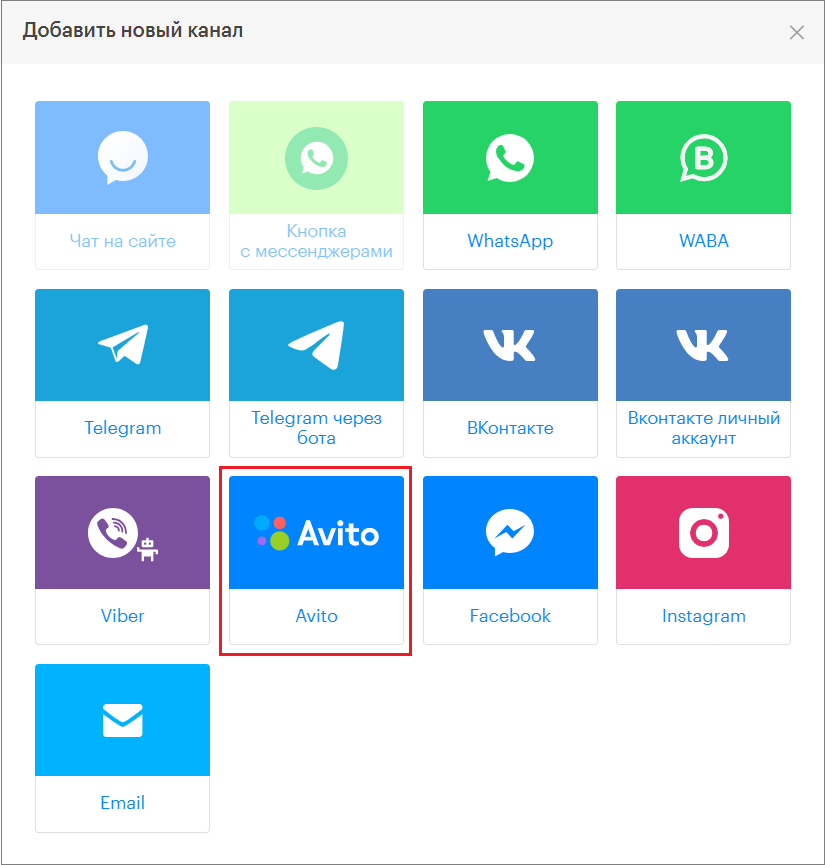
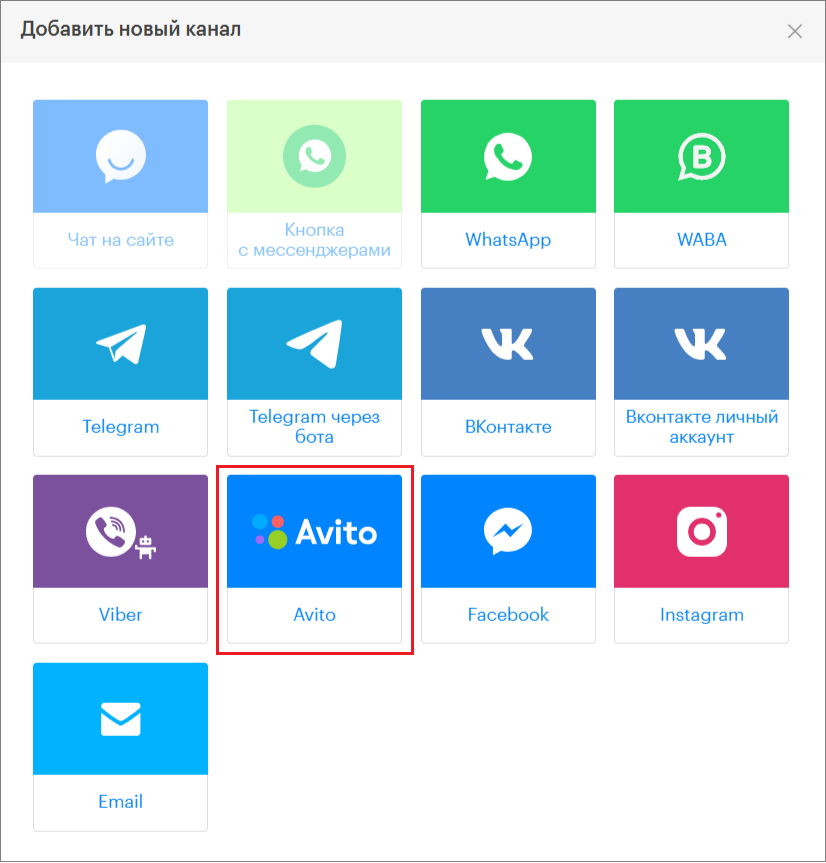
2. In the window that appears, select the “Avito” block.
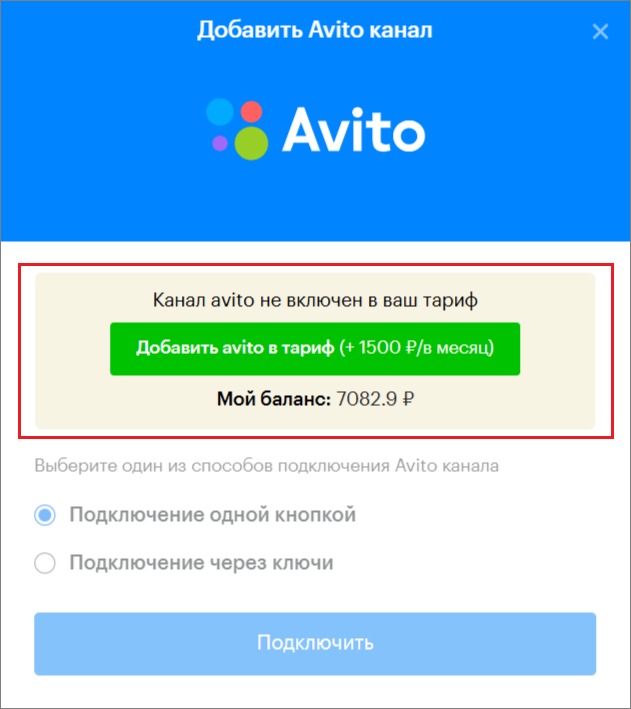
3. Click “Add avito to plan.”
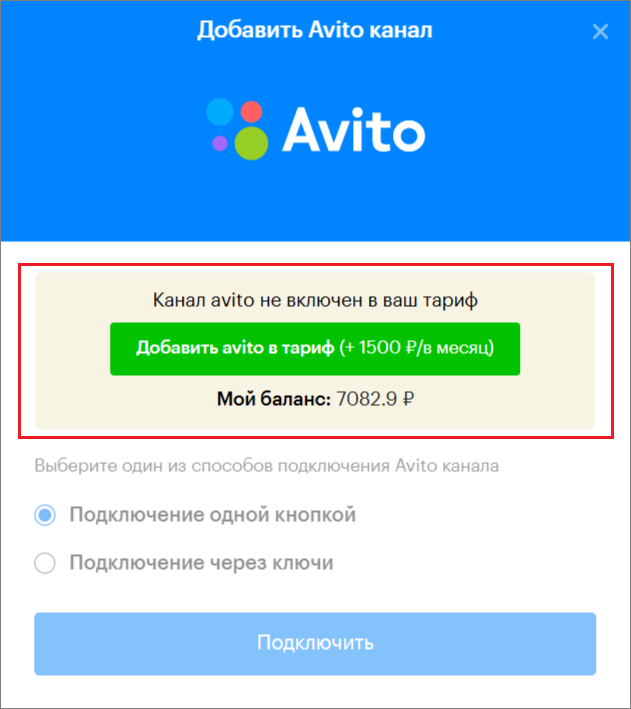
4. Select the “One-click connection” method.
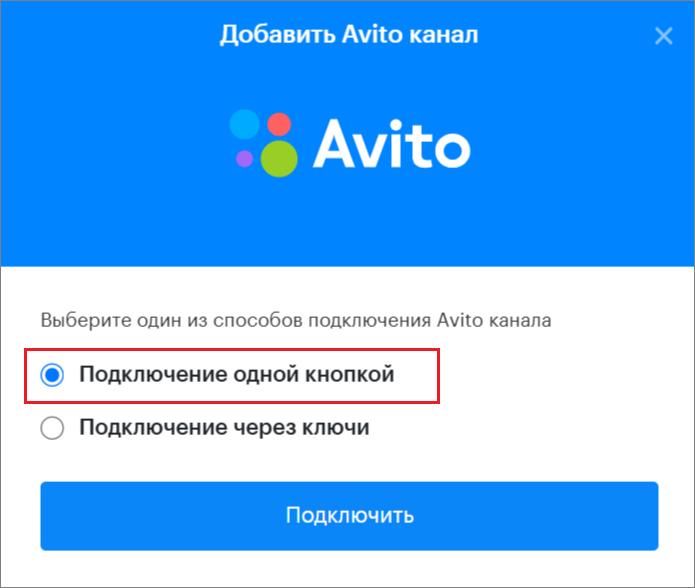
5. Click “Connect.”
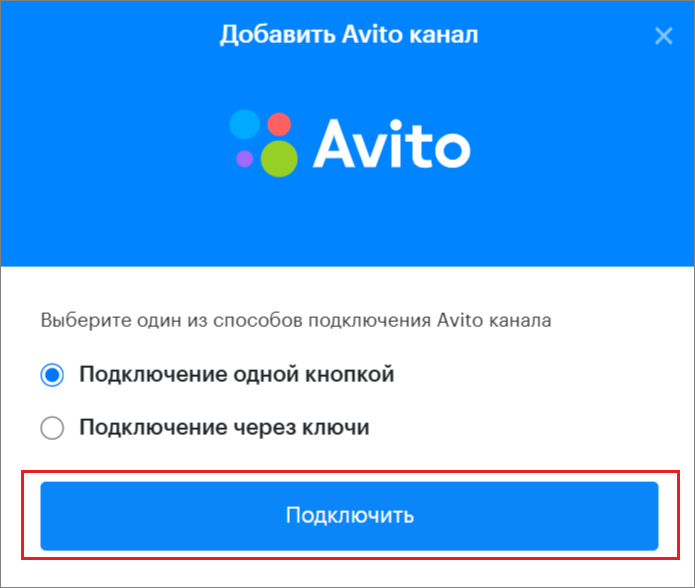
6. Click “Connect” again.
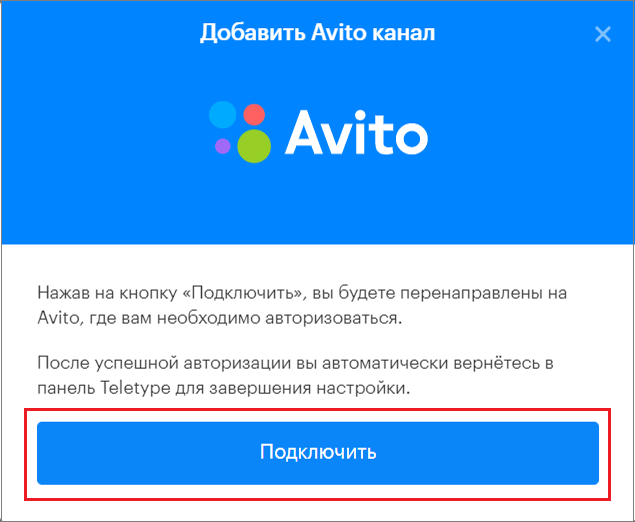
7. Allow the app access to your Avito personal account (this will not compromise your account security but will enable the app to function properly).
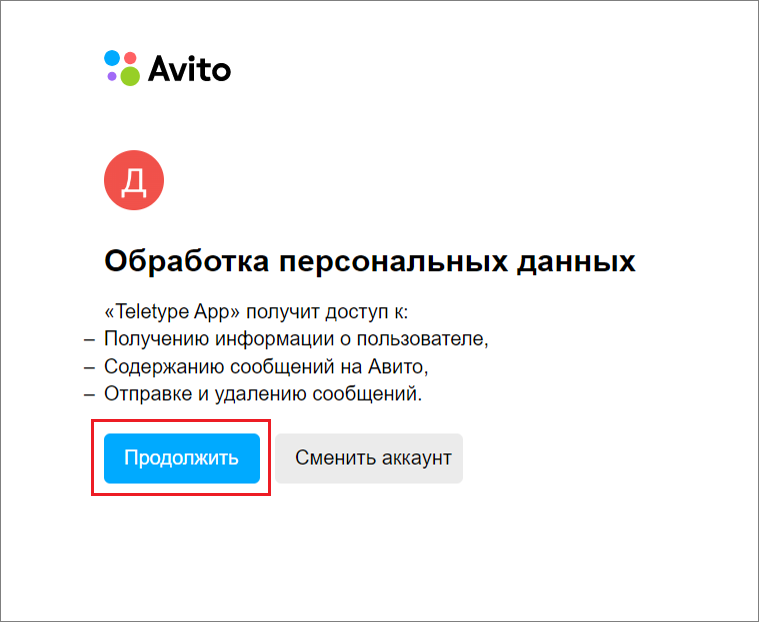
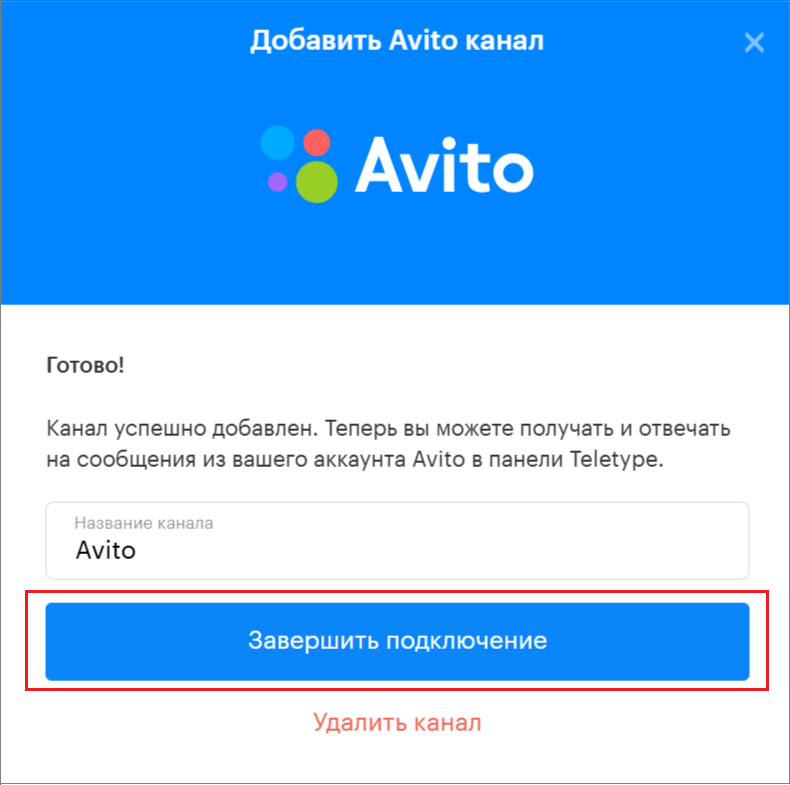
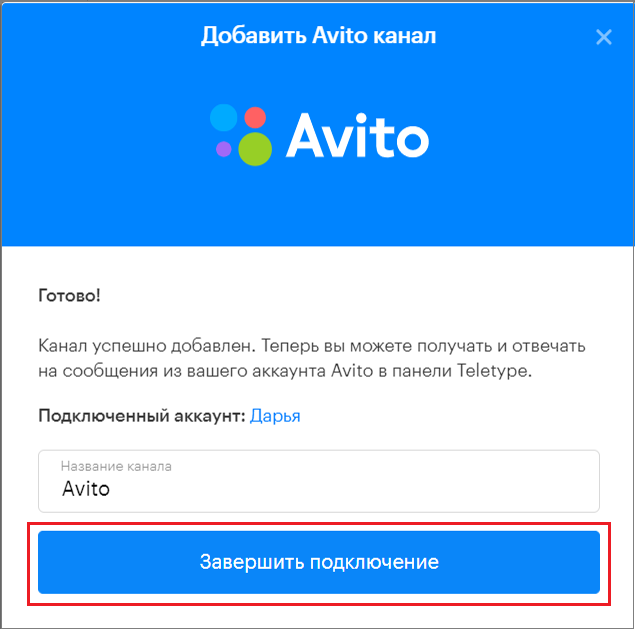
6. Complete the connection.
Connecting Avito via Keys
- Go to the “Add Channel” section in the left menu of the Teletype App panel or in the project settings.
2. In the window that appears, select the “Avito” block.
3. Click “Add avito to plan.”
4. Select the connection method via keys.
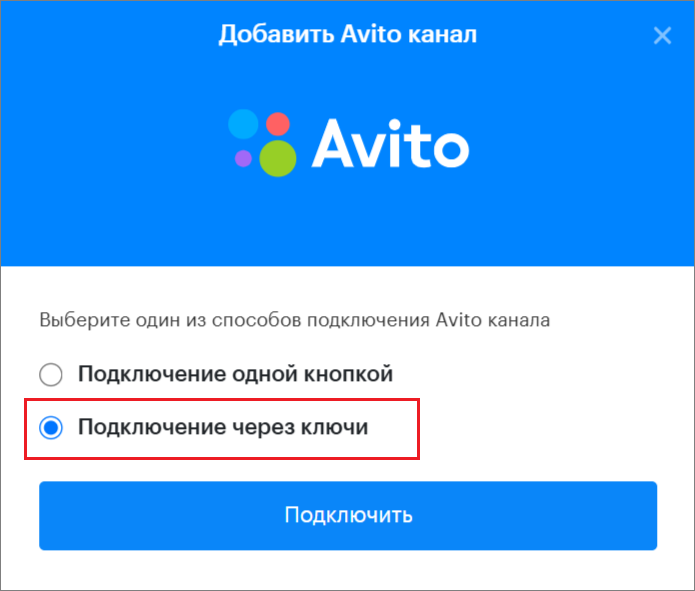
5. Click “Connect.”
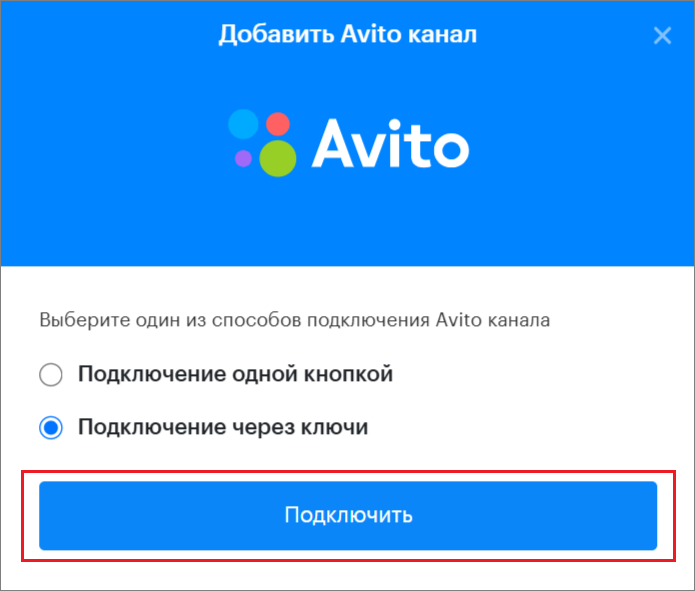
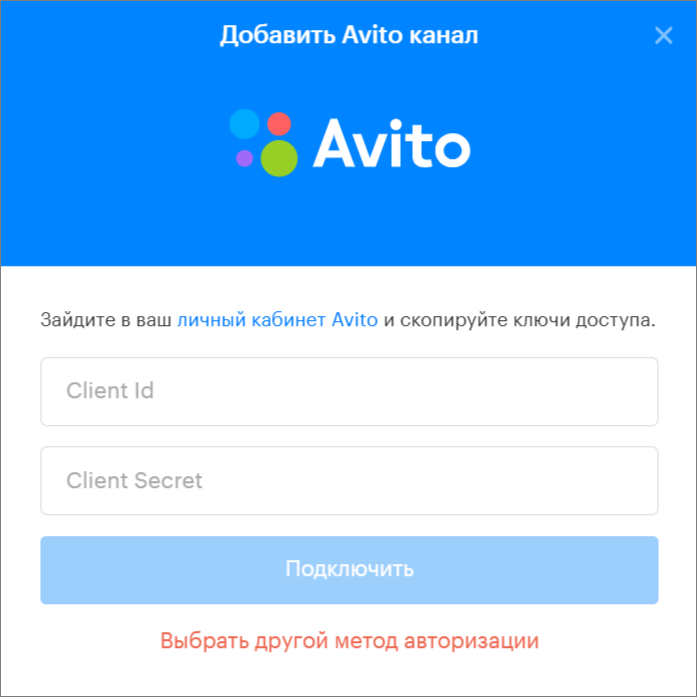
6. A connection window will open.
7. Then go to the link https://www.avito.ru/professionals/api in your Avito personal account to the “Integrations and API” section.
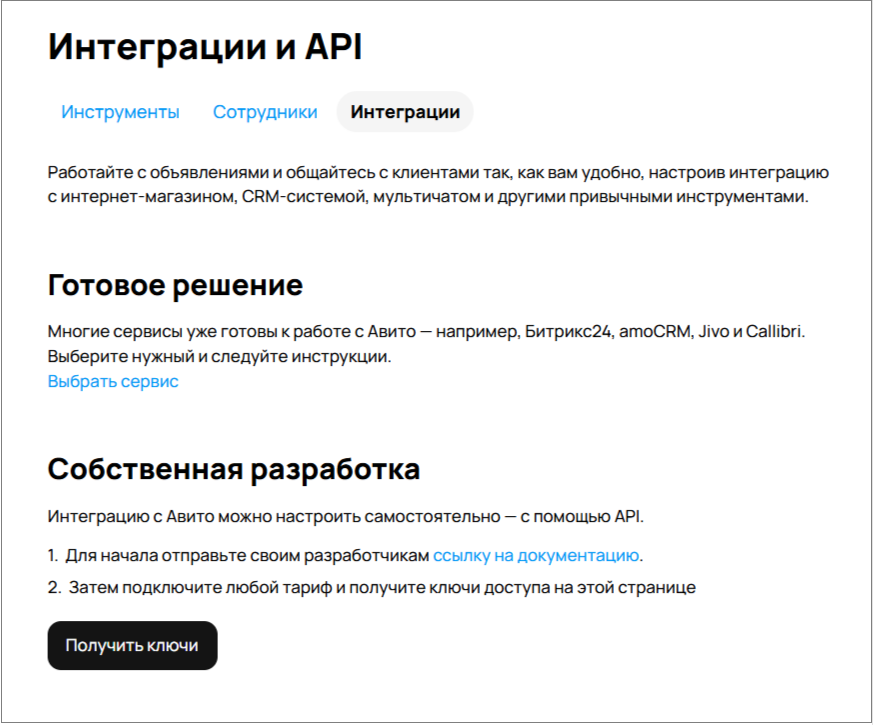
8. On the opened page in your Avito personal account, click the “Get keys” button.
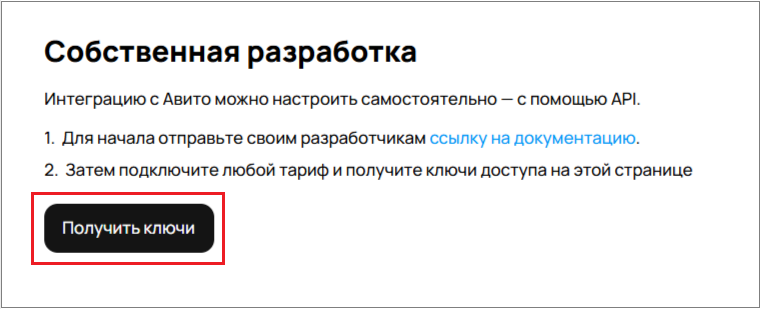
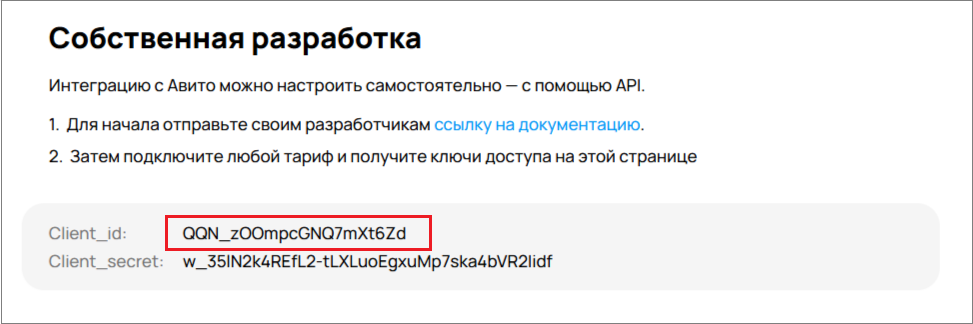
9. After receiving the keys, copy the Client_id.
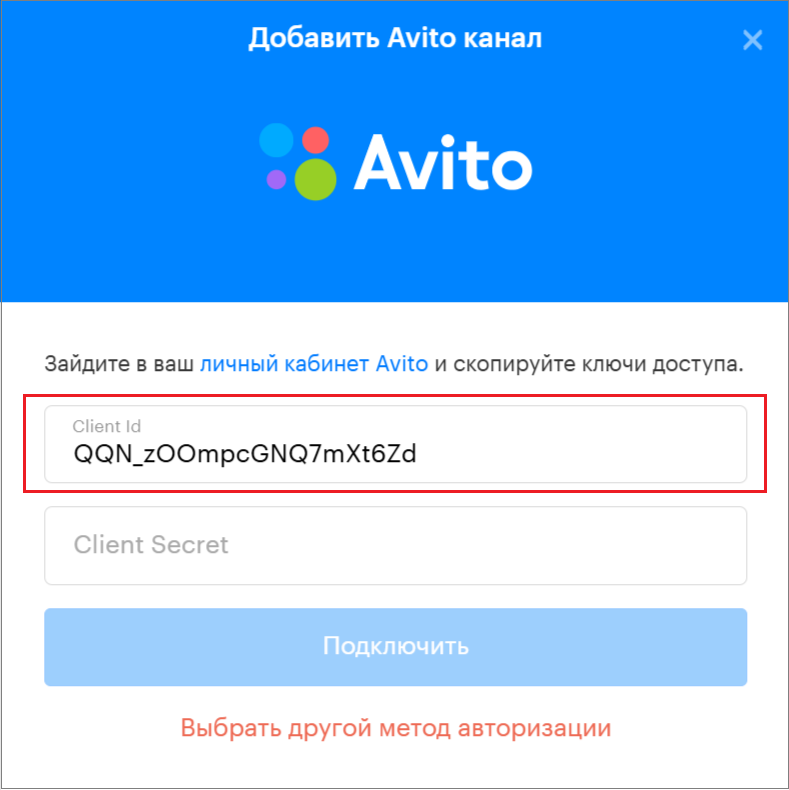
10. Paste the copied Client_id into the corresponding field in the Teletype connection window.
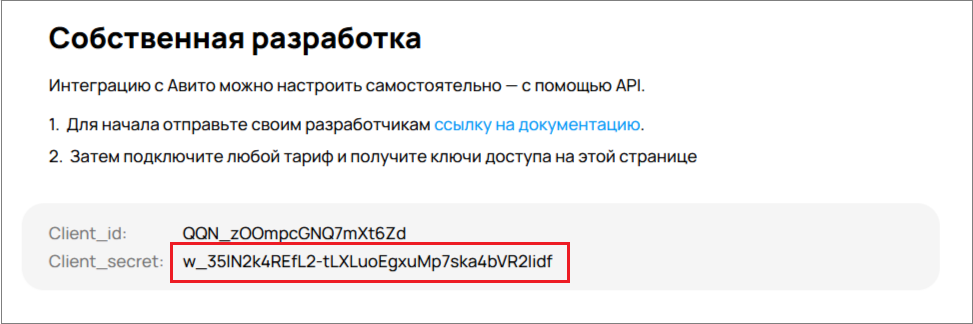
11. Next, copy the Client_secret in your Avito personal account.
12. Paste the copied Client_secret into the corresponding field in the Teletype connection window.
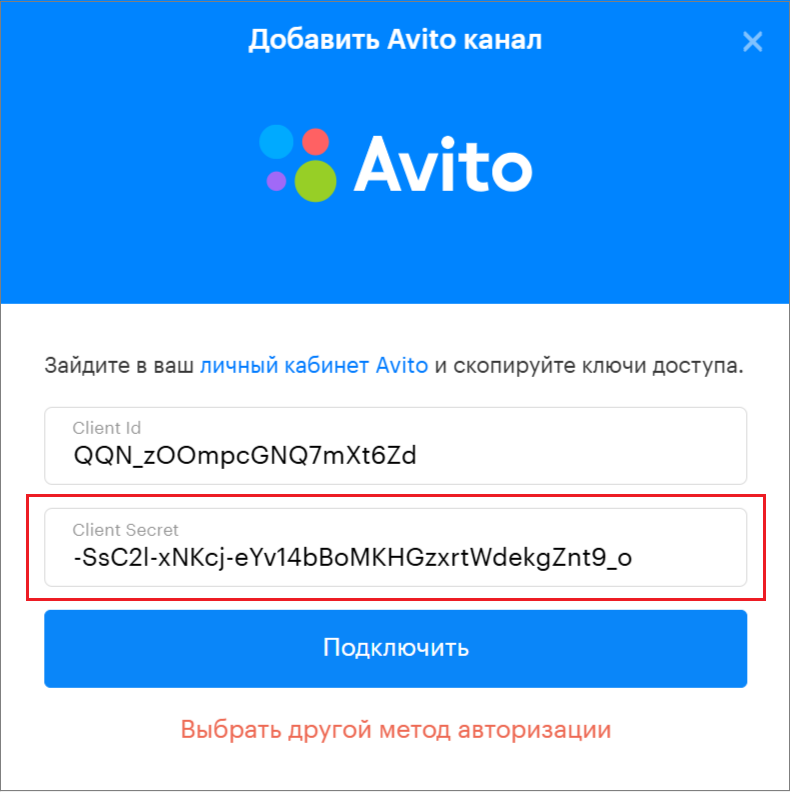
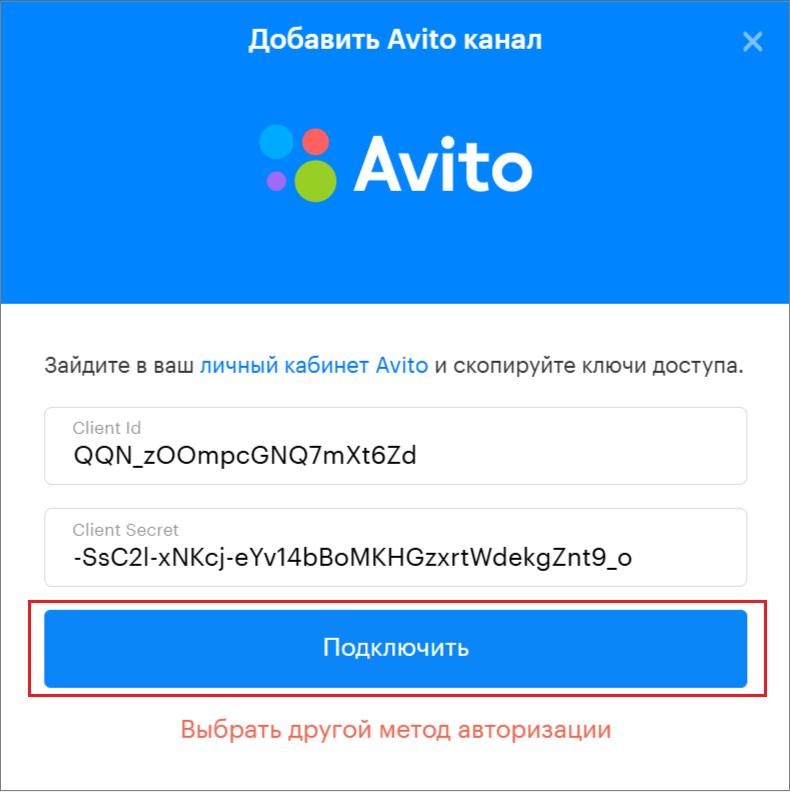
13. Click “Connect.”
14. Click “Complete connection.”