How can we help?
Connecting Bitrix24
Connecting Bitrix24
To connect the Bitrix24 integration, you need to:
1. Log in to your personal Bitrix24 account.
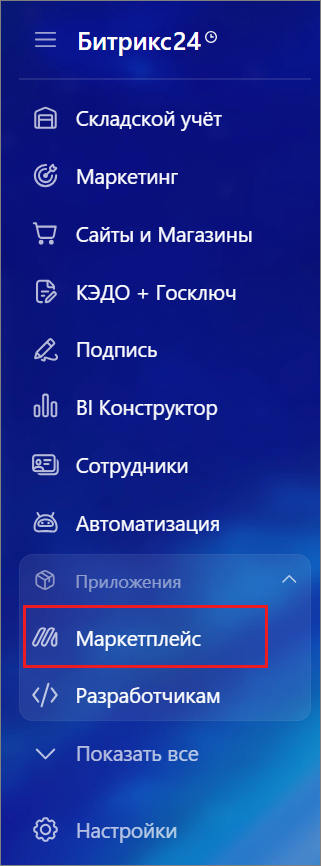
2. Go to the Bitrix24 Marketplace in the left menu of the control panel.
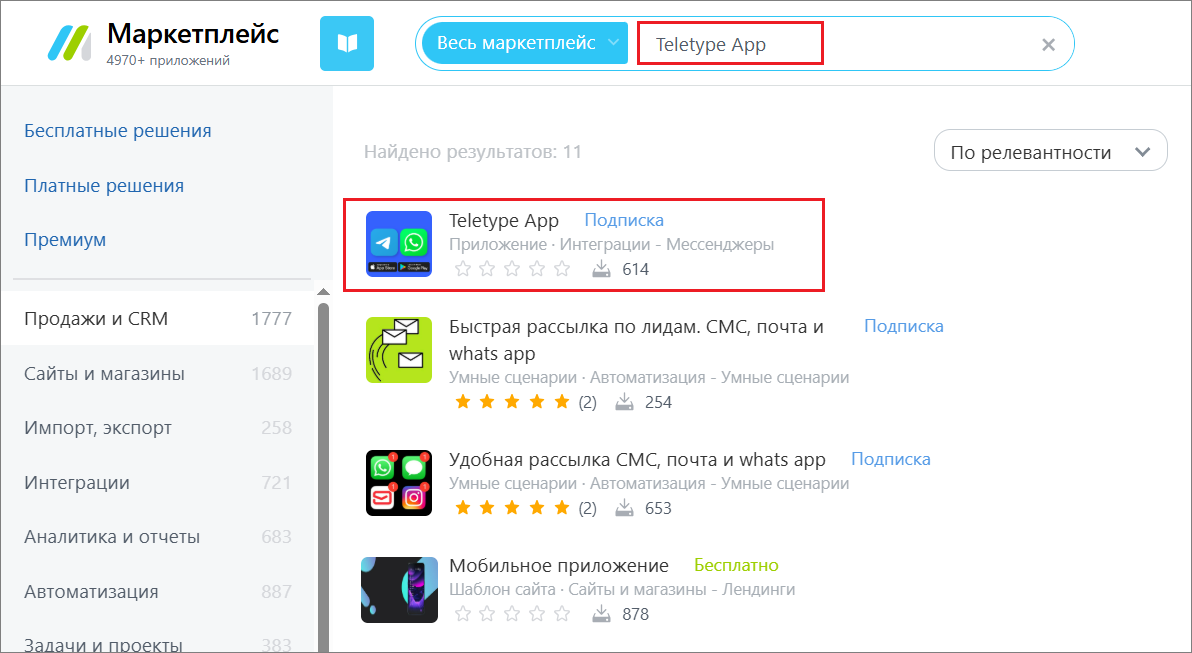
3. Find the Teletype App for installation by typing Teletype App in the search bar.
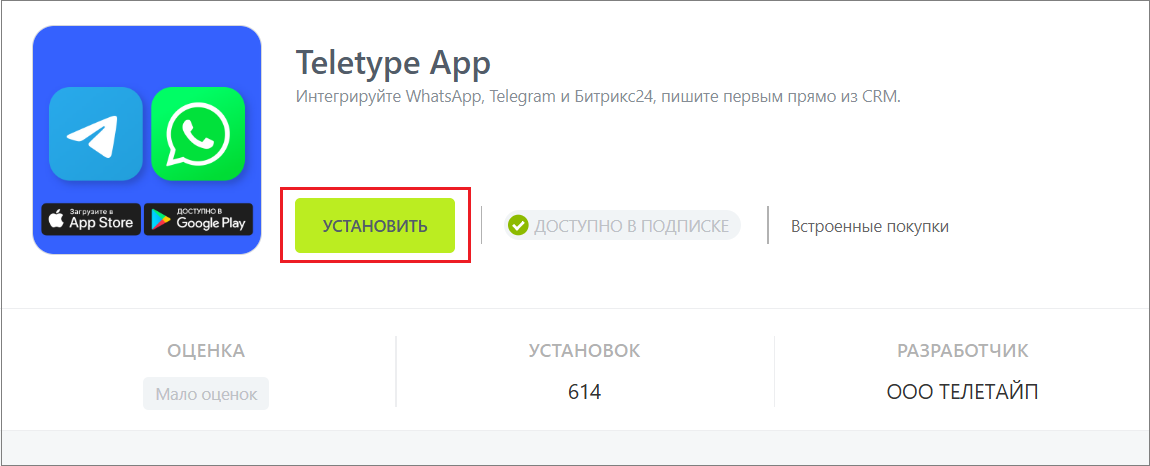
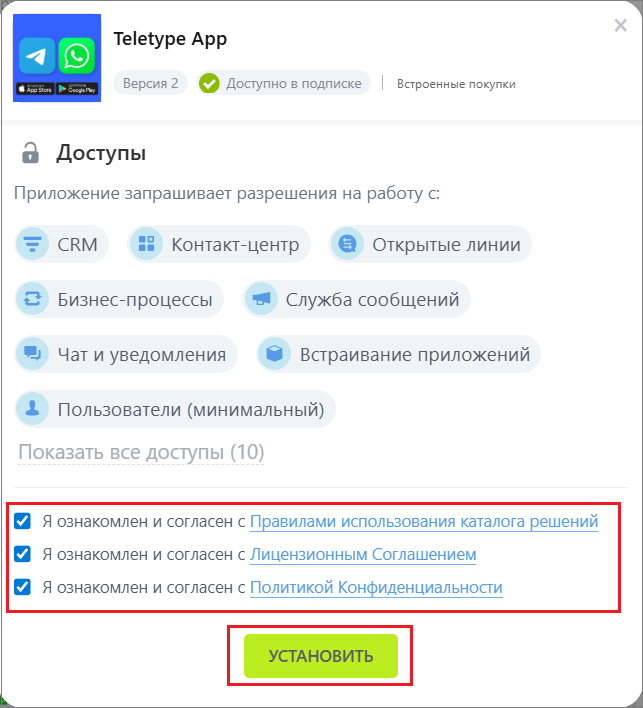
4. Open the app and click “Install.”
5. In the pop-up window, check the boxes and click “Install.”
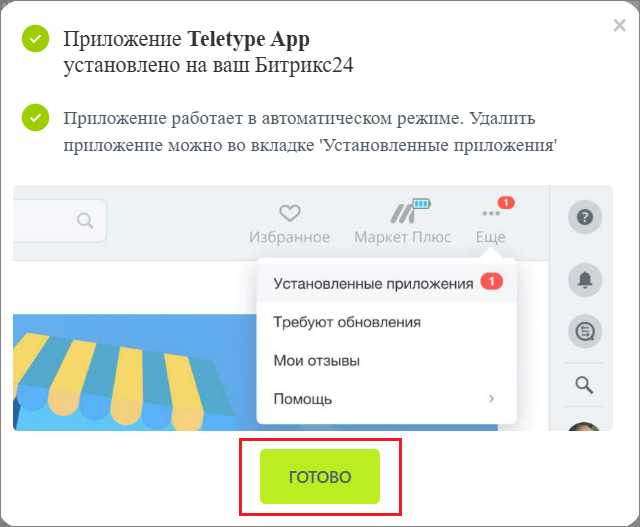
6. Click “Done.”
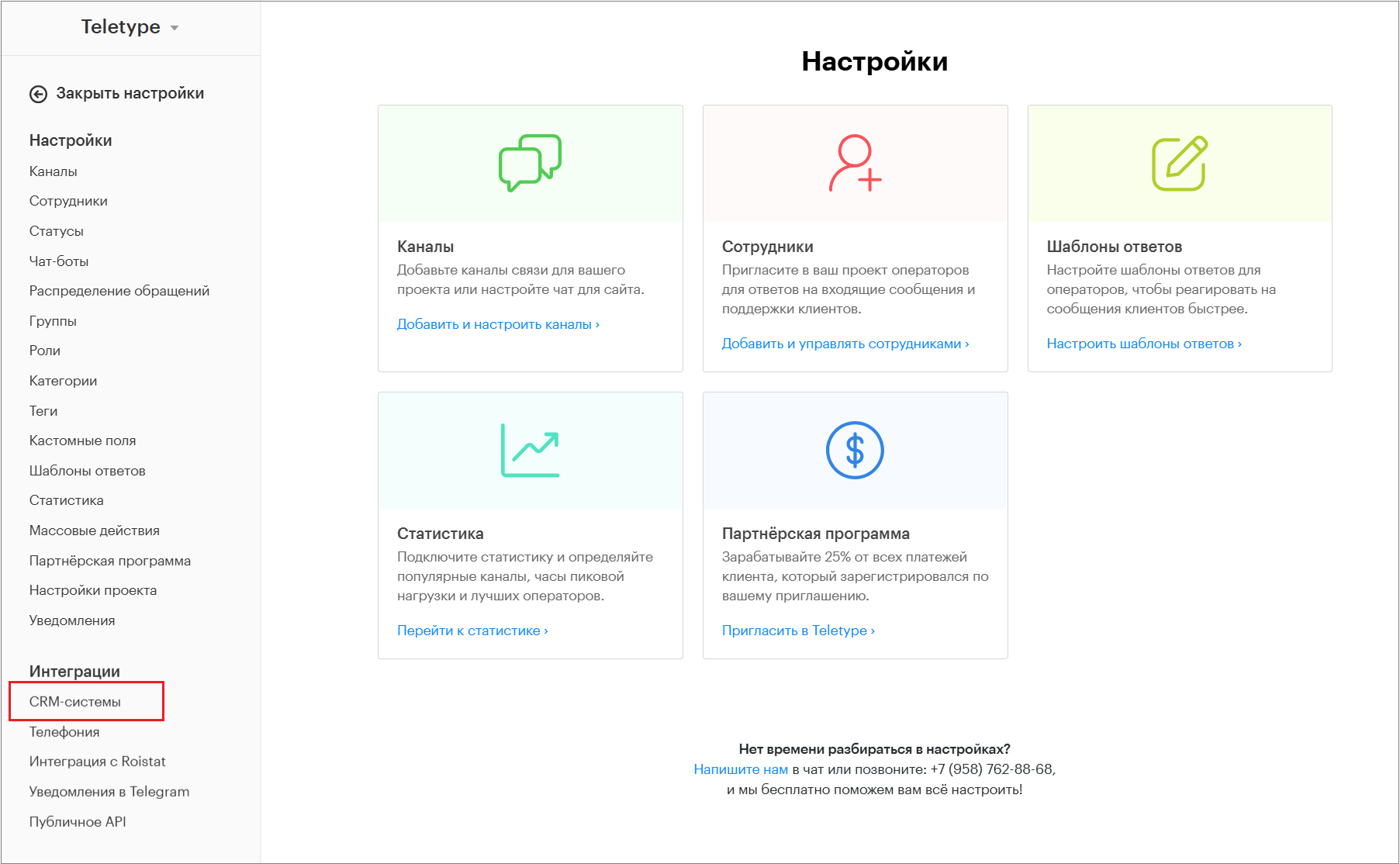
7. Next, go to the Teletype panel settings and select the “CRM Systems” section.
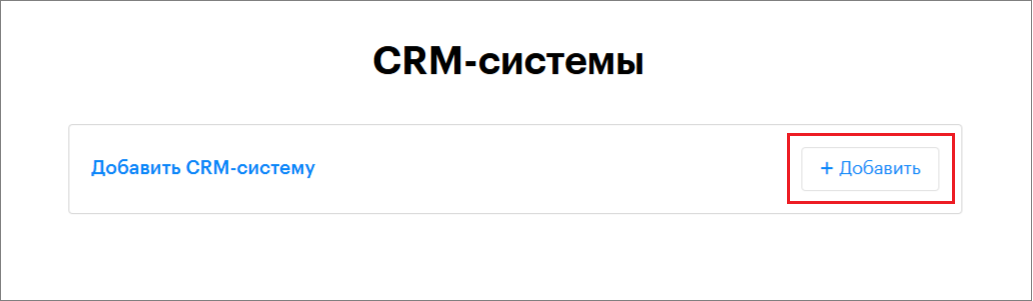
8. Click “+Add.”
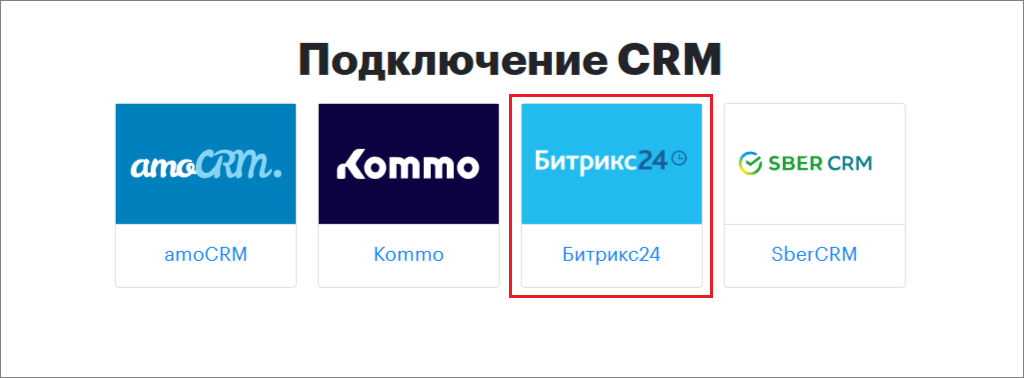
9. In the window that opens, select “Bitrix24.”
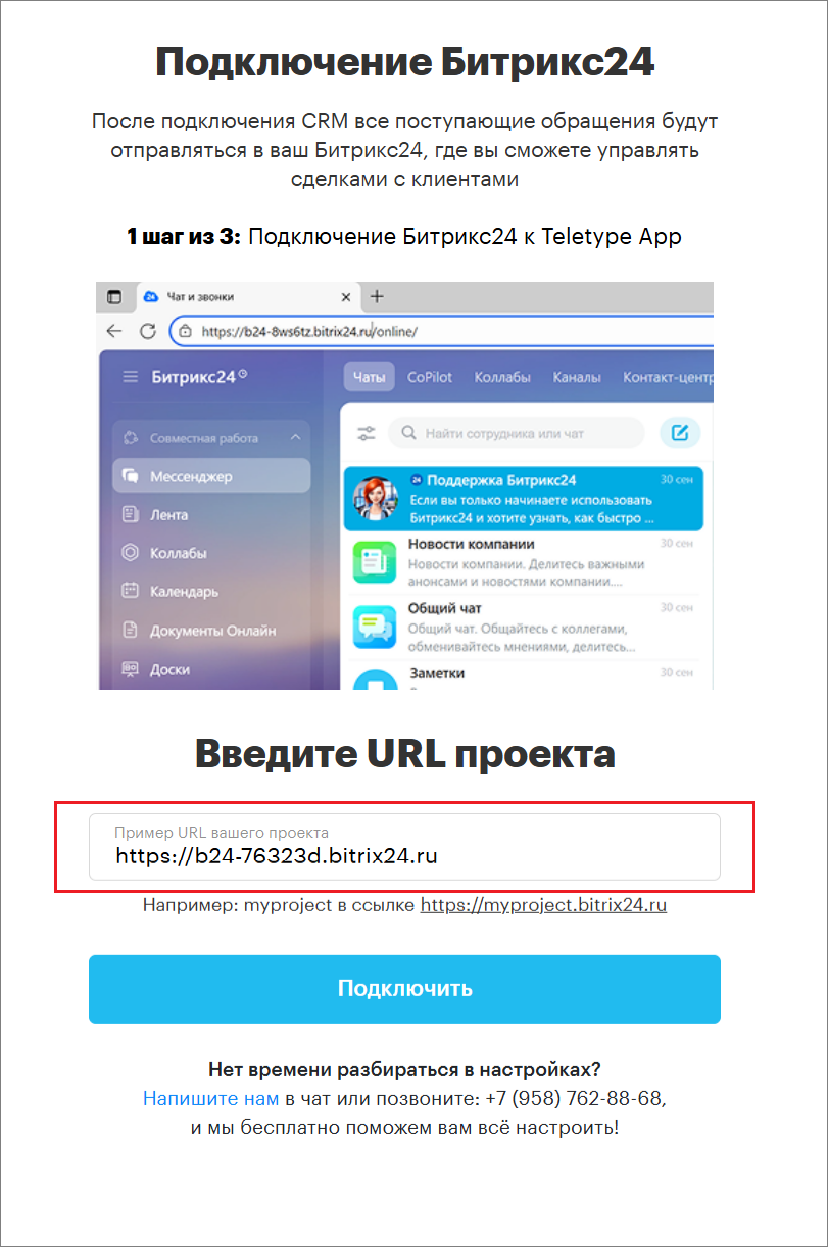
10. On the connection page, enter the URL of your Bitrix project.
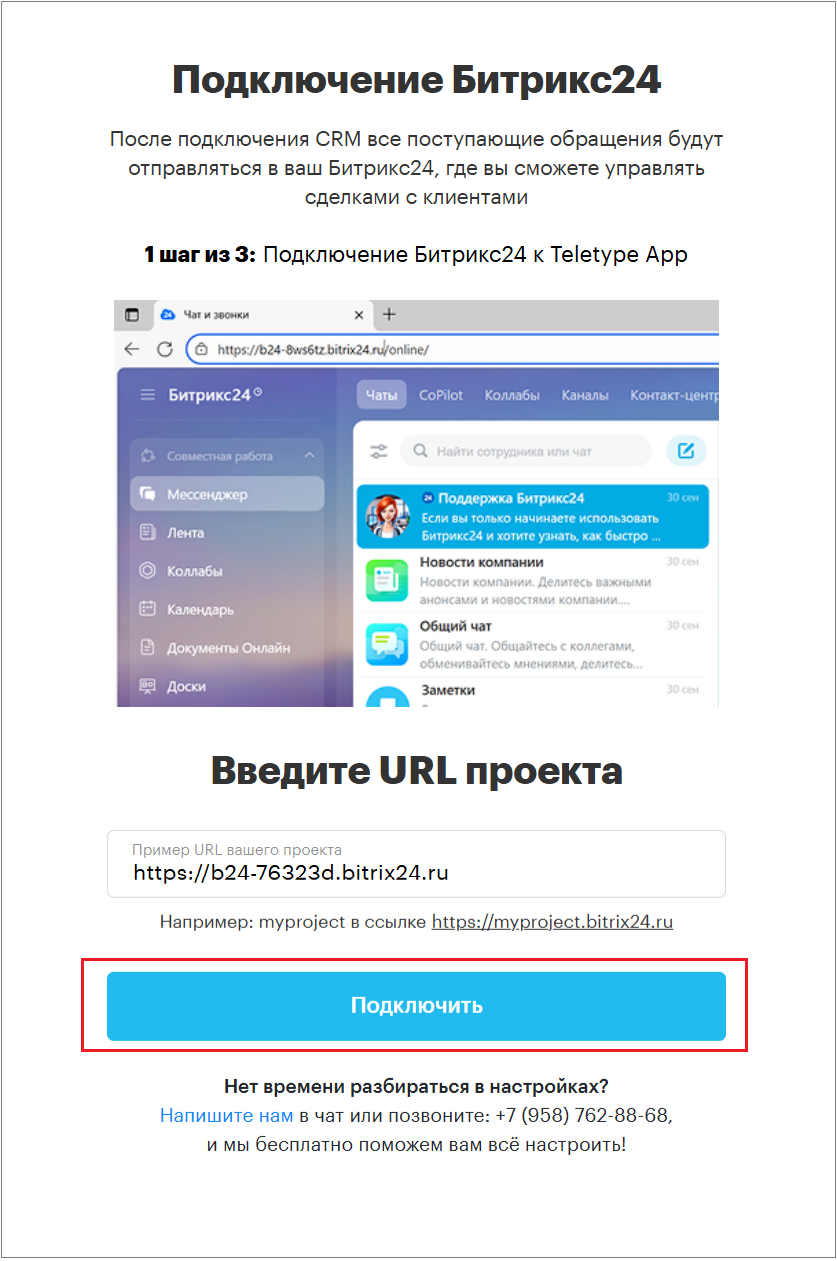
11. Click the “Connect” button.
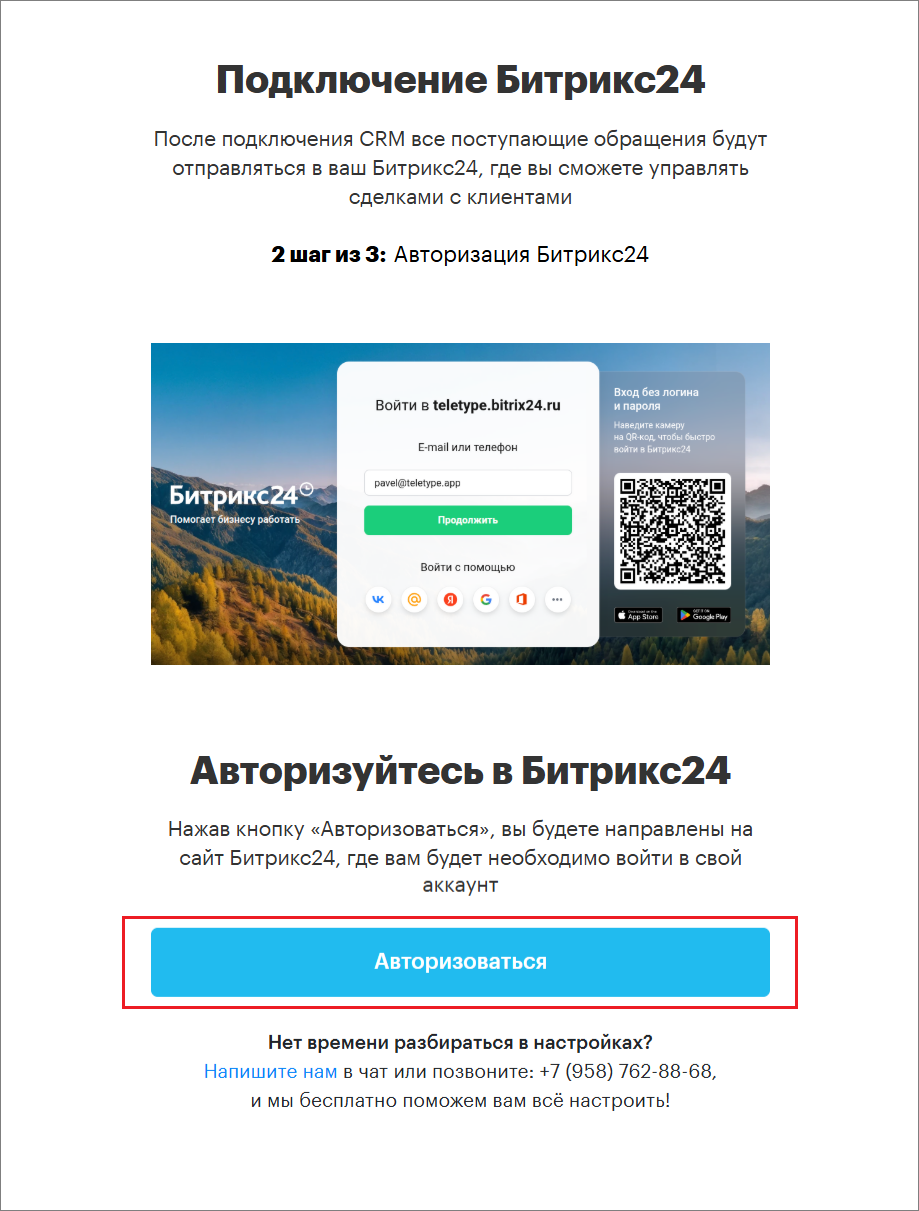
12. Then click “Authorize.”
13. After that, the connection page in Teletype App will open.
Here, select the communication channels to connect.
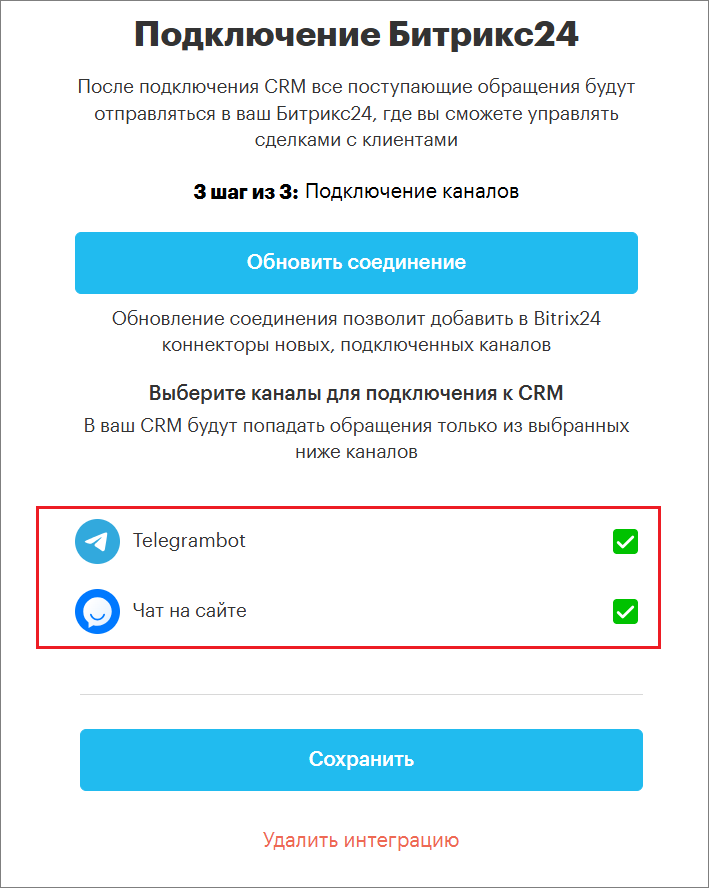
14. Click “Save.”
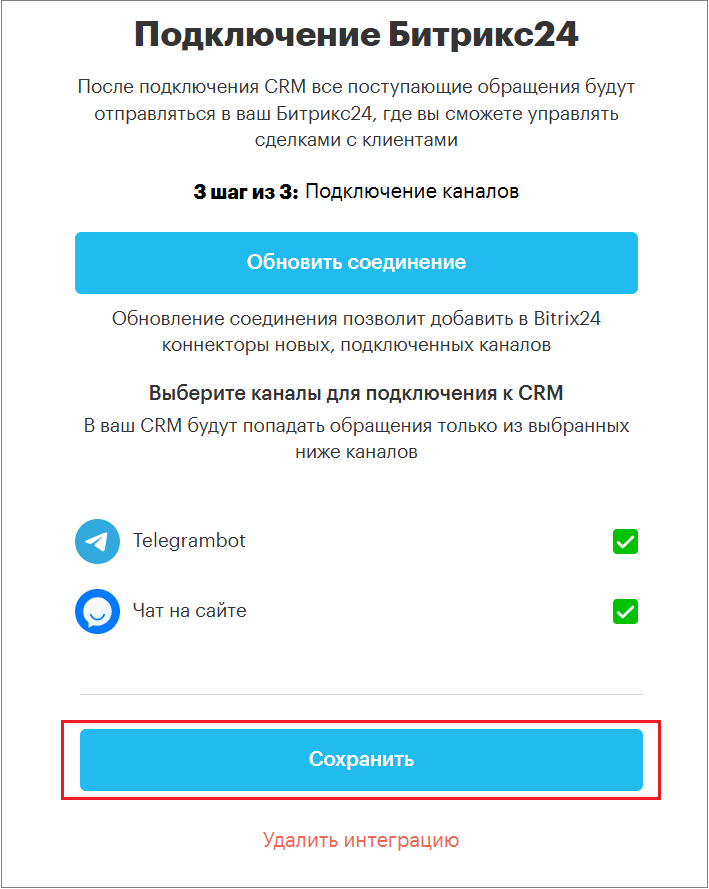
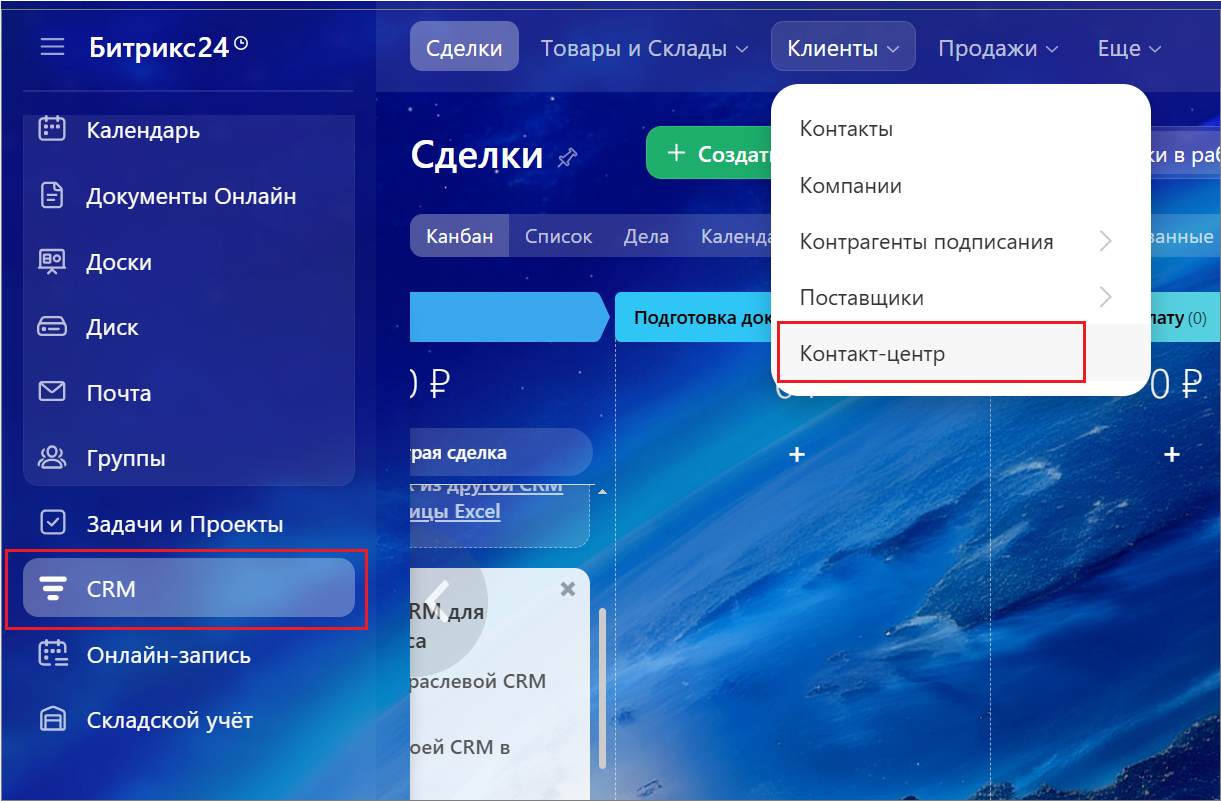
15. After that, return to your Bitrix24 personal account.
16. Go to the Contact Center.
17. In the Contact Center, find the Teletype connectors (communication channels).
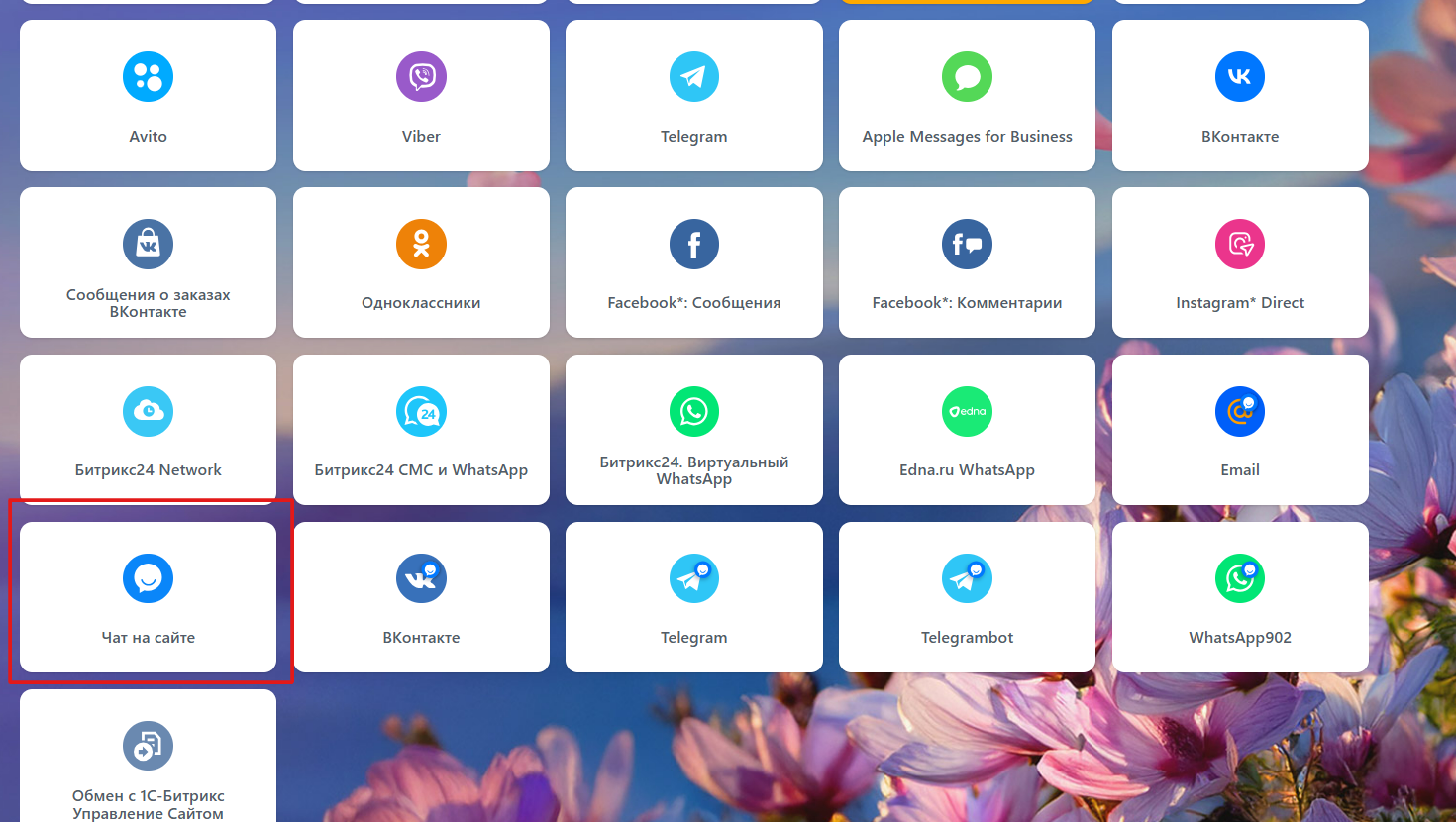
18. Connect each connector.
Handling Duplicates in Bitrix24
Bitrix24 has a Duplicate Control feature for contacts, companies, and leads. This feature automatically detects duplicates in the CRM and merges them.
To merge duplicates, you need permissions to edit and delete items. If you don’t have these permissions in the CRM, you won’t be able to use this functionality.
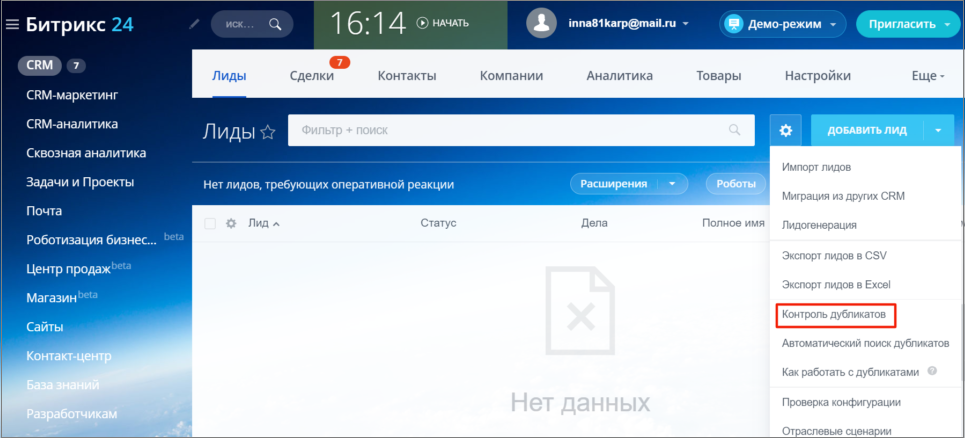
To find and merge duplicates, go to the desired section – Companies, Contacts, or Leads – and click Duplicate Control.
In the window that opens, select the parameters for duplicate search.
The following fields are used:
- Leads – Full name, company name, phone, email.
- Contacts – Full name, phone, email, TIN, OGRNIP, and bank account.
- Companies – Company name, phone, email, TIN, OGRN, and bank account.
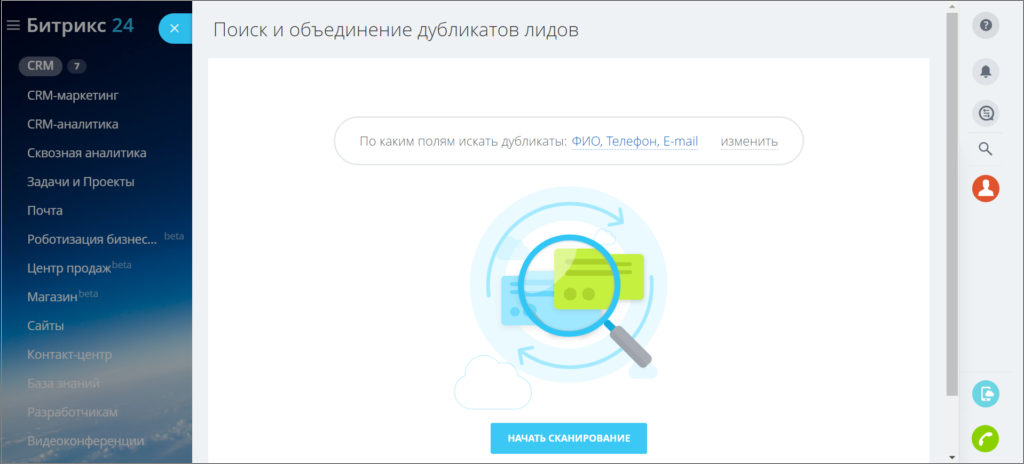
Start the scan, and after it finishes, you will see the number of duplicates found. Then click Perform Merge:
- duplicates without differences will be merged automatically
- others can be merged manually or skipped.
If the same fields in the cards contain different data, you will need to choose which data to keep after merging.
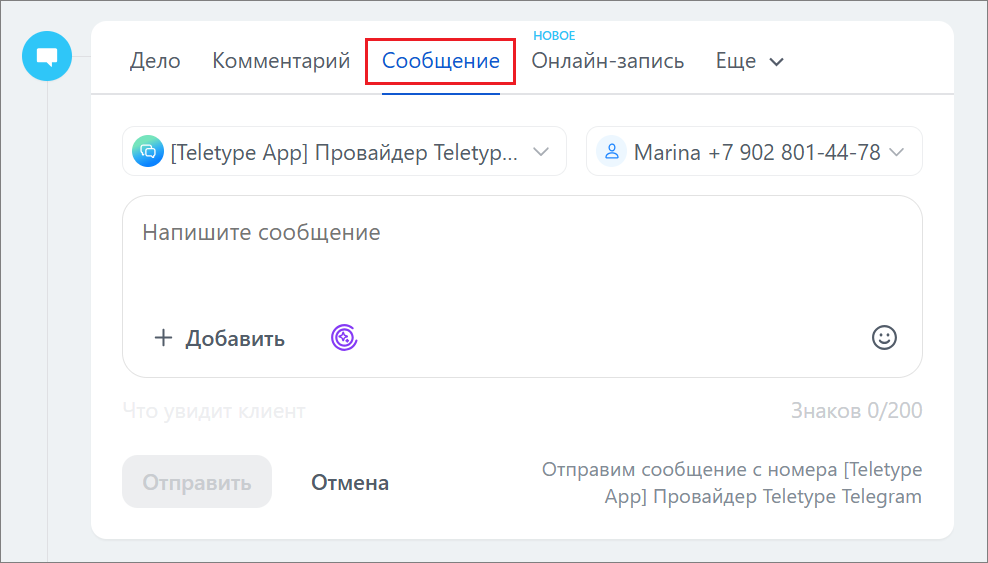
How to Send a Message via WhatsApp/Telegram
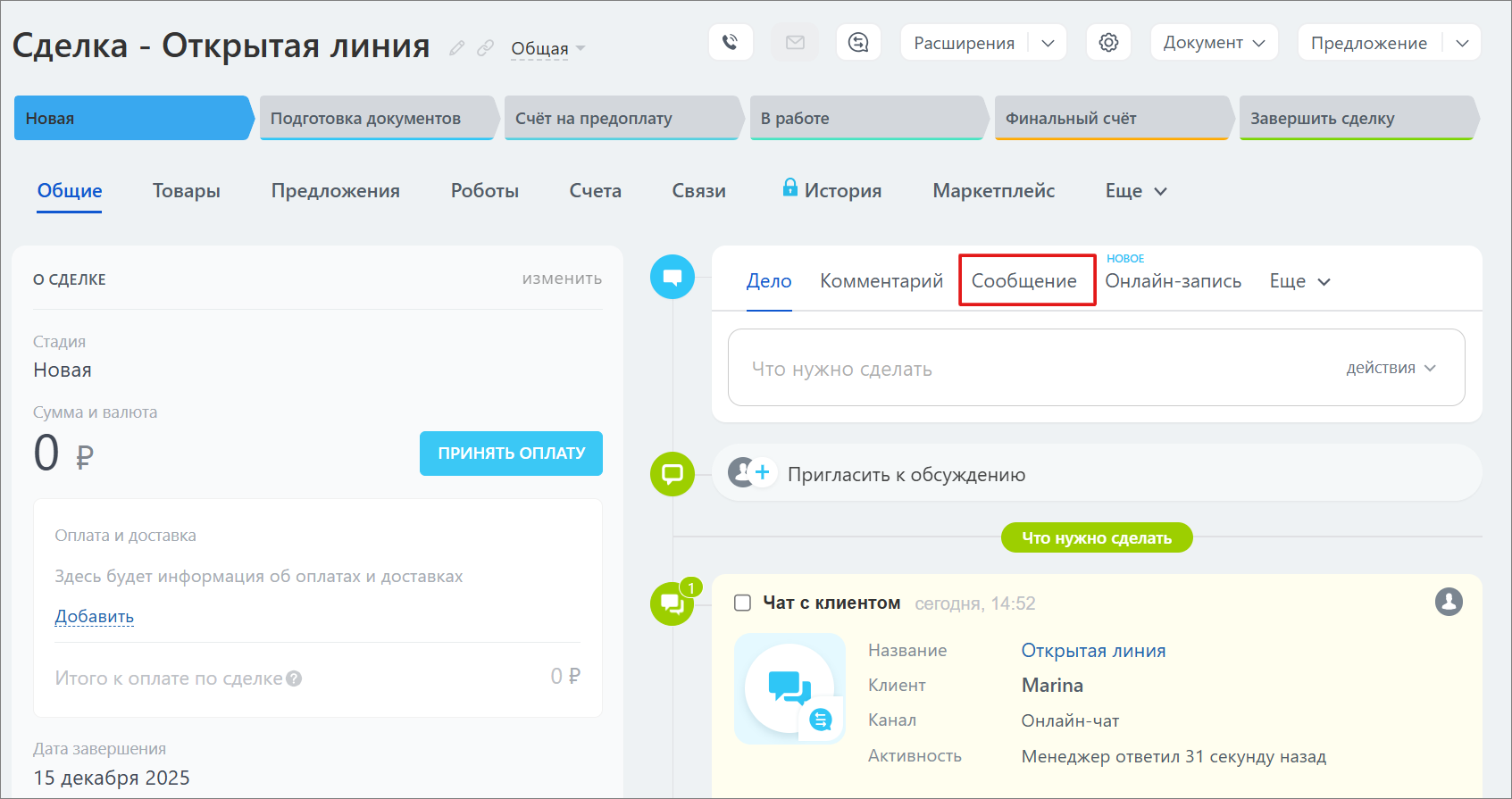
- Go to the Message section in the client deal.
2. Select the WhatsApp/Telegram channel to send the message.
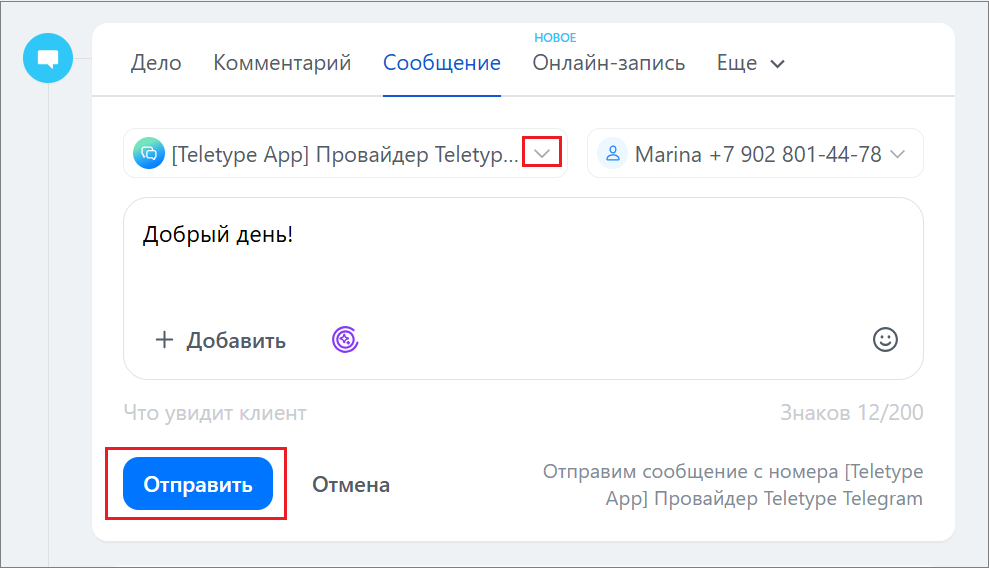
4. Enter the message text and send.
Communicating via Open Lines Chat
- In the client deal, open the Open Lines chat.
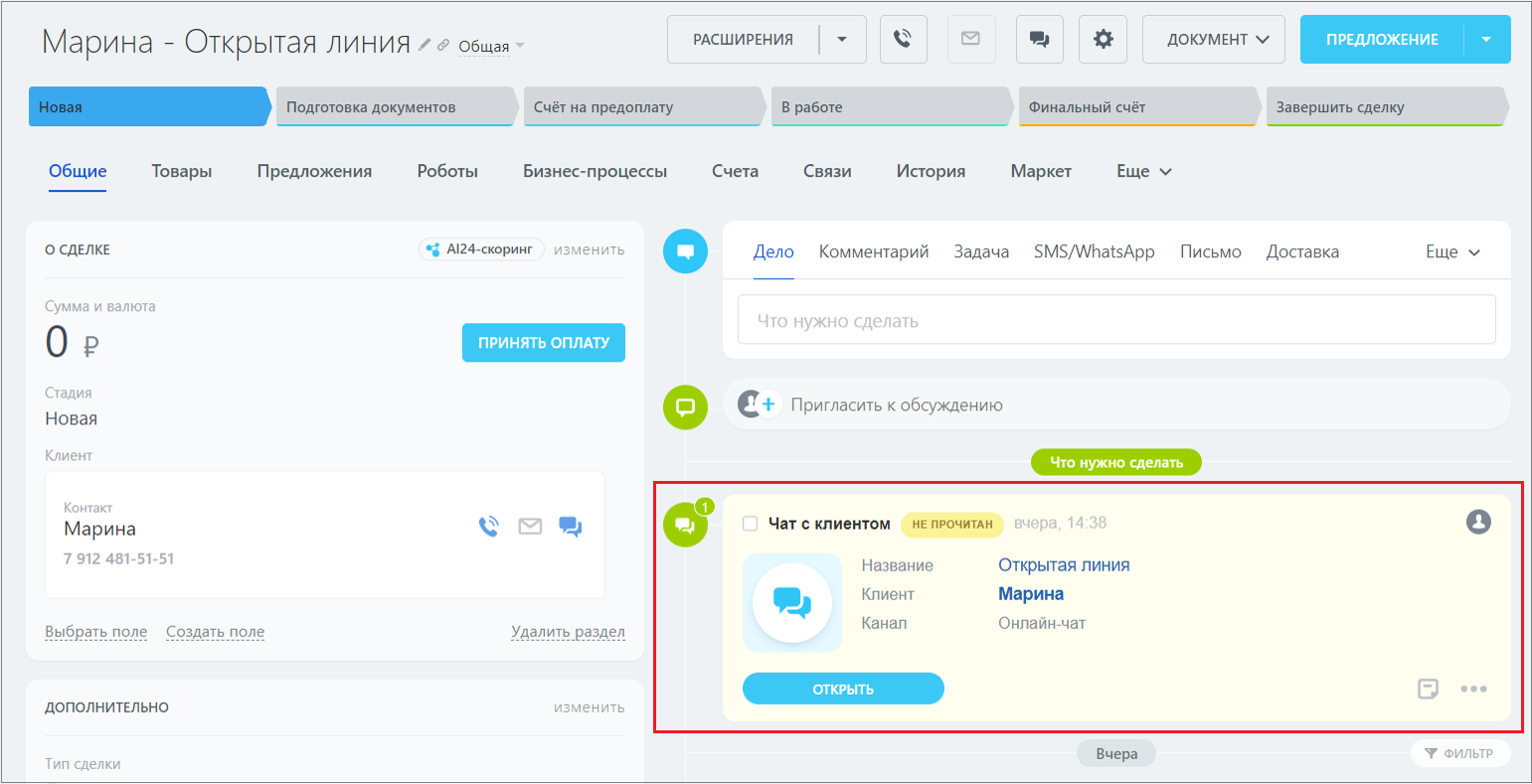
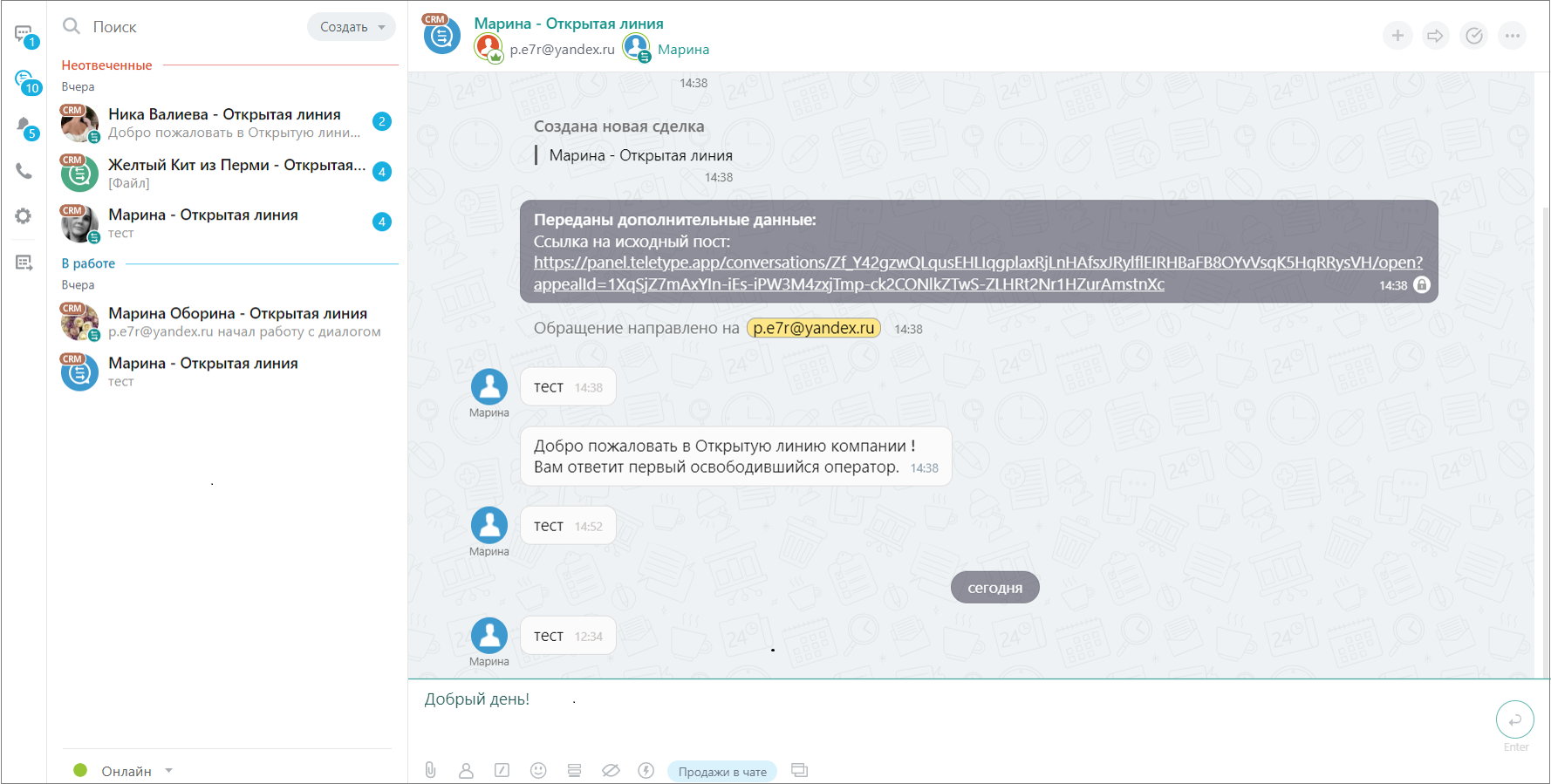
2. In the opened chat, write a message and send it.