
How can we help?
Integration with Restoplace
Teletype Connection Guide
for Sending Alerts and Notifications to Guests via Messengers
Connect the Teletype service and set up message delivery to guests on WhatsApp and Telegram when they make a booking through your Restoplace widget.
In this guide:
1. Registering in Teletype App
2. Adding WhatsApp and Telegram Channels in Teletype App
4. Recharging Your Balance and Activating a Teletype Plan
5. Connecting Teletype to Restoplace
1. Registering in Teletype App
To connect the Teletype service, you need to create an account on the Teletype website and log in to your Teletype personal account.
Any client who registers using our invitation receives 14 days of Teletype usage with unlimited operators: https://teletype.app/?promo=WLI9JJ
2. Adding WhatsApp and Telegram Channels in Teletype App
In your Teletype personal account, click “Add Channel”
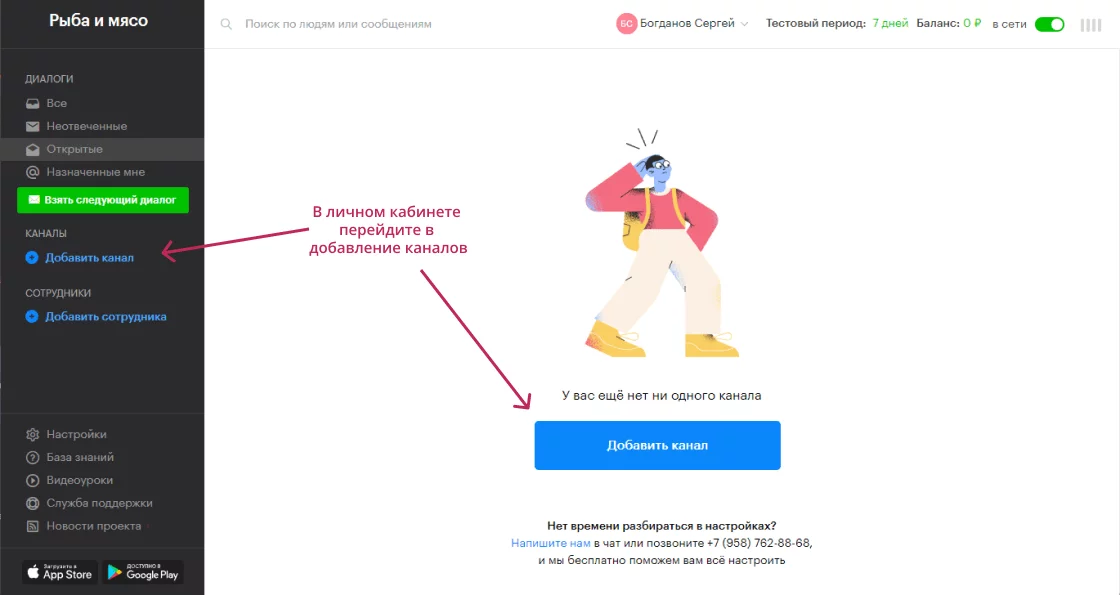
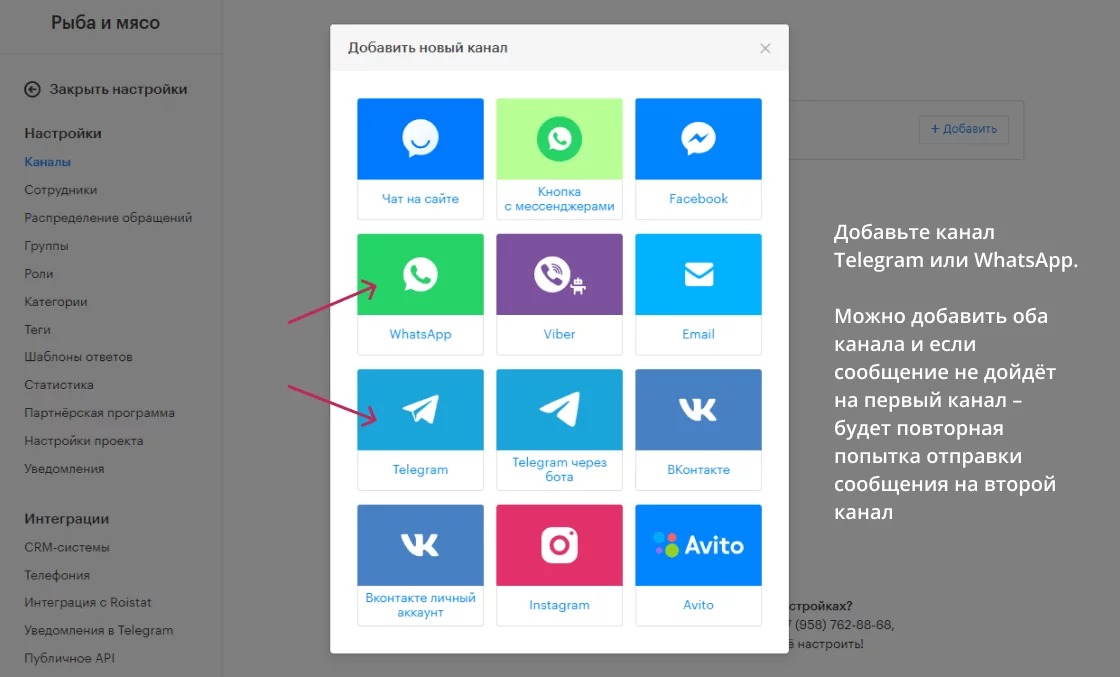
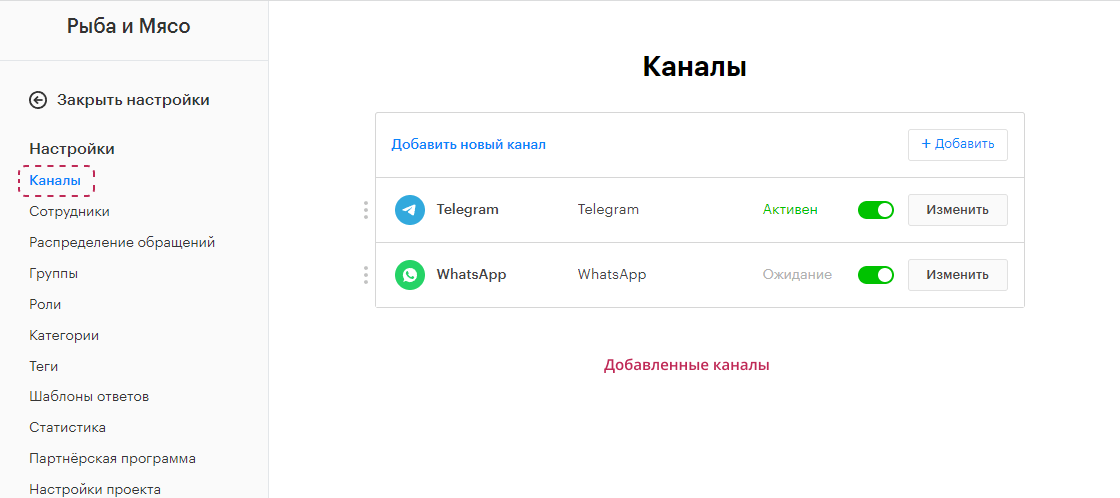
Add the Telegram or WhatsApp channels. You can add both channels; in that case, Restoplace will first try to send the message via one messenger, then via the other.
4. Recharging Your Balance and Activating a Teletype Plan
To send messages, you need to top up your Teletype balance and activate the appropriate plan.
Go to “Settings” — “Account Top-up” and add funds using any convenient method. Then go to “Plan Configurator,” select and activate the desired plan.
5. Connecting Teletype App to Restoplace
To connect Teletype to Restoplace, follow these steps:
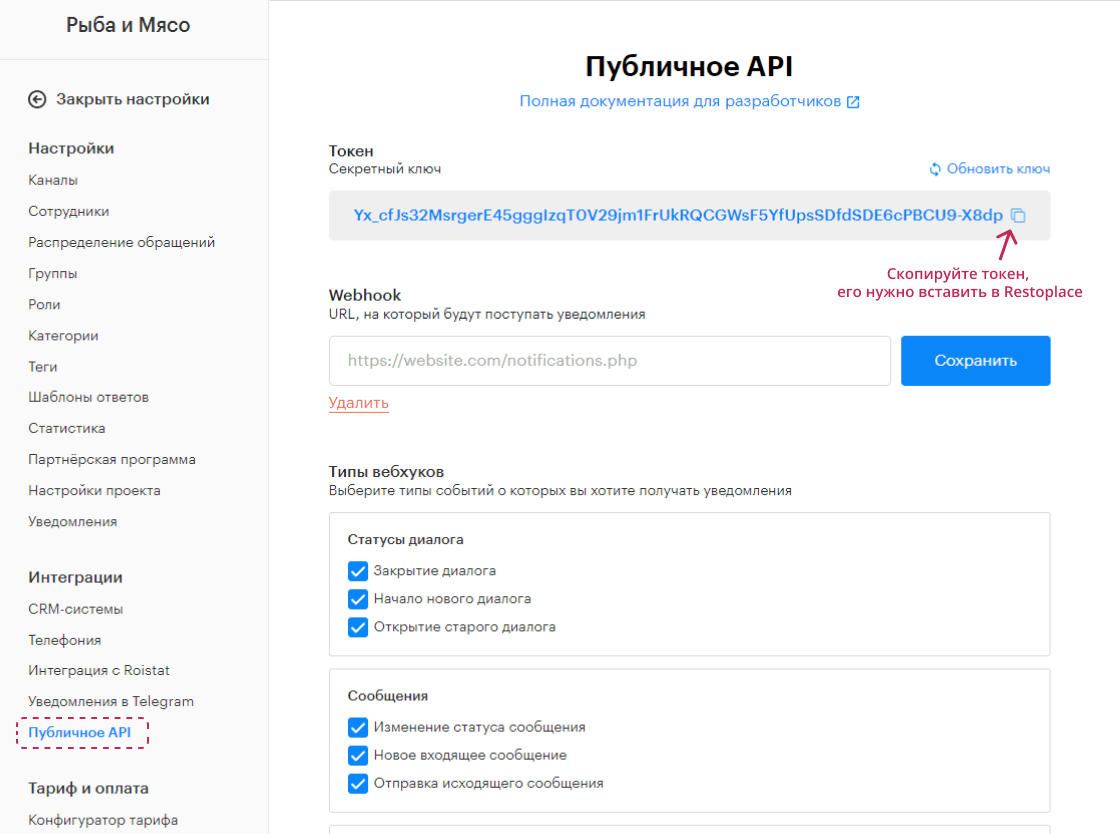
- In your Teletype personal account, go to “Settings” — “Integrations” — “Public API”
- Copy your “Token — Secret Key”
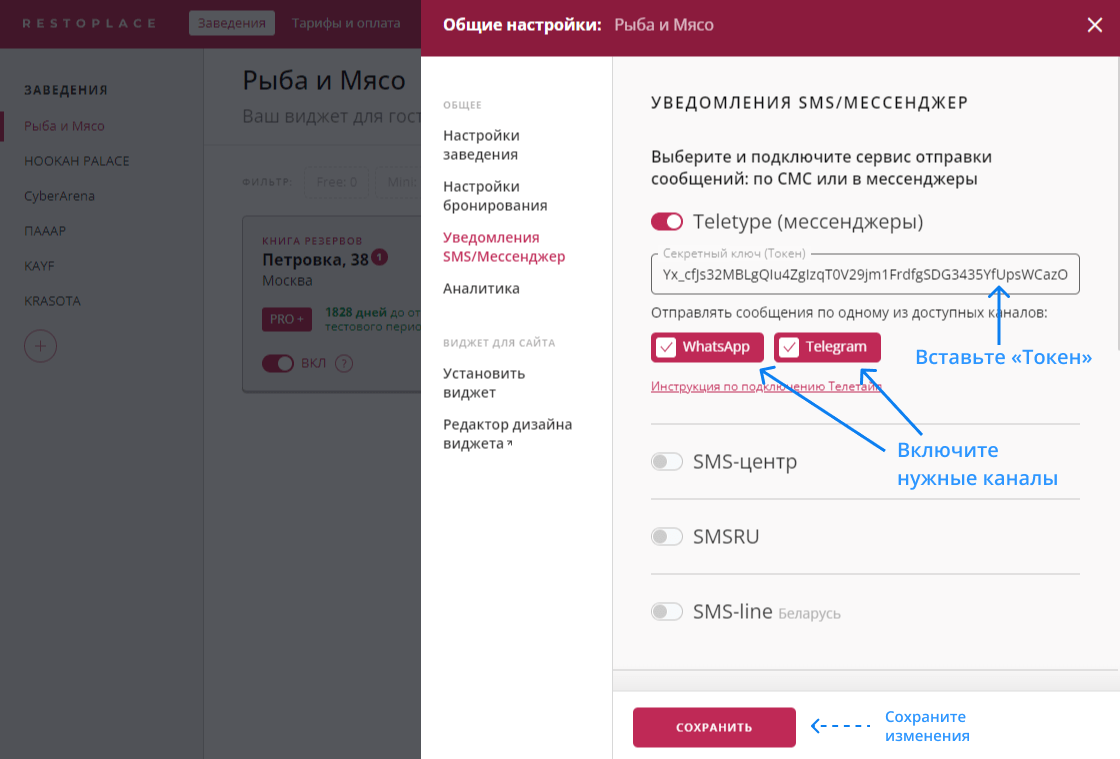
3. In your Restoplace personal account, open “General Settings” in the top right corner
4. Go to the “SMS/Messenger Notifications” section in General Settings
5. Enable the Teletype service and paste your “Token — Secret Key” into the corresponding field
6. Enable the desired channels: “Telegram,” “WhatsApp” (one or both)
7. Click “Save”
IMPORTANT! After connecting Teletype, please proceed with notification settings