
How can we help?
How to Reduce the Risk of Being Blocked on WhatsApp
How to Reduce the Risk of Number Blocking
1. Give the Client a Choice
Good practice is to give the recipient the option to indicate that they are not interested in your mailing. This can be:
- a polite note at the end of the text, for example: “If you are not our client, please ignore this message”;
- a direct request for feedback, for example: “If you do not want to receive mailings, please reply with the word ‘unsubscribe’.”
This approach shows care for your client. As a result, it reduces the likelihood that recipients will click the “spam” button.
Plan your mailings so that the client receives the message at a time when they are more likely to open it. For example, in the morning or in the evening.
2. Check Limits and Warm-up Recommendations
Do not exceed the sending limit — this is 50 messages per hour, with an even distribution of sending times. Official WhatsApp limits: no more than 250 new conversations per day and no more than 1000 conversations with contacts or people you have already messaged. Remember to check the current figures on the official messenger websites — limits can change from time to time.
Team recommendation: gradually increase the volume of sends: start small (30 messages/day), then increase by +20 messages/day.
3. Consider the Number’s History
A new WhatsApp number must be “warmed up” before starting mailings — how to do this is explained below.
For an active number — monitor the ratio of the average number of conversations to the volume of contacts for mailing. If you have 10-20 ongoing conversations and want to send a mailing to 500 contacts, this will look suspicious to WhatsApp.
Number after unblocking — refrain from using it for large mailings and carefully review the guidelines below.
4. Use Text Randomization (words, sentences,
and emojis)
Mass sending of the exact same message increases the risk of blocking.
To reduce this risk, use variable constructions.
Original message: “Hello! This month we are launching a promotion for wonderful ladies. Mention the number at the end of the message to our manager and receive a nice bonus! 42”.
This message highlights 7 desired variable elements in color: Hello!, This month, promotion, wonderful, our manager, bonus, 42.
For each variable element, you need to select synonyms. As a result, the template text for the mailing will look like this:

{Hello|Good day|Greetings}! {This month|In September| 📅 September 3|From September 3} we are launching {a promotion 🎀|a special offer|a promo campaign|promo ️🌹 campaign} for {wonderful|our beloved|charming} ladies. Mention the number at the end of the message to {the manager|our manager|upon purchase|consultant} and receive a nice {bonus|gift|🎁}! {3|2025|333|030925}
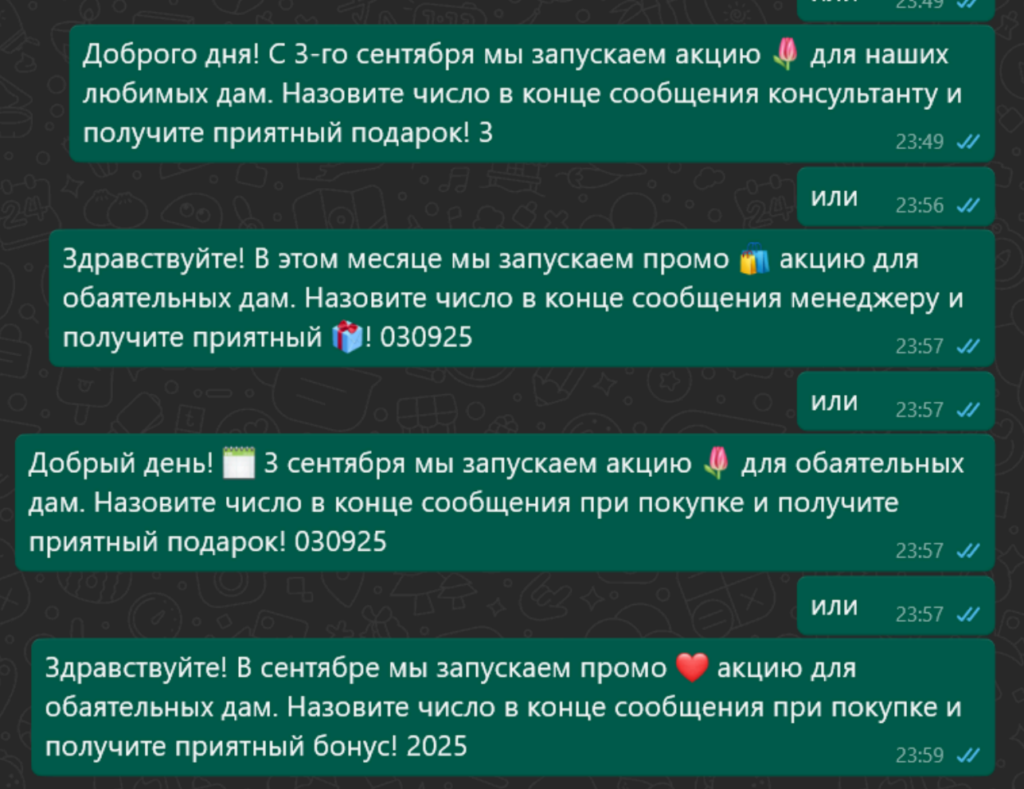
Team recommendation: create short and concise texts — 3-5 sentences. WhatsApp’s filtering system is more likely to flag longer messages. Use a variety of emoji icons to decorate and enhance randomization. The more uniqueness in the messages, the better.
5. Do Not Include Links in Mailings
- Do not use links if it can be avoided:
Links will not be clickable until the client replies to your message.
Statistically, mailings with links are more likely to be blocked than others.
6. Set the Sending Frequency
Mailings with intervals between messages shorter than 50 seconds may be flagged by the system as suspicious activity spikes. Consider the time the system needs to send messages so that clients do not receive messages late at night or early in the morning.
Team recommendation: set longer intervals, “masking” the sending as if a real person is typing and sending the text. The optimal frequency is from 50 seconds to 5 minutes.
7. Use Additional Fields and Variables
In the contact list in CSV format, only the “phone” field is mandatory. To increase the uniqueness of each message, you can add other fields, for example: name {Name}, order or subscription number {Order}, unique discount values {discount}. These fields can be placed throughout the mailing text. You can specify any value in the table as needed — just make sure it is written in English.
8. Split Mailings Across Multiple Channels
If you have multiple communication channels connected, divide the client base across these channels. The number of messages per channel will decrease along with the risk of blocking.
For example: if you need to send a mailing to 600 people in a project with 2 WhatsApp numbers connected, it is optimal to create 2 mailings and send them via the 2 numbers — either simultaneously or with a delay. This way, the load on one channel will be 300 messages, which will be sent over 4 hours and 10 minutes if you set the sending interval to 50 seconds.
How to Warm Up a WhatsApp Number
Warming up is a signal to the WhatsApp system that a real person, not a spammer to be blocked, is communicating from the new number. Therefore, it is important to have live conversations with real people for the first few days. After acquiring a new WhatsApp number, it is strictly forbidden to connect it to third-party devices via QR scanning.
Important: Use mobile internet for warming up, not Wi-Fi. Log in to the WhatsApp app on your phone.
- After registering the account, complete the profile and set a profile photo. For a business account, add the industry, company description, and at least 3 products or services in the catalog.
- Use the account on the smartphone for the first 3-5 days.
- Send messages to 5-10 colleagues and maintain live conversations with them during these days. For example, share poems, stories, or articles from the internet. It is important that colleagues add the new WhatsApp number to their contacts on their phones.
After 5 working days, the WhatsApp number is warmed up — it can be connected to Teletype by scanning the QR code. After connecting, you can manage conversations from the Teletype panel instead of the smartphone. - During the first 24 hours after connecting to the panel, do not initiate conversations. Ask the colleagues you chatted with during the warm-up to send you a message and reply to it. Maintain conversations in this mode for at least 24 hours.
- On the second day, you can safely start conversations with your first clients. Observe time and quantity limits — no more than 30 new conversations on the first day, with breaks.
- Increase limits by 20-30 conversations per day.
What to Do If Your WhatsApp Number Is Blocked
The first warning from WhatsApp that your actions have been considered a violation of the terms of use is the message in the app: “This number can’t use WhatsApp.”
If you encounter this problem, you need to contact WhatsApp technical support to request account restoration. It is best to write from the phone, using the WhatsApp app.
- Click the “Request Review” button and write the following text:
“Good day! Please unblock my account. I have not violated the terms of use. The account was banned by mistake.”Alternative: “Good day! Please unblock my account. I have not violated the terms of use. Possibly, an unofficial app was installed.”If you do not have access to the phone, send an email to WhatsApp support at support@support.whatsapp.com, using a gmail.com email address.
Subject: Number blocking +7
Text: Good day! Please unblock my WhatsApp +7… I have not violated the terms of use. The account was banned by mistake.
Alternative text: Good day! Please unblock my account with number +7… I have not violated the terms of use. Possibly, an unofficial app was installed.- Wait for an auto-reply confirming your request is being processed. If you do not receive an auto-reply, try sending from another email.
- Wait for the message confirming the number has been unblocked.
On average, unblocking takes from 12 to 24 hours.
What to Do After Your WhatsApp Number Is Unblocked
The first warning from WhatsApp that your actions have been considered a violation of the terms of use is the message in the app: “This number can’t use WhatsApp.”
- Use mobile internet, not Wi-Fi. Log in to the WhatsApp app on your phone. It is strictly forbidden to connect the number to third-party devices via QR scanning.
- Use the account on the smartphone for 24 hours. Only reply to incoming messages.
- After 24 hours, connect WhatsApp to Teletype by scanning the QR code.
- After connecting to Teletype, continue replying only to incoming messages for another 24 hours, but now through the Teletype panel.
- Do not initiate conversations during the first 24 hours — only handle incoming messages.
- On the second day, you can start messaging clients first, observing the daily limit of 30 new conversations and time intervals.
- Increase the number of conversations by 20-30 each day.