
How can we help?
Quick Reply Templates
Teletype offers the option to create quick reply templates to make operators’ work faster and more efficient.
How to Create Quick Reply Templates
- Go to the project settings.
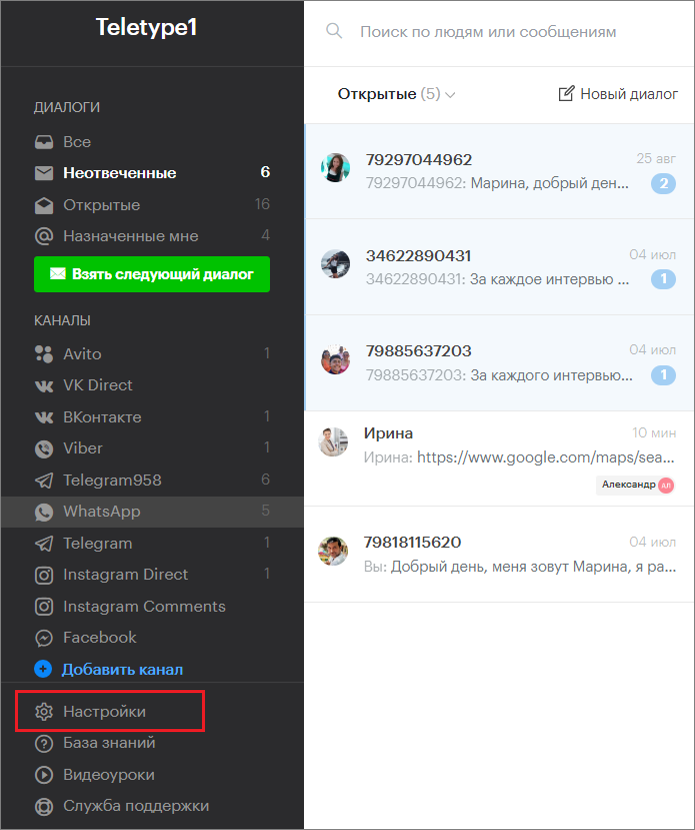
2. In the left menu, click “Response Templates.”
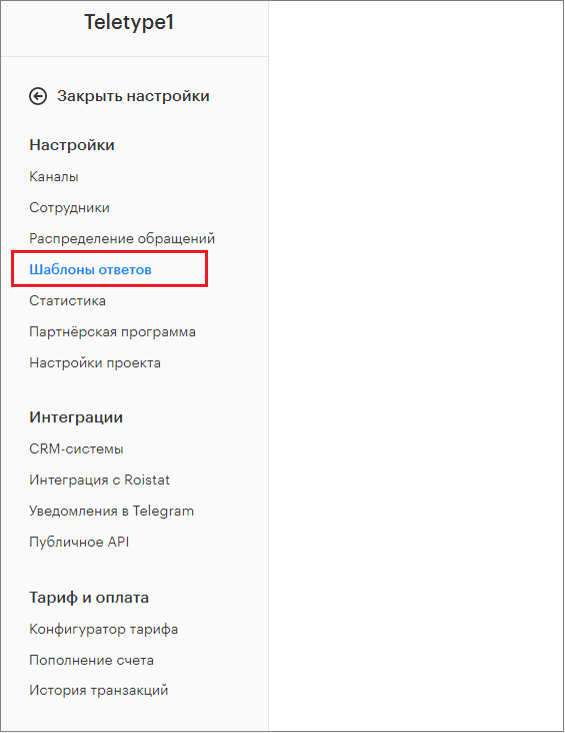
3. Click “Add Response Templates to Plan.”
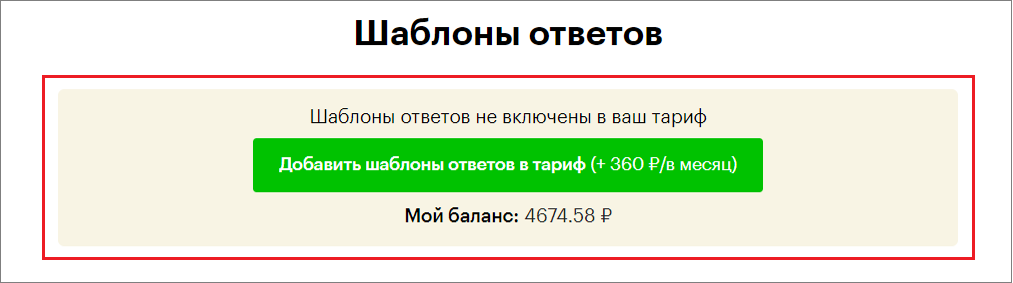
4. In the window that opens, click “Add.”
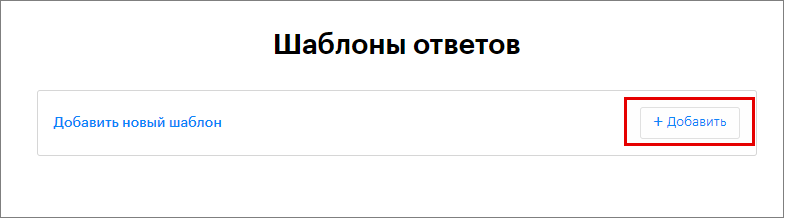
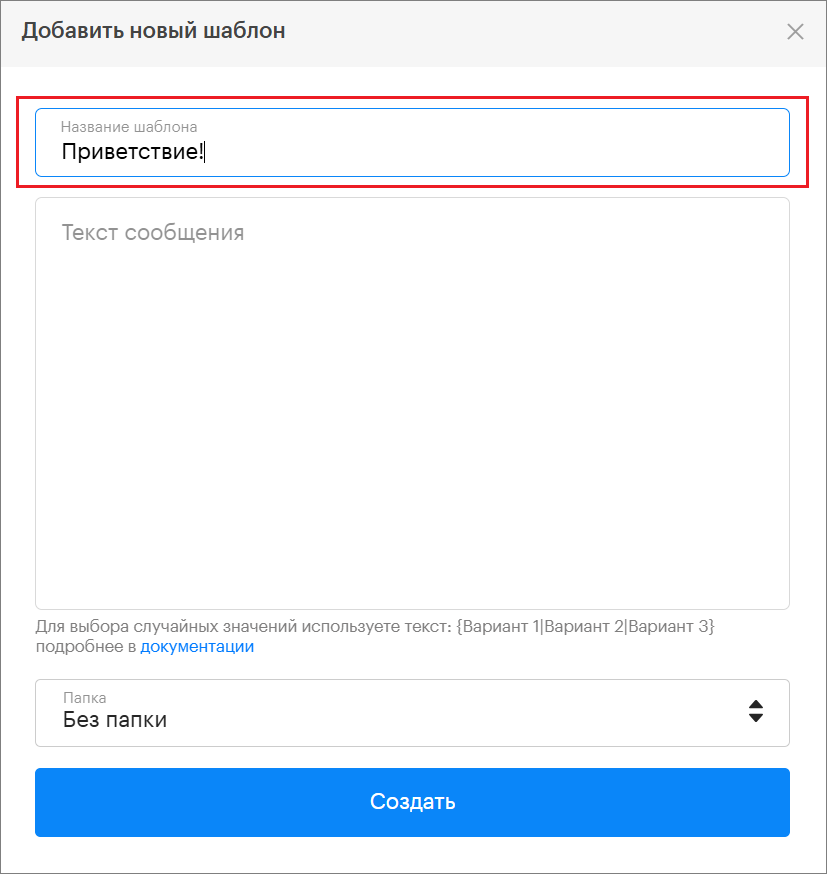
5. Enter the template name.
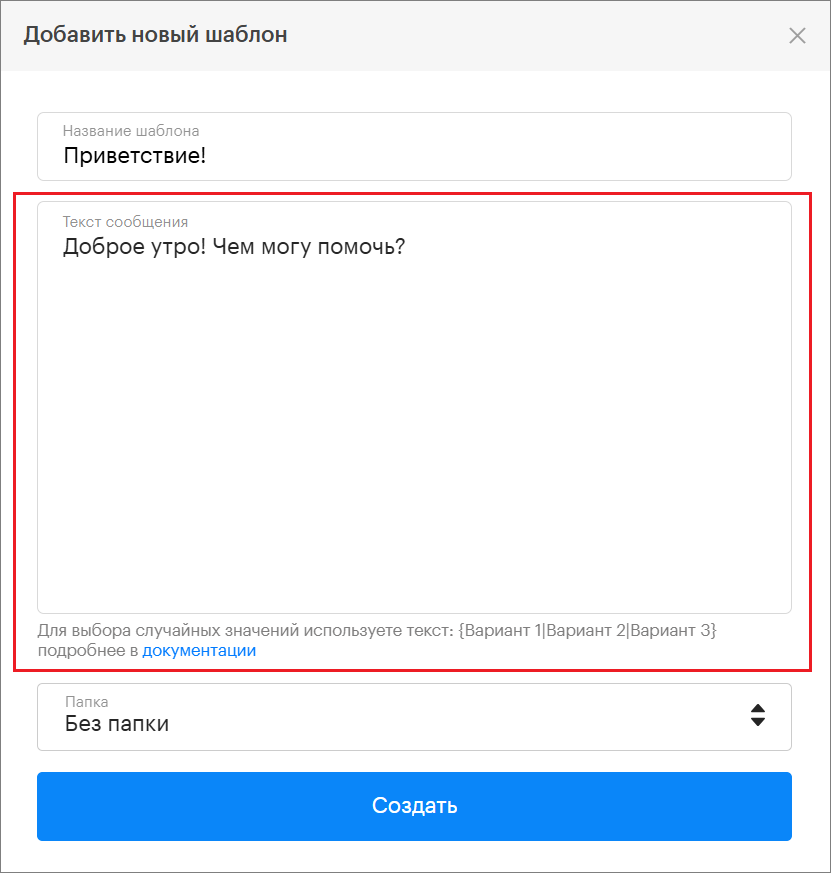
6. Enter the message text.
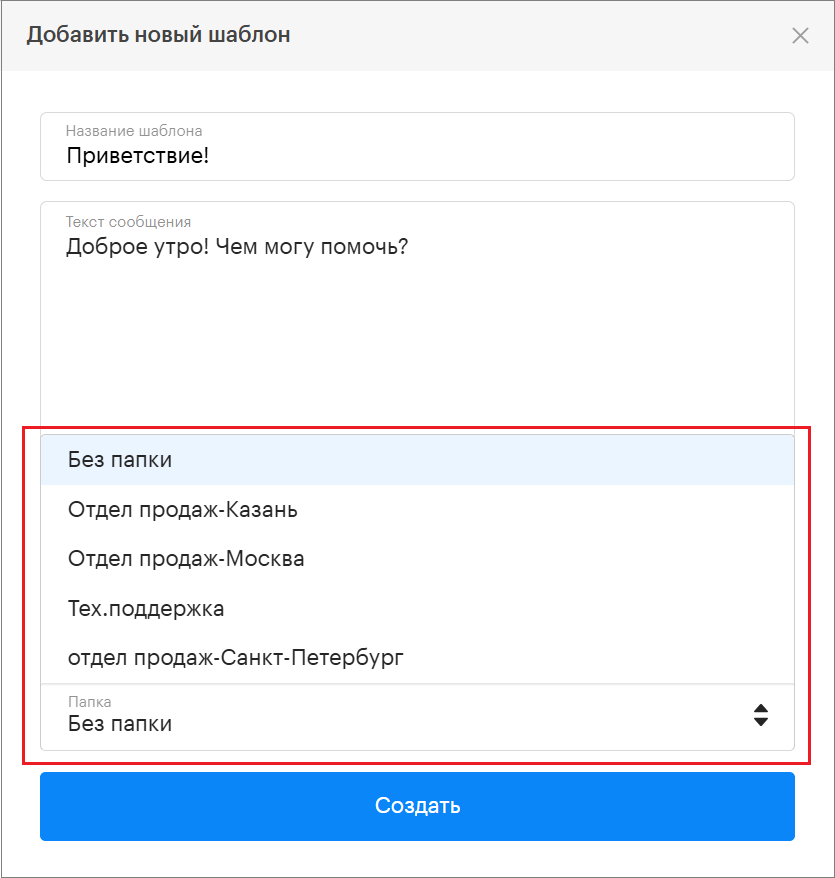
7. Choose the folder to save the template in, or save it without a folder.
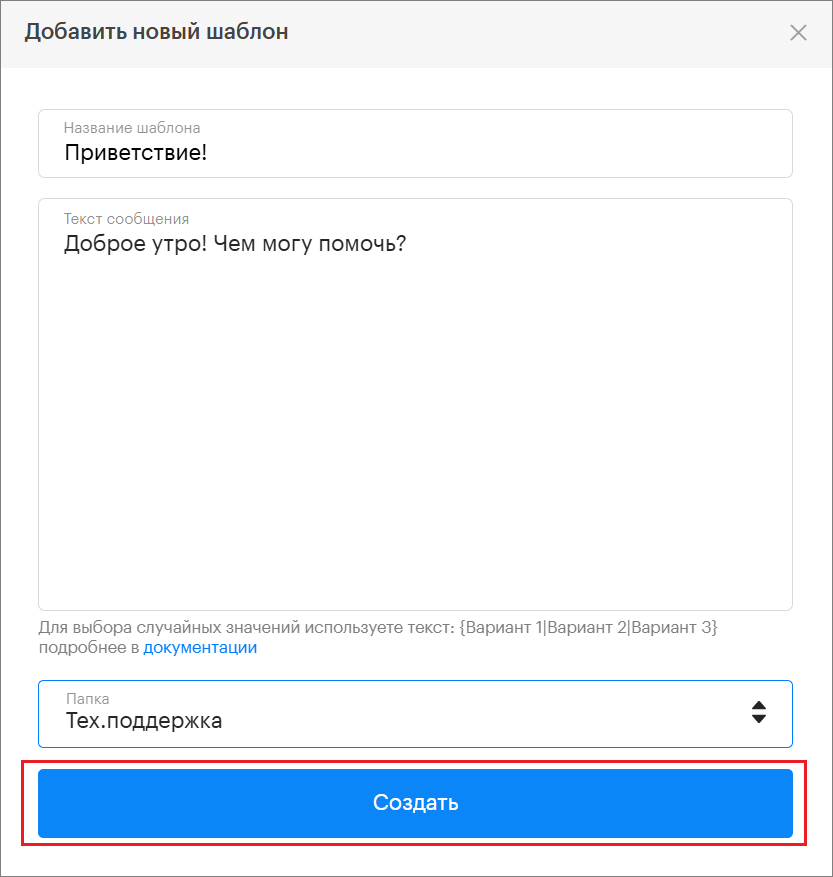
8. Click “Create.”
Randomization in Quick Reply Templates
To add variety to the message text in quick reply templates, you can include word randomization.
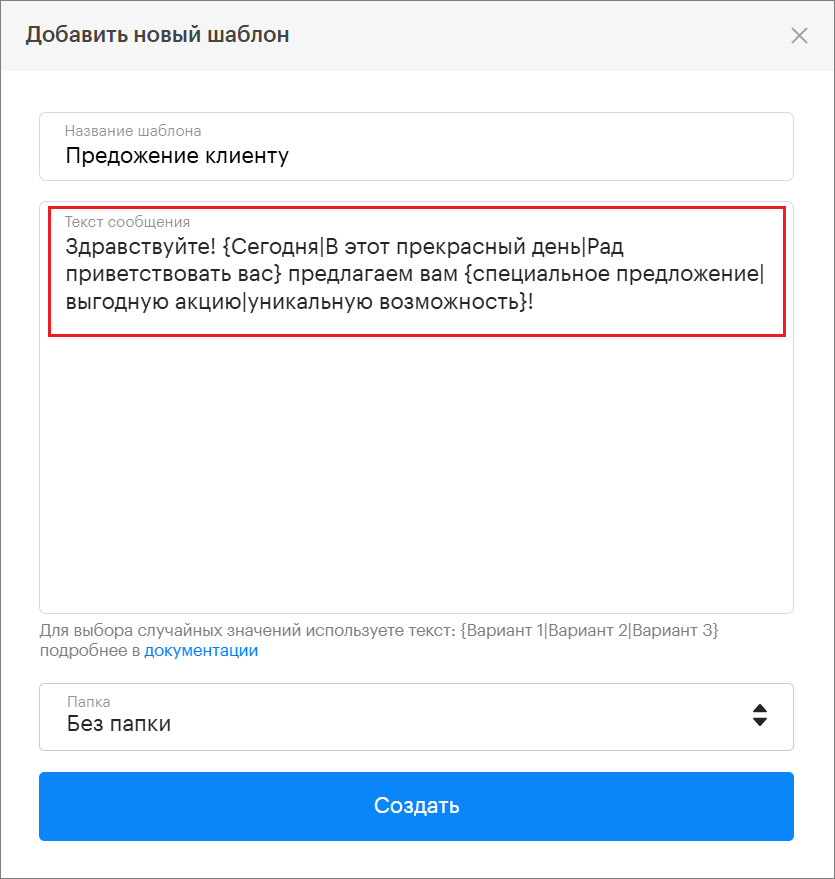
To select random values, use the text {Option 1|Option 2|Option 3} in the template message.
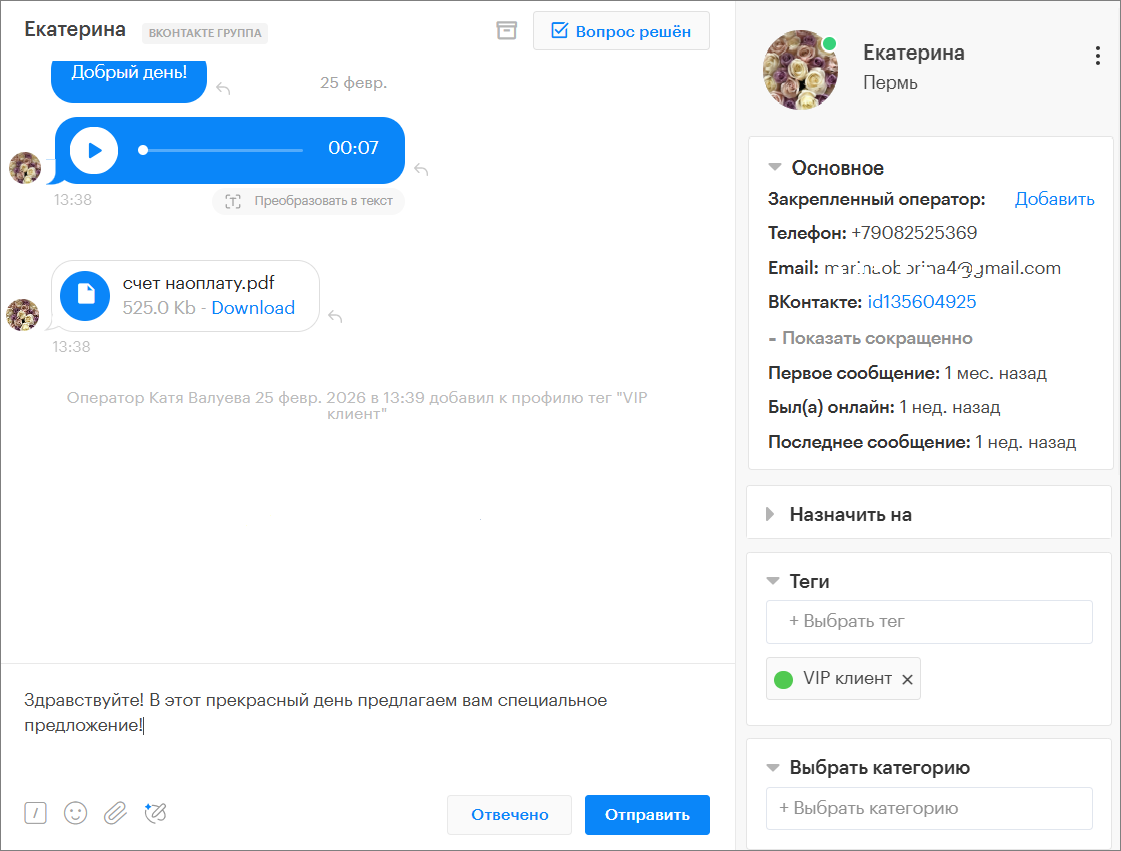
For example, “{Hello!|Greetings!|Good day!} How can I help you?” or “Hello! {Today|On this wonderful day|Glad to welcome you} we offer you a {special offer|great deal|unique opportunity}!”
When selecting such a template, the system will automatically insert one of the options into messages to clients each time.
Working with Quick Reply Template Folders
How to Create a Folder for Response Templates
You can create folders for quick reply templates. To do this:
- Go to the project settings.
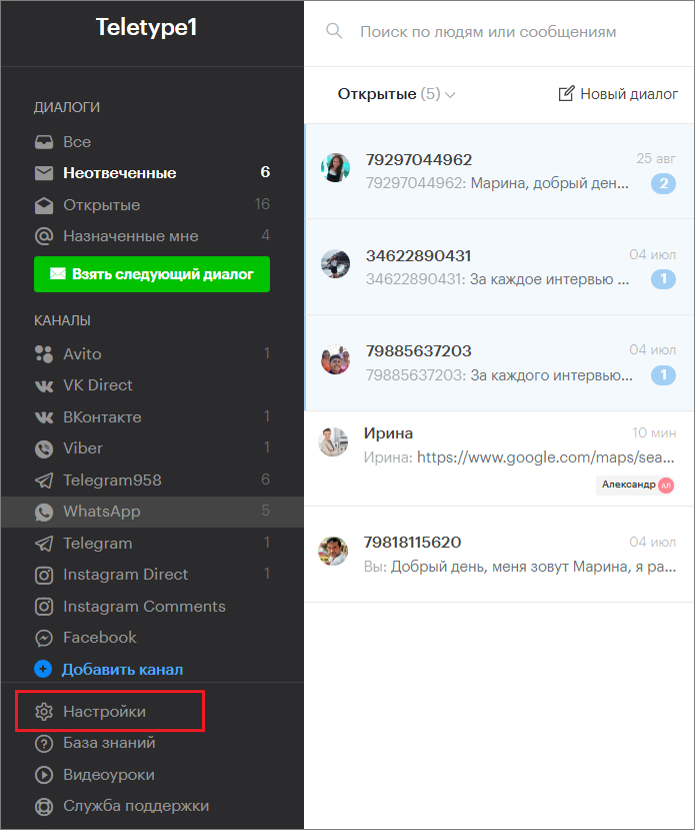
2. In the left menu, click “Response Templates.”
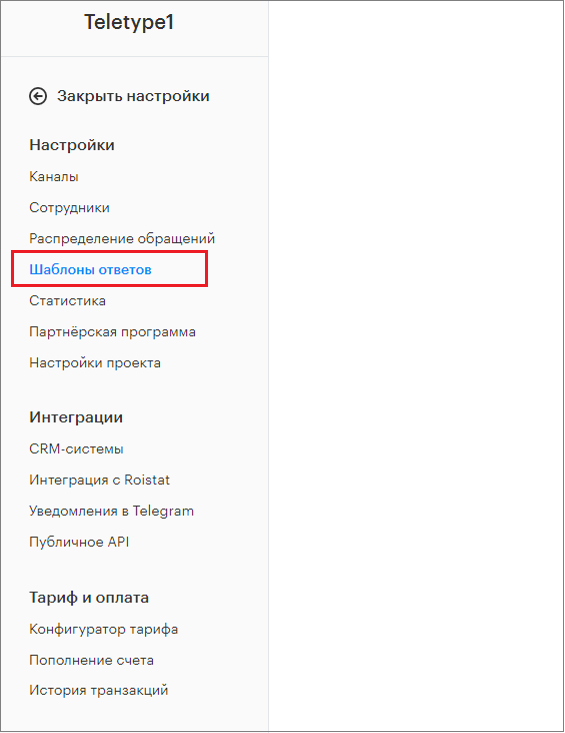
3. Click “Add Response Templates to Plan.”
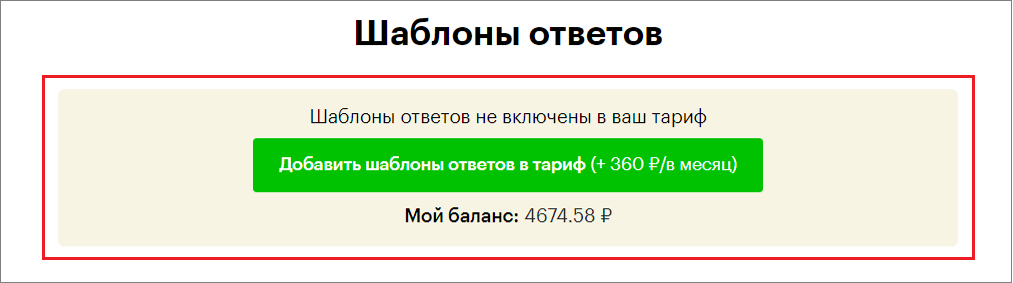
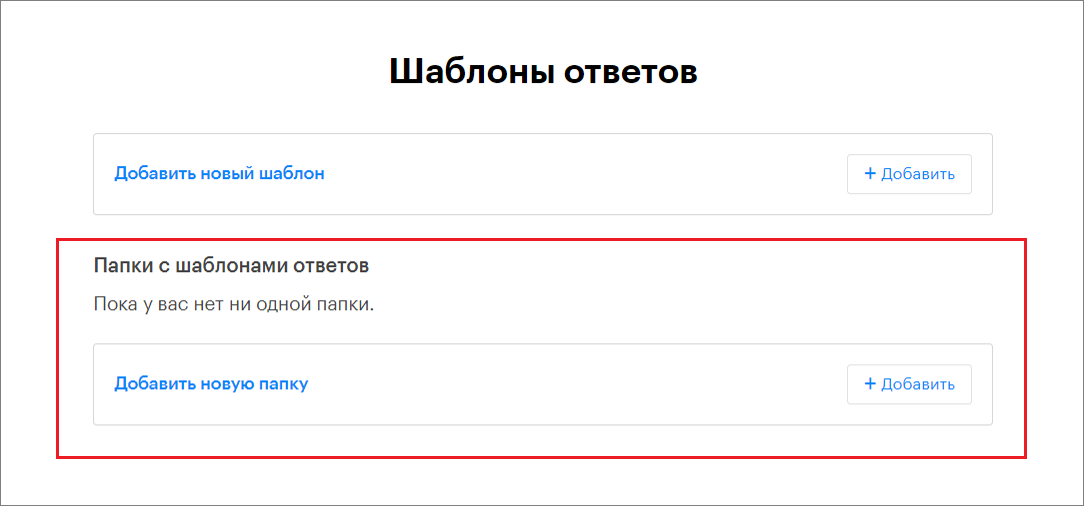
4. In the window that opens, click “Add” or “Add New Folder.”
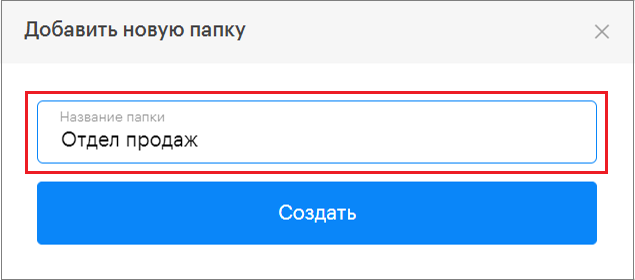
5. Enter the folder name.
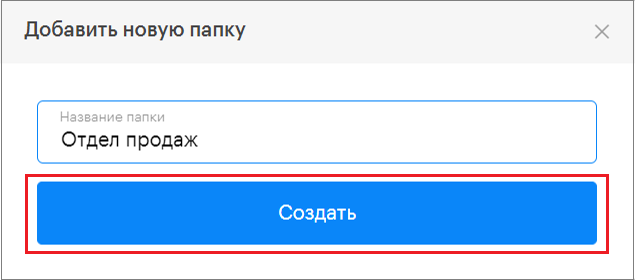
6. Click “Create.”
7. If necessary, you can edit the folder name or delete the folder.
To do this:
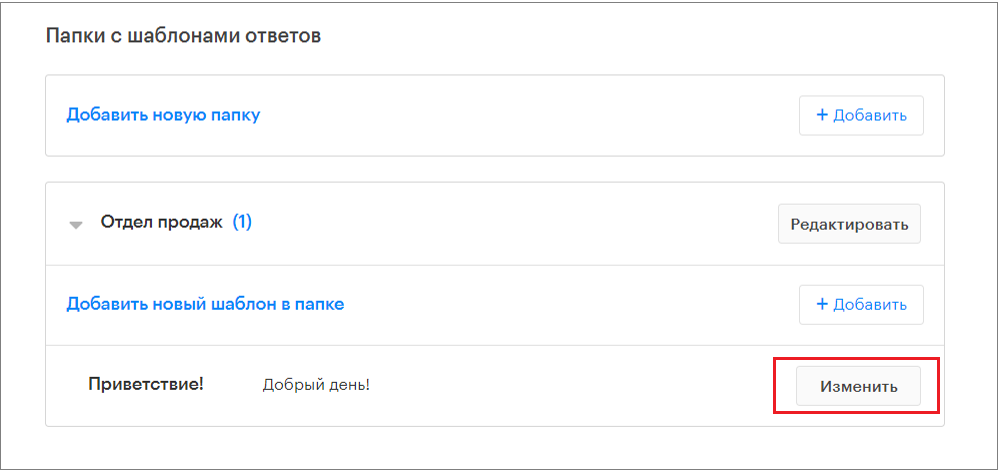
- Click “Edit” next to the desired folder
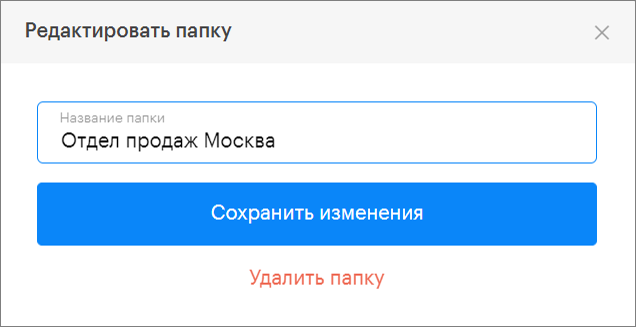
- Make changes to the folder name and click “Save Changes”
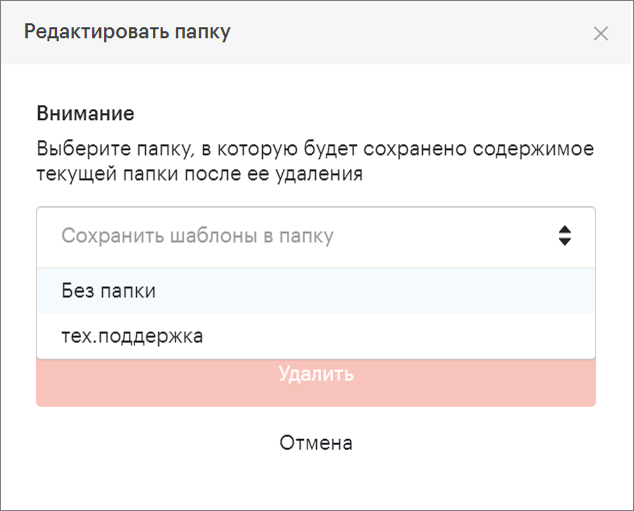
- When deleting a folder, you need to choose which folder to save the response templates from this folder in, or save them without a folder
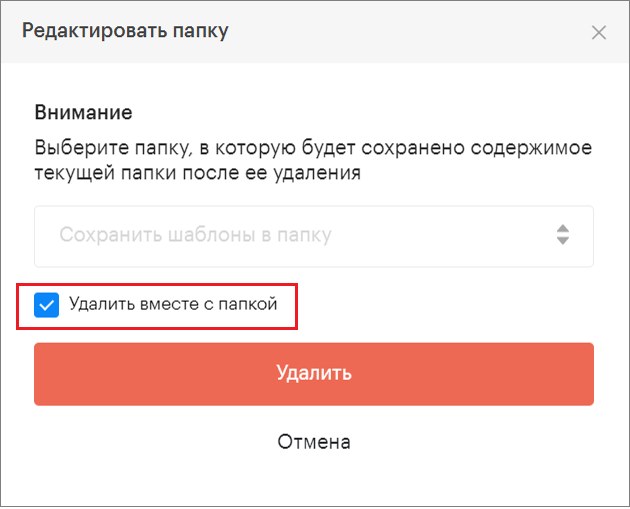
- or delete the folder along with the templates
How to Add New Response Templates to a Folder
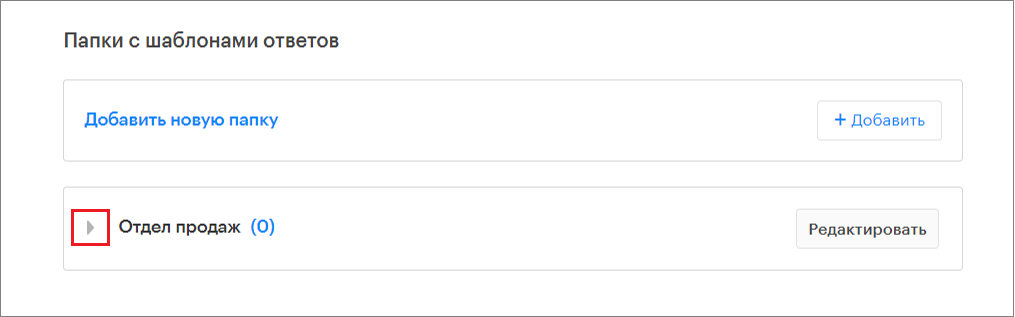
- Click the arrow next to the created folder
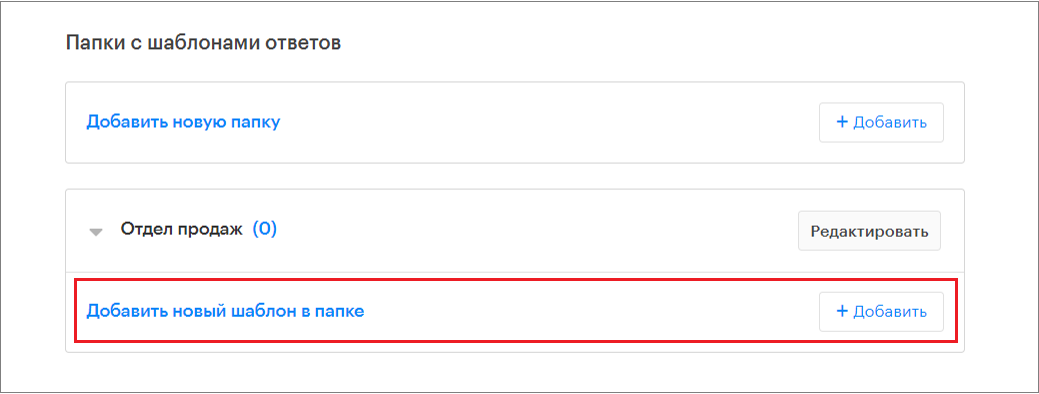
2. In the window that opens, click “Add” or “Add New Template in Folder.”
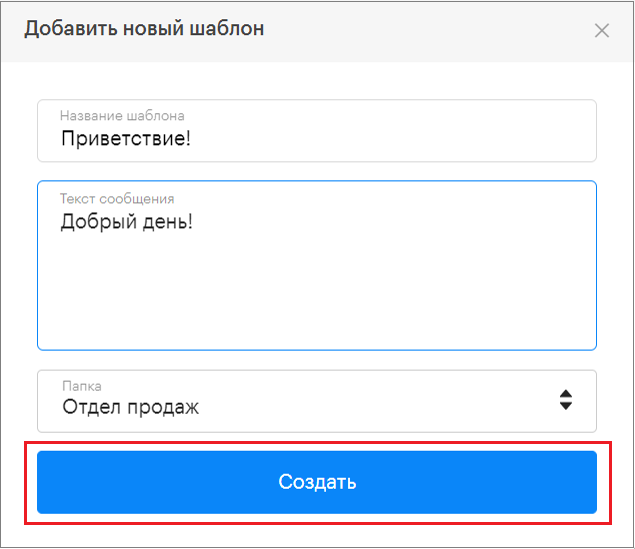
3. Fill out the quick reply template and click “Create.”
4. The created template will be saved in this folder.
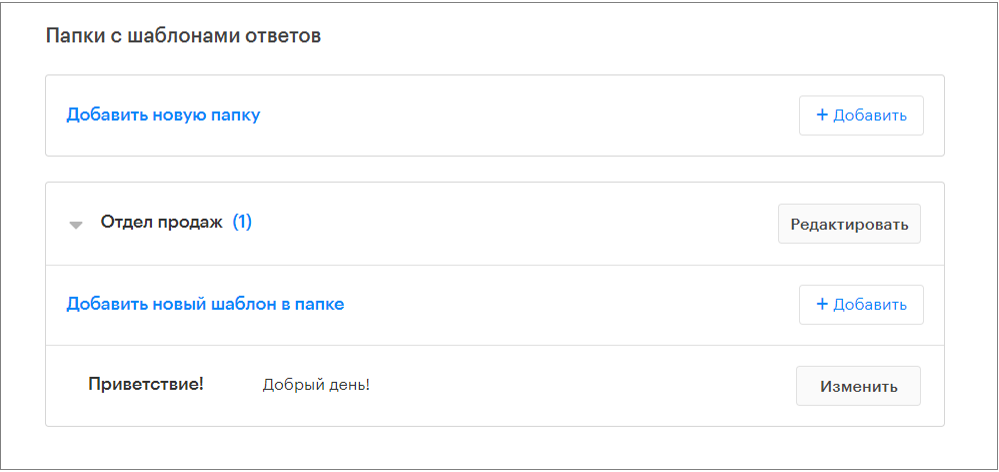
5. If necessary, you can edit or delete saved templates in the folder.
- To do this, click “Edit” next to the response template
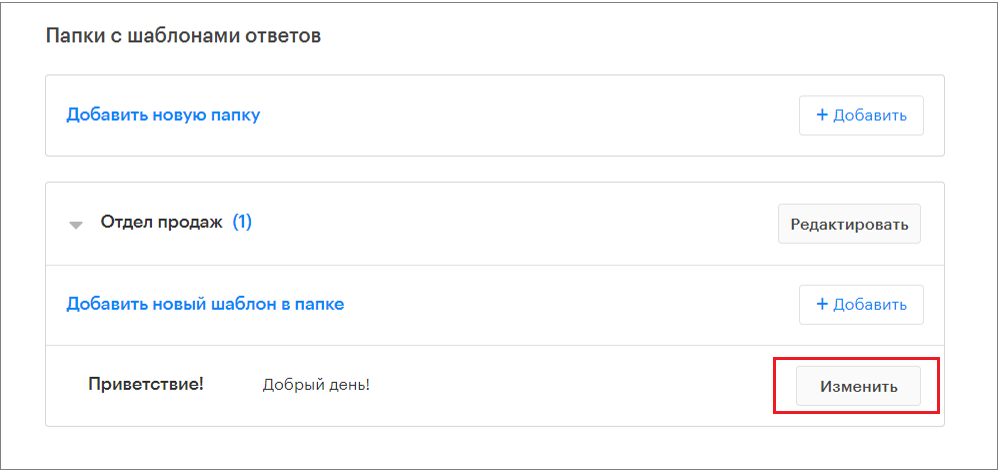
- Make changes to the response template and click Save Changes
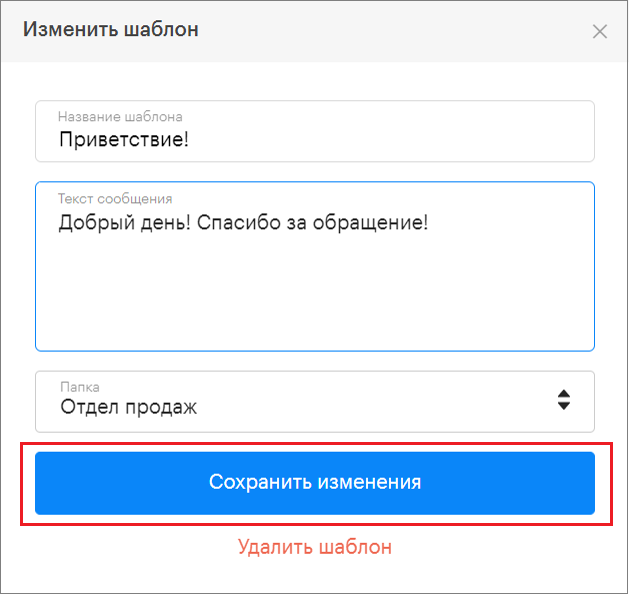
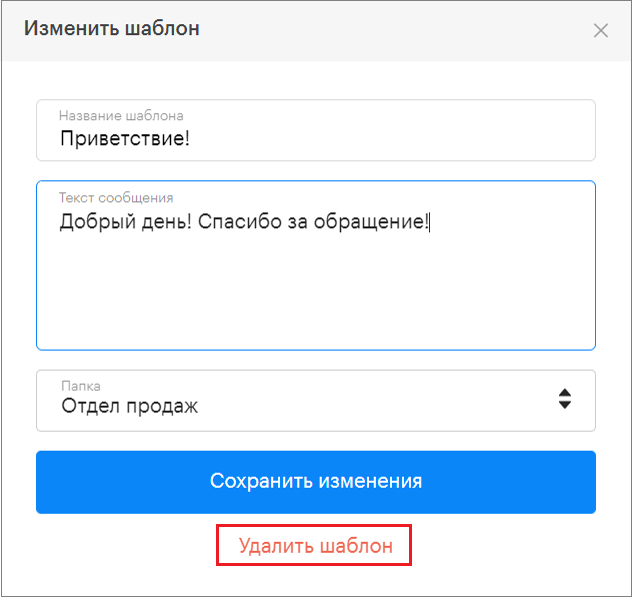
- or click “Delete Template”
How to Add a Quick Reply Template to a Folder
- In the list of response templates, click “Edit” next to the desired template
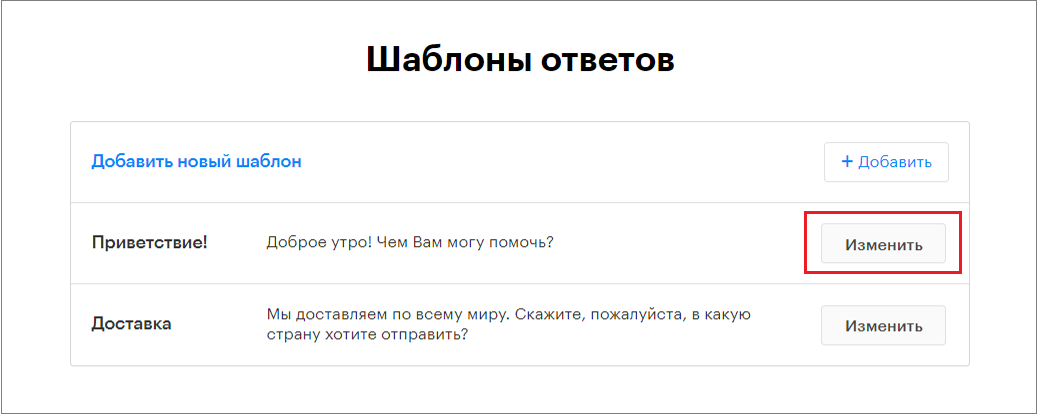
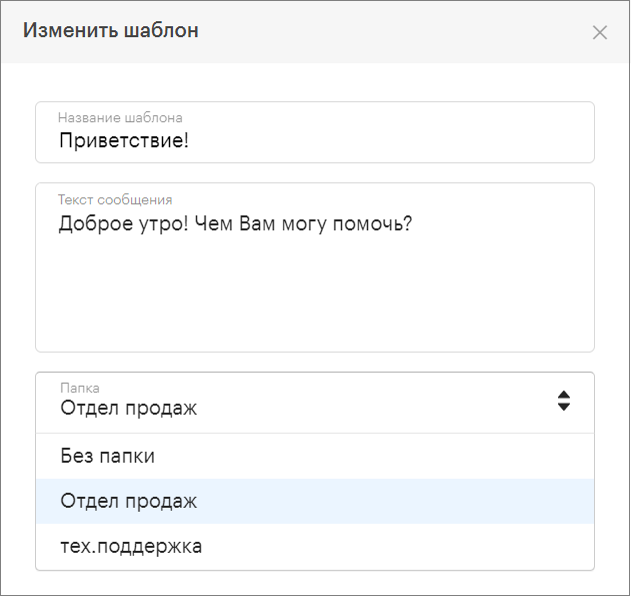
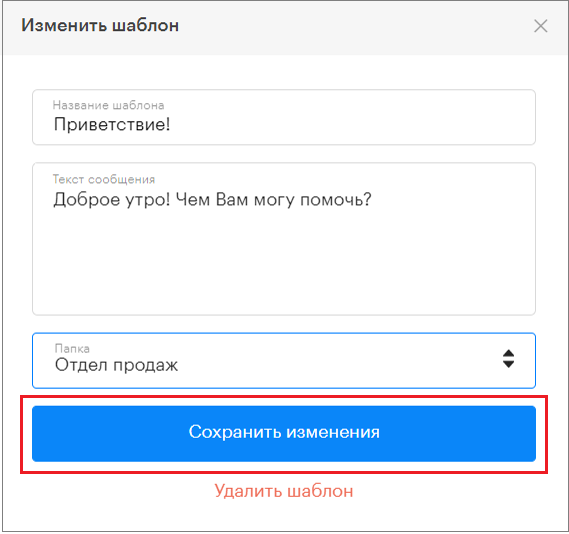
2. In the window that opens, select the folder where you want to save the template and click “Save Changes.”
3. Click “Save Changes.”
How to Send Quick Reply Templates
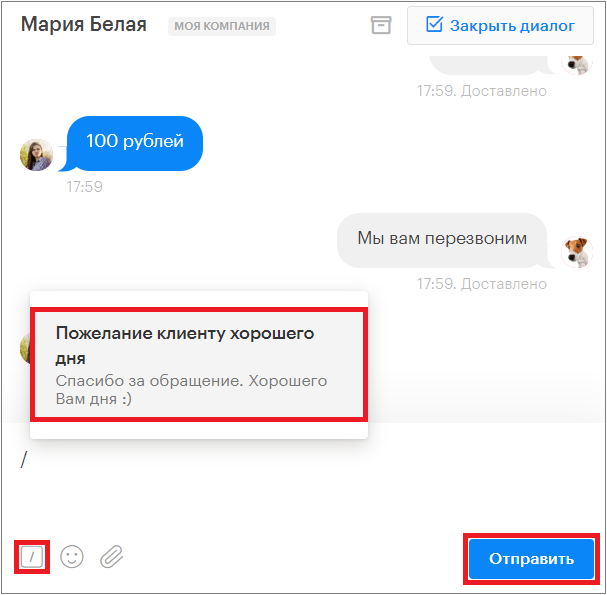
If the template is saved without a folder
- Click the icon in the message input field “/” or type the symbol / on the keyboard.
- Start typing the template title in the message input field; the template will appear in the input field
You can send the template immediately or, if necessary, edit it further.
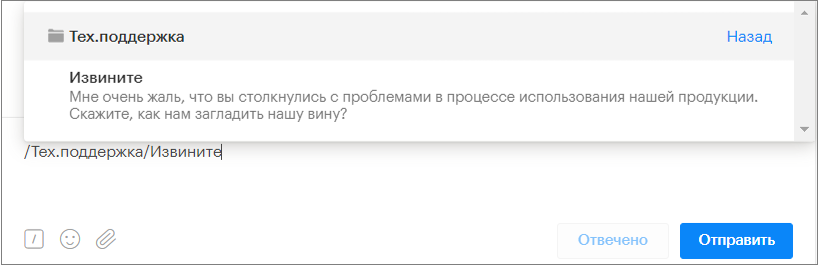
If the desired template is saved in a folder, then in the message input field:
- Click the icon in the message input field “/” or type the symbol / on the keyboard.
- Start typing the folder name, then type “/” followed by the template title; the template will appear in the input field
You can send the template immediately or, if necessary, edit it further.
Using Response Templates in Work
Throughout the day, operators often have to answer many repetitive questions. To help operators respond quickly without spending time formulating answers, you can not only create Quick Reply Templates but also organize them by categories.
Filtering Quick Reply Templates by Titles
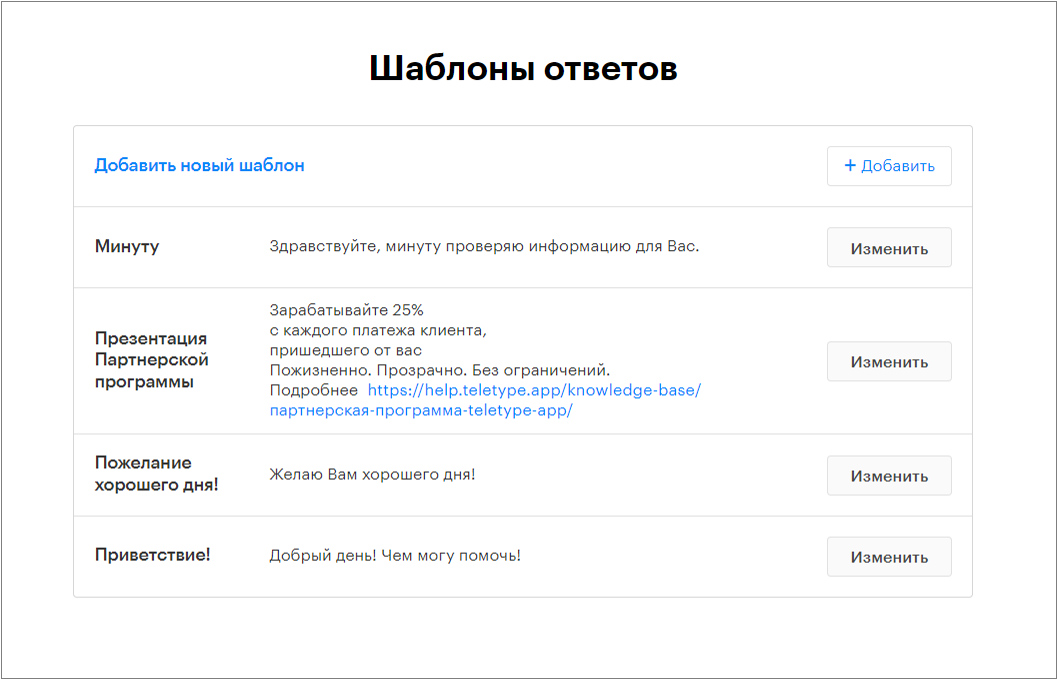
Quick reply templates can be organized by Titles.
For example, “Greeting,” “Wishing a Good Day,” “Presentation of Services or Products,” “Payment Details,” “Apologies,” etc.
How does it work?
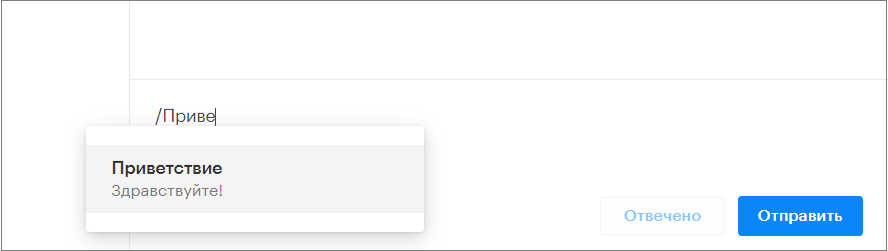
In the message input field, type “/” and start typing the Title name; the filter will show the desired template. Click on it and send.
Filtering Quick Reply Templates by Operator Work Specifics
Quick reply templates can be organized according to the specifics of operators’ work.
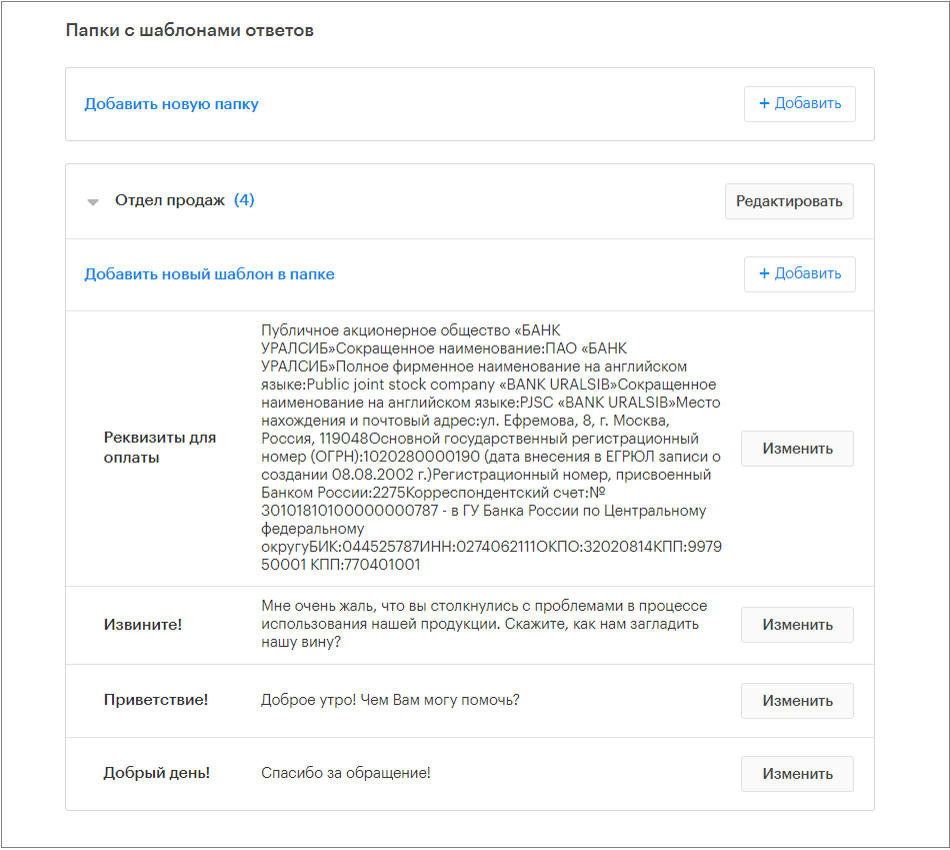
If your company has several departments, each handling its own activities (sales, technical support, accounting, etc.), you can create folders with templates for each department.
For example, for sales department operators, the folder title would be “Sales Department,” and for technical support, “Tech Support.”
How does it work?
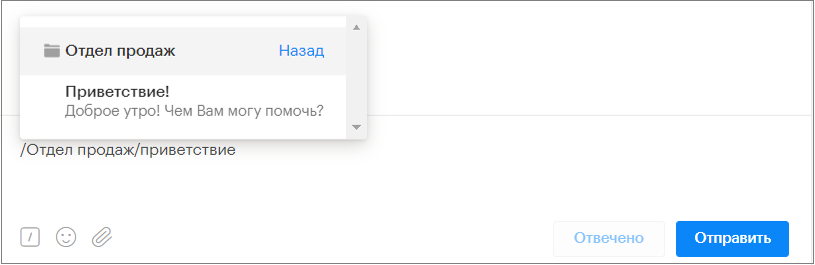
In the message input field, type “/” and start typing the folder name for the department the operator works in, then type “/” followed by the title of the desired template from that folder.
The filter will show the desired template; click on it and send.
This way, operators won’t spend much time formulating answers or searching for the template they need, which will significantly improve work efficiency.
IMPORTANT! In created Teletype groups, you can select which folders with response templates operators will have access to.