How can we help?
Connecting AmoCRM
Contents
- Before Connecting
- Connecting
- AmoCRM Integration Setup
- Section “Channels for AmoCRM Integration”
- Section “Pipeline and Stage for New Deals”
- Section “Employee Profiles”
- Section “Managers and Channels”
- Section “WhatsApp, Max, and Telegram from Which Managers Can Initiate Messages”
- Section “How to Notify Managers About New Messages”
- Section “What to Do with a New Message in a Closed Deal”
- General Information on AmoCRM Integration
- Teletype Setup in AmoCRM
- Closing a Deal in AmoCRM and Creating a New One
- Communicating with Clients in AmoCRM
- Duplicate Control in AmoCRM
Before Connecting
Before connecting Teletype to AmoCRM, make sure all active channels are connected to Teletype. If you add a new channel after connecting AmoCRM to Teletype, you can always add it to the integration by simply checking the box next to the channel in the integration settings under the “Channels for AmoCRM Integration” section.
Connecting
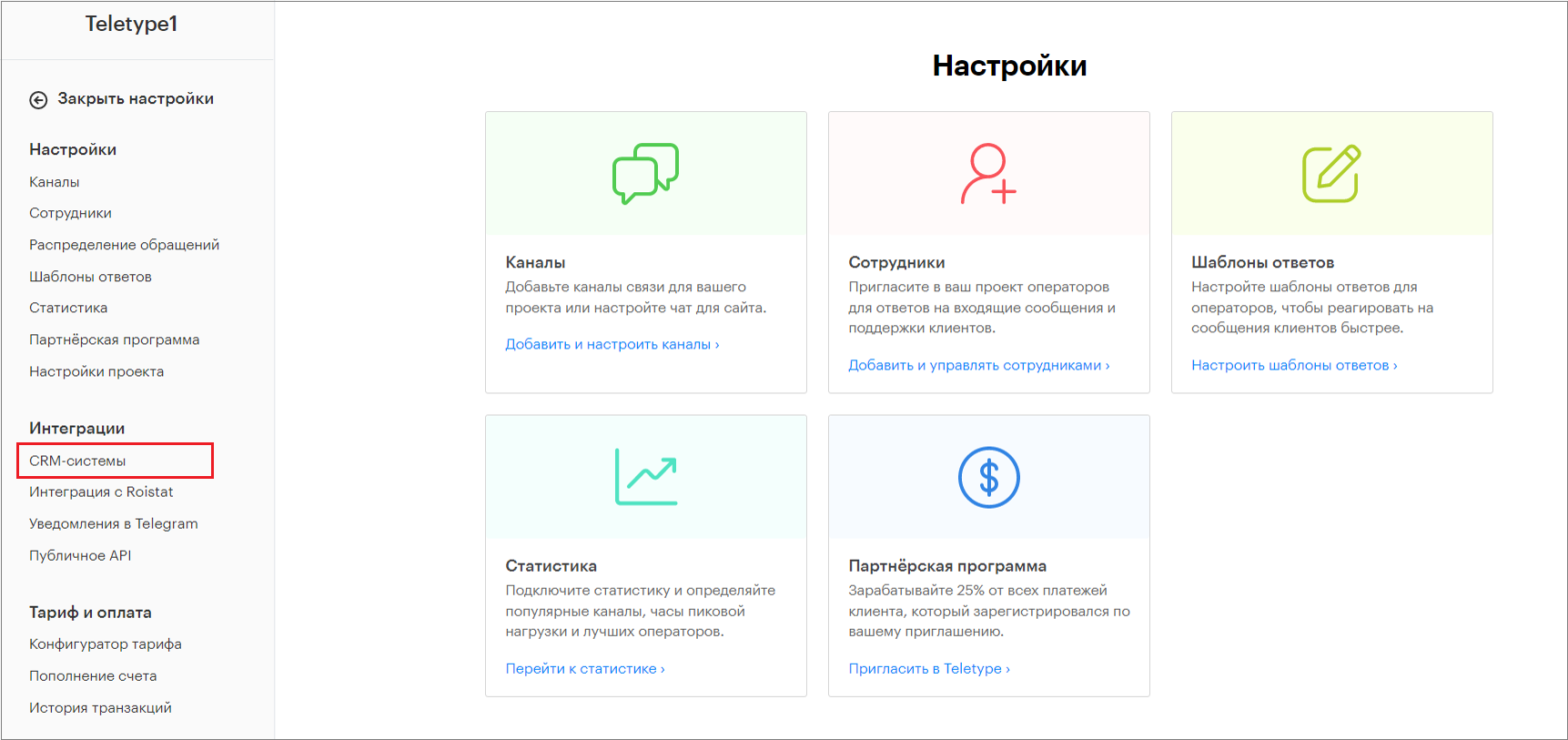
- Go to the Teletype panel settings and select the “CRM Systems” section.
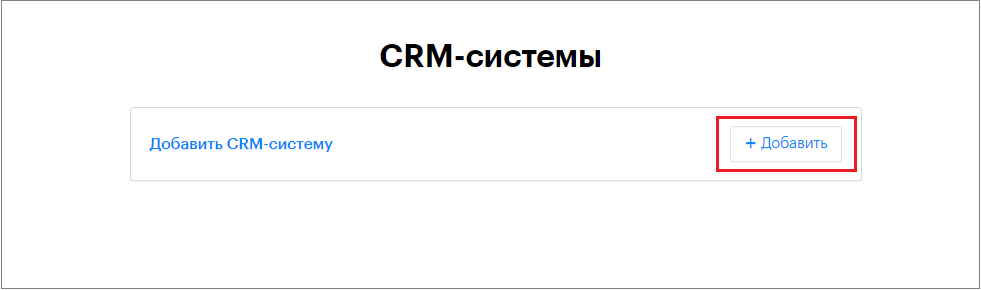
2. Click “Add.”
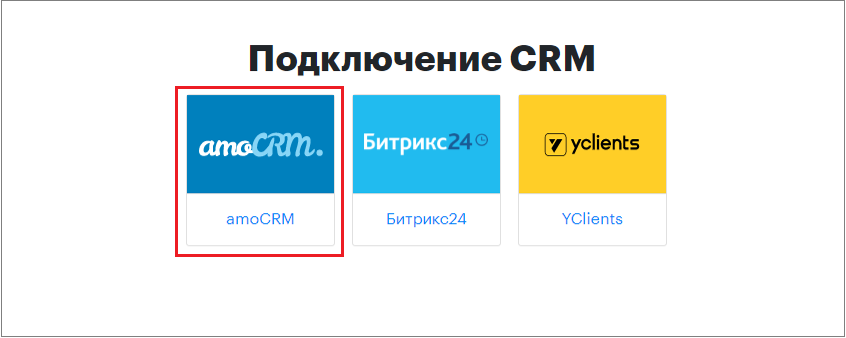
3. Select “AmoCRM.”
4. Click “Connect.”
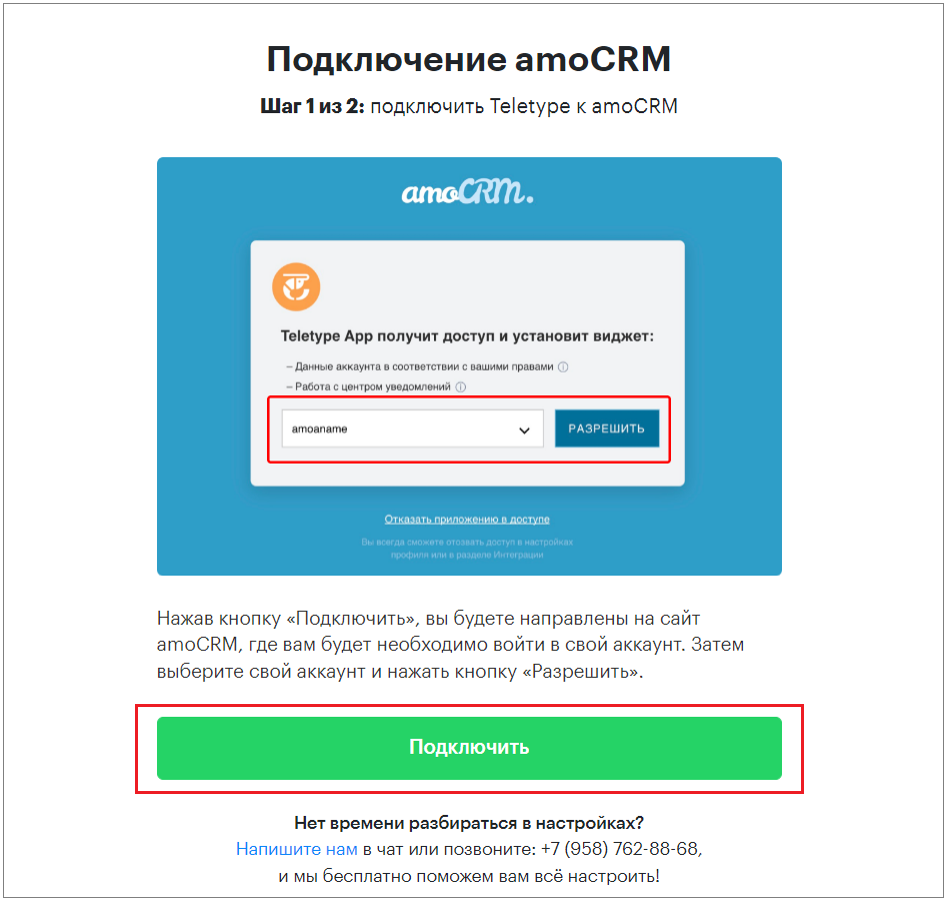
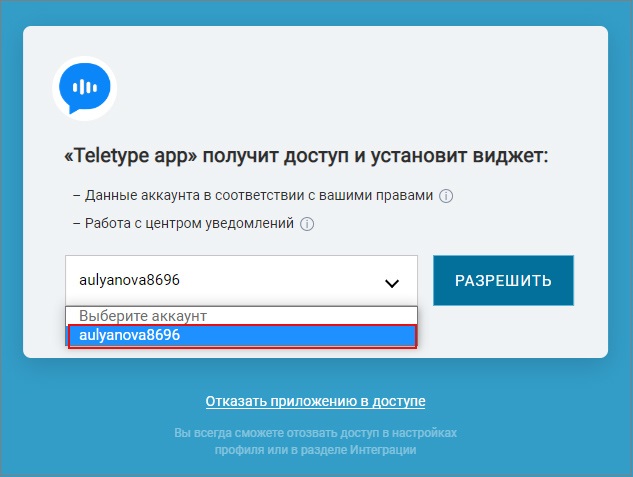
5. On the AmoCRM website, select the account to connect.
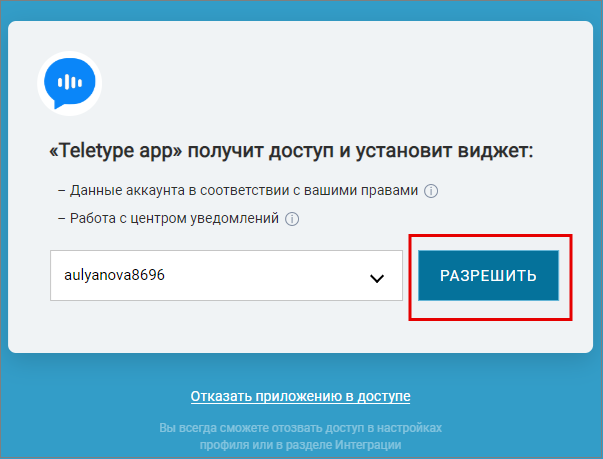
6. Click “Allow.” This is necessary for the application to work correctly.
AmoCRM Integration Setup
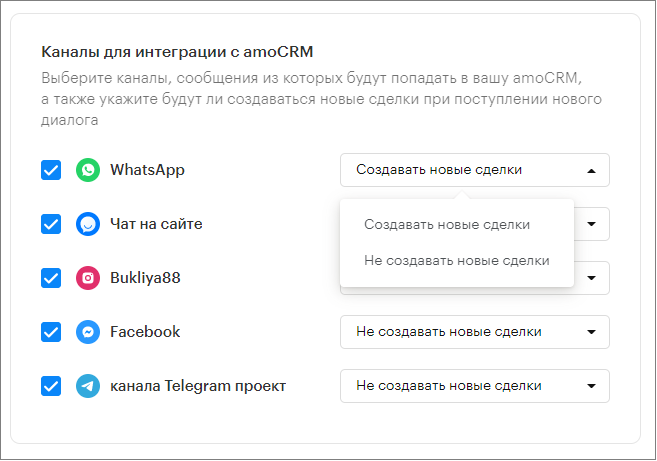
Section “Channels for AmoCRM Integration”
In this section, specify the channels (messengers) from which messages will be received in AmoCRM. For each channel, indicate whether new deals should be created when a new dialogue arrives.
Section “Pipeline and Stage for New Deals”
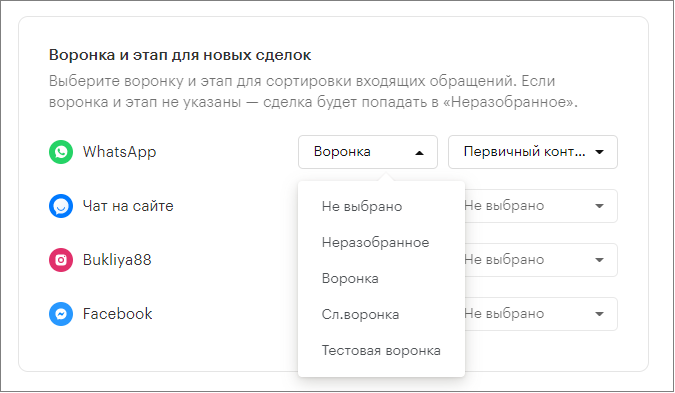
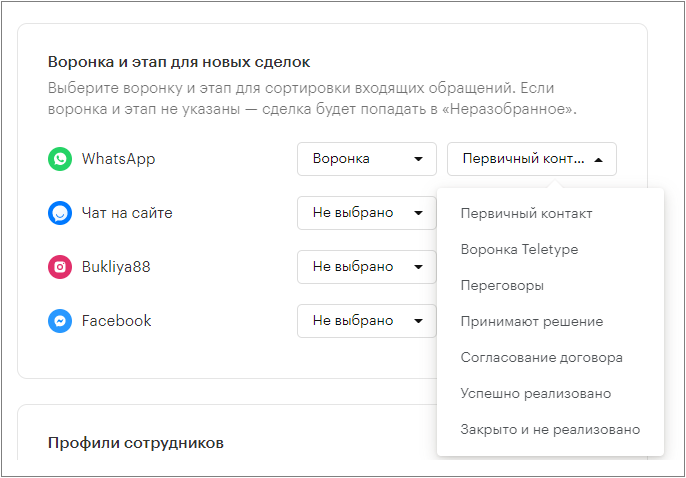
In this section, you can select the pipeline and stage for sorting incoming requests for each channel. If the pipeline and stage are not specified, the deal will go to “Unsorted.”
First, next to the channel in the first column, click the button and select the desired pipeline from the dropdown list.
Then, next to the pipeline, click the button with the dropdown list of stages and select the desired one.
Section “Employee Profiles”
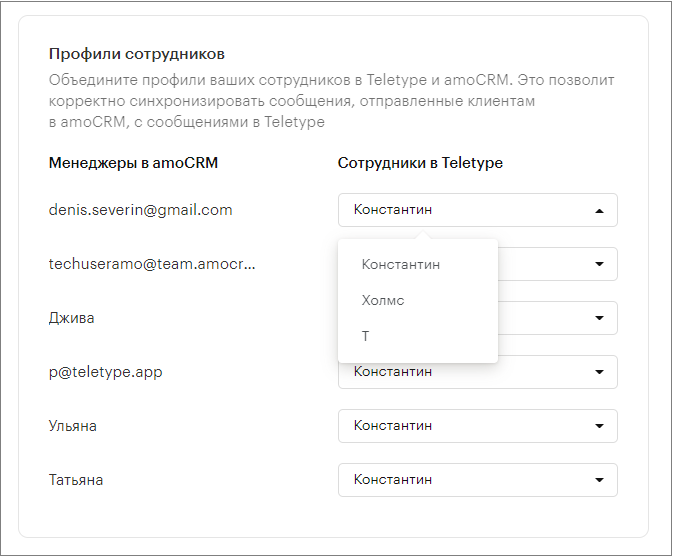
In this section, you can link employee profiles in Teletype and AmoCRM. This allows proper synchronization of messages sent to clients in AmoCRM with messages in Teletype. To do this, next to the AmoCRM manager, in the Teletype Employees column, click the button with the dropdown list of operators, select the corresponding Teletype account for that manager, and click on it.
Section “Managers and Channels”
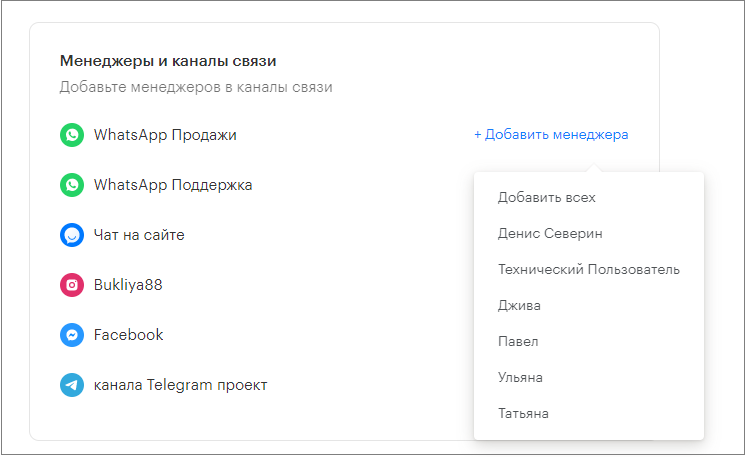
In this section, you can assign a list of responsible managers to a channel. Deals created from new incoming dialogues in the channel will be assigned to these managers. Deal assignment will occur sequentially, from top to bottom.
If there are no responsible managers assigned to the channel, no manager will be assigned to new deals.
To assign responsible managers, click the +Add Manager button next to the channel name
and select the desired managers from the dropdown list. The selected manager will then appear under the channel name to which they are assigned. To remove a manager from the list of responsible managers, simply click on them and they will be removed from the list.
Managers can only be added to channels connected to AmoCRM.
Section “WhatsApp, Max, and Telegram from Which Managers Can Initiate Messages”
Here you can configure the WhatsApp, Max, or Telegram channel number from which managers can send the first message.
This section has two options:
- All managers start new chats from: and a button to select a connected WhatsApp, Max, or Telegram channel — all outgoing messages to new clients will be sent from the specified WhatsApp, Max, or Telegram number.
- Different WhatsApp/Max/Telegram for each manager: a list of AmoCRM managers and a button to select a connected and integrated WhatsApp/Max/Telegram channel for each employee. This way, you can assign a separate WhatsApp, Max, or Telegram channel for outgoing messages to each manager in AmoCRM. (If the channel assigned to the manager is inactive, no other channel will be used for sending messages).
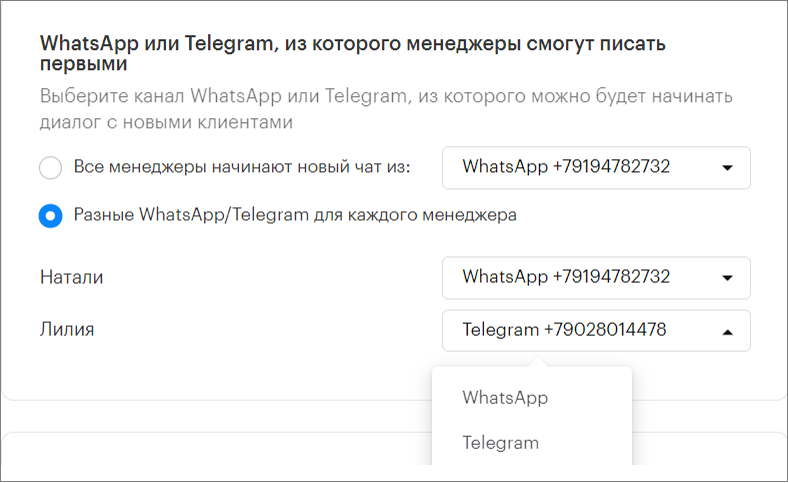
By default, the last connected WhatsApp channel is selected everywhere.
If you have Digital Pipeline and SaleBot configured, messages will be sent from the first added (created) WhatsApp channel.
Section “How to Notify Managers About New Messages”
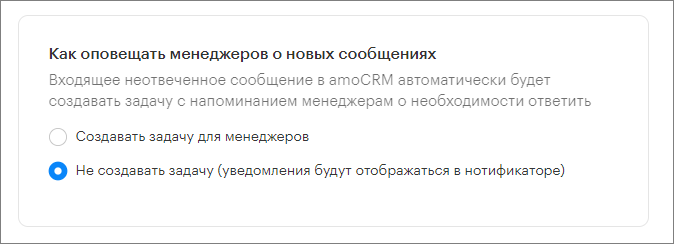
Here you can choose how managers are notified about new messages in AmoCRM:
- Create a task for managers — an incoming unanswered message in AmoCRM will automatically create a task reminding managers to respond within 5 minutes.
- Do not create a task (notifications will appear in the notifier) — no task will be created; instead, a notification about the new unread message will simply appear in AmoCRM.
Section “What to Do with a New Message in a Closed Deal”
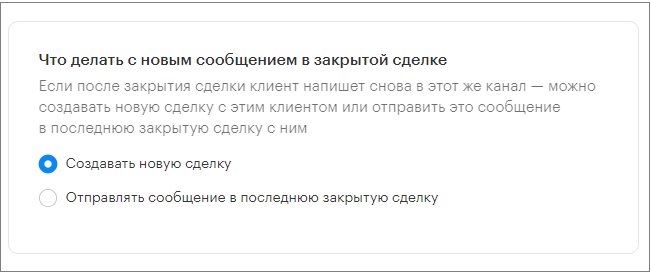
In this section, you can choose what happens if a client writes again to the same channel after the deal is closed:
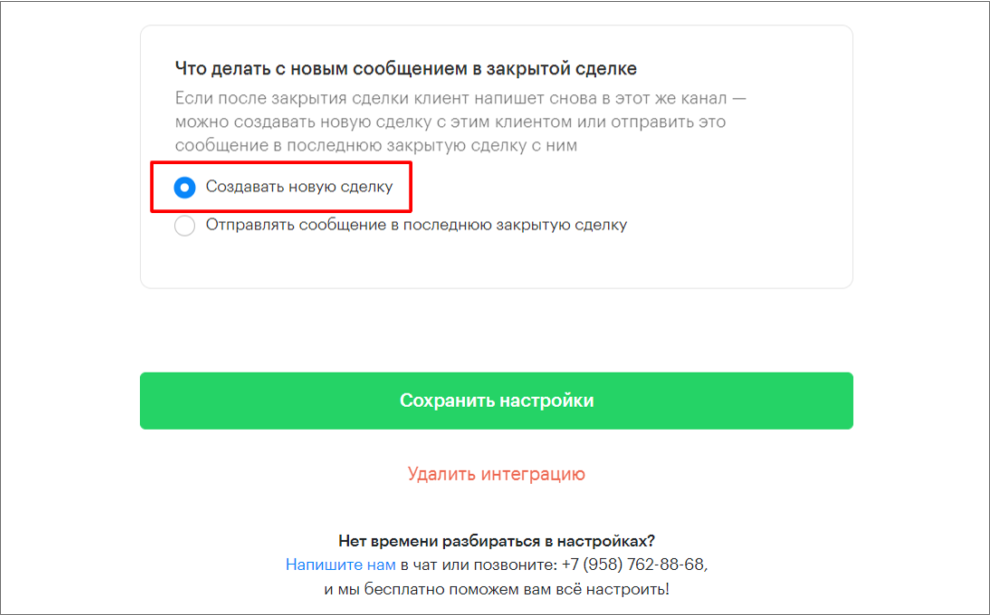
- Create a new deal — when a new dialogue arrives in Teletype, a new deal is created in AmoCRM.
- Send the message to the last closed deal — if you select this option, a new deal will only be created for new clients, while messages from clients with whom there was previous correspondence and a closed deal will be added to that closed deal.
Now AmoCRM is integrated with Teletype: when a client writes, leads are automatically sent to AmoCRM and a deal is created.
General Information on AmoCRM Integration
- To connect the integration, use only an account with administrator rights to the AmoCRM project.
- Currently, the Instagram Comments channel does not work with AmoCRM because it is structured as mass communication rather than a dialogue, where comments can belong to different people, including comments on comments, and it is currently impossible to collect them into a dialogue. For this channel, we recommend using the main Teletype web panel for communication.
- If the customer loyalty index is not enabled in the account, the event of closing a dialogue in AmoCRM is not sent to the panel, meaning that if an operator closes a dialogue in AmoCRM, it remains open in the panel.
Teletype Setup in AmoCRM
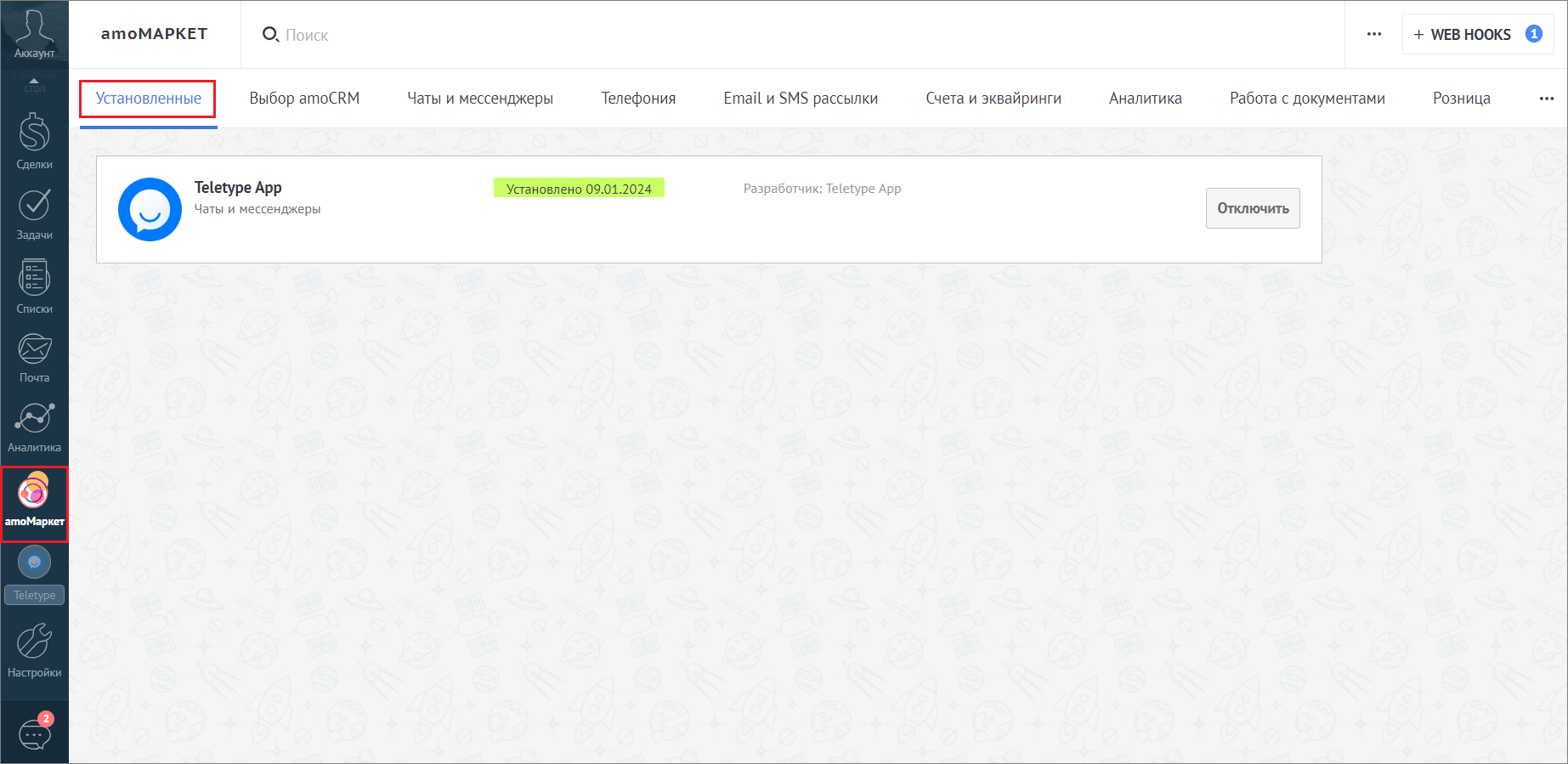
- In the left menu of the AmoCRM panel, go to the amoMarket section.
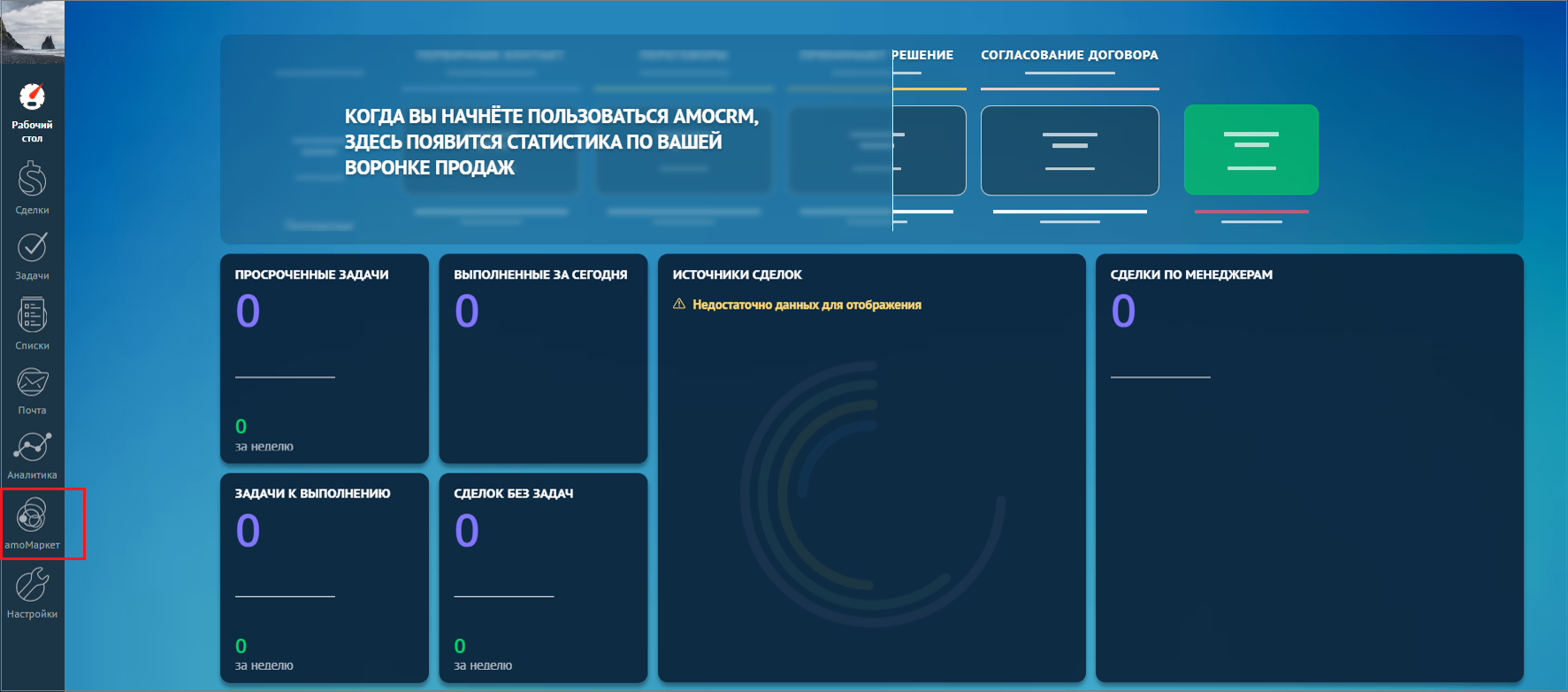
- In the “Installed” section, use the search box to find Teletype App.
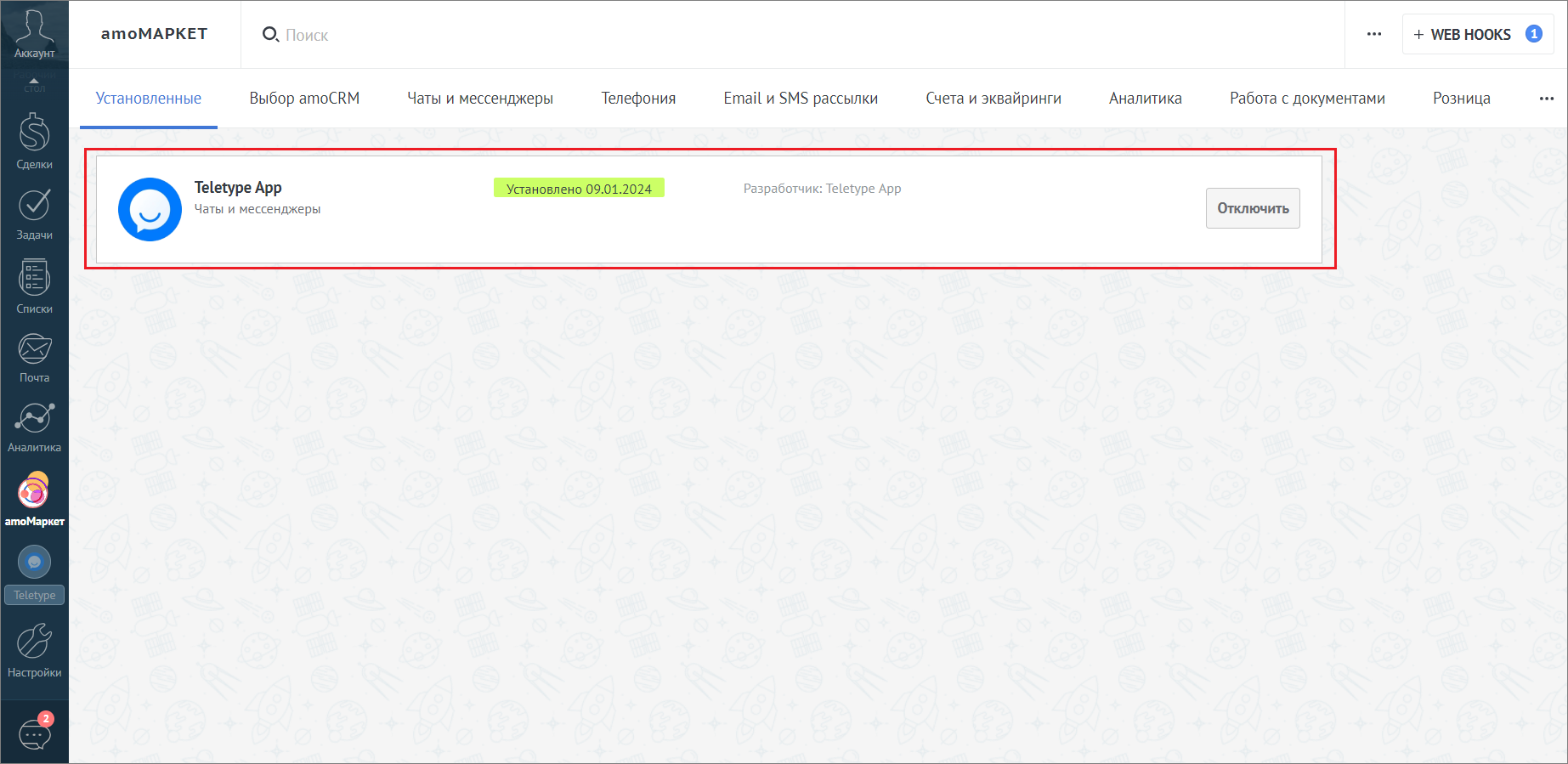
- Open “Teletype App.”
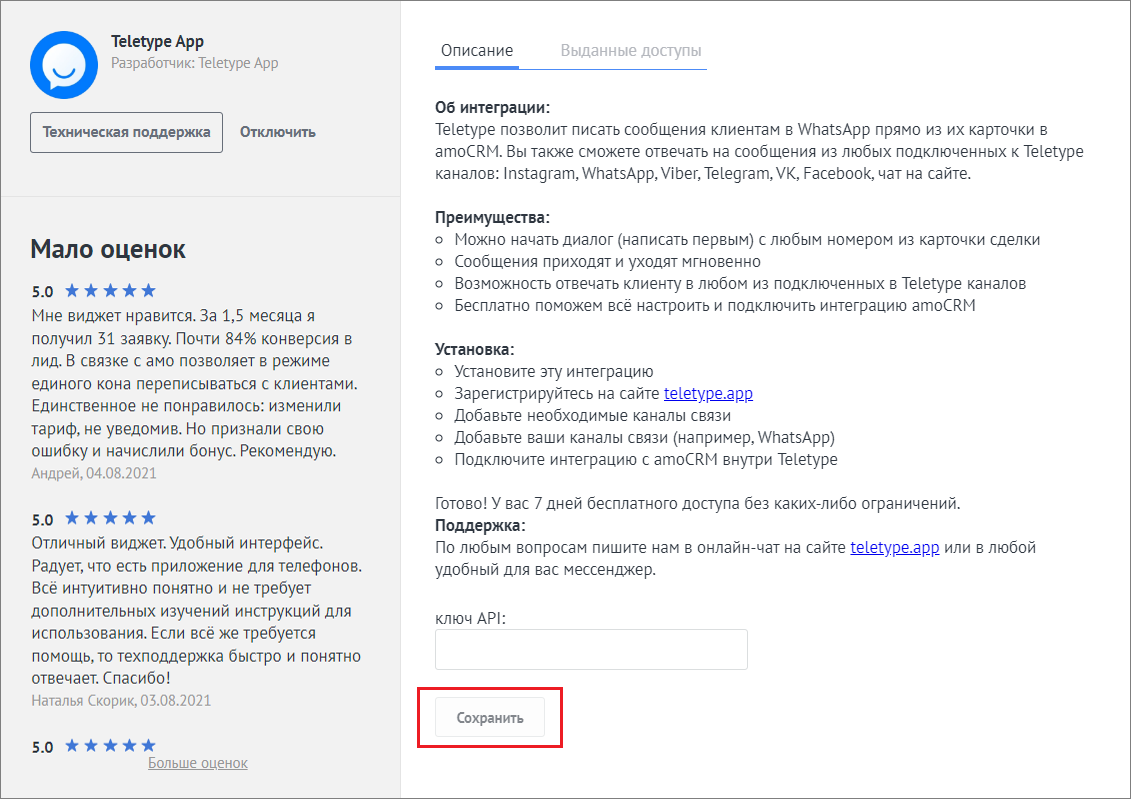
- In the installation window that appears, click “Save.”
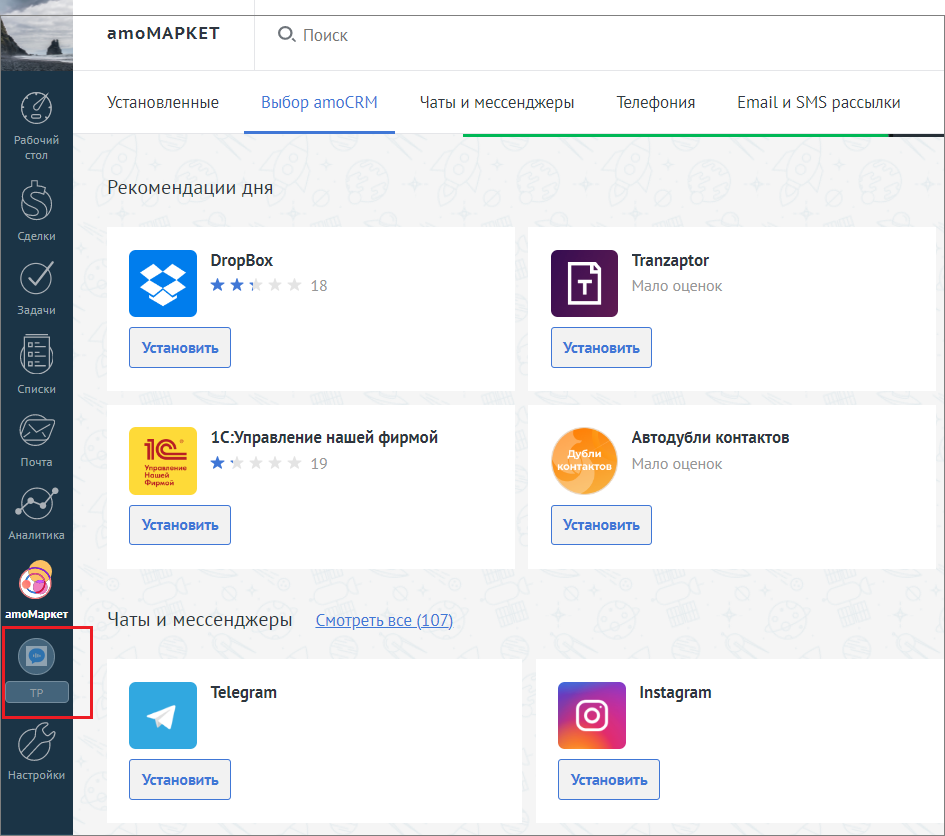
- Refresh the AmoCRM page in your browser.
- The icon of the installed Teletype widget will appear in the left menu of the AmoCRM panel.
Closing a Deal in AmoCRM and Creating a New One
If in the Teletype integration settings with AmoCRM you selected in the “What to do with a new message in a closed deal” option — “Create a new deal”
then for this condition to be met, you need to close the deal with the client in AmoCRM as “Successfully completed” or “Closed and not completed.”
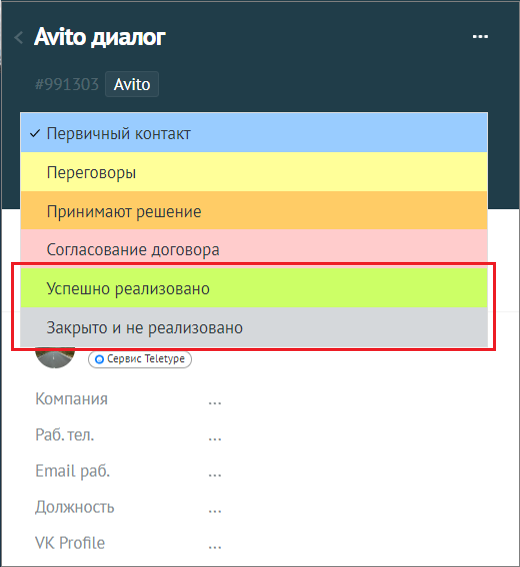
In this case, the dialogue with the client in the Teletype panel will automatically close, and the setting “What to do with a new message in a closed deal” — “Create a new deal” will be applied. Therefore, when the client contacts you again, a new deal will be created at the specified stage.
Communicating with Clients in AmoCRM
- Open the deal with the client who wrote.
- Enter a message for the client in the input field.
- Click “Send.”
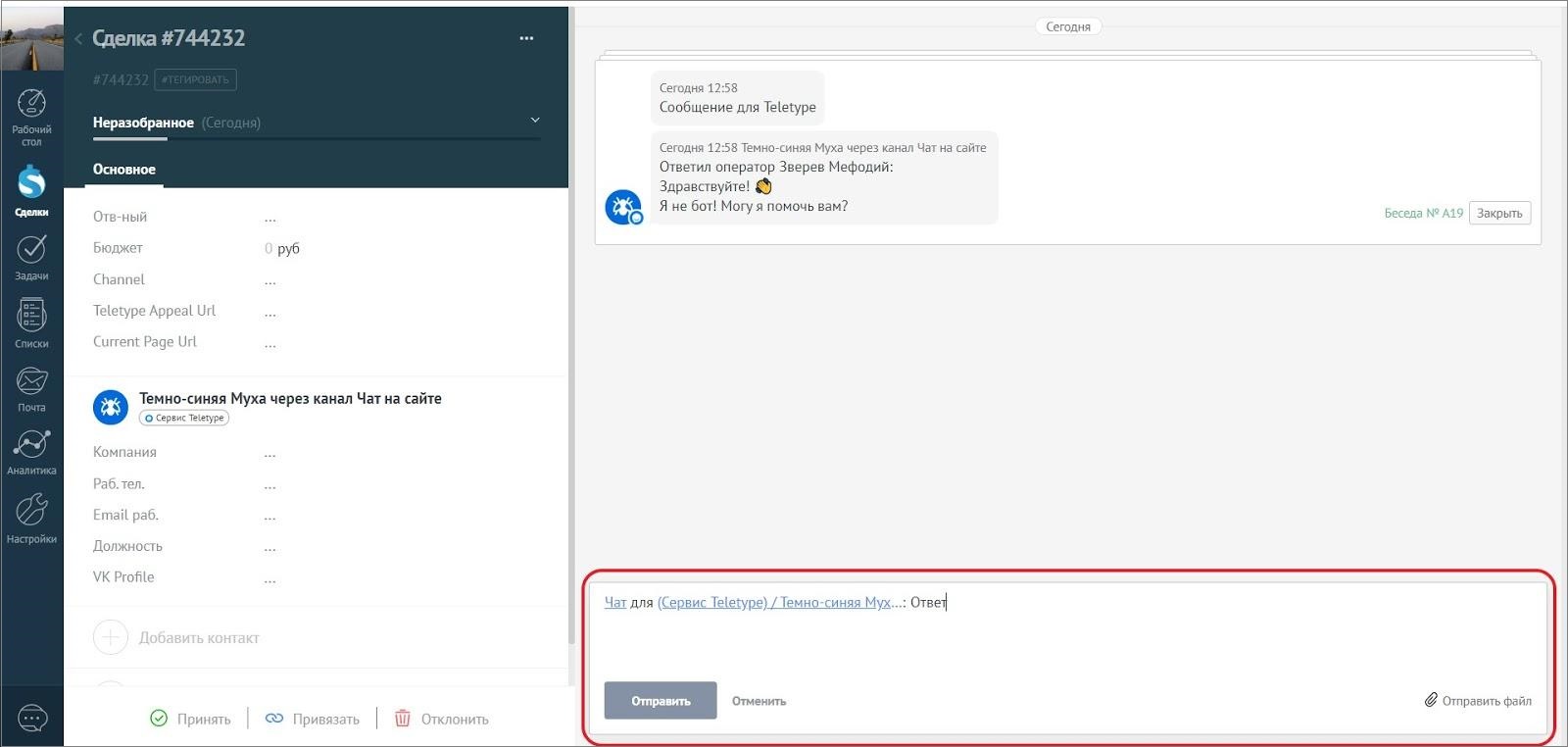
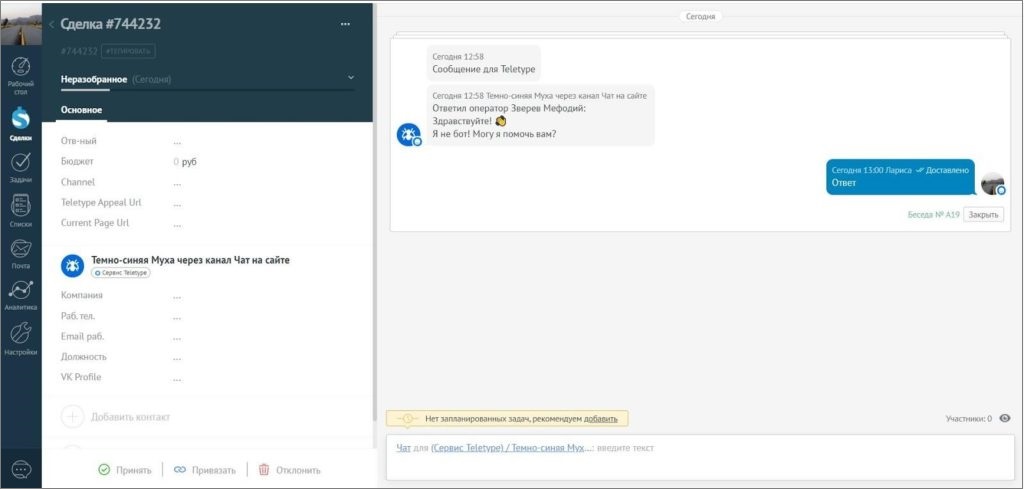
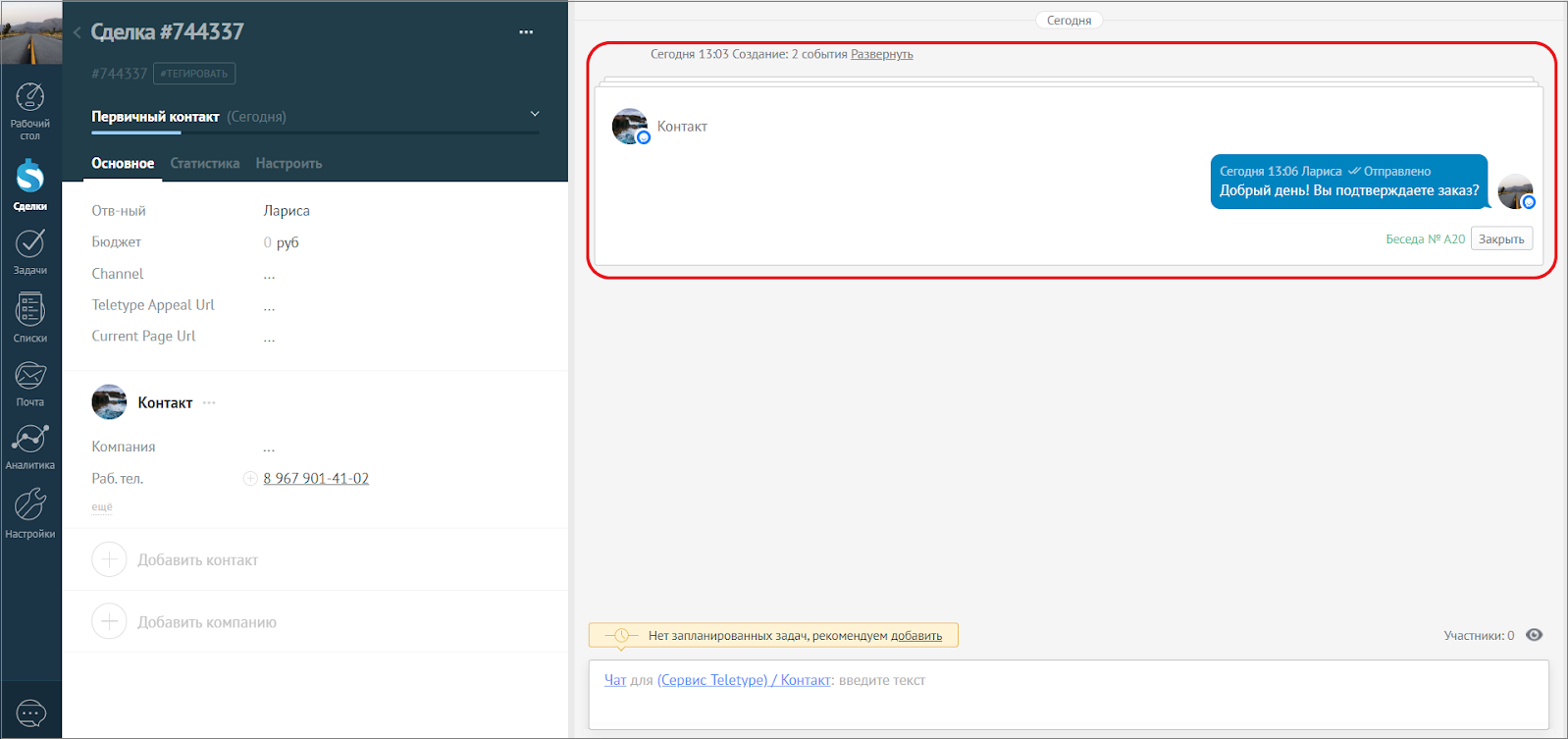
The message will appear both in the AmoCRM chat and in the Teletype panel chat.
To initiate a message to a client first from AmoCRM in WhatsApp/Max/Telegram, you need to:
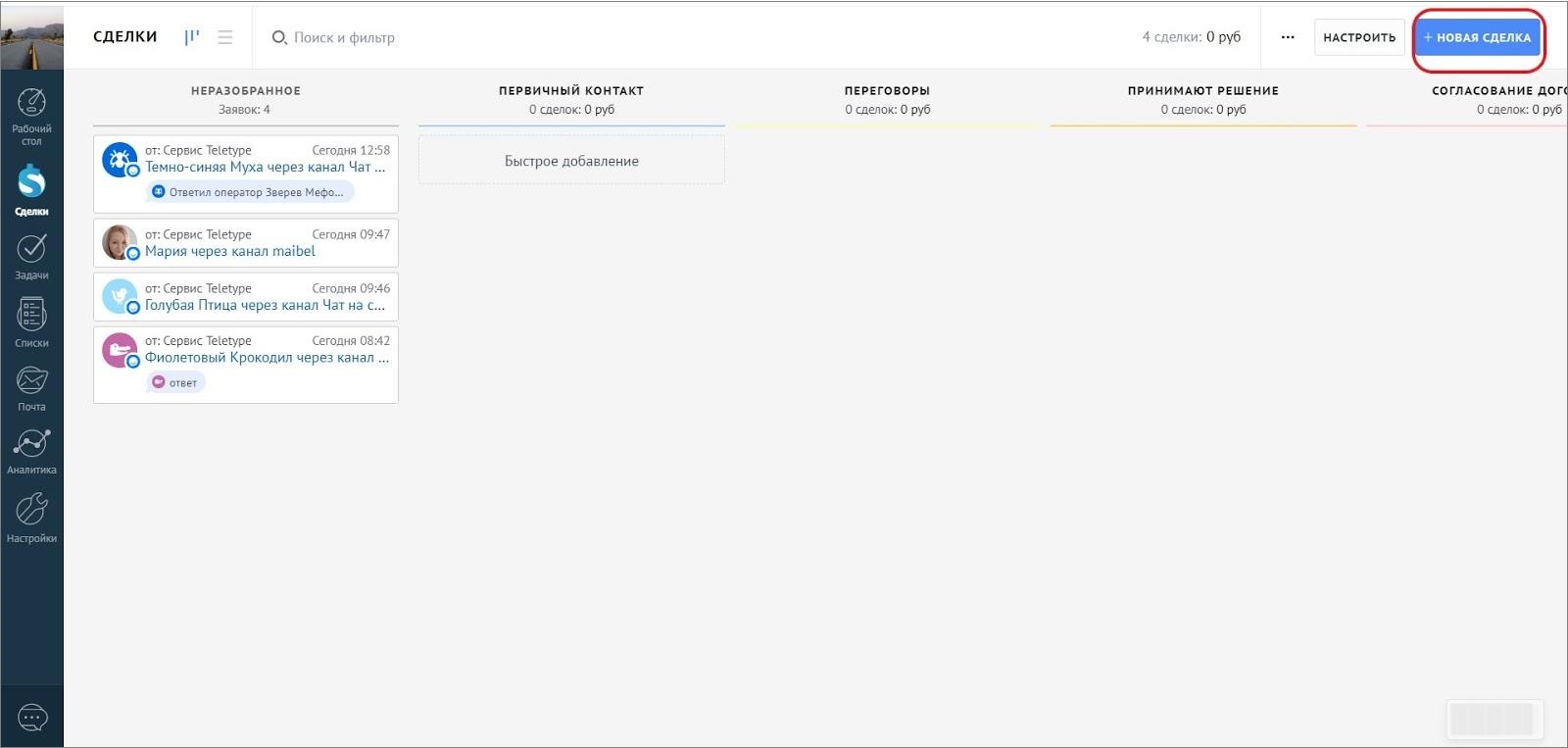
- Create a deal by clicking the “+New Deal” button.
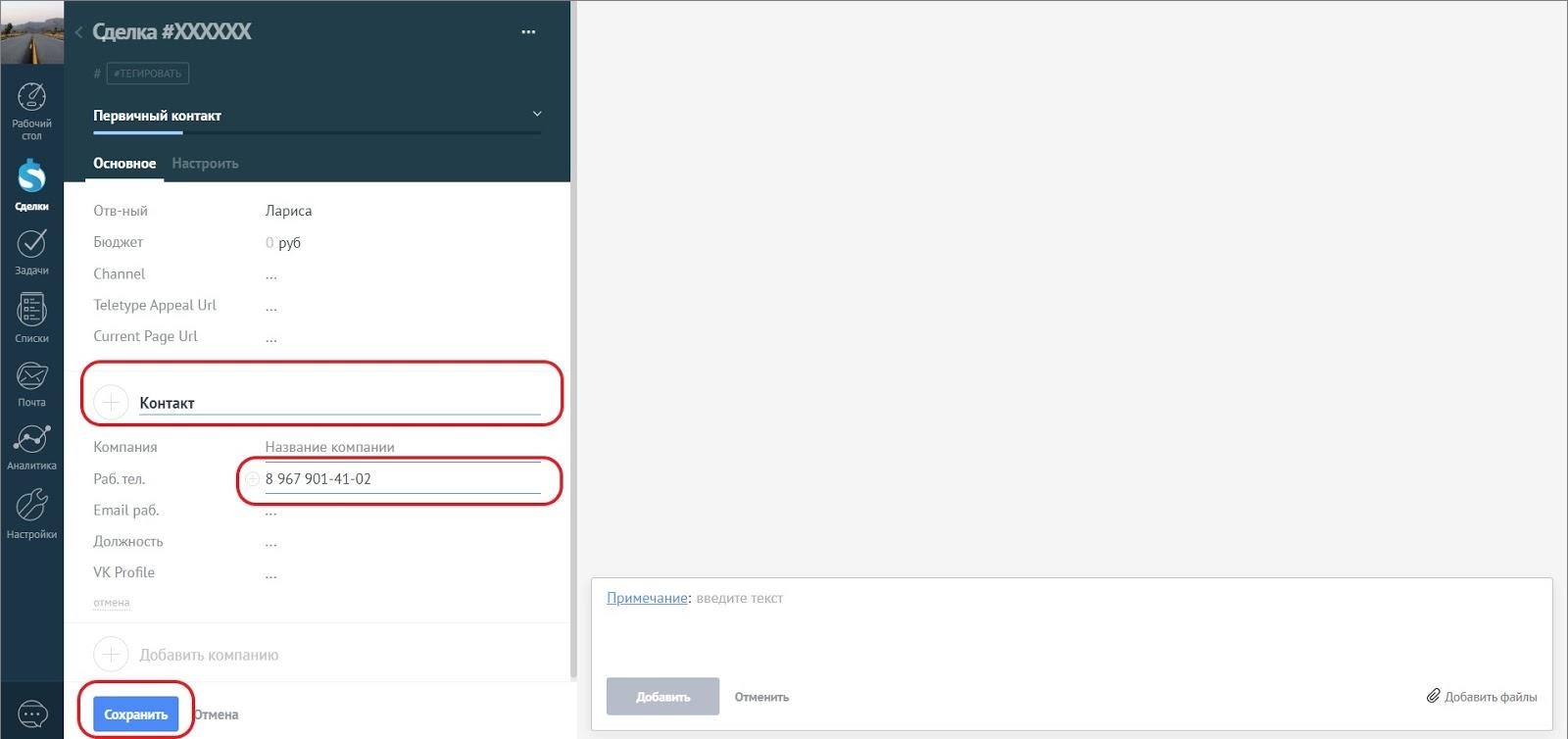
- Fill in the client’s details: name and WhatsApp/Telegram phone number.
- Click “Save.”
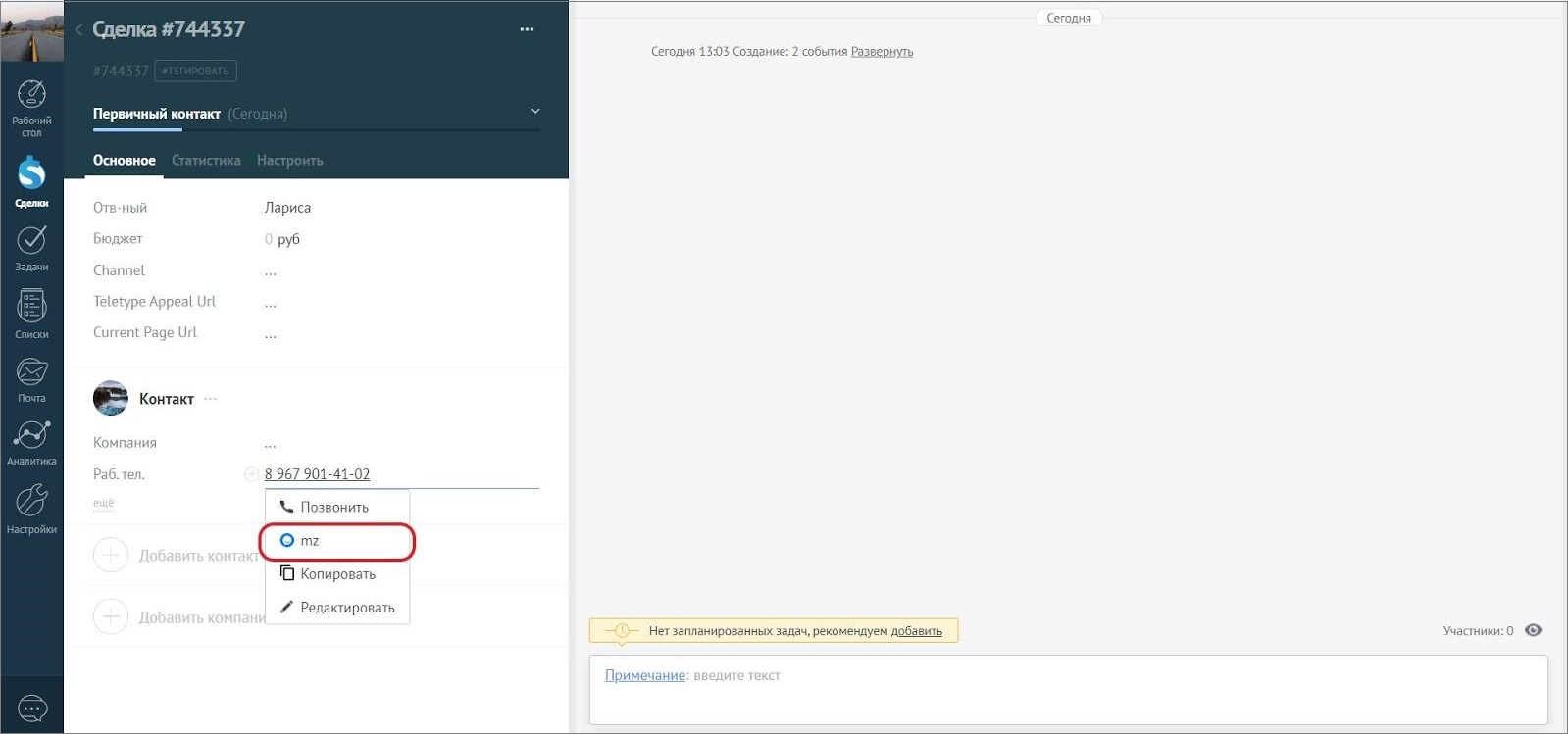
- Click on the number and select the option with your Teletype project name.
- Enter the message.
- Click “Send.”
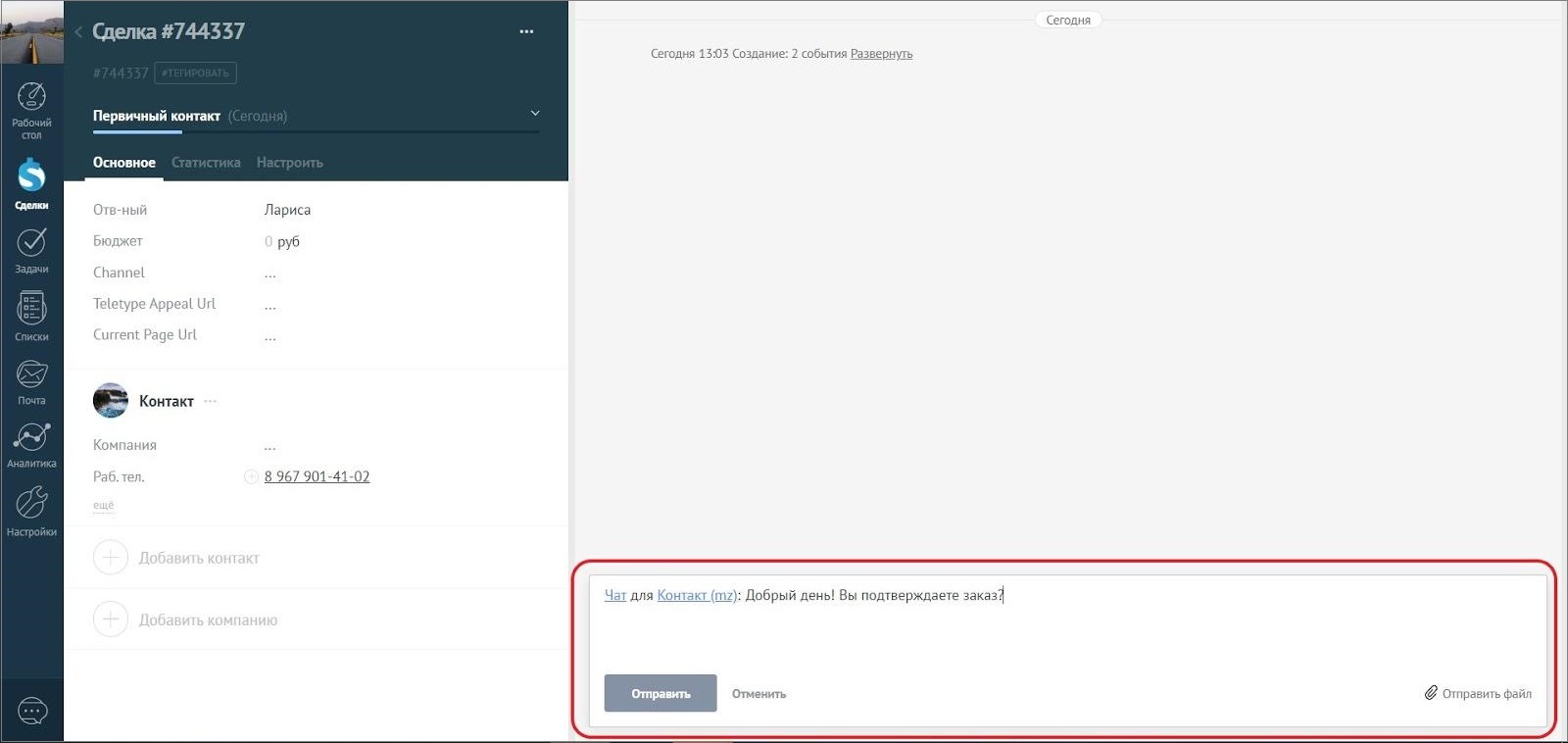
The message will appear both in the AmoCRM chat and in the Teletype panel chat.
Duplicate Control in AmoCRM
To configure Duplicate Control in AmoCRM, you need to:
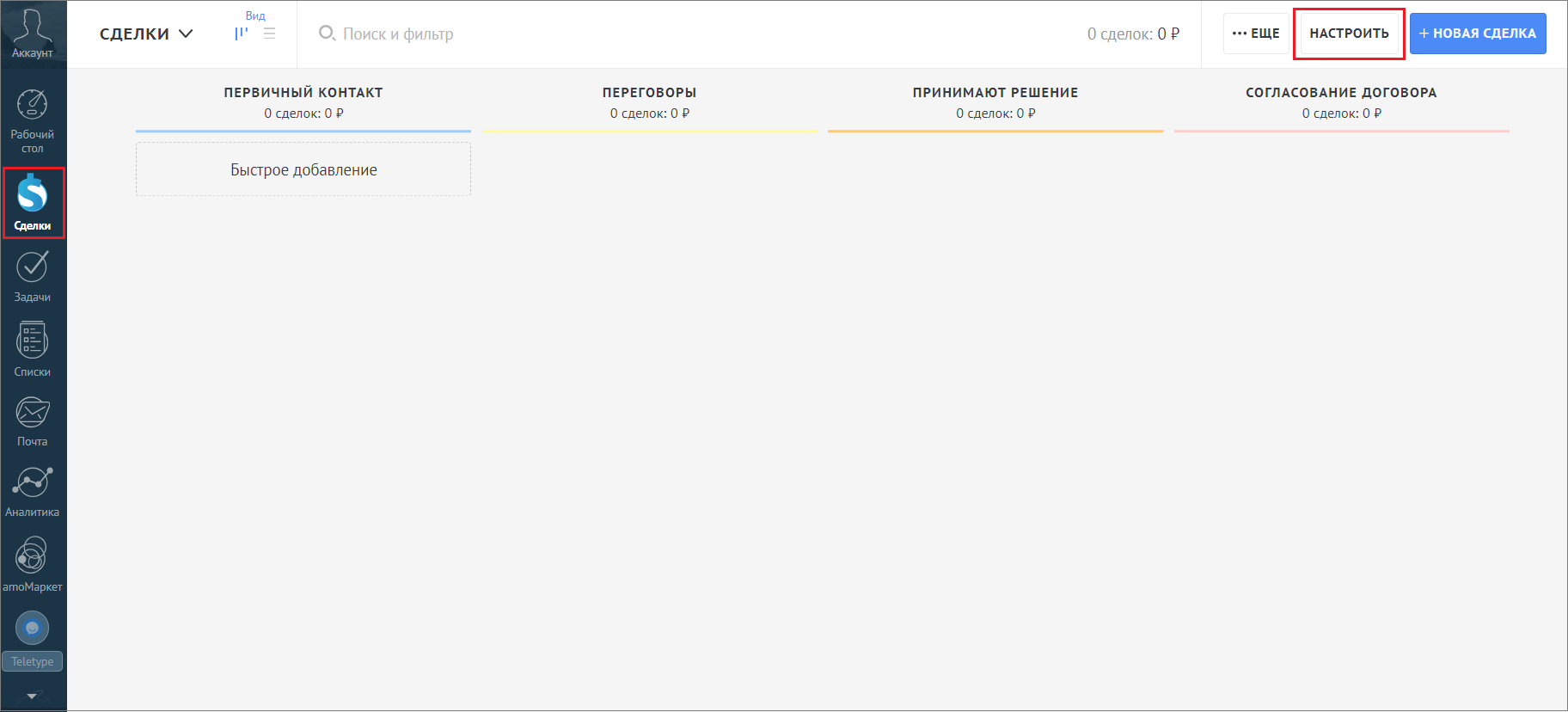
1. In the left menu of the AmoCRM panel, go to Deals and click “Configure.”
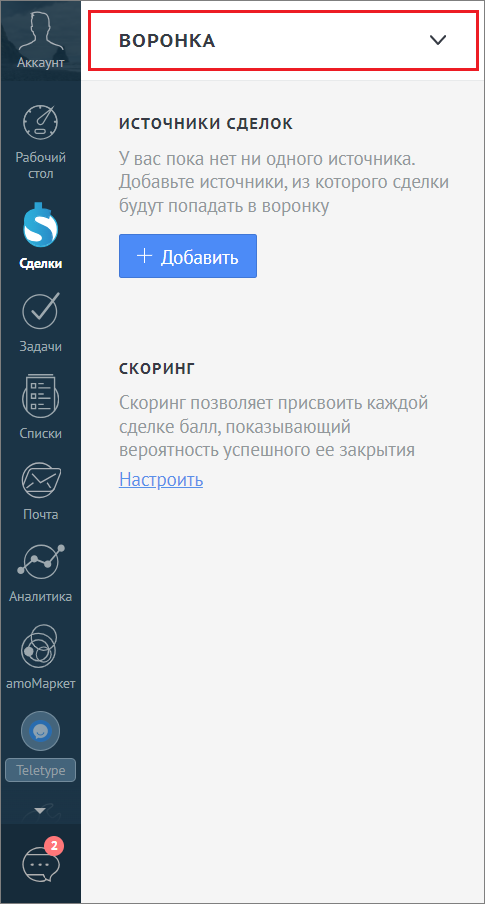
2. Select the pipeline where deals are created via Teletype App.
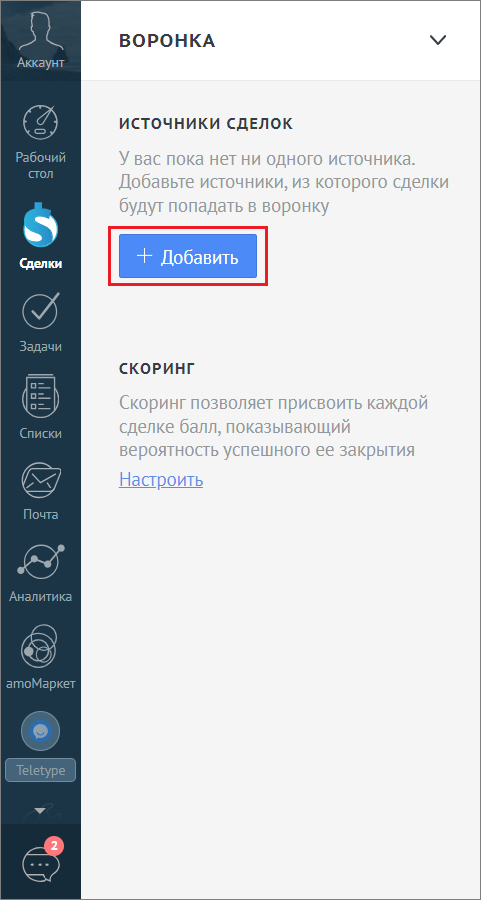
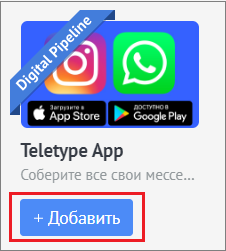
3. Click “+Add” in the Deals Source section.
4. In the window that opens, select Teletype App and click “Add.”
Refresh the AmoCRM page in your browser.
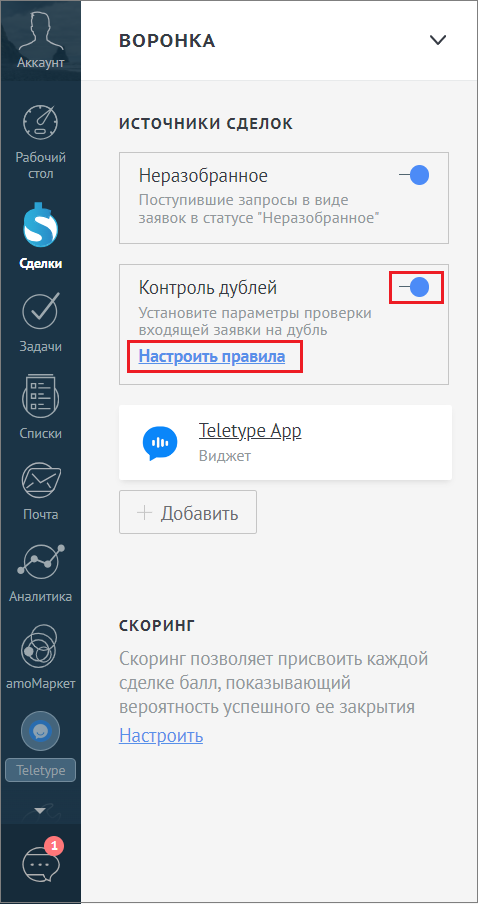
5. Enable Duplicate Control and click “Configure Rules.”
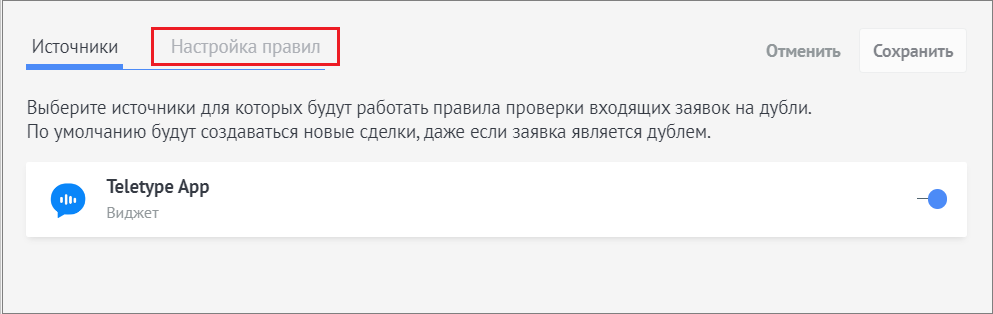
6. Go to “Configure Rules.”
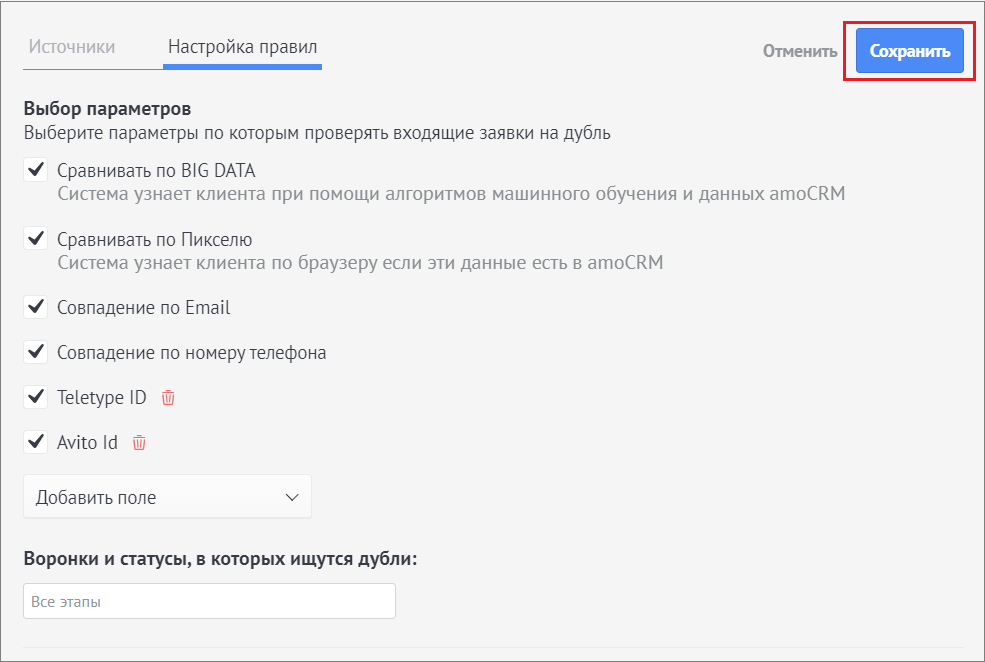
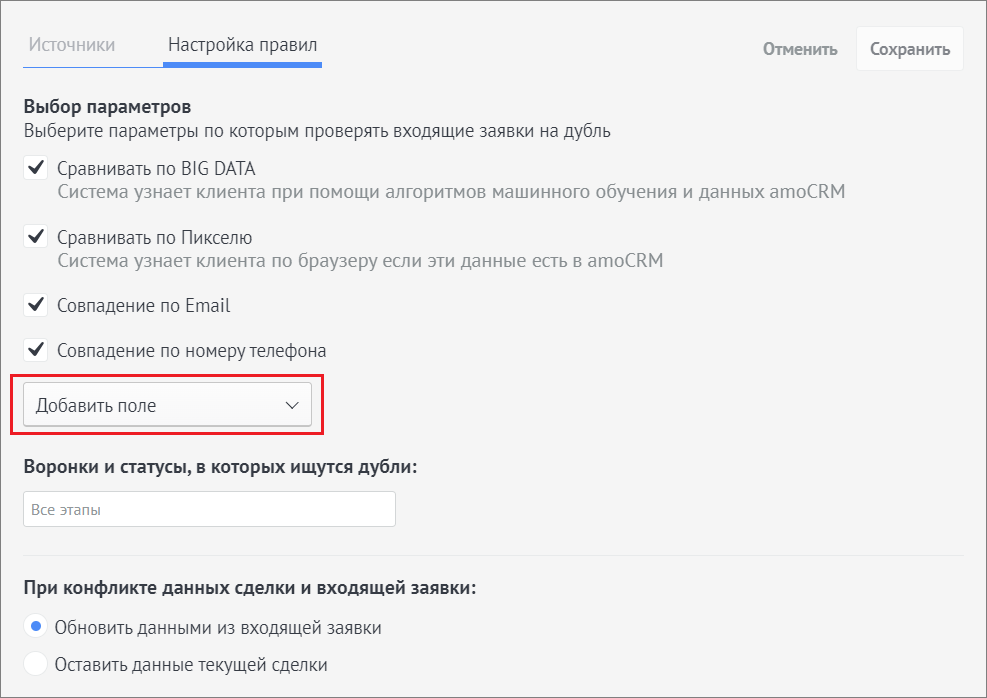
7. Select the parameters by which incoming requests will be checked for duplicates.
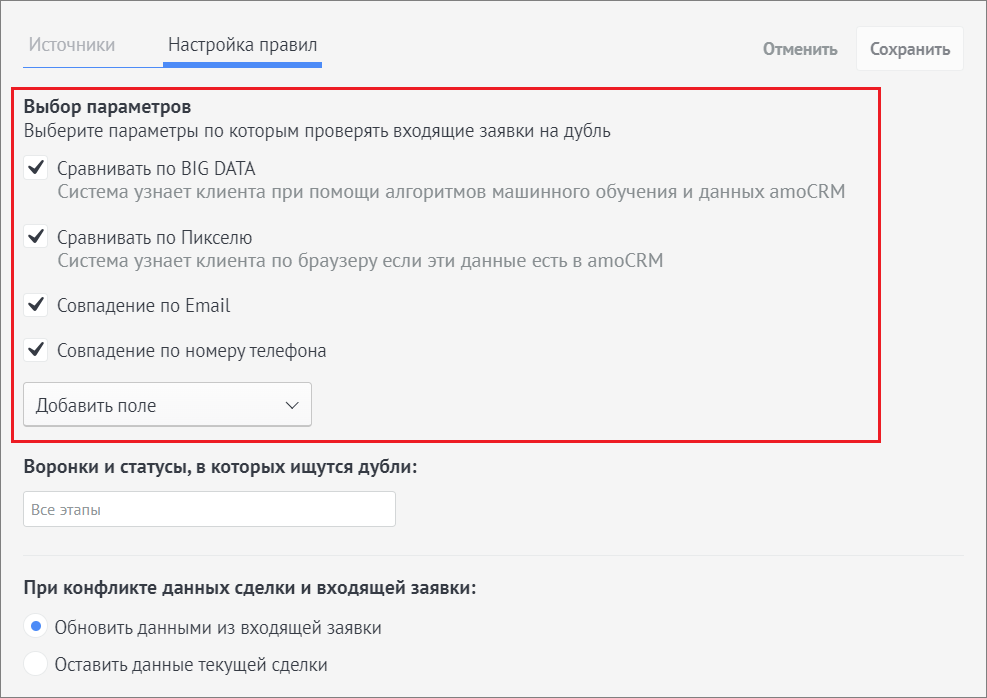
8. Click “Add Field.”
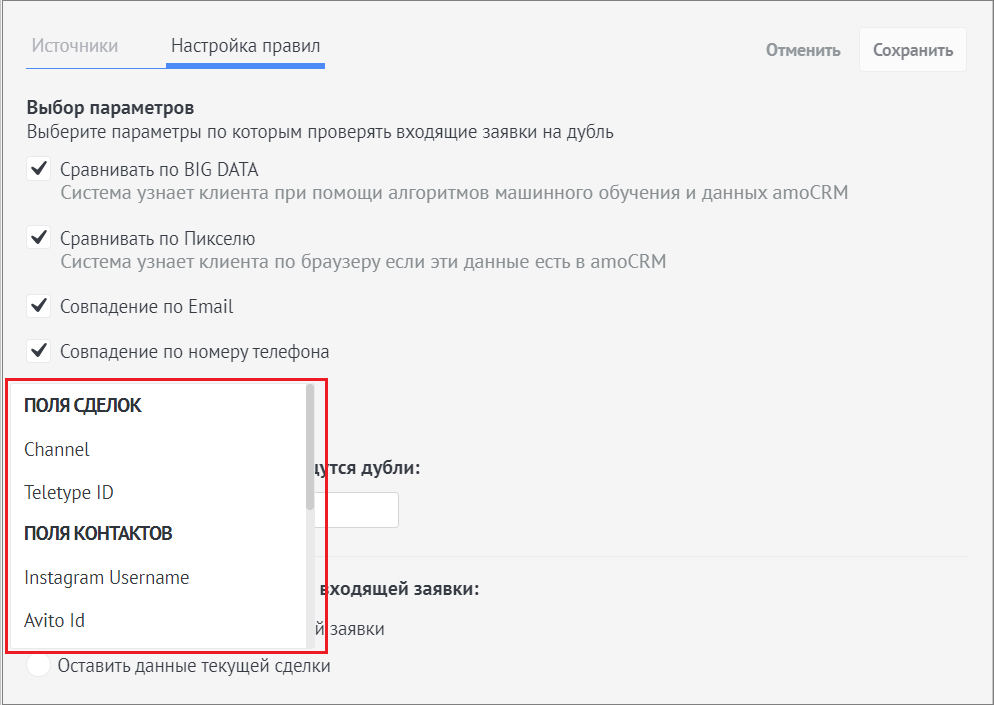
9. Select the desired additional parameters from the list that opens.
10. Click “Save.”